Scroll down to D0vvnl0ad
Why Choose an Ultimate PvP Pack Texture Pack for Minecraft PE/Bedrock?
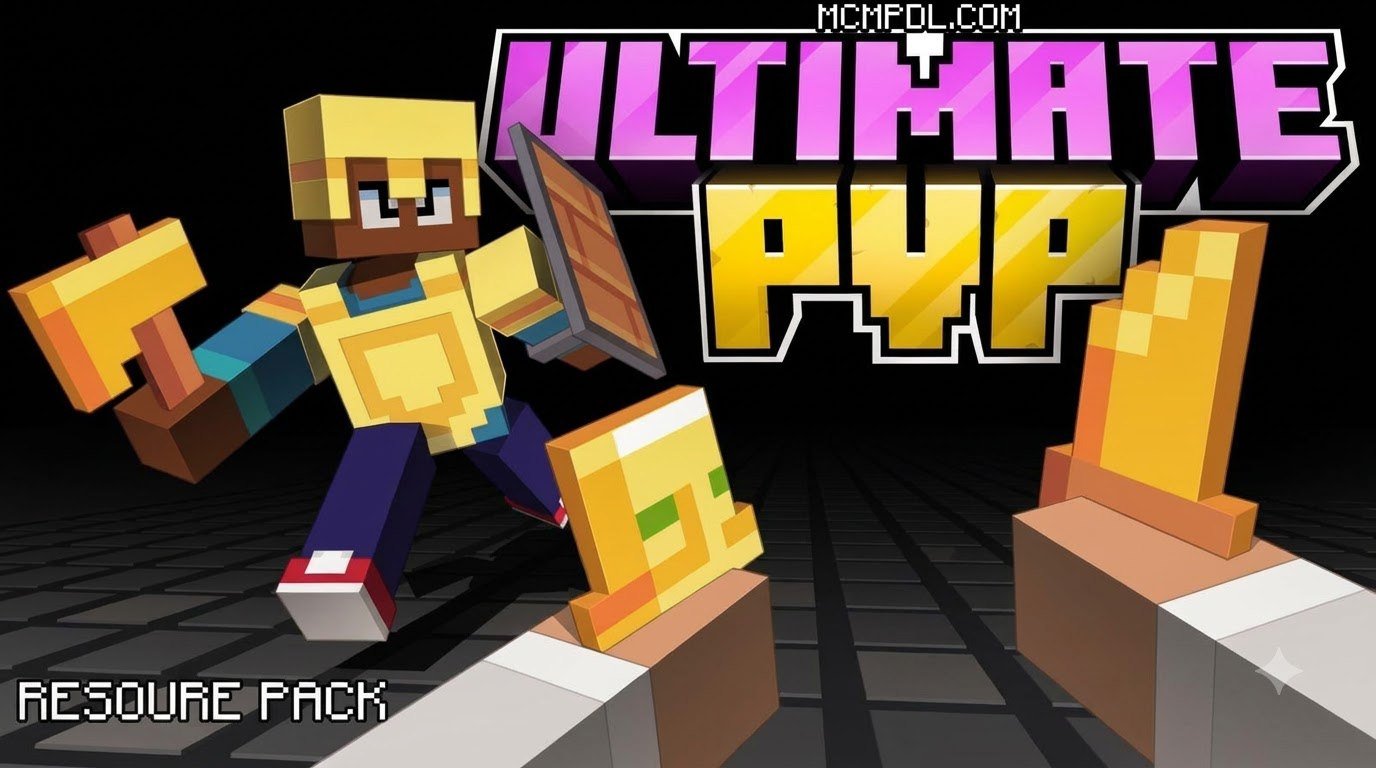
The best budget Ultimate PvP Pack Texture Pack for Minecraft PE/Bedrock choices are lightweight, free 16x packs like Ultimate PvP by ZenXveda and Atomic PvP. These packs optimize competitive performance by providing low fire animations, shortened sword models, transparent GUIs, and clean particle effects at zero monetary cost.
When stepping into competitive combat arenas on Minecraft Bedrock, every frame per second and every pixel of screen space counts. Vanilla Minecraft visuals are designed for atmospheric exploration, which means tall burning animations, bulky weapon sprites, and solid interface windows take priority over competitive readability.
Switching to specialized Texture Packs gives players an instant visual upgrade tailored for high-intensity action. Rather than cluttering the screen with elaborate environmental effects, a dedicated PvP setup strips away visual noise so you can react immediately to an incoming combo or a sudden projectile.
For mobile players and users on lower-spec hardware, performance optimization is another major reason to switch. Busy multiplayer servers featuring Bedwars, Skywars, or Duels place heavy demands on mobile processors. By utilizing optimized asset files that keep memory consumption low, your device maintains consistent framerates even when multiple players trigger particle effects at the exact same moment.
Combat Advantages Over Standard Vanilla Textures
Standard Minecraft textures can inadvertently work against you during combat. When you catch fire, vanilla flames consume nearly half of your display, completely obscuring your crosshair and your target.
PvP texture designs address this by implementing specific competitive tweaks:
- Low Fire Animations: Flame heights are cut down significantly, keeping your line of sight completely clear when engulfed in fire or lava.
- Short Swords and Daggers: Weapon models are shortened to occupy a fraction of the bottom corner, ensuring weapons do not block enemies moving across your peripheral vision.
- Transparent and Dark GUIs: Inventories, chests, and crafting menus feature semi-transparent or darkened panels, letting you monitor your surroundings while quickly organizing supplies.
- Highlighted Hitboxes and Outlines: Clean item silhouettes, distinct armor tiers, and brightly outlined ores ensure that you can identify enemy gear and valuable battlefield resources at a single glance.
- Minimalist Particle Trails: Critical hit stars, sharpness sweeps, and potion clouds are streamlined to prevent dense visual smoke during close-range melee trades.
Resolution Breakdown: 16x vs 32x vs 128x Performance
Selecting the right texture resolution is essential to balancing visual crispness with smooth gameplay. In Bedrock PvP, higher resolution is not always better; excessively high pixel densities can cause severe frame drops on phones and entry-level computers.
| Resolution | Visual Style | Hardware Demand | Competitive Suitability |
|---|---|---|---|
| 16x | Classic, pixel-accurate, ultra-clean | Very Low (Mobile, Switch, Low-End PC) | Optimal — Highest possible FPS and zero frame drops |
| 32x | Refined pixels, smooth weapon edges | Low to Medium (Mid-tier Phones, Consoles) | Great — Balances sharper art with steady frame pacing |
| 64x / 128x+ | High-definition art, detailed gradients | High (Gaming PCs, High-End Devices) | Casual / Cinematic — Can cause micro-stutters during intense fights |
The 16x format remains the competitive gold standard because it matches the default rendering scale of the Bedrock engine while eliminating heavy texture buffers.
Top Features to Look for in Budget-Friendly and Free PvP Packs
Upgrading your combat visuals does not require spending Minecoins. The community offers hundreds of fully featured, free packs distributed as .mcpack files that deliver top-tier performance at zero monetary cost.
When evaluating a free pack, look beyond simple weapon redesigns. Quality releases often include subpack sliders, letting you toggle specific features like custom crosshairs, varied sky saturation, or alternate sword lengths directly from your device settings. Community creations like Ultimate PvP by ZenXveda demonstrate how lightweight file structures (often under 1 MB) can provide clean visual polish without bloating your game storage.
Essential Game-Mode Enhancements in the Ultimate PvP Pack Texture Pack for Minecraft PE/Bedrock
Different PvP game modes demand distinct visual cues. Modern Bedrock combat encompasses everything from classic sword duels to explosive combat:
- Crystal PvP and Anchor Combat: Crystal PvP requires instant recognition of explosive items. Quality packs feature bright, high-contrast End Crystal sprites, 2D crystal item toggles, distinct respawn anchor charging levels, and low-smoke explosion particles so you can place and detonate crystals without getting blinded.
- Bedwars and Skywars Bridging: Outlined wool, terracotta, and stained clay blocks make fast-bridging significantly easier by giving you clear block edges to aim at.
- Custom Totem Pops and Audio Effects: Packs like the Atomic Ultimate PVP Texture Pack incorporate sleek totem animations that do not fill the whole screen upon activation, paired with crisp custom hit sounds that confirm strikes even during chaotic team fights.
- Streamlined Armor Profiles: Distinct visual differences between Diamond and Netherite armor allow you to evaluate your opponent’s gear level instantly from a distance.
Customizing Visuals with Overlays and Hybrid Mixes
You do not have to settle for just one visual style. The Bedrock engine allows players to stack multiple resource packs on top of each other in the Global Resources menu.
By loading a dedicated base pack and then placing a specialized overlay on top, you can create a personalized look. For example, you can pair a broad environmental overhaul like the Vibrant Modern Textures Pack for Minecraft PE/Bedrock with a focused combat overlay like the UltimatePvP Overlay to enjoy stylized world blocks alongside minimalist short swords, clear hit markers, and custom pot timers.
How to Install and Optimize PvP Resource Packs Across Bedrock Devices
Installing custom texture packs on Minecraft Bedrock Edition is straightforward across all modern platforms, whether you play on Android, iOS, or Windows 10/11.
Step-by-Step Installation for the Ultimate PvP Pack Texture Pack for Minecraft PE/Bedrock
Follow these steps to download, install, and activate your preferred PvP pack on any supported Bedrock device:
- Download the Pack File: Obtain the desired
.mcpackfile from a verified source. High-performing community options like Kakarot’s Ultimate Pvp Pack Texture Pack or marketplace offerings provide clean installation packages. - Execute the File:
- Android / iOS: Tap the downloaded
.mcpackfile in your browser downloads or mobile file manager. Select “Open with Minecraft” to trigger the automatic import. - Windows 10/11: Double-click the
.mcpackfile; Minecraft will launch automatically and display an “Import Started” notification at the top of your screen.
- Android / iOS: Tap the downloaded
- Open Global Resources: From the Minecraft main menu, click or tap Settings, scroll down the left-hand sidebar, and select Global Resources.
- Activate Your Pack: Click on My Packs, locate your newly imported pack, and select Activate.
- Adjust Priority Order: Check the Active tab. If you are using multiple resource packs or overlays, ensure your primary combat pack or overlay is placed at the very top of the list so its custom swords, GUIs, and particles override the packs below it.
Java to Bedrock Conversion and Updating for New Releases
Many iconic PvP packs were originally created for Java Edition. Fortunately, bridging the gap between editions has become effortless. Free automated conversion tools and community Discord bots allow you to convert Java texture .zip archives into ready-to-use Bedrock .mcpack files in seconds.
When converting or updating packs for newer game versions (such as Bedrock 1.21+ updates), ensure that the pack’s manifest.json file contains updated format versions to avoid UI parsing errors. If you prefer pre-configured mobile combat packages that require no manual tweaking, comprehensive kits like the Ultimate PvP Kit offer compact file sizes ready for current engine versions right out of the box.
Troubleshooting Common Bedrock Texture Pack Glitches
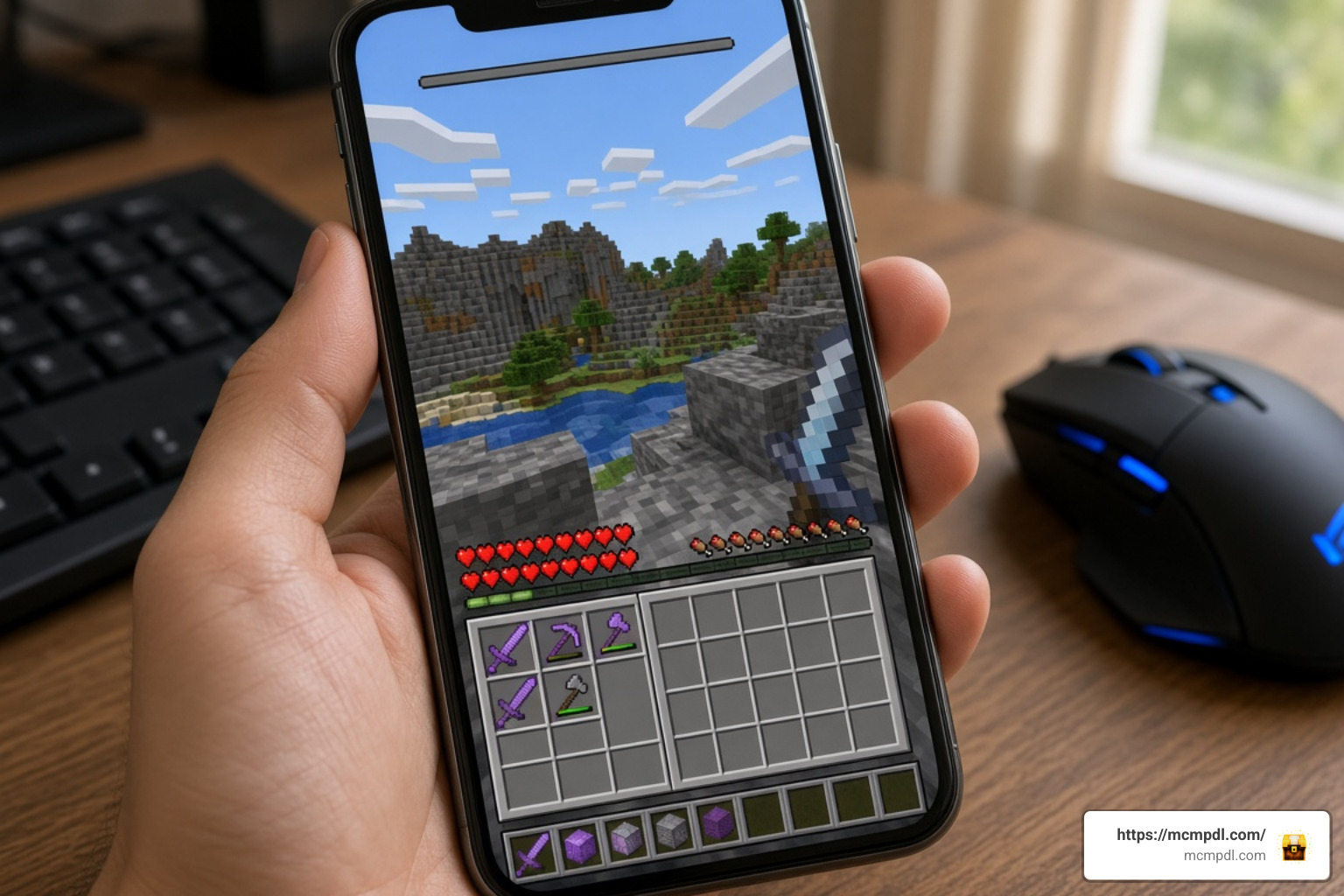
Even well-crafted resource packs occasionally experience visual hiccups after major game patches. Here is how to fix the most common Bedrock texture glitches:
- Missing UI or Inventory Lockouts: If your inventory screen appears blank or fails to open after activating a pack, the custom GUI files may be conflicting with the current engine version. Access the pack’s gear icon in Global Resources and switch the subpack slider to a classic UI mode, or deactivate conflicting sub-overlays.
- Purple-and-Black Checkerboard Patterns: This occurs when the engine cannot locate an updated texture file for a new item. Re-download the latest version of the pack, or place a vanilla default texture pack directly underneath your PvP pack in the load order to fill missing item slots.
- Hitbox Glitches and Ghost Overlays: If custom hitboxes persist after deactivating a pack, Minecraft’s global cache may still be holding the old asset files. Navigate to Settings > Storage > Resource Packs, delete the cached pack instance, restart the game, and reinstall the clean file.
Frequently Asked Questions About Bedrock PvP Texture Packs
Do PvP texture packs boost FPS on mobile devices?
Yes. Lightweight 16x PvP texture packs help boost and stabilize framerates on mobile devices by removing high-resolution particle textures, simplifying complex block rendering passes, and keeping texture memory usage under tight limits during combat.
What is the difference between a texture pack and a resource pack in Bedrock?
In modern Minecraft Bedrock terminology, texture packs are officially classified under the broader umbrella of resource packs. While classic texture packs only modified block and item images, modern Bedrock resource packs can alter textures, sounds, particle behaviors, fonts, and user interface layouts.
Are third-party Bedrock PvP packs safe to download?
Third-party packs distributed as .mcpack or .zip archives containing standard texture files (.png, .json) are entirely safe. Never run executable files (.exe) disguised as resource packs, and always ensure your downloads match their expected lightweight file sizes.
Conclusion
Upgrading your combat setup with an optimized texture pack is one of the most effective ways to sharpen your reaction times, clear away visual distractions, and maintain silky-smooth framerates across all Bedrock platforms. Whether you prefer aggressive 16x short swords for Bedwars rushes or specialized crystal explosion overlays, tailoring your visual environment gives you the clarity needed to dominate your matches.
Ready to customize your Minecraft Bedrock experience with more performance-focused visual overhauls, skins, and worlds? Explore all Minecraft Bedrock packs and add-ons on MCMPDL today to build your ultimate competitive setup!
8 thoughts on “Ultimate PvP Pack Texture Pack for Minecraft PE/Bedrock”