Scroll down to D0vvnl0ad
Scroll down to D0vvnl0ad
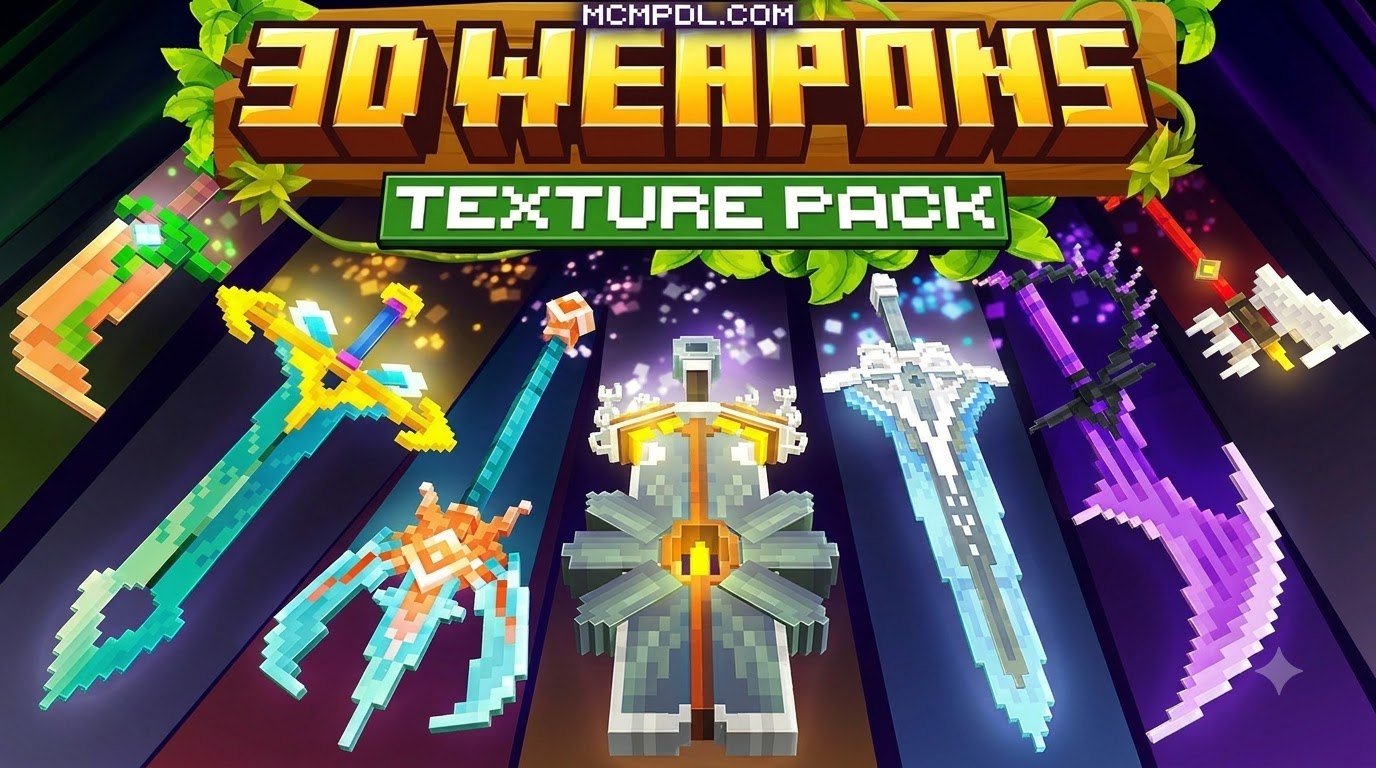
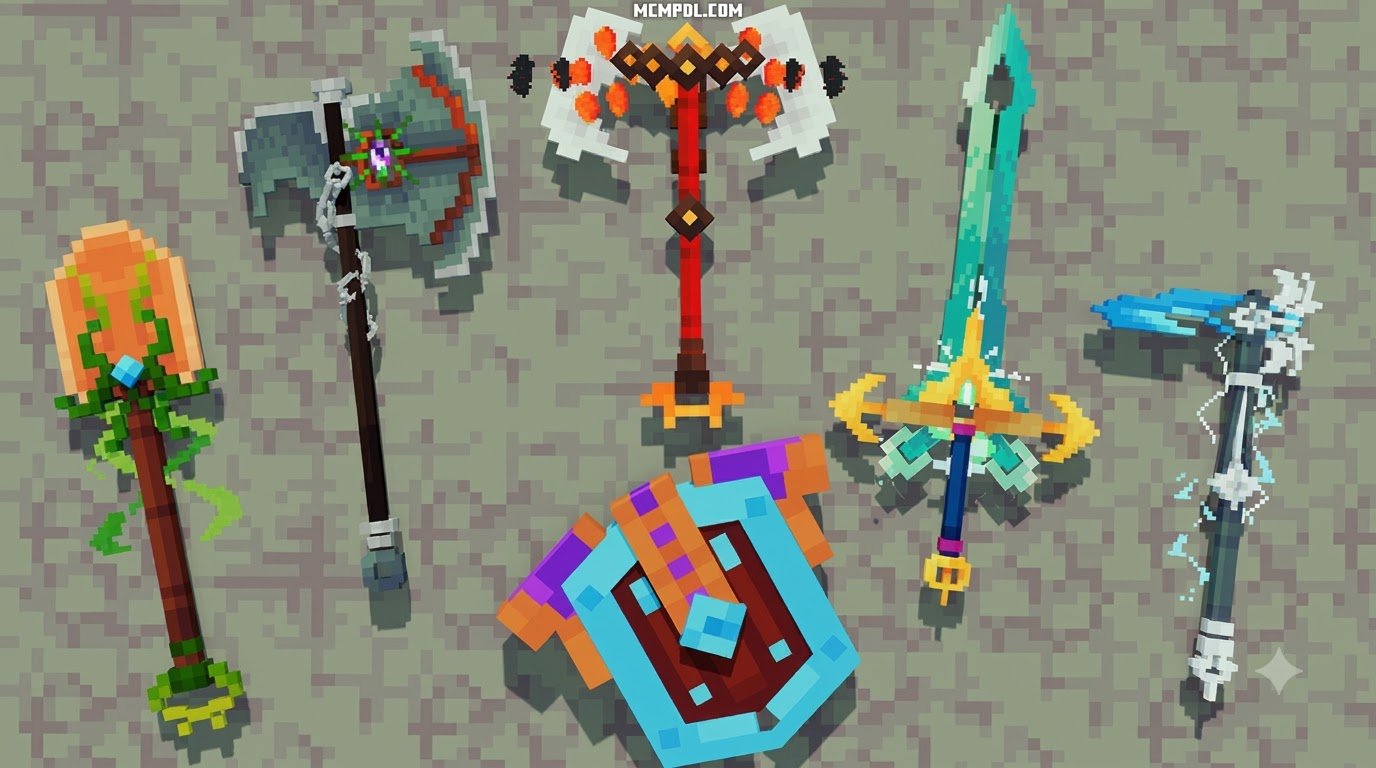
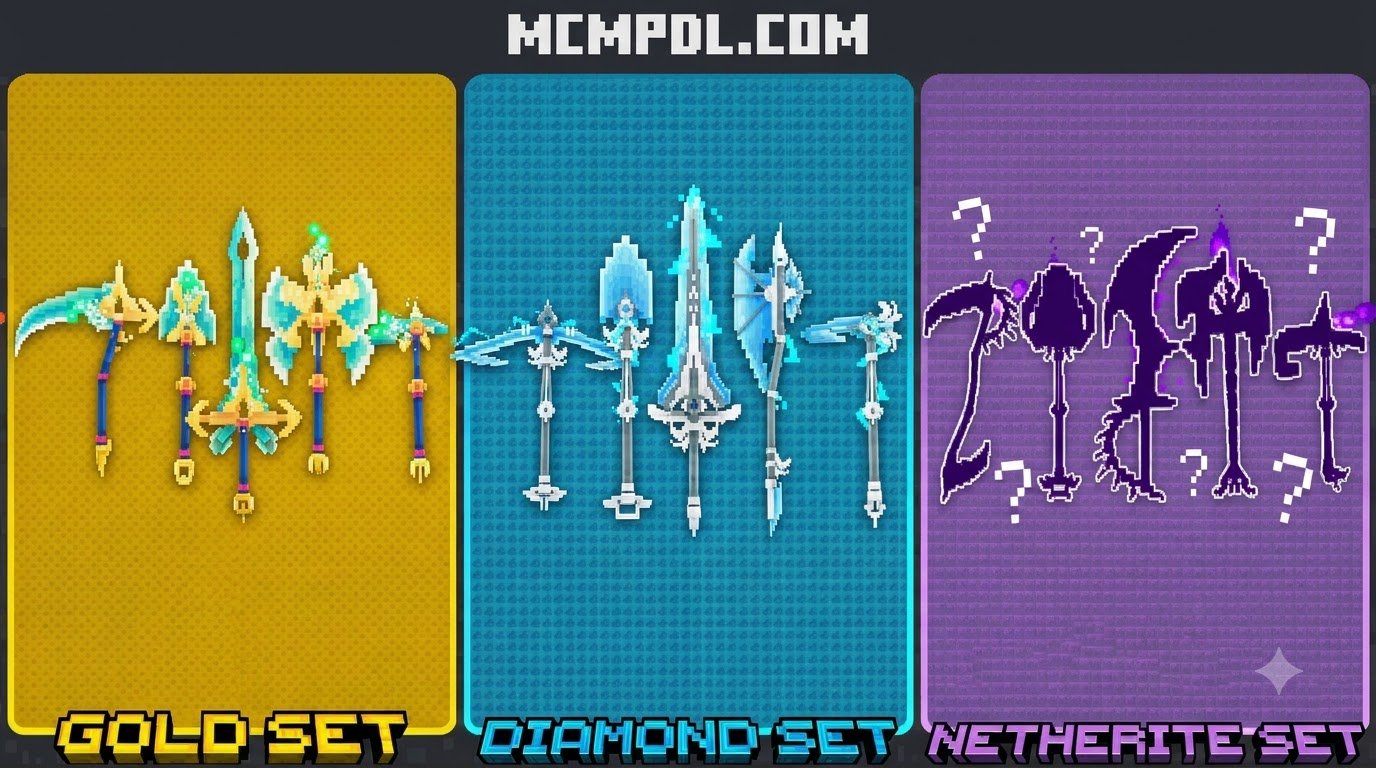
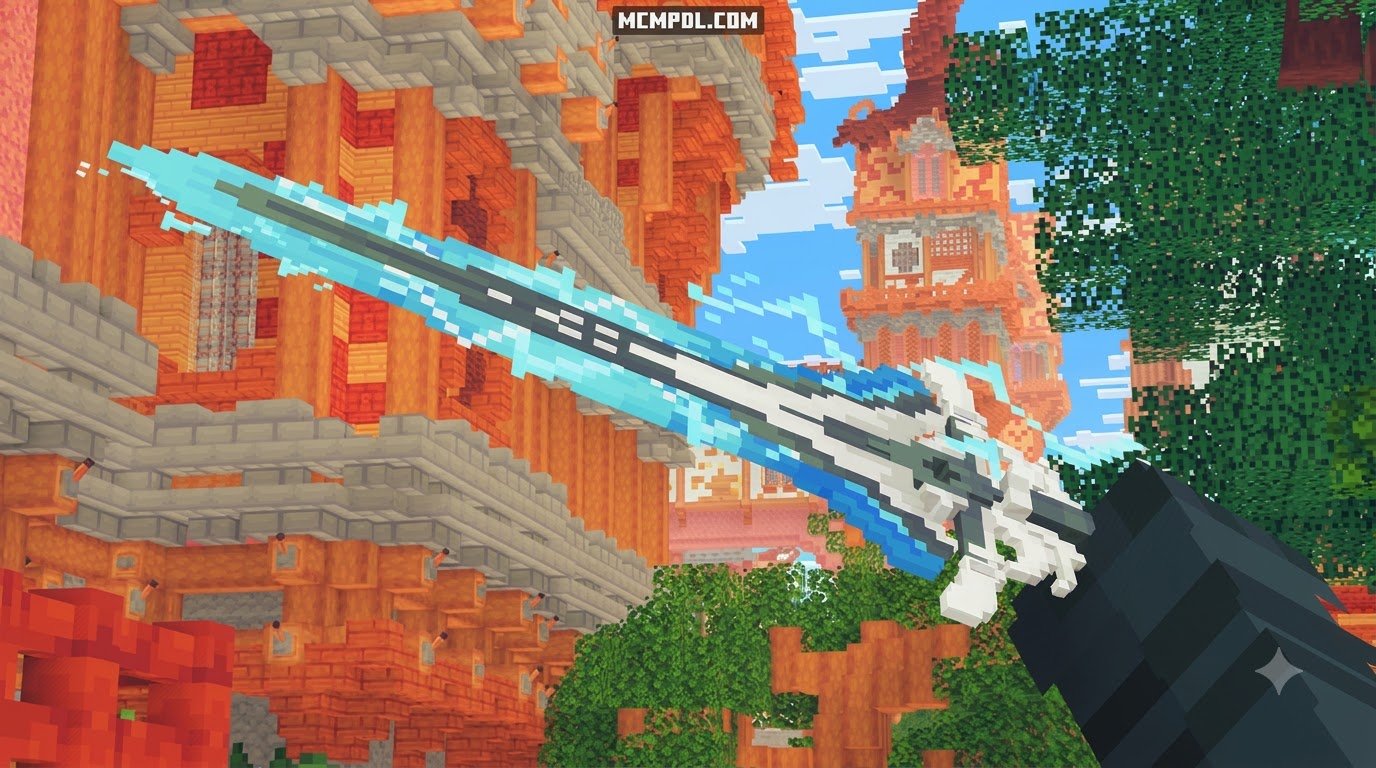
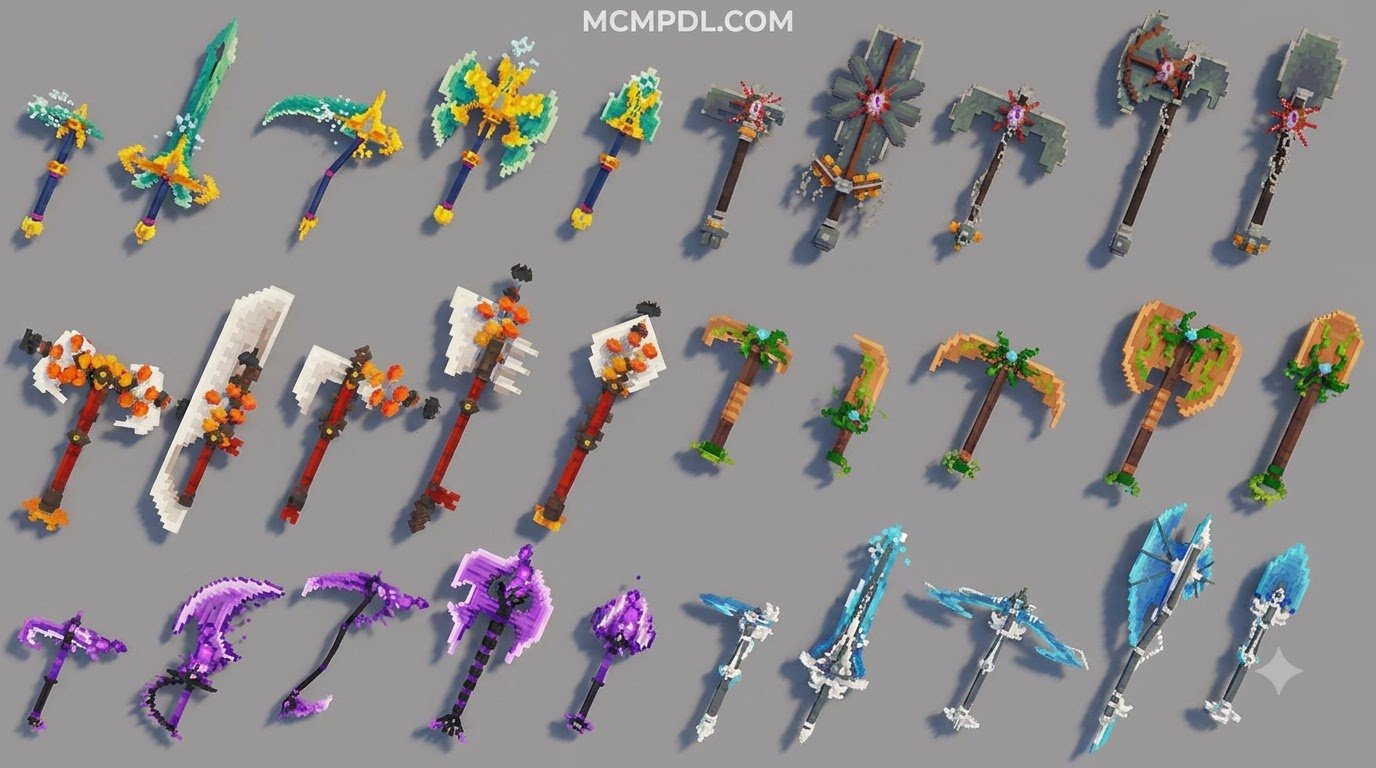
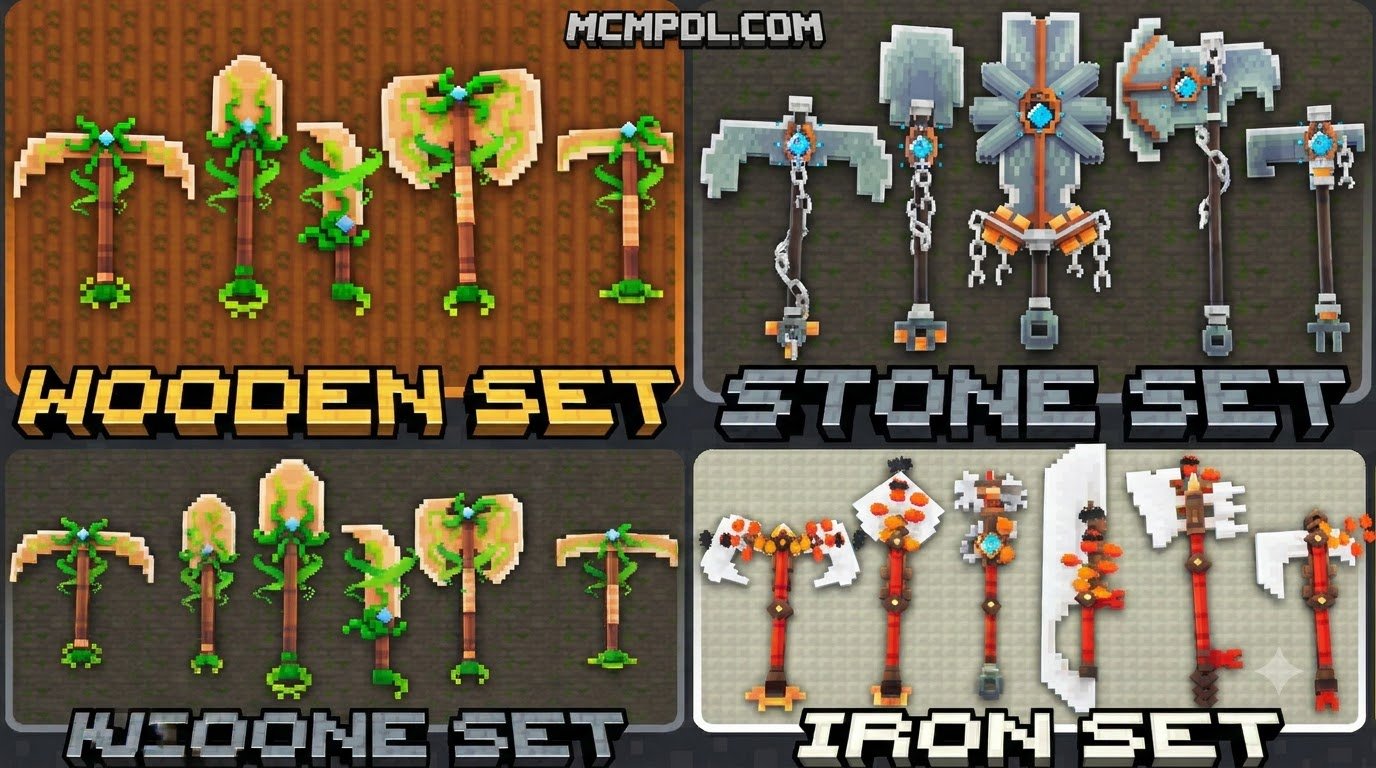
Get 3D Weapons Working in Minecraft PE/Bedrock
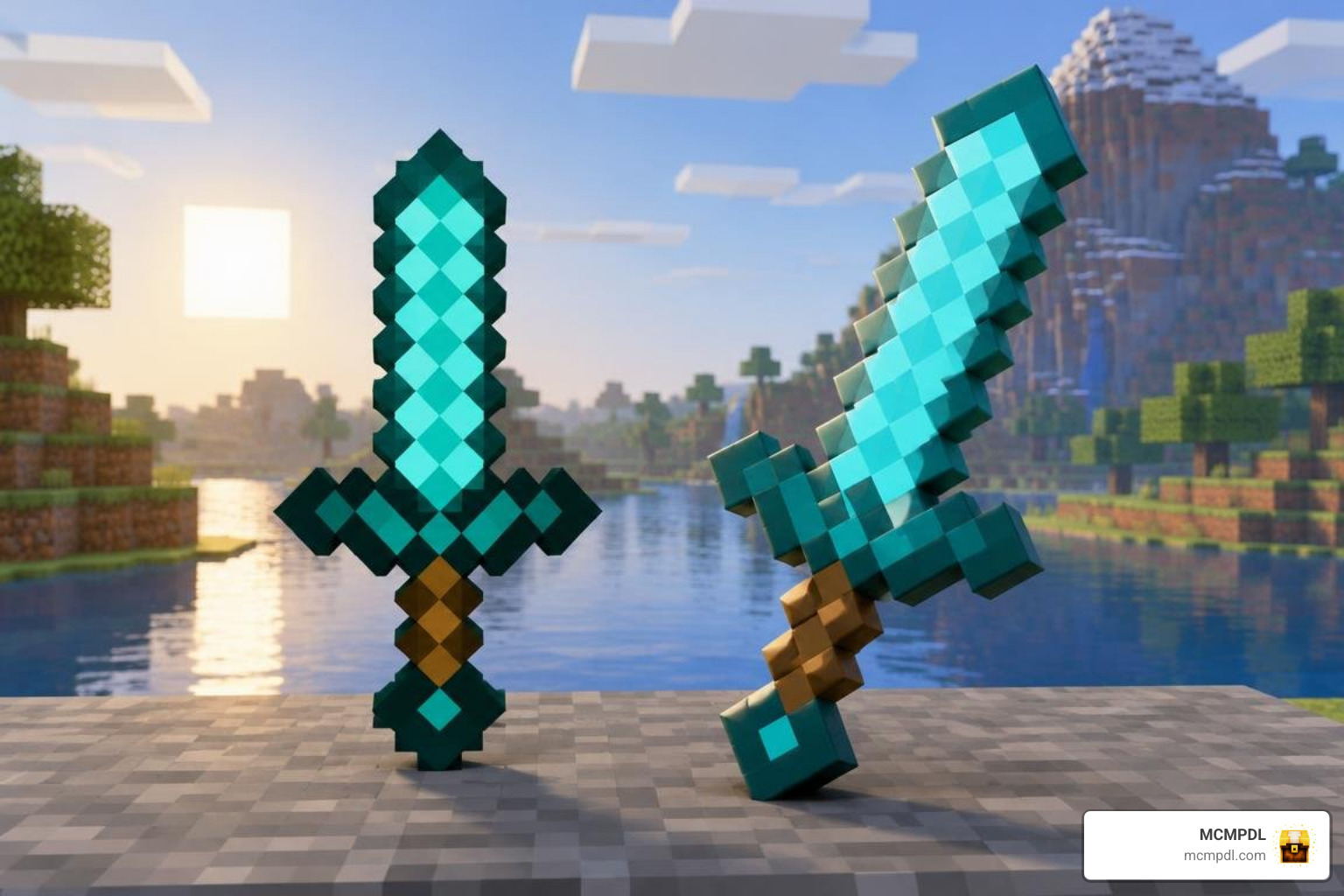
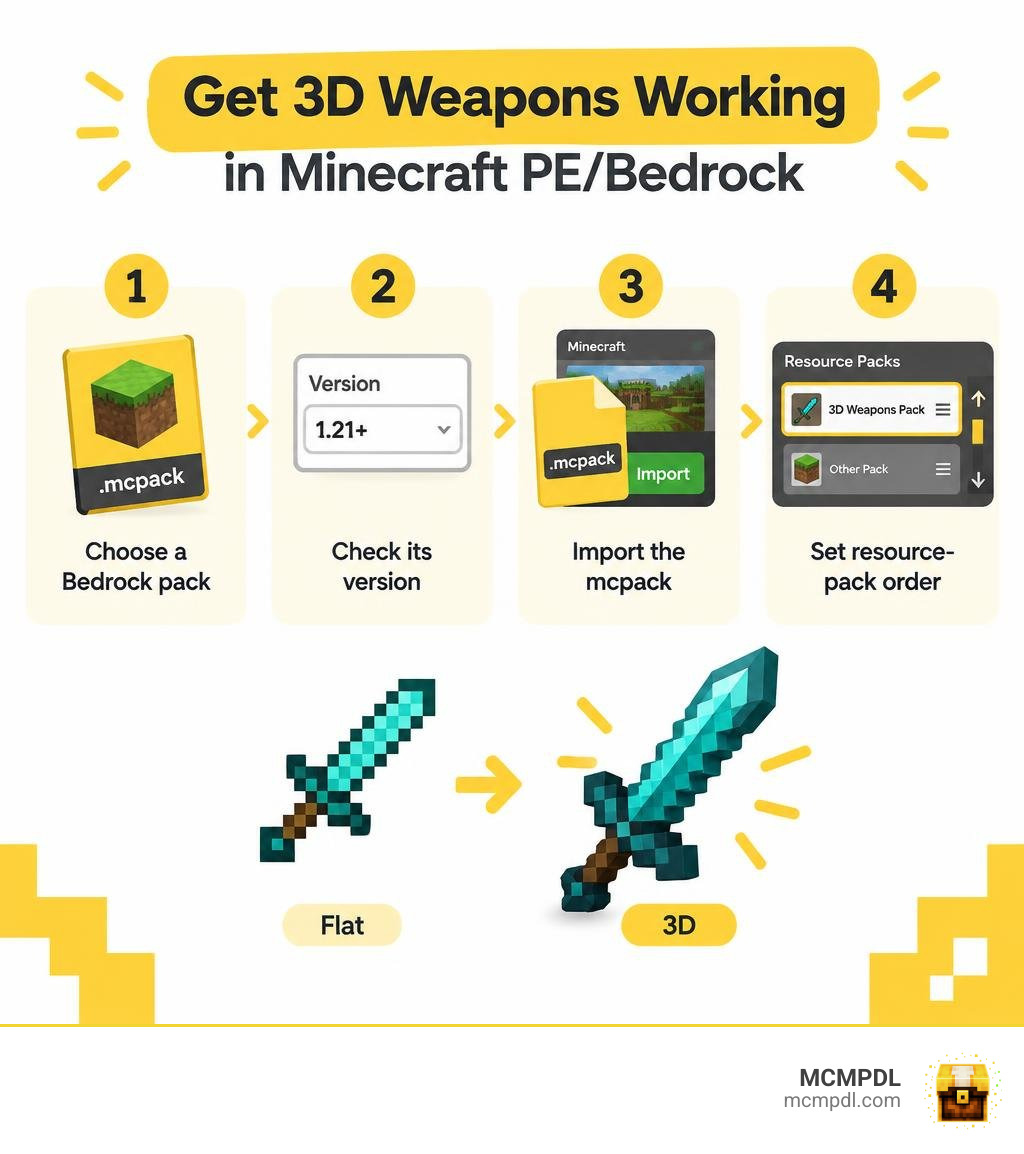
To install a 3D Weapons Texture Pack for Minecraft PE/Bedrock, choose a Bedrock-compatible .mcpack that matches your game version. Open it with Minecraft, then activate it in your world’s Resource Packs. If another pack changes the same weapons, place the 3D pack above it in the load order.
Tactical 3D Tools is one option for a 3D look. It can work with Actions & Stuff when you enable that add-on’s 3D Tools and 3D Arrow settings. Check the edition before downloading: Java-only weapon packs will not work directly in Bedrock. A resource pack changes how weapons look, not how much damage they deal.
3D Weapons Texture Pack for Minecraft PE/Bedrock: Best Options
Options can look similar in screenshots but work very differently in-game. Some are designed for Bedrock, while others use Java Edition features that Bedrock does not support. Check the edition and file type before downloading.
| Pack | Bedrock support | What it offers | Version and setup notes |
|---|---|---|---|
| Tactical 3D Tools X Actions & Stuff | Bedrock-focused | Tactical medieval and military-style 3D tools and weapons; two scale configurations | Reported for Bedrock 26.50 and 26.40; enable Actions & Stuff settings if using it |
| Fantasy 3D Weapons CIT | Java Edition | 30 fantasy weapon models activated by renaming swords or axes | CIT-based; requires the appropriate Java setup and exact item names |
| MJ’s Better 3D Tools & Weapons | Java Edition | Tool and weapon models with enchantment-, durability-, and keybind-dependent variations | Listed for Java 1.21.11, 1.26.1.x, and 26.2-snapshot-6 |
| Kz’s 3D Tools | Edition should be verified | 3D models for tools and weapons | Files are listed for 26.1 and 1.21.11; check the specific download for Bedrock support before installing |
Bedrock packs commonly import as .mcpack files. A .zip download or Java-specific feature such as CIT is not proof that a pack will work on Bedrock. When a listing does not clearly say Bedrock, treat compatibility as unconfirmed.
How to choose a 3D weapons texture pack for Minecraft PE/Bedrock
Start with the edition and game version, then consider the visual style and how you plan to play. Tactical 3D Tools is a Bedrock-focused choice for players who want a medieval-meets-military look. Its listing reports more than 132,309 downloads and describes two scale options intended to suit different preferences, including PvP.
If you already use Actions & Stuff, check whether the pack’s instructions specify compatibility and load order. Tactical 3D Tools is designed to work with its 3D Tools and 3D Arrow settings enabled. Its creator also describes expansion to weapons from various add-ons, but that does not guarantee every add-on item is covered. Verify the item or add-on is supported, and test it in a copy of your world first.
For PvP, smaller models may be easier to keep out of your view, but a texture pack does not alter weapon reach or damage. Choose the scale option that feels clear on your screen and test it in the same perspective and device setup you use to play.
Which 3D weapons texture pack for Minecraft PE/Bedrock options are actually Bedrock-compatible?
Of the packs in this roundup, Tactical 3D Tools is the one specifically described as a Bedrock port. The other examples are useful to know about, but their listed features are associated with Java Edition or their Bedrock support is not confirmed.
Fantasy 3D Weapons CIT adds 30 fantasy-style weapon models. Its CIT system uses an anvil rename to apply a model to a sword or axe, so the item’s exact name matters. The full naming list is provided separately by the pack’s creator. That workflow depends on Java CIT support and is not a direct Bedrock installation method.
MJ’s Better 3D Tools & Weapons is also listed for Java. It includes model variations linked to enchantment, durability, and keybind state, but those details should not be assumed to work in Bedrock. Kz’s 3D Tools has separate files listed for Minecraft 26.1 and 1.21.11, including a 26.1 file and earlier 1.21.11 releases. Those version labels alone do not confirm Bedrock compatibility, so check the download’s edition and format before trying it on mobile.
How to Install a 3D Tools Resource Pack on Minecraft PE/Bedrock
For the simplest install, use a Bedrock .mcpack file that matches your Minecraft version. Opening the file with Minecraft usually imports the pack automatically. If the download is a ZIP, first check the creator’s instructions: it may contain a .mcpack inside, or it may be an archive that needs to be extracted. Do not rename a ZIP to .mcpack; changing the file extension does not convert the file.
After import, activate the pack either for one world or as a global resource. World-specific packs are useful for testing compatibility without changing the look of every world. Global packs apply more broadly, so check the active list if a pack seems to affect worlds unexpectedly.
Minecraft’s menus can change between releases. For official steps for enabling add-ons and packs, see Minecraft’s Bedrock activation instructions.
Install and activate the pack on mobile or Windows
- Download the Bedrock version of the pack from its download page, and check that it matches your Minecraft release.
- On Android, open the
.mcpackfrom your downloads or file manager and choose Minecraft if prompted. On iOS, use the Files app to open or share the file with Minecraft. On Windows, double-click the.mcpackor open it with Minecraft. - Wait for Minecraft to show an import confirmation. If the import fails, check the file type and version before trying again.
- In Minecraft, open Settings and look for Storage or Resource Packs to confirm the pack appears. Menu labels can vary by version.
- To use it in a specific world, open that world’s settings and add the pack under Resource Packs. For a global setup, activate it from the global resource-pack menu.
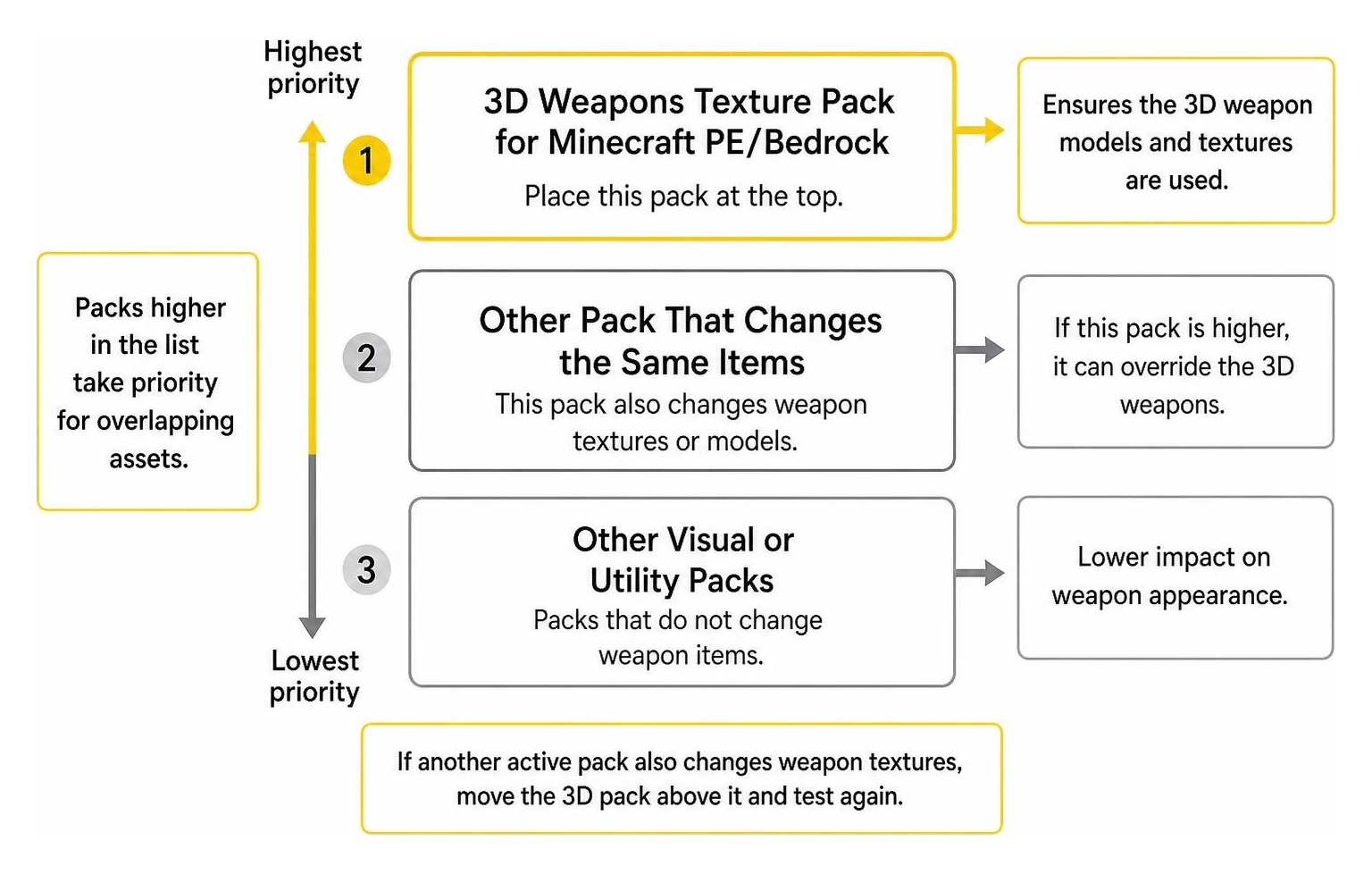
- If another active pack also changes weapon textures, move the 3D pack above it. Restart Minecraft if the new models do not appear.
Fix common mobile installation problems
- The file opens in the wrong app: Use your file manager’s open or share option and select Minecraft. If Minecraft is missing from the app list, check that the file is a valid Bedrock
.mcpack. - The download is a ZIP: Extract it only if the creator’s instructions require it. If it contains a
.mcpack, open that file with Minecraft. A ZIP is not automatically a Bedrock pack. - Minecraft reports an import error: Confirm the download is complete, matches your game edition, and is intended for your game version. Try downloading it again if the file appears incomplete.
- The pack does not appear in the menu: Check the import confirmation and the Resource Packs list. Restart Minecraft, then look again.
- The models look unchanged: Another pack may override the same textures. Move the 3D pack higher in the active list and test again.
- The game stutters or storage is low: Close other apps, free up device storage, and test the pack on a copy of a world. Complex models and other active packs can add rendering work, especially on older mobile devices.
Compatibility, Add-On Load Order, and Gameplay
Resource packs can override the same item textures, so order matters when several are active. The pack nearer the top generally takes priority for overlapping assets. A conflict may show up as a missing model, an unexpected weapon design, or a vanilla-looking item.
The 3D appearance can also change what you see while playing. A large model may cover more of the screen or make it harder to track what is happening in a fight. Smaller scale settings, if provided, can help. Performance varies by device, world, and the number of active packs, so test before relying on a setup for PvP.
Can a 3D weapons texture pack for Minecraft PE/Bedrock work with add-ons?
Sometimes. Compatibility depends on whether the resource pack includes models or textures for the add-on’s items, and whether both packs use overlapping assets. A pack designed to expand coverage to add-on weapons still may not support every item or add-on release.
For Tactical 3D Tools with Actions & Stuff, first open Actions & Stuff’s settings using the icon beside its deactivate button. Enable 3D Tools and 3D Arrow, then apply Tactical 3D Tools above Actions & Stuff in the active resource-pack list. You need access to Actions & Stuff to use those settings. If the models do not display correctly, check the pack’s latest instructions and test with other overlapping packs disabled.
You can also combine visual changes with Bedrock content that adds new gear or focuses on ranged combat, such as fantasy weapons and gear or bow-focused gameplay. These are add-ons, not substitutes for a compatible resource pack; confirm that each item appears as intended in your setup.
Enchantments, durability, naming, and version support
Enchantment glint is a separate visual effect from a weapon model. Whether it remains visible depends on how the pack handles the item’s textures and how Minecraft renders the active pack combination. Java packs such as MJ’s Better 3D Tools & Weapons advertise variations tied to enchantment and durability, but that behavior is not automatically available in a Bedrock pack.
Anvil renaming is relevant to CIT packs such as Fantasy 3D Weapons CIT. Use the exact name specified by that pack, including capitalization where required. Its creator provides a full naming list separately. Bedrock users should not expect a Java CIT rename trigger to work unless a Bedrock-native pack explicitly documents the feature.
For older Java versions below 1.21.5, Fantasy 3D Weapons CIT lists OptiFine or CIT Resewn as a requirement, along with the corresponding pack version. These are Java-specific dependencies, not a way to install the pack on PE/Bedrock.
For Bedrock downloads, use the versions stated by the pack itself. Tactical 3D Tools is listed for 26.50 and 26.40. Kz’s files include versions labeled 26.1 and 1.21.11, but check the edition as well as the version number. A matching number by itself does not guarantee compatibility.
Frequently Asked Questions About 3D Weapons Packs
Do 3D weapon models change damage, reach, or PvP performance?
A resource pack changes appearance; it does not normally change weapon damage, reach, or other gameplay statistics. It can affect practical visibility: a model that takes up more screen space may obscure nearby players or targets. Rendering extra detail can also affect frame rate on some devices, particularly when several packs are active. Test the model and scale in your usual world before using it in PvP.
Do I need to rename weapons, and can I adjust their scale?
Most Bedrock texture packs do not use Java CIT naming unless their instructions specifically say they do. Fantasy 3D Weapons CIT uses anvil renaming in Java, with exact names needed to select models. Tactical 3D Tools instead offers two scale configurations, according to its listing. Follow the pack’s own setup notes; options and item triggers vary from pack to pack.
Can I use Java 3D weapons packs on Minecraft PE/Bedrock?
Usually not directly. Java and Bedrock use different resource-pack systems, and Java features such as CIT may rely on Java-specific support. Download a pack explicitly marked for Bedrock or Minecraft PE, and check its file format and version notes. A Java ZIP should not be treated as a Bedrock pack simply because it contains 3D weapon models.
Conclusion
Choose a pack that clearly supports your edition, then check its game-version notes and installation format. If you combine it with other resource packs or add-ons, test the load order and model visibility in a copy of your world. Mobile players should also check available storage and performance before adding several detailed packs at once.
We organize Bedrock downloads and guides to make it easier to find content for Minecraft PE/Bedrock. With the right edition-matched pack and a quick load-order check, those flat weapon sprites can get a fresh 3D look without changing the way combat works.