Scroll down to D0vvnl0ad
Find the Right Dark Mode Texture Pack for Minecraft PE/Bedrock
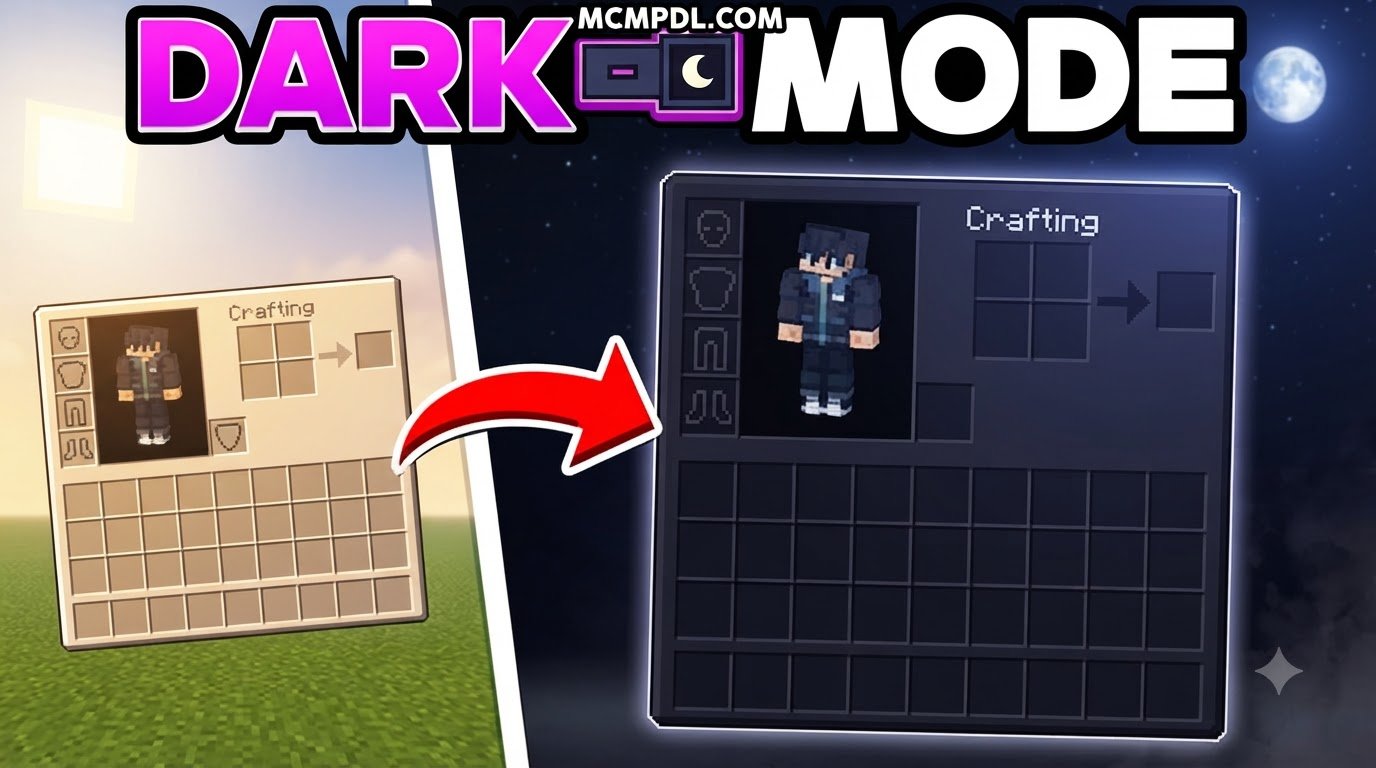
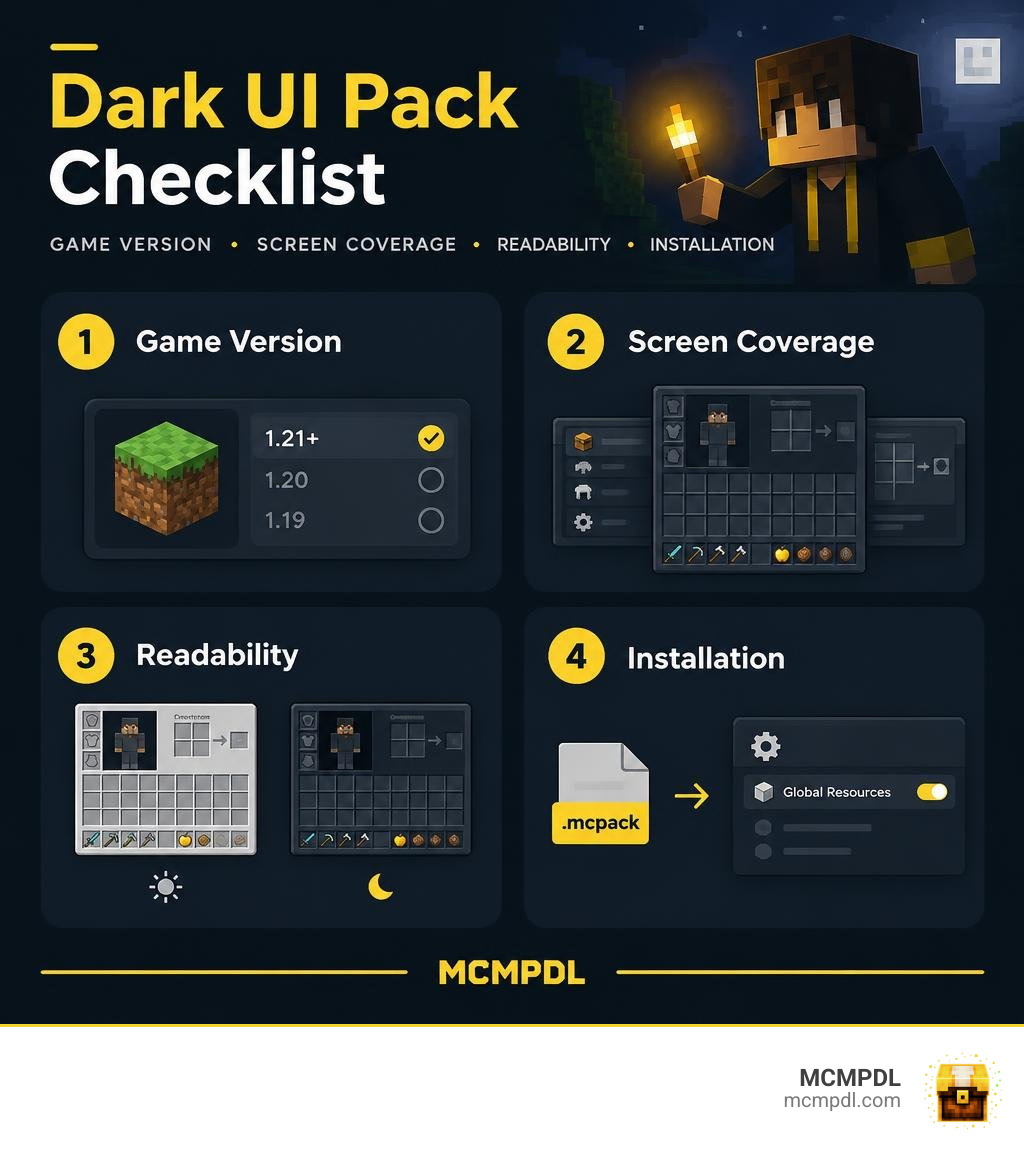
A dark mode texture pack changes Minecraft Bedrock’s bright menus and inventory screens to darker colors. It can make the interface more comfortable to use at night without changing the game’s blocks or core gameplay. To get started, choose a pack that lists your Minecraft version, import its .mcpack file, and turn it on in Settings > Global Resources.
Not every dark UI pack covers the same screens or supports the same updates. This guide compares five options so you can find a look you like and avoid common compatibility problems. For broader context on how Bedrock handles resource pack layering and UI inheritance, the Minecraft Wiki resource pack guide explains the underlying file structure and load order.
Why Use a Dark Mode Texture Pack for Minecraft PE/Bedrock?
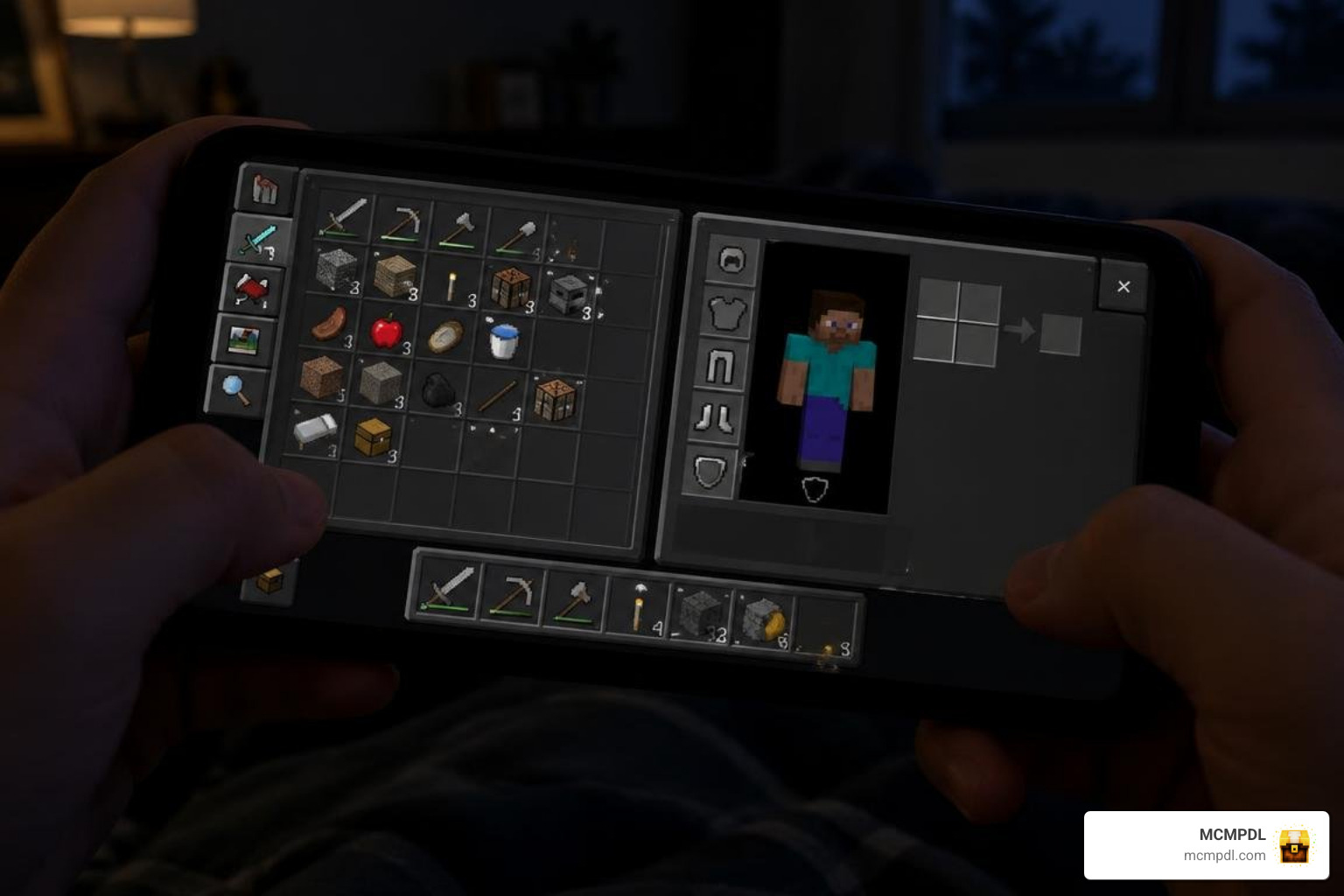
Opening a bright white crafting table or chest interface in a dim room can quickly strain your eyes. Standard Bedrock user interface (UI) panels use light stone-grey backgrounds that contrast heavily with dark in-game environments. Switching to a dark theme softens your entire screen transition, making late-night survival sessions far more comfortable.
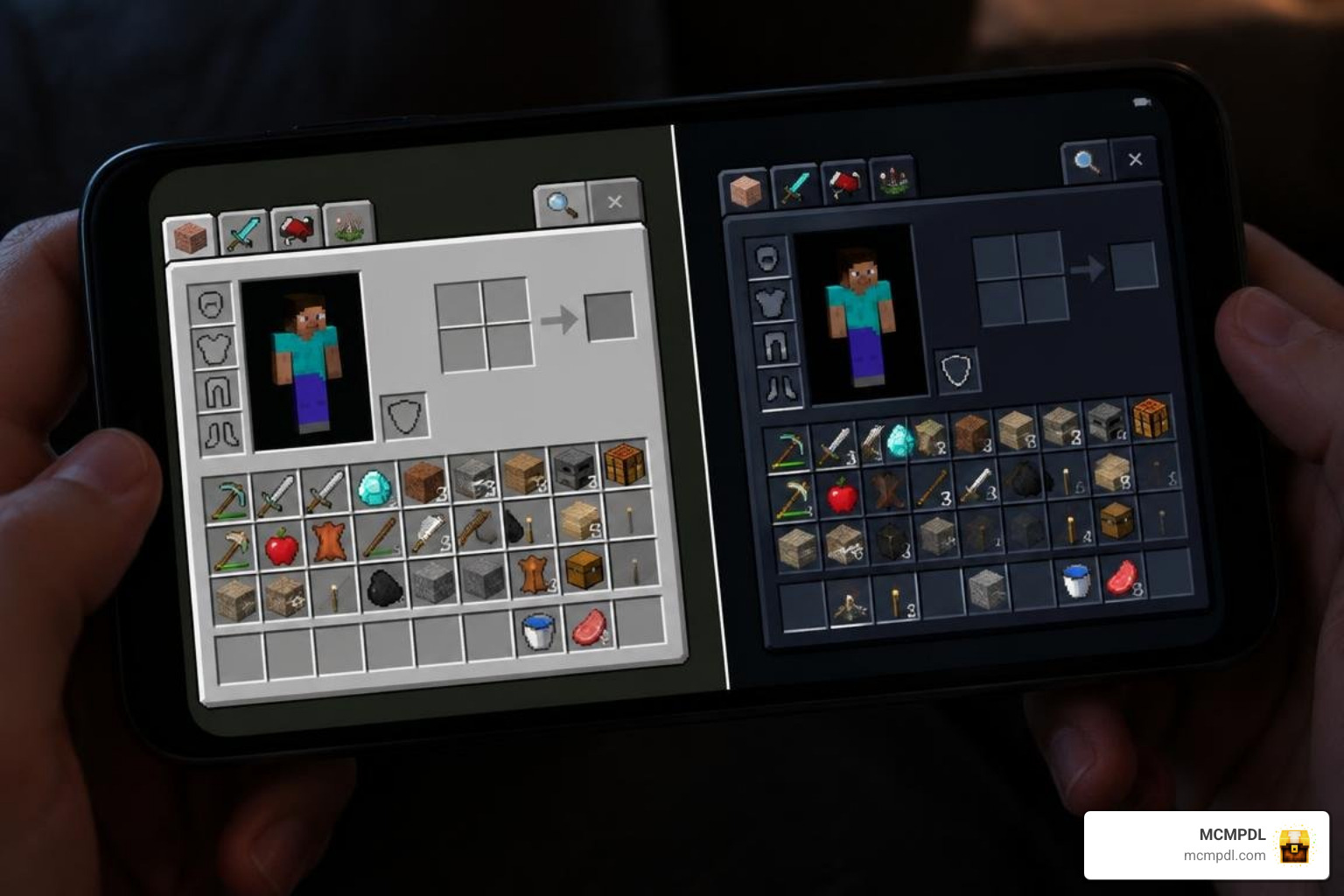
Beyond personal comfort, dark UI designs offer several functional benefits:
- Reduced Eye Fatigue: Darker backgrounds lower overall brightness, letting you navigate chests and inventories comfortably in low-light environments.
- OLED Battery Efficiency: Mobile devices with OLED or AMOLED displays consume noticeably less power when rendering deep dark pixels across menus.
- Enhanced Visual Focus: High-contrast dark containers make colorful items, enchantments, and potion glints stand out instantly.
- Clean HUD Integration: Transparent and dark HUD elements keep the main view unobstructed, giving you a clearer field of view during combat.
Finding the ideal layout is easy when exploring community-made texture packs tailored for modern Bedrock versions. Many UI packs leverage Bedrock’s JSON inheritance system, which streamlines how menus draw from shared visual assets. This technical foundation allows dark themes to update dialogue boxes, settings pages, and container slots seamlessly while keeping performance steady.
Top Dark UI Options for Minecraft PE and Bedrock
Choosing the right pack depends on whether you prefer vanilla-faithful colors, opaque panels, or streamlined competitive layouts. Here is a direct comparison of the top five dark interface options available for Bedrock Edition:
| Pack Name | Supported Versions | File Size | HUD & Panel Contrast | Resolution | Key Highlight |
|---|---|---|---|---|---|
| Classic Dark Mode | 1.13 – 1.19+ | 4.59 MB | Deep Charcoal / Faithful | 16x | Full panorama and touch control styling |
| Dark UI (Standard & HCT) | 1.19 – 1.21+ | ~1.2 MB | Solid Opaque / High Contrast | 16x | Distinct pick-up block support & crisp borders |
| Dark HUD for PvP | 1.20 – 1.21+ | ~2.0 MB | Semi-Transparent Minimal | 16x | Uncluttered inventory screens for fast looting |
| Smoothic Dark Hybrid | 1.20 – 1.21+ | ~8.5 MB | Soft Matte Charcoal | 16x | Simplified, clean icons and flat UI styling |
| Vanilla HD Dark Edition | 1.20 – 1.21+ | ~15.0 MB | Detailed Dark Slate | 32x | Ultra-crisp item frames and high-res dialogue boxes |
Classic Dark Mode Texture Pack for Minecraft PE/Bedrock
The classic Dark Mode resource pack is a community staple designed to bring a comprehensive dark appearance to the vanilla interface without changing core block art. It covers nearly every menu screen in the game, including main menu panoramas, modern touch control layouts, and the emote wheel.
- Legacy and Update Support: The pack maintains historical version branches from 1.13 through the Wild Update (1.19.0), with community updates extending into modern 1.21 builds.
- Compact File Size: At approximately 4.59 MB, it delivers complete UI overhauls with virtually zero memory overhead.
- Controller and Mobile Friendly: It features customized gamepad tooltip icons and dedicated styling for mobile touch buttons, making it a reliable pick across platforms.
Dark UI and High Contrast Theme (HCT)
If you struggle to differentiate container slots in dim lighting, the Dark UI pack offers a direct solution. This project provides both a standard dark theme and an optional High Contrast Theme (HCT) subpack.
- High-Contrast Readability: The HCT edition sharpens borders around every individual inventory slot, creating distinct separation between your hotbar, armor slots, and crafting grids.
- Full Panel Opacity: Unlike translucent packs, Dark UI uses completely opaque backgrounds to prevent bright backgrounds from muddying text menus.
- Specialized UI Tweaks: Includes dedicated visual theming for touch-based controls, including the mobile pick-up block button.
Dark HUD for Competitive Gameplay
For competitive Bedrock players, inventory screens must provide quick visibility without obstructing the surroundings. Using an optimized dark UI alongside dedicated combat designs—such as the 10 Best PvP Texture Packs for Cleaner Hits and Better Visibility—gives you a tactical edge.
Pairing dark interface panels with an Ultimate PvP Pack Texture Pack for Minecraft PE/Bedrock eliminates distracting textures. These PvP-focused dark HUDs feature semi-transparent container screens, short swords, and minimal hotbar borders so you can track approaching opponents even while sorting your inventory.
Smoothic Dark Theme Hybrid
For players who prefer minimalist visual design, combining dark interface elements with the Smoothic Texture Pack for Minecraft PE/Bedrock creates a clean, modern aesthetic.
- Matte Panels: Replaces rough stone-textured backgrounds with smooth, flat matte slate tones.
- Minimalist Icons: Streamlines recipe book tabs, potion indicators, and health bars for a modern mobile look.
- Smooth Navigation: Lightweight assets ensure swift menu opening times on lower-end phones and tablets.
Vanilla HD Dark Edition
If you prefer higher visual fidelity, running a dark interface alongside the Vanilla HD Texture Pack elevates standard UI menus to sharp 32x resolution.
- Crisp Text and Borders: Higher resolution prevents pixel blurring on high-DPI smartphone displays and 4K PC monitors.
- Retained Vanilla Identity: Keeps the recognizable layout of Bedrock’s menus while adding refined shading and deeper charcoal accents.
- Balanced Performance: Delivers crisp visual clarity without demanding excessive GPU resources.
Installation and Customization Guide
Installing a dark UI resource pack on Minecraft Bedrock takes only a few quick steps. Because Bedrock packs are distributed primarily as .mcpack files, the game handles directory placement automatically once opened.
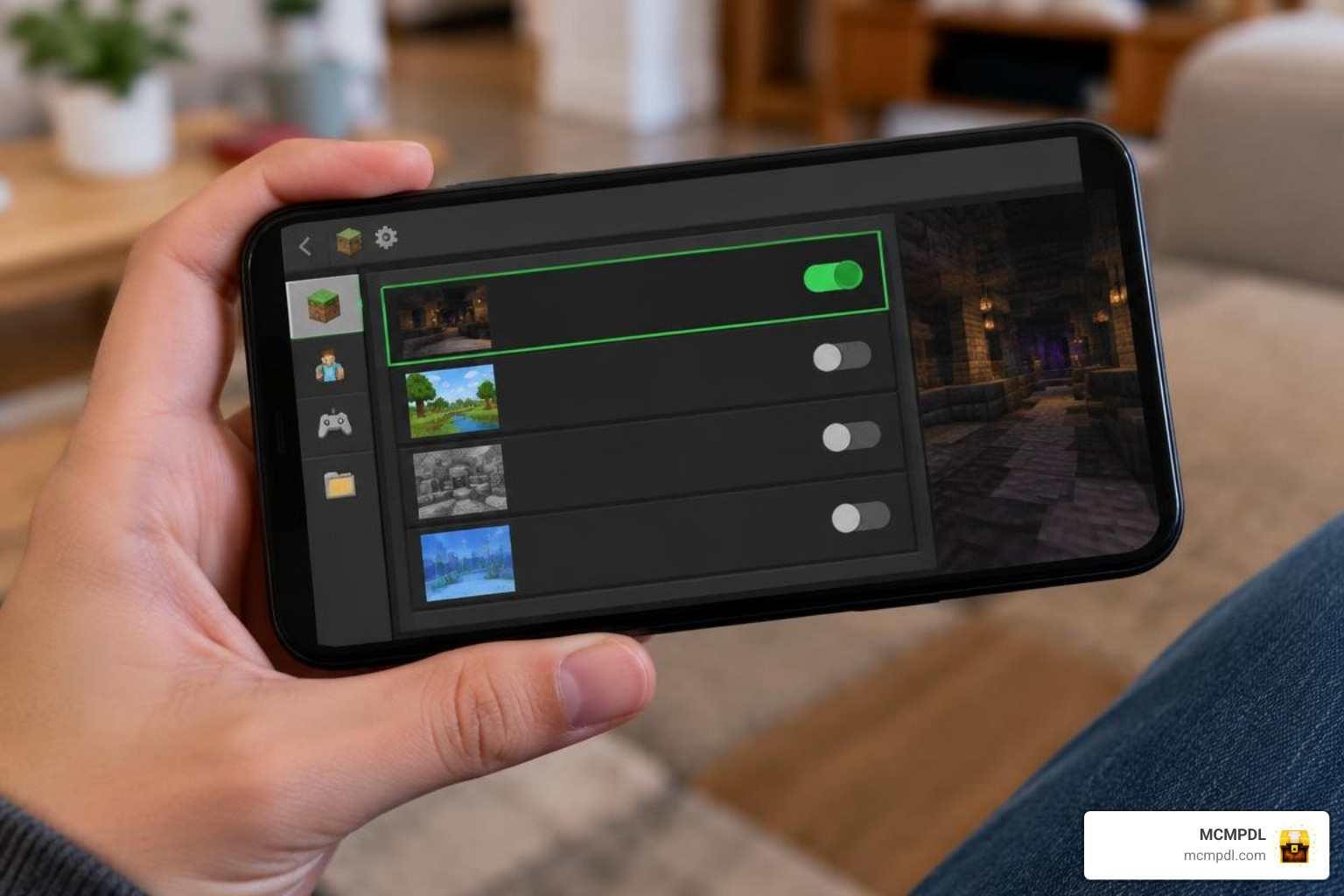
How to Install a Dark Mode Texture Pack for Minecraft PE/Bedrock on Mobile and PC
Follow these platform-specific steps to import and activate your pack:
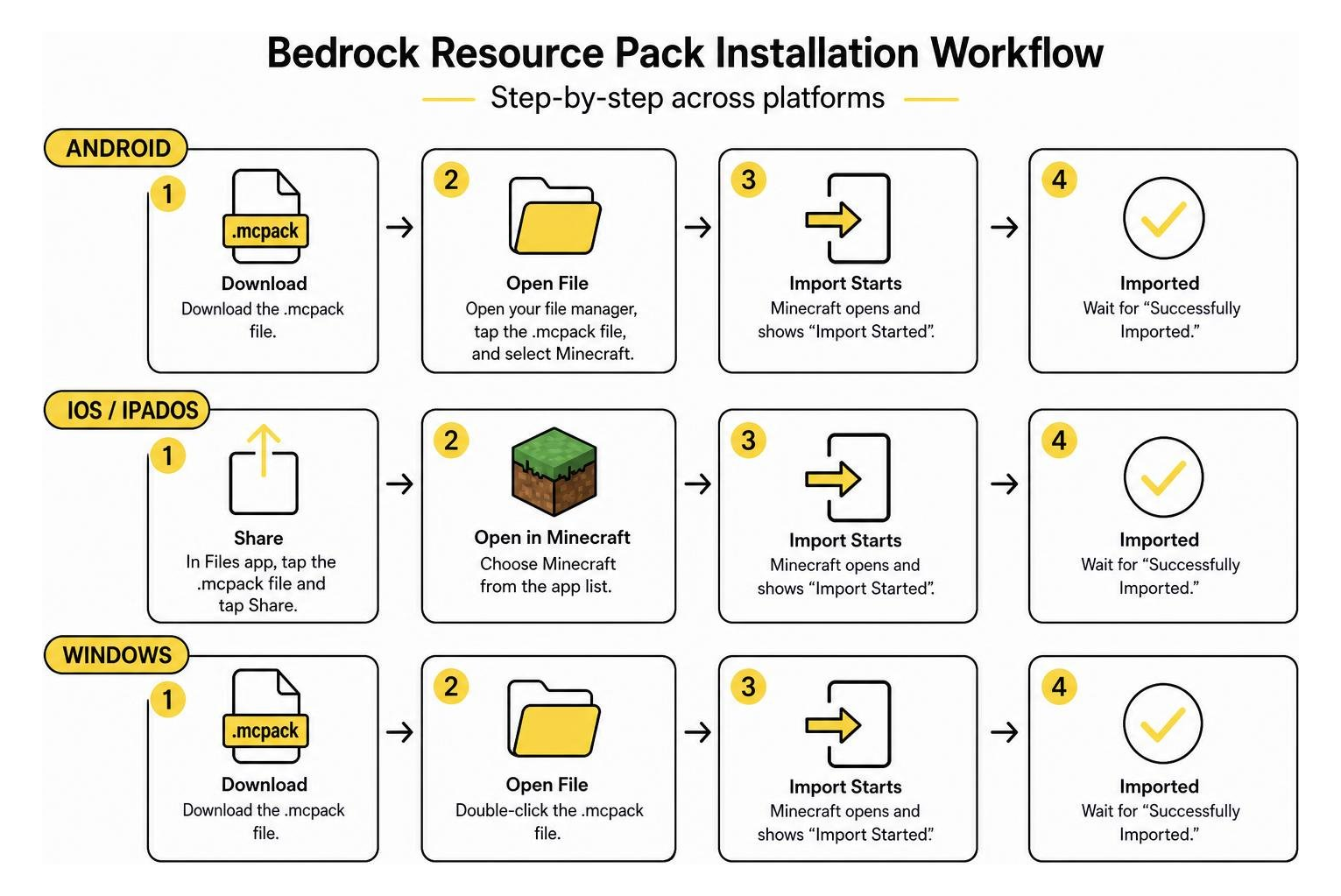
- Android Installation:
- Download the
.mcpackfile from a verified source. - Open your device’s file manager, tap the downloaded file, and select Minecraft to open it.
- The game will launch and display “Import Started” followed by “Successfully Imported.”
- Download the
- iOS / iPadOS Installation:
- Download the
.mcpackfile using Safari. - Open the Files app, locate the file in your Downloads folder, tap Share, and choose Minecraft.
- Minecraft will boot and register the pack into your resource library.
- Download the
- Windows 10 / 11 Installation:
- Double-click the downloaded
.mcpackfile directly. - Minecraft Bedrock will open automatically and import the resource files.
- Double-click the downloaded
- Activating in Global Resources:
- Open Minecraft and navigate to Settings > Global Resources > My Packs.
- Locate your dark mode pack, click Activate, and ensure it sits at the top of your Active list.
- If the pack includes a gear icon (subpack selector), click it to toggle between standard dark mode, High Contrast (HCT), or alternative button styles.
Troubleshooting Glitches and Server Compatibility
If you run into missing textures or menu errors after an update, use these quick fixes:
- Resource Pack Priority: If container backgrounds look broken, move the dark UI pack to the very top of your Global Resources list. This ensures its custom JSON files override default textures.
- Realms and Multiplayer Server Compatibility: Dark UI packs are client-side modifications. You can safely run them on any multiplayer server or Realm without being blocked by anti-cheat systems. If a server forces a custom resource pack, your local client UI pack will still apply to your personal pause and settings screens.
- Resolving Missing UI Elements (Pink Textures): When Minecraft releases a major update (such as 1.20 or 1.21), changes to the Bedrock UI JSON structure can cause unadapted packs to display purple-and-black missing texture squares. Updating the pack manifest version or downloading an updated build designed for your version will fix this issue.
- Customizing Textures Manually: Advanced users can customize their interface by changing the
.mcpackextension to.zipand extracting the contents. Inside thetextures/uifolder, you can modify.pngbackground files directly using any photo editor before re-compressing the archive back into an.mcpack.
Frequently Asked Questions about Minecraft Bedrock Dark UI
What is the difference between standard Dark UI and High Contrast (HCT) packs?
Standard dark UI packs replace light grey menus with smooth charcoal or dark slate backgrounds. High Contrast Theme (HCT) packs increase the brightness of borders around individual item slots and buttons. This higher contrast ratio makes inventory navigation clearer for visually impaired players or anyone playing in bright sunlight.
Does a dark mode texture pack work on Bedrock Realms and multiplayer servers?
Yes. Dark UI texture packs operate entirely on the client side. They do not alter game mechanics, player positions, or block states, meaning you can join official Realms, featured servers, and custom worlds without compatibility issues.
Can I combine a dark mode pack with other texture packs?
Yes, you can layer a dark mode UI pack with block and item texture packs. To ensure your menus remain dark while using custom block textures, place your dark UI pack higher in the Active list under Settings > Global Resources.
Conclusion
Switching to a dark interface is one of the quickest ways to improve your everyday Minecraft Bedrock experience. Whether you prefer the comprehensive coverage of Classic Dark Mode, the sharp slot borders of Dark UI HCT, or the transparent efficiency of a PvP HUD, there is an interface style to match your playstyle.
To explore more community add-ons, interface overhauls, and visual upgrades, browse curated texture packs on MCMPDL and build your ideal Minecraft setup today.