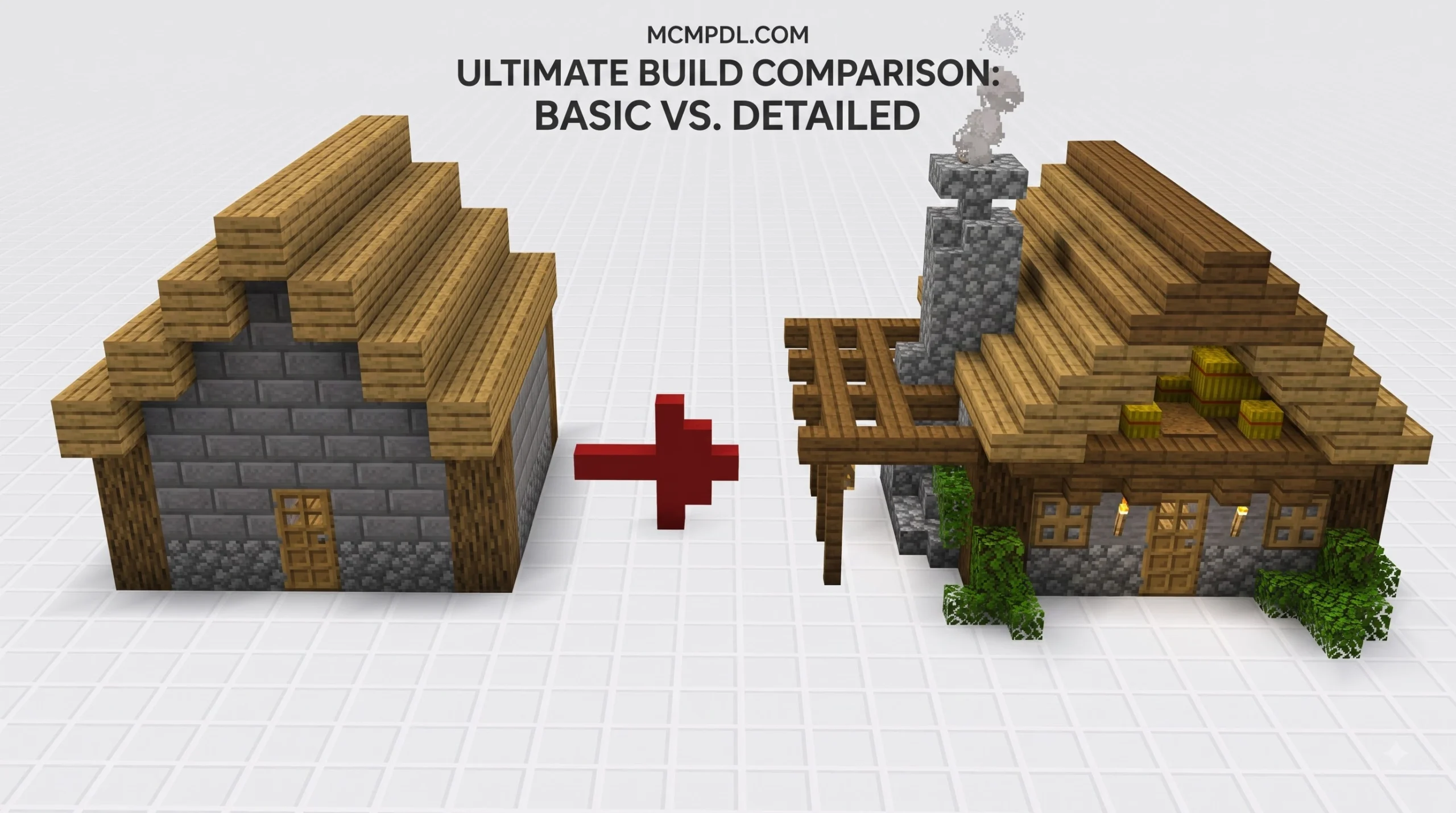
Build Smaller, More Detailed Worlds in Bedrock
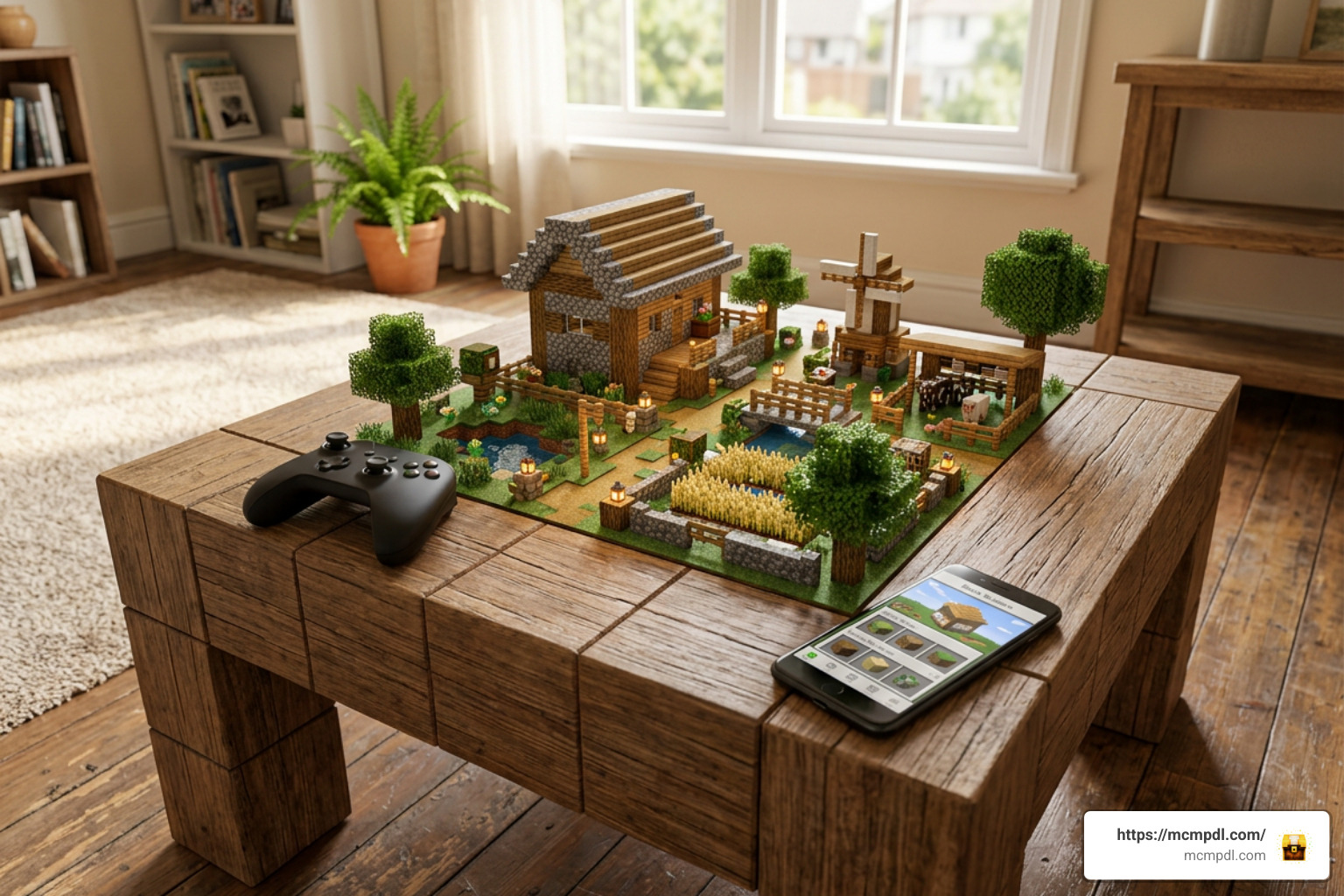
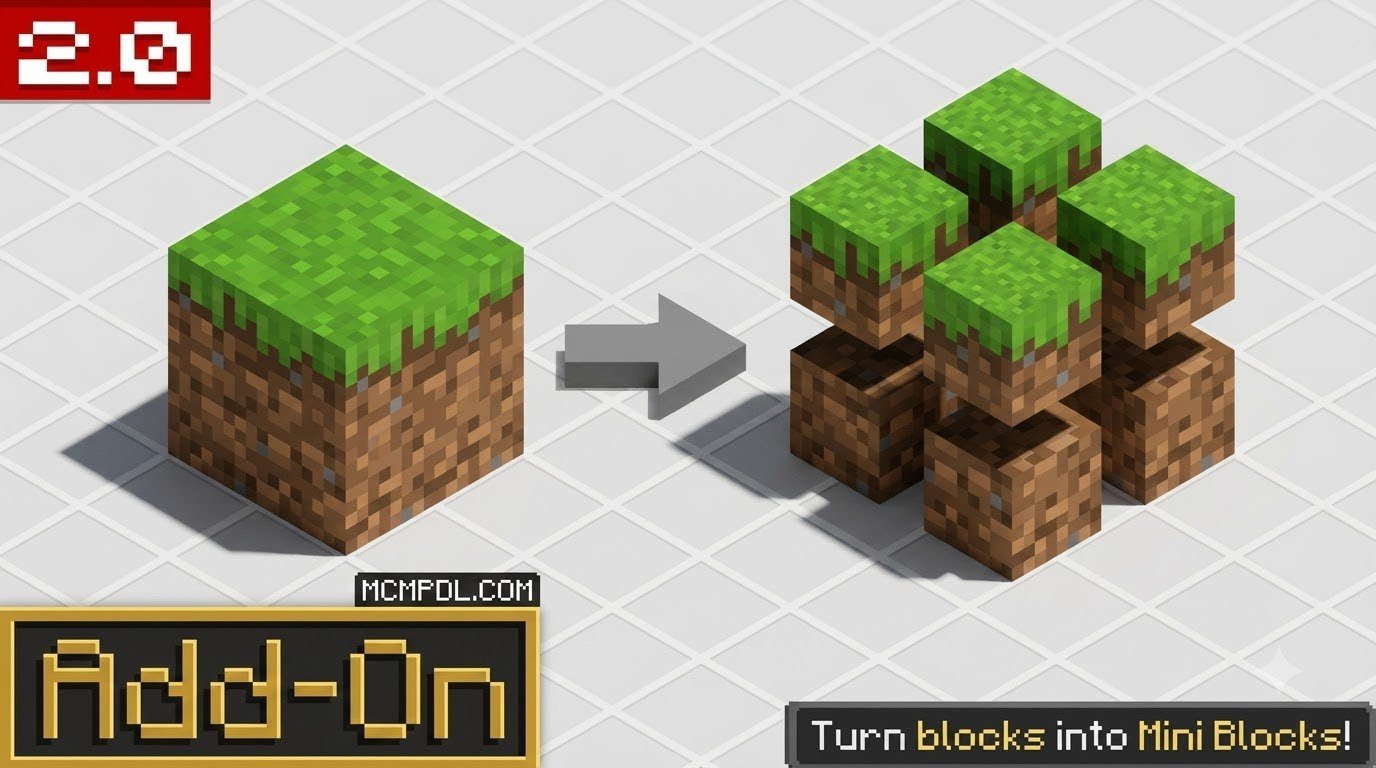
Mini Blocks 2.0 Add-on for Minecraft Bedrock Edition lets players turn ordinary Minecraft blocks into smaller building pieces for detailed furniture, interiors, models, and custom decor. Its key update is the ability to combine miniblocks within the same space, supported by a placement helper for more precise building.
At a glance:
- What it does: Adds tiny versions of overworld-style blocks for micro-building.
- What is new in 2.0: Miniblocks can be combined together in one block space.
- Where to get it: The Marketplace edition is a paid add-on priced at 490 Minecoins.
- Compatibility: Marketplace information lists Bedrock Edition 1.16.0 or later as the minimum requirement.
- Important distinction: Several unrelated free mini-block packs exist, and their crafting methods, experimental settings, and controls can differ.
Mini blocks can make a plain survival base feel far more personal. They are useful for small shelves, compact kitchen details, miniature landscapes, and builds that need more control than full-size blocks allow. This guide explains what to download, what version you are using, and what to expect before adding it to a Bedrock world.
Key Features of Mini Blocks 2.0 Add-on for Minecraft Bedrock Edition
Building micro-scale decorations in vanilla Bedrock Edition has traditionally been a challenge. Builders often had to rely on complex armor stand trickery, custom player heads, or invisible item frames to achieve fine details. The Mini Blocks 2.0 Add-on for Minecraft Bedrock Edition changes this by giving us direct access to miniaturized versions of standard overworld blocks.
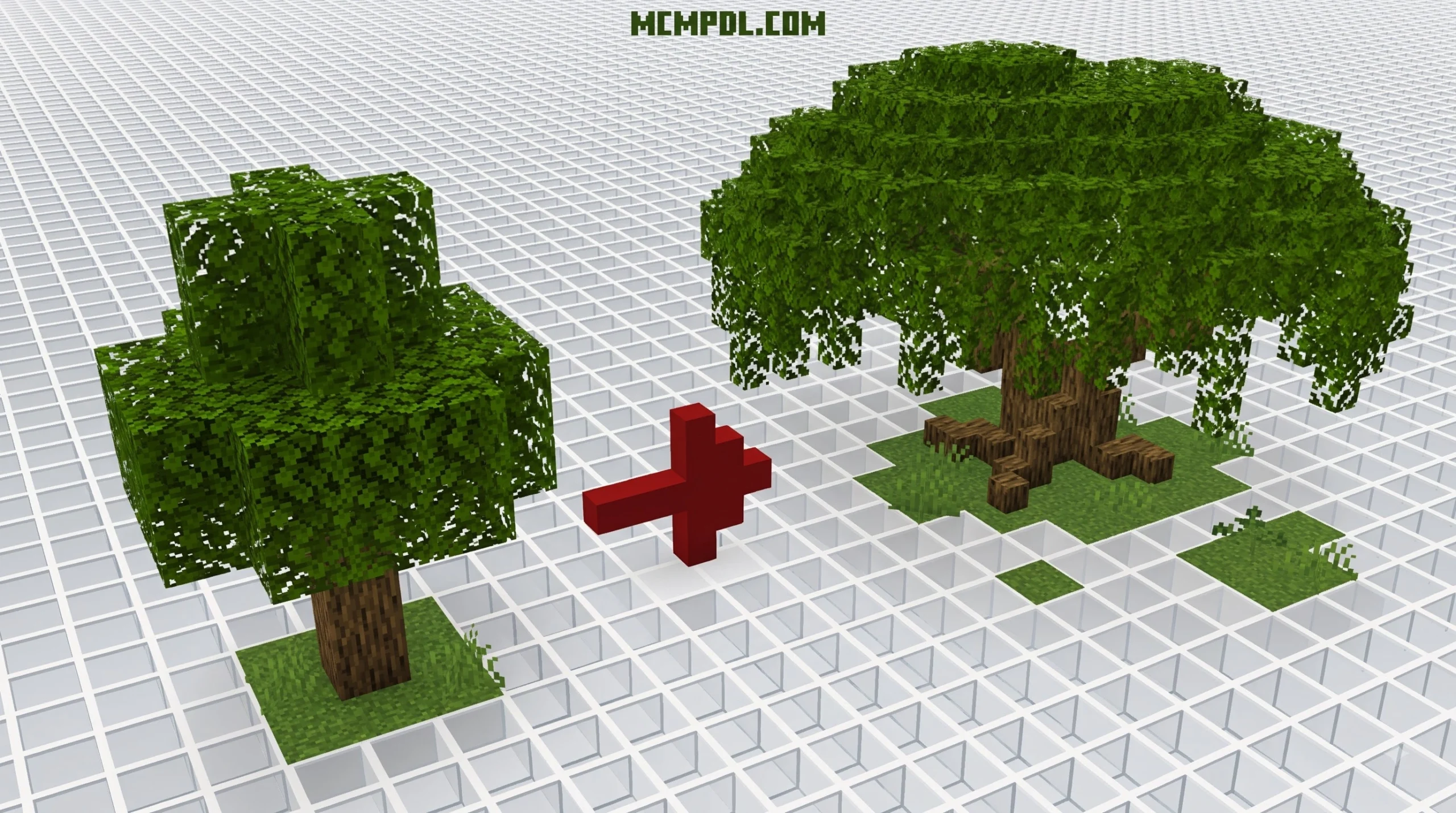
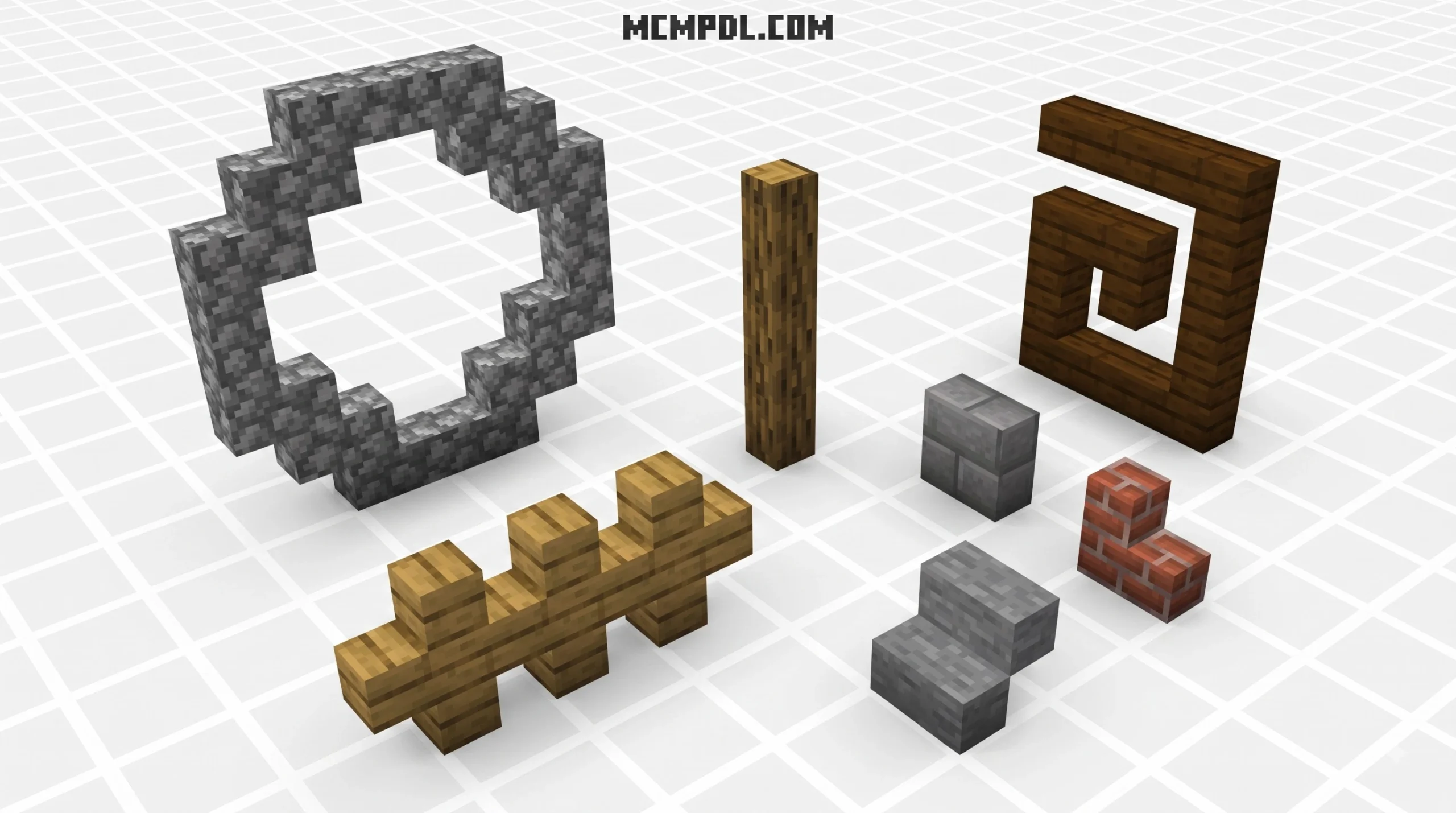
Instead of being restricted to standard 1x1x1 meter block footprints, we can place scaled-down versions of stone, wood, terracotta, wool, and functional blocks. This allows builders to convert standard overworld blocks into functional micro-decorations, opening up creative possibilities for both casual survival players and dedicated architects.
What’s New in the Mini Blocks 2.0 Add-on for Minecraft Bedrock Edition
The jump to version 2.0 brought several substantial enhancements that fundamentally change how micro-building works in Bedrock Edition.
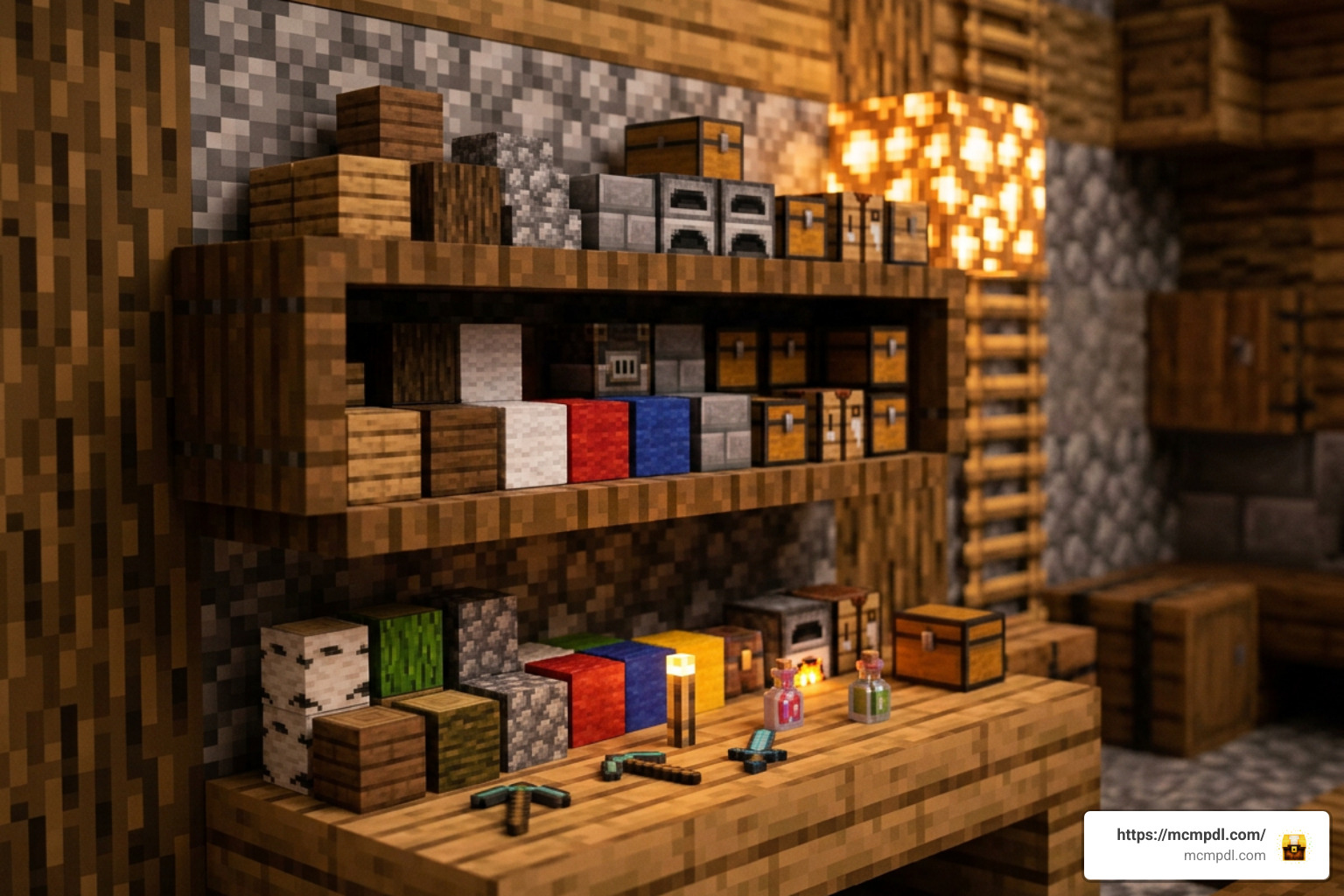
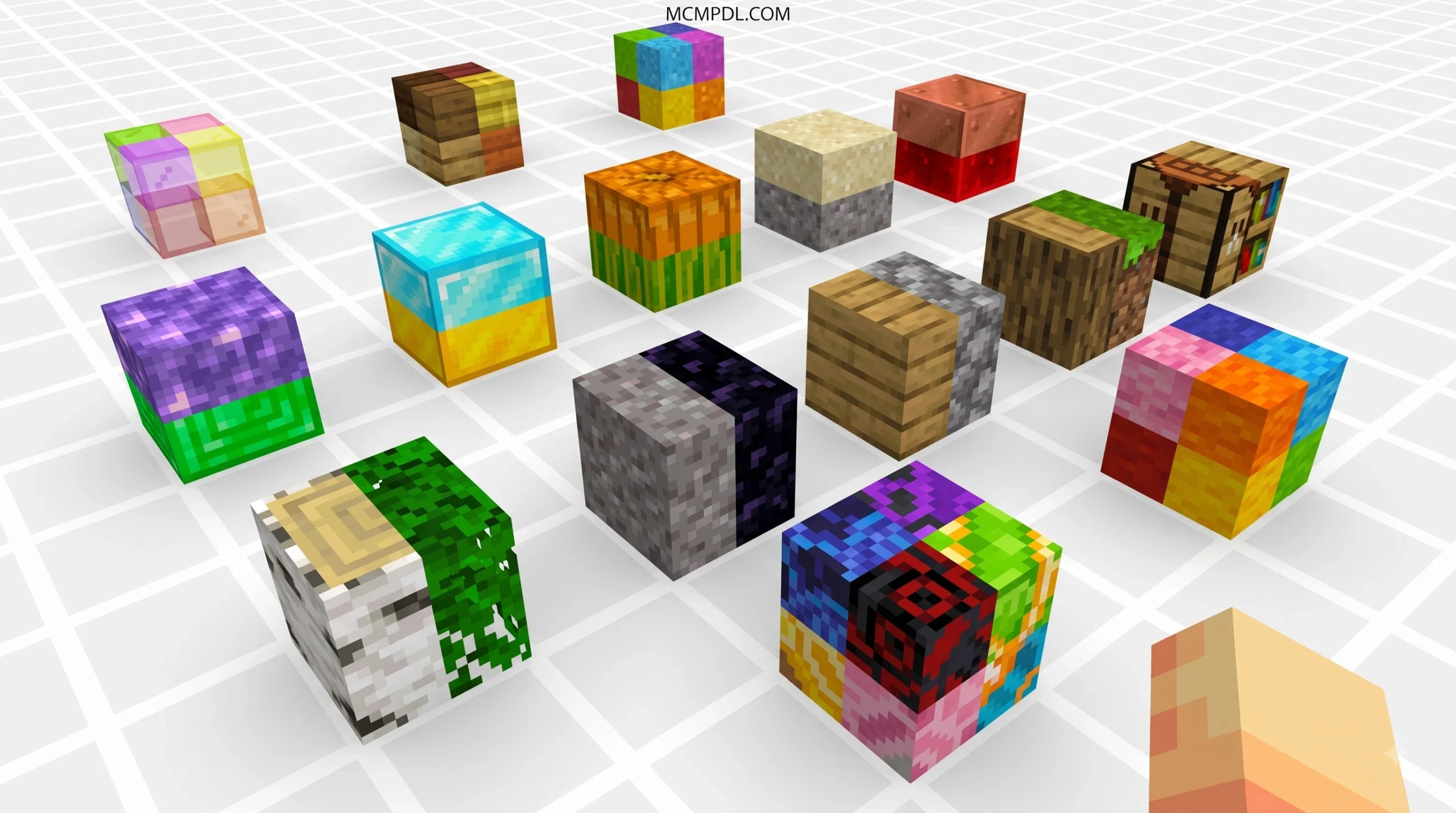
- Combining Miniblocks in a Single Space: In original versions or basic mini-block mods, placing a mini block usually claimed the entire full-block coordinate grid space. Version 2.0 allows us to combine multiple miniblocks within the same single block space. This means we can place a tiny oak block right next to a tiny cobblestone block inside a single 1×1 area, creating detailed composite structures like custom shelving, tiled tables, or detailed micro-landscapes.
- Selection Box Placement Helper: Positioning miniature objects accurately in a 3D grid can be tricky on touchscreens or with gamepads. The 2.0 release introduces a selection box placement helper tool. This visual guide highlights sub-block grid slots, allowing us to align micro blocks precisely without accidental overlaps or awkward gaps.
- Expanded Block Conversions: The update incorporates new block types introduced in recent Minecraft versions (including 1.20 and 1.21 updates), such as Bamboo, Cherry wood, Sculk, Froglights, and specialized decorative tiles.
You can learn more about official releases and community variations on the Mini Blocks Add-On Marketplace Page.
Comparing Version 2.0 to Earlier Versions and Alternatives
Understanding the difference between official Marketplace releases and community-made add-ons is essential when choosing the right pack for your world. Early mini-block modifications were built using entity models (similar to armor stands or custom mobs). While entity-based packs allow smooth animations, placing hundreds of them in a small base causes severe server or client FPS lag due to entity processing overhead.
Modern releases—including Marketplace additions and advanced community creations—frequently implement mini blocks as true custom block geometries rather than entities. This change eliminates entity lag, allowing thousands of mini blocks to render smoothly even on mobile devices or consoles.
| Feature / Aspect | Legacy / Early Community Packs | Official Mini Blocks 2.0 (Marketplace) | Free Community Alternatives (e.g., v7.4.1 / v2.0.5) |
|---|---|---|---|
| Engine Base | Entity Models | Custom Block / Entity Hybrids | True Blocks or Entity Controls |
| Multi-Block Space | Single block space per mini block | Combined miniblocks in one space | Varies (Some support face-attaching) |
| Placement Tools | Manual aiming | Selection Box Placement Helper | Dye modification / Wrench Tools |
| Performance Impact | High lag with large quantities | Optimized for smooth rendering | Low lag (non-entity versions) |
| Cost | Free | Paid (490 Minecoins / ~$2.57 USD) | Free Community Downloads |
| Experimental Requirement | Varies | Native Bedrock integration | Requires “Holiday Creator Features” |
When browsing options, community creations like the 250+ Miniblocks Add-on or Mini Blocks Addon v10 offer alternative non-entity implementations, while independent community projects like FoxyNoTail’s Mini Blocks Pack utilize custom dye systems for transformation.
How to Obtain and Craft Mini Blocks in Survival Mode
Acquiring mini blocks in Survival mode varies depending on whether you are playing the official Marketplace pack or one of the free community alternatives. Developers have designed distinct survival acquisition pathways, ranging from direct Stonecutter recycling to wandering merchant trading.
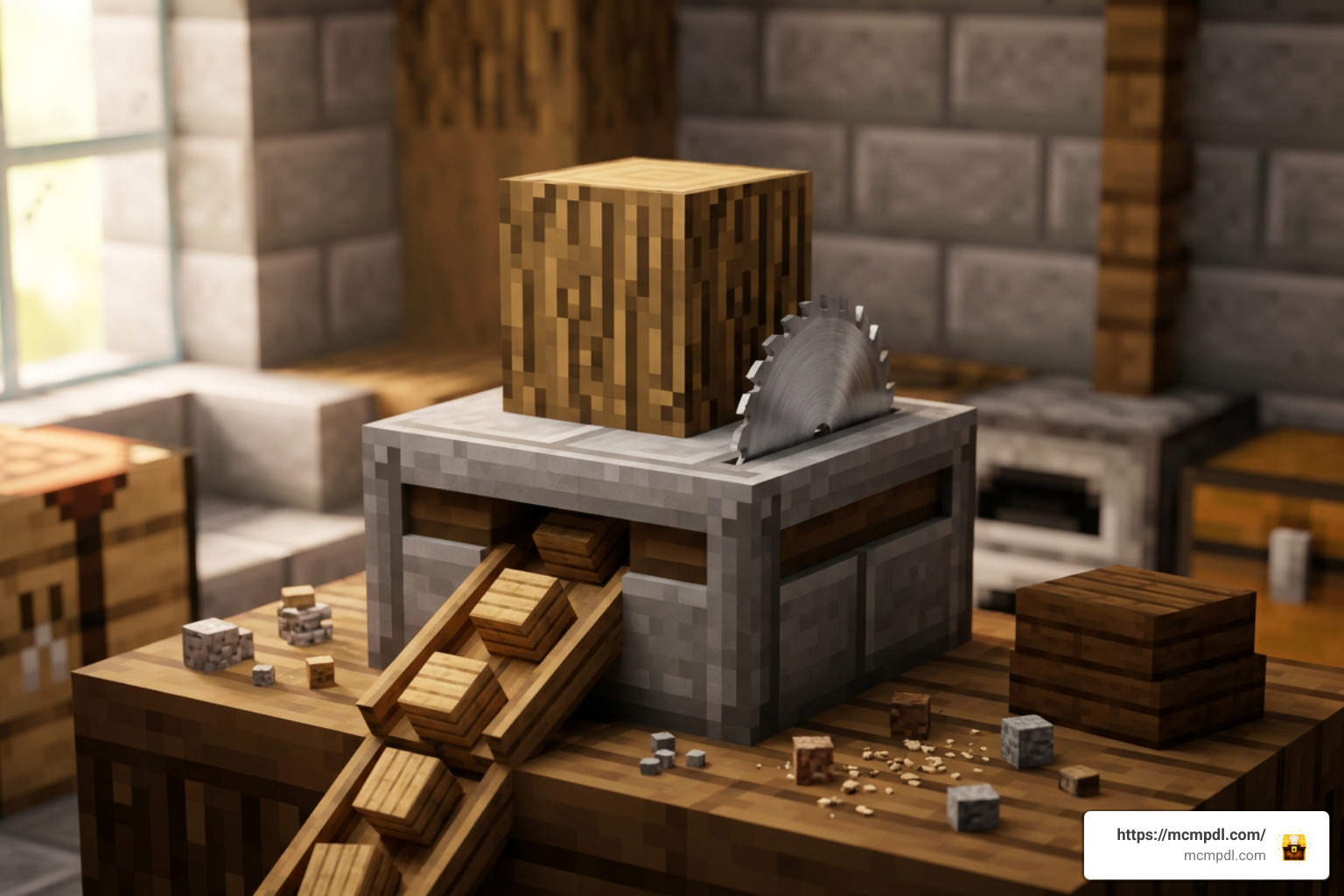
Acquisition Methods and Crafting Mechanics
Depending on the specific pack installed in your world, you will obtain your micro blocks using one of three primary mechanics:
- The Stonecutter Method: In many performance-focused block packs (such as the Actual Mini Blocks Add-on or general Mini Blocks 1.21 Addons), survival players can place standard full-sized vanilla blocks into a Stonecutter to produce mini block variants. Placing one full Oak Log or Stone block into the Stonecutter returns smaller micro-block equivalents.
- Wandering Trader Trades: Certain community behavior packs integrate mini blocks directly into the Wandering Trader’s trade tables. You can trade excess emeralds or overworld items with Wandering Traders to purchase decorative mini block packages.
- The Mini Block Factory & Custom Wrench: Other packs include dedicated workstations or custom tools. For instance, crafting a custom Wrench tool out of iron ingots allows you to adjust placed mini blocks, while iron ingots combined with stonecutters yield raw mini-block base materials.
Important Survival Tip on NBT Data: When playing trading-based survival packs, avoid trying to trade directional blocks that have already been placed and broken (like Observers, Droppers, or Pistons). Placed blocks retain NBT directional tags that can cause Wandering Trader trade offers to reject the item. Always use freshly crafted items directly from your inventory when trading for mini blocks!
Version Compatibility and Experimental Toggles
Before installing any mini-block add-on, it is critical to review your world settings and game version:
- Bedrock Game Version: The official Marketplace version is compatible with Minecraft Bedrock 1.16.0 and all subsequent releases up through current 1.21+ updates.
- Experimental Gameplay Settings: While Marketplace add-ons are designed to run out of the box without changing core world settings, almost all free community add-ons require turning on experimental features.
- Enabling Toggles: If you use community versions, navigate to World Settings > Experiments and toggle on Holiday Creator Features or Upcoming Creator Features before launching your world.
- Realms and Dedicated Servers: To use experimental mini-block add-ons on a Minecraft Realm or multiplayer server, generate and configure the world in single-player first, turn on the required experimental toggles, verify that the pack works, and then upload the world file to your Realm.
Controls and Positioning Mechanics
Once you have crafted or traded for your mini blocks, understanding how to position, scale, and rotate them is key to building detailed interior structures.
Master Controls for Placing, Rotating, and Customizing Mini Blocks 2.0 Add-on for Minecraft Bedrock Edition
Depending on the engine framework behind your chosen pack, control mechanics fall into two main categories: tool-based controls and dye-driven transformation systems.
1. Selection Helpers & Wrench Tools
In the Marketplace 2.0 update and tool-assisted community packs, placement is straightforward:
- Placing: Hold the mini block in your main hand and right-click (or tap) on any surface. The selection helper box will show you where the item will fit within the block grid.
- Rotating with a Wrench: Crafting a custom Wrench (usually with iron ingots) lets you right-click placed mini blocks to cycle through different 3D orientations and rotations without breaking them.
- Picking Up: Crouch and right-click (Shift + Right Click) on any placed mini block to break it and return it to your inventory.
2. The Dye Transformation Control Mechanism
In entity-driven community packs (such as FoxyNoTail’s Mini Blocks), players use standard dyes directly on placed mini blocks to alter their scale, position coordinates, and axis rotations:
- Scaling Control:
- White Dye: Reduces the block to Micro scale.
- Grey Dye: Adjusts the block to Mini scale.
- Black Dye: Resets the block to full 1×1 size.
- Axis Rotations:
- Red Dye: Rotates around the X-axis.
- Green Dye: Rotates around the Y-axis.
- Blue / Yellow Dye: Rotates around the Z-axis or aligns to face angles.
- Coordinate Offsets (3D Position Shift):
- Orange / Brown Dyes: Shift position along the +X and -X axes.
- Pink / Purple Dyes: Shift position along the +Y and -Y axes (up/down).
- Lime / Cyan Dyes: Shift position along the +Z and -Z axes.
- Sitting Mechanics: In several entity-based mini block packs, left-clicking on a placed mini block allows your character to sit on it like a chair! Pressing Shift (crouch) or Jump lets you dismount instantly.
Troubleshooting Performance Lag and Known Issues
While micro-building adds tremendous visual depth to your world, you should keep a few troubleshooting practices in mind:
- Visual Teleportation Glitches: In entity-based packs, shifting mini block coordinates with dyes relies on internal entity teleportation commands. Occasionally, a mini block may appear visually frozen or misplaced after rapid adjustments. Solution: Simply log out of your world and re-log back in to force the game client to refresh entity position rendering.
- Frame Rate Drop in Dense Areas: Placing hundreds of entity-based mini blocks inside a single room can tax mobile devices or older consoles. To maintain high performance, prefer true block-based add-ons or limit entity mini blocks to key focal points.
- Marketplace Community Feedback: The official Marketplace add-on holds an average rating of 3.6 out of 5 stars from over 1,464 ratings (with roughly 47% 5-star reviews and 22% 1-star reviews). Most user issues stem from confusion surrounding experimental settings or version mismatches, so double-check your installation parameters before playing.
Frequently Asked Questions About Mini Blocks 2.0
Is the Mini Blocks 2.0 Add-on free or paid?
The official Mini Blocks Add-On available on the official Minecraft Marketplace is a paid add-on developed by Float Studios, priced at 490 Minecoins (approximately $2.57 USD or €2.42 EUR). However, several free community-created mini block add-ons (such as versions by FoxyNoTail, Yasser444, or Elingo) are available across community platforms with their own distinct features and controls.
Does Mini Blocks 2.0 require experimental gameplay settings?
The paid Minecraft Marketplace version does not require experimental toggles, as it is officially integrated for Bedrock Edition 1.16.0+. However, if you are downloading free community .mcpack files from outside the Marketplace, you will almost always need to enable Holiday Creator Features under your World Settings for custom block geometries to load correctly.
How do I rotate or resize placed mini blocks in survival?
Rotation and resizing depend on the pack you install:
- In Marketplace 2.0 and wrench-based packs, use a crafted Wrench or the built-in selection helper to change orientations, and shift-right-click (crouch + interact) to retrieve the block.
- In dye-based community packs, apply specific color dyes directly onto the mini block to scale it (White/Grey/Black dyes) or shift its position across X, Y, and Z axes (Orange, Pink, Lime dyes).
Conclusion
The Mini Blocks 2.0 Add-on for Minecraft Bedrock Edition provides builders with a versatile toolkit for micro-building, detailed furniture design, and compact interior decoration. Whether you opt for the official Marketplace release with its combined-space grid features or explore community stonecutter alternatives, adding micro blocks to your game opens up entirely new creative horizons without needing complex armor stand mechanics.
Ready to transform your Minecraft worlds with custom add-ons, texture packs, and mods? Explore Minecraft Bedrock Add-ons on MCMPDL to find top-rated content and elevate your Bedrock building experience today!
5 thoughts on “Mini Blocks 2.0 Add-on for Minecraft Bedrock Edition”