Scroll down to D0vvnl0ad
Finding a Cinematic Camera Add-on for Minecraft PE/Bedrock
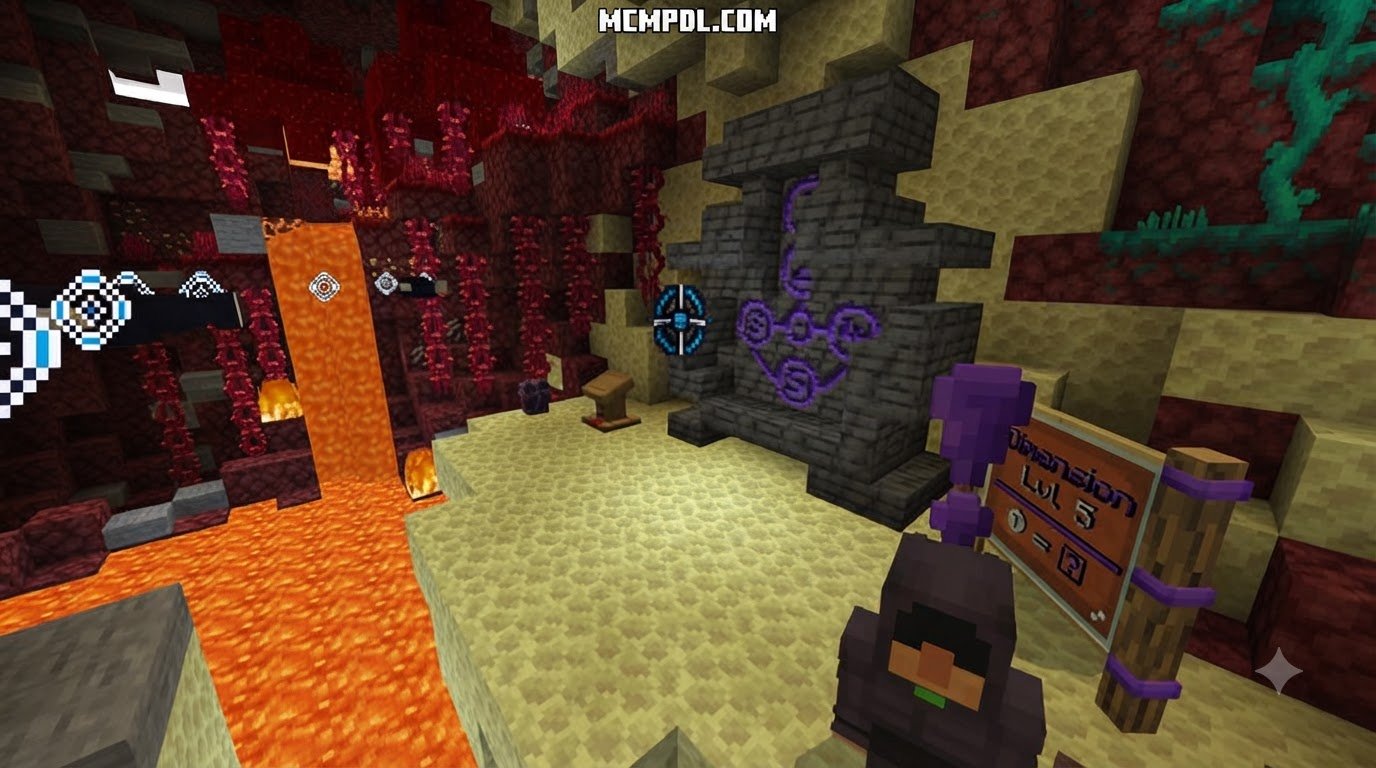
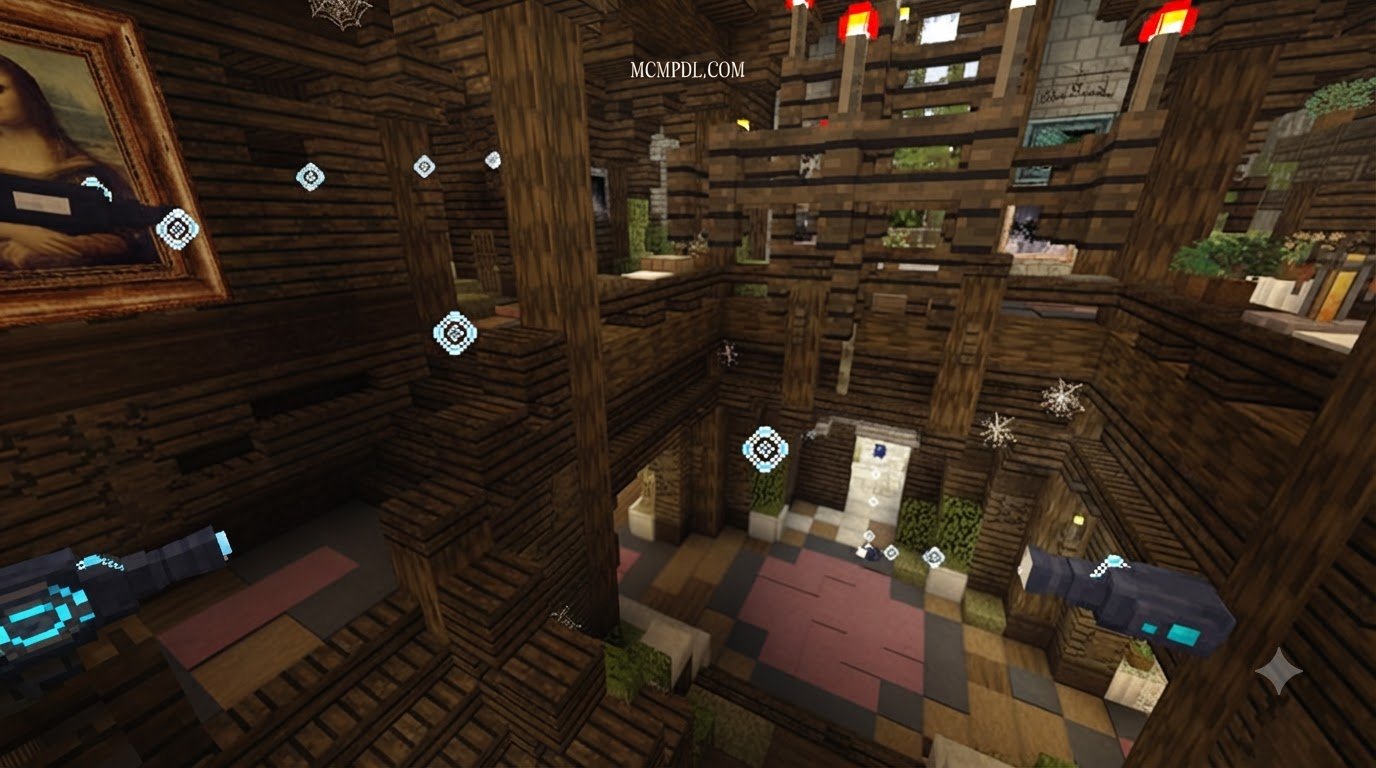
Looking for the CinemaCraft Addon for Minecraft PE/Bedrock? The available information does not confirm a Bedrock release by that name. Two documented alternatives are Cinematic Editor, which uses keyframes for camera paths, fades, and commands, and Cinematick, which uses markers to create trailers.
Before installing either one, check its supported Minecraft version. Import its Bedrock add-on file and enable it in your world. Do not use CinemaMod’s Fabric .jar for PE/Bedrock; that file is for Java Edition.
This guide compares the tools so you can choose the right way to film your world without mixing up their features or installation steps.
Core Features of CinemaCraft Addon for Minecraft PE/Bedrock
When building immersive trailers or cutscenes on Bedrock Edition, having precise control over the camera changes everything. In-game filmmaking tools provide creators with a dedicated director suite right inside their worlds. Whether you are showcasing a massive fantasy fortress or recording dynamic combat in a world powered by an RPG Addon, these camera mechanics let you tell captivating stories.
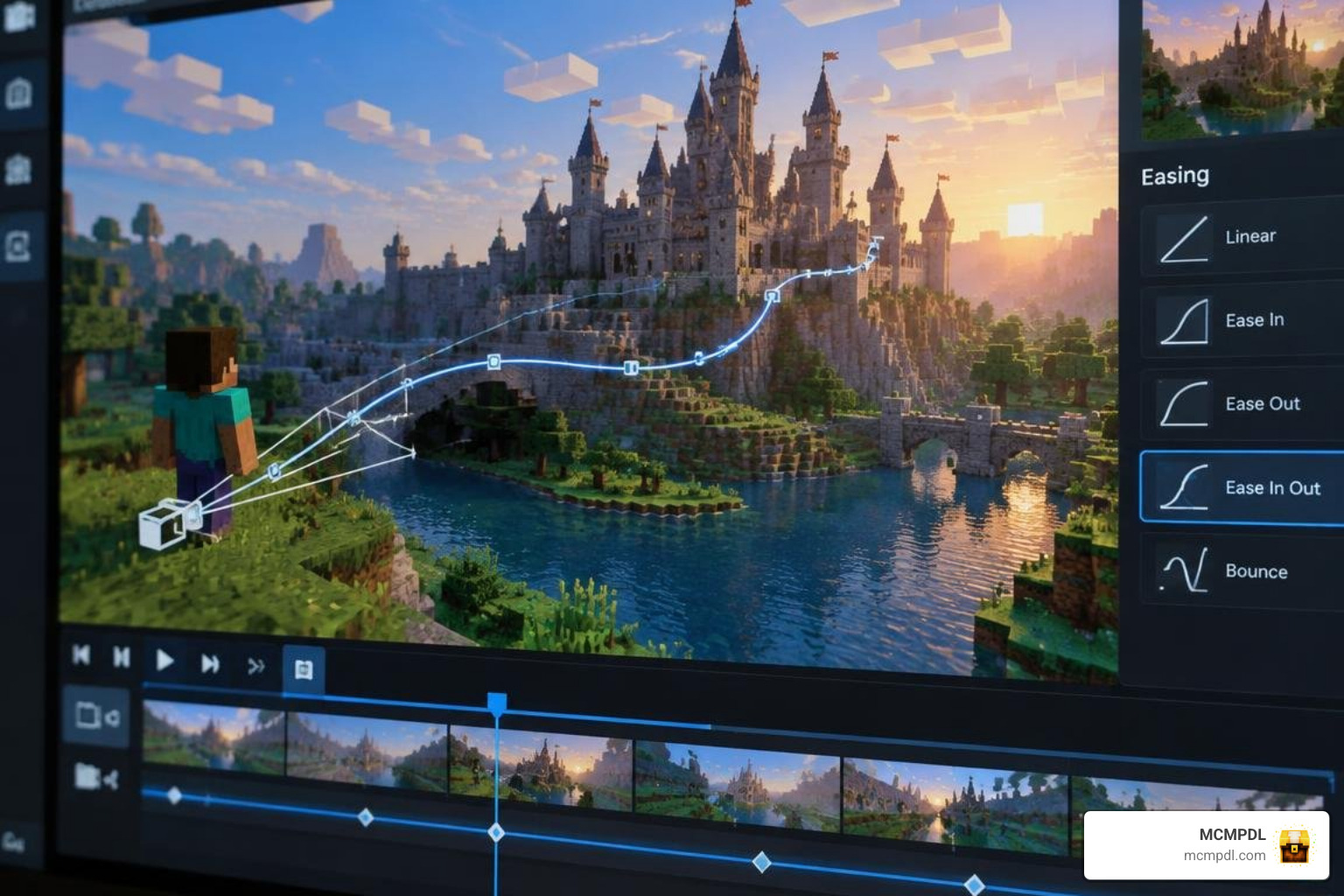
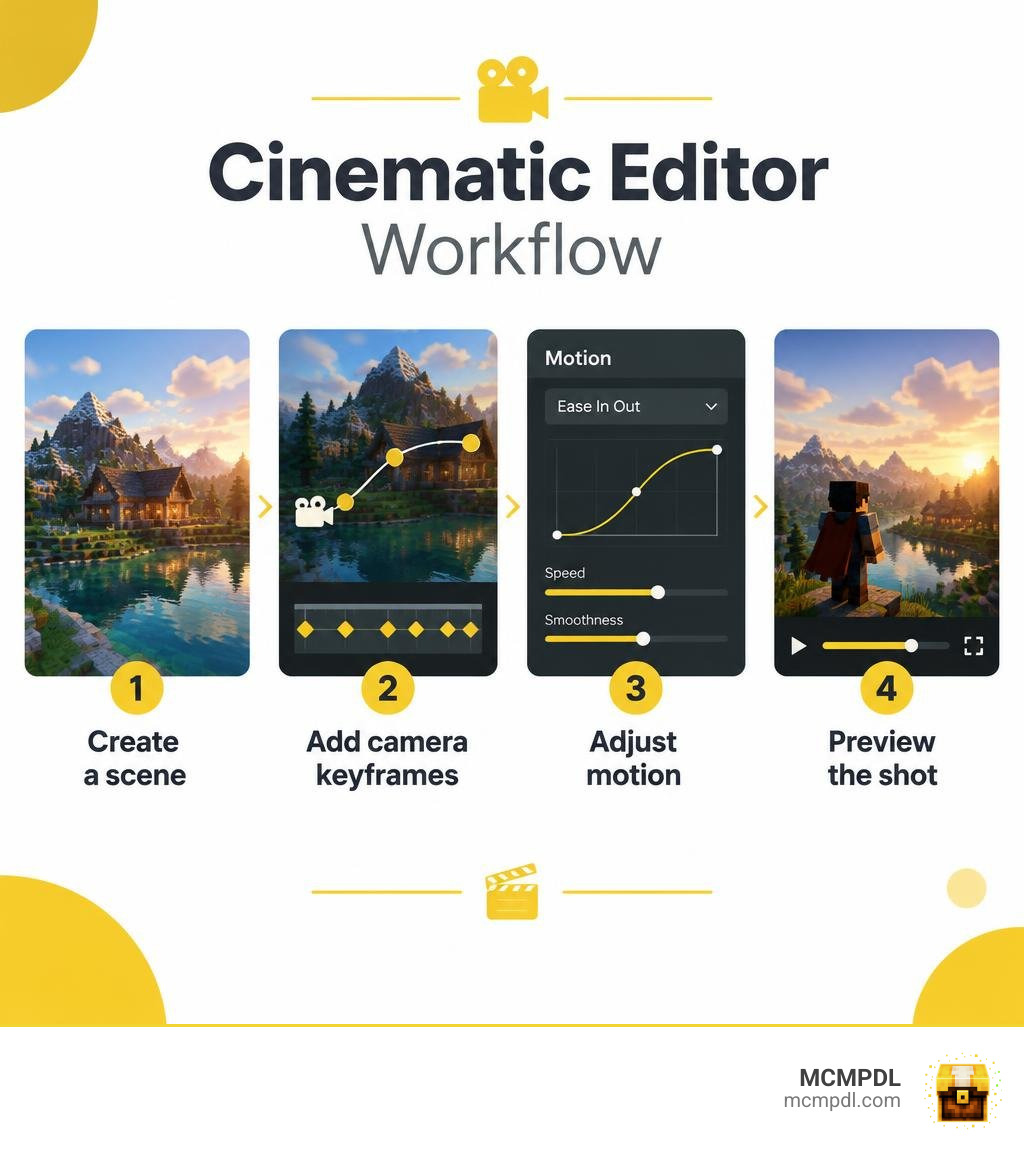
The foundation of smooth filming rests on two main approaches: coordinate keyframing and physical marker placement. Modern tools such as the Cinematic Editor Addon v2.0.0 bring advanced motion controls to Bedrock, including:
- Keyframe Positioning: Save exact player coordinates, pitch, and yaw values across multiple scene points to establish precise trajectories.
- Motion Easing and Interpolation: Move between static points using Linear interpolation or Hermite curves. Hermite paths calculate smooth, sweeping curves across three or more keyframes so your camera does not abruptly jerk at corners.
- Ease Time Adjustments: Fine-tune the exact transition duration between points to match musical beats or action pacing.
- Focus Markers: Anchor the camera’s gaze toward a specific target or block while the vantage point glides along a separate rail.
By combining smooth motion curves with custom camera paths, you can capture sweeping aerial views, dramatic character close-ups, and fluid action sequences without needing external video editing software.
Creating Scenes with CinemaCraft Addon for Minecraft PE/Bedrock
Setting up a complete scene takes only a few minutes once you understand the basic workflow. If you want to record character showcases, such as players transforming with a Morph Addon, structuring your shots beforehand ensures clean footage.
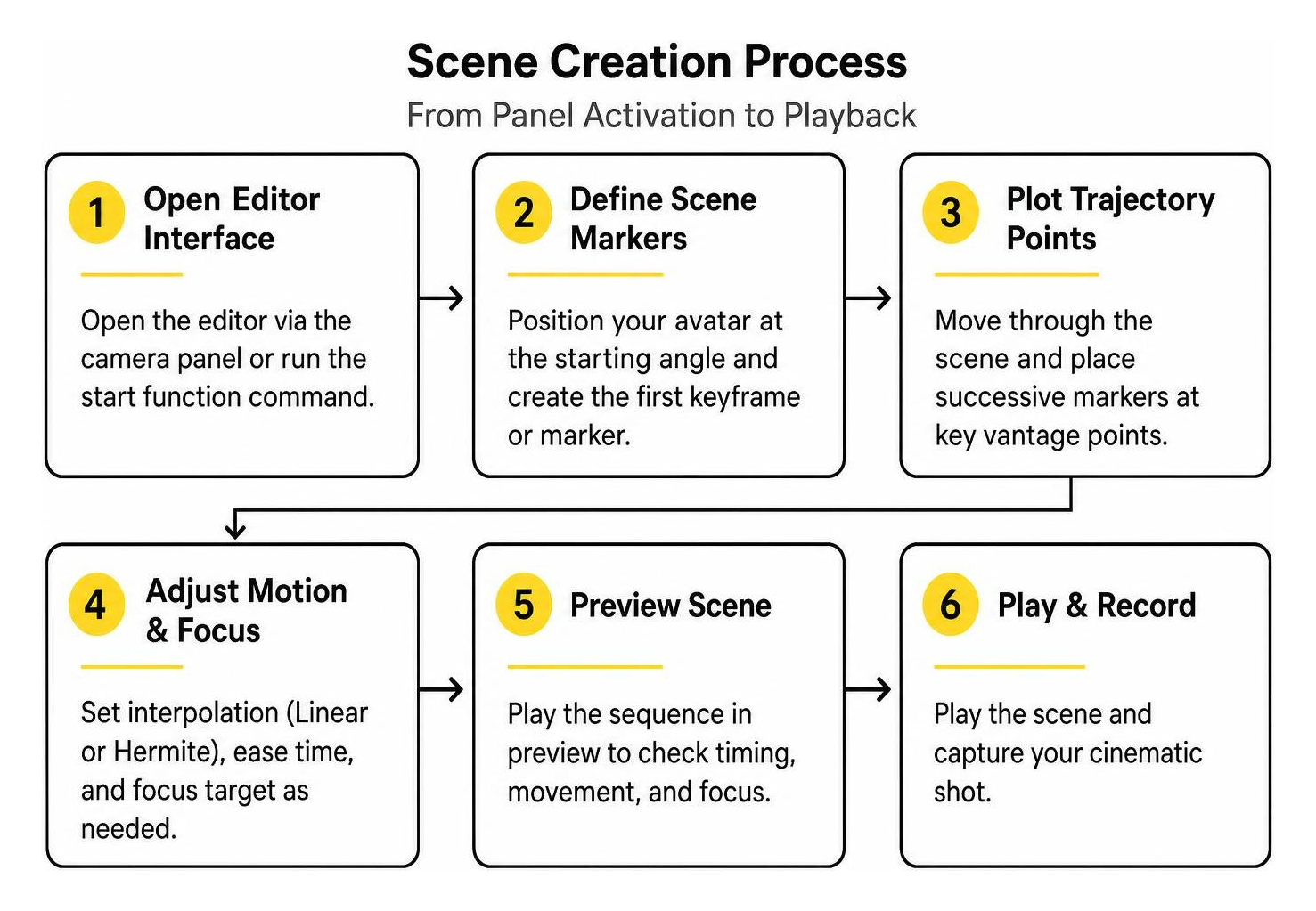
To set up a custom camera path, follow this sequence:
- Open the Editor Interface: Access your tools either through the camera icon panel in Creator Tools or by running the designated function command (such as
/function startor/function ctk_startin marker-based add-ons). - Define Scene Markers: Position your avatar at the starting angle and create your first keyframe or marker.
- Plot Trajectory Points: Move through your environment, placing consecutive markers at key vantage points. For curved trajectories, place at least three points to allow smooth interpolation.
- Set Focal Points: If using marker-based systems, drop a focus marker onto your central subject so the camera tracks it dynamically during travel.
- Adjust Travel Speed: Modify ease duration or use speed adjustment tools in your hotbar to ensure the pan feels natural and steady.
- Preview and Refine: Trigger playback to review camera clearance, removing any blocks that obstruct the view.
Keyframe Effects, Custom Commands, and HUD Controls
Polished cinematics require more than smooth movement. Directing a great scene involves managing transitions, triggering environmental events, and keeping the frame free of clutter.
Bedrock cinematic systems allow you to trigger visual transitions directly at keyframes. You can configure fade-in and fade-out effects, custom fade colors (such as atmospheric black or blinding white), and specific fade durations. These transitions hide scene teleportation or create dramatic pauses between sequences.
In addition to visual fades, keyframes can execute custom in-game commands at exact timestamps. You can summon weather effects, spawn particle bursts, trigger sound cues, or change the time of day automatically as the camera reaches a specific position. To keep the shot clean, built-in HUD toggle options let you hide the crosshair, hand model, and action bar during playback.
How to Install and Set Up CinemaCraft on Bedrock Edition
Installing Bedrock add-ons is straightforward across mobile devices, Windows, and consoles. Unlike Java Edition mods that require external mod loaders, Bedrock utilities use native package formats.
Follow these steps to set up your tools:
- Download the
.mcpackor.mcaddonfile for your chosen cinematic tool from our curated collection of Bedrock add-ons. - Open or tap the downloaded file to automatically launch Minecraft and import the behavior and resource packs.
- Create a new world or open the settings of an existing world.
- Navigate to Behavior Packs and activate the cinematic tool, ensuring the corresponding pack is also active under Resource Packs.
- Under the Experiments tab, enable any necessary Creator Features (such as Beta APIs or Editor Mode tools) required by the pack version.
- Set your world permissions to allow cheats so function commands can execute properly.
If you encounter issues during installation or playback, review these common troubleshooting checks:
- Game Language: Some command functions fail if your language is set to non-supported dialects. Set your game language to English (US) if commands do not register.
- Command Verification: If
/function startproduces no response, try running/function ctk_startto initialize backend scripts. - Marker Limits: In lightweight tools like Cinematick, limit your active markers to 10 at a time to prevent path calculation errors.
- Multiplayer Conflicts: Ensure only one player runs cinematic functions at a time. Simultaneous camera calls can override player positions and cause cutscene glitches.
- Avoid Teleportation: Do not execute manual teleportation commands while a camera sequence is actively playing.
Comparing CinemaCraft with Other In-Game Cinematic Tools
Choosing the right cinematic tool depends on your target platform, game version, and production goals. The table below compares the primary cinematic tools used across Bedrock and Java ecosystems:
| Feature / Attribute | Cinematic Editor Addon v2.0.0 | Cinematick Add-On | CinemaMod (Java Fabric) |
|---|---|---|---|
| Target Platform | Minecraft Bedrock (PE/Win/Console) | Minecraft Bedrock (PE/Win/iOS) | Minecraft Java Edition |
| Supported Game Versions | Bedrock 1.21+ | Bedrock 1.19 – 1.19.60 | Java 1.19.3 – 1.20.1 |
| Control Method | UI Panel / Keyframes | In-game Items / Function Markers | Fabric Mod / CEF Video Player |
| Path Interpolation | Linear & Hermite Curves | Point-to-Point Linear Paths | Keyframe Engine |
| Custom Commands on Points | Yes (Built-in trigger system) | No | Yes |
| Fade In / Out Effects | Yes (Custom color & duration) | No | Video overlay dependent |
| Multiplayer Safe | Single director recommended | Single player at a time | Server/Client synchronized |
| Installation Format | .mcpack / Editor Tool | .mcpack | .jar via Fabric API |
Evaluating CinemaCraft Addon for Minecraft PE/Bedrock Against Alternatives
Evaluating these options shows distinct strengths depending on your project scale. Modern editor add-ons provide deep customization for professional map trailers. With Hermite interpolation, transitions between keyframes remain smooth without the abrupt angle changes common in basic marker tools.
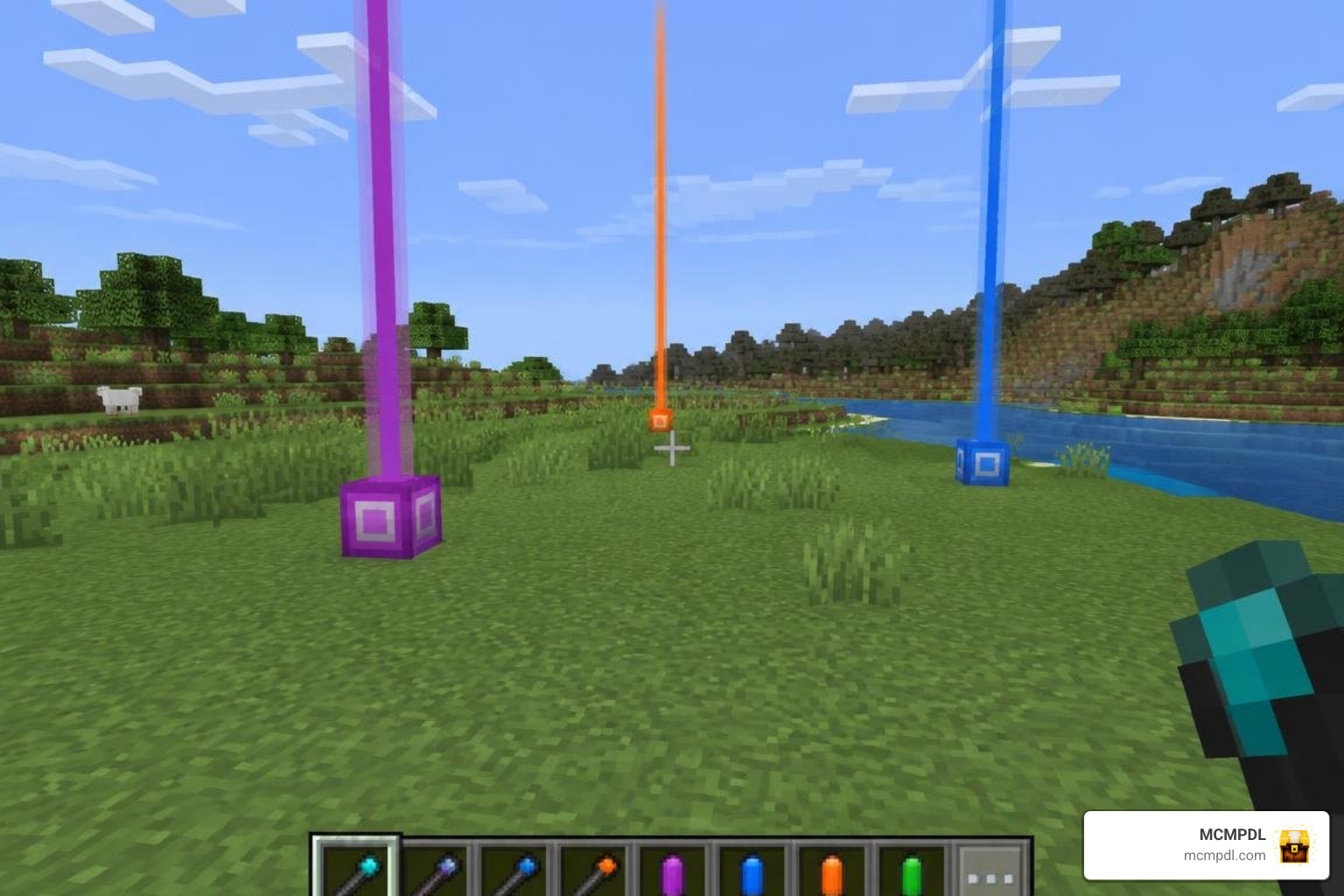
Lightweight marker systems remain popular for quick mobile recordings due to their simplicity. You do not need to navigate complex configuration menus; dropping a few markers and a focus target lets you record an aerial sweeping shot in seconds. However, these tools generally cap active markers at 10 and lack automated command execution.
For Java users seeking video playback and CEF rendering, external mods like CinemaMod bundle tools like ffmpeg directly inside their server packages. However, for mobile and cross-play worlds, native Bedrock .mcpack tools provide the smoothest workflow without external software.
Future Roadmap and Upcoming Features
Bedrock cinematic tools continue to advance alongside Minecraft’s Creator Tools API. Planned features across modern cinematic utilities aim to bring full studio-grade capabilities directly to mobile and console players:
- Field of View (FOV) Keyframing: Dynamic FOV zooming will let creators achieve cinematic crash zooms, wide-angle landscape reveals, and dramatic focus shifts during active paths.
- Multiple Sequence Playback: Map designers will be able to queue multiple scenes in succession, creating continuous story cutscenes without manual script intervention between shots.
- Gameplay Replay Systems: Development continues toward camera systems that record local entity movements, enabling users to re-film action scenes from multiple angles after the gameplay happens.
- Runtime Scene Export and Import: Creators will be able to export scene coordinate data to share camera paths across worlds or import community-made camera presets.
Frequently Asked Questions About Minecraft Cinematic Addons
Can CinemaCraft be used on multiplayer servers?
Most Bedrock cinematic add-ons are designed for single-player worlds or local hosts where one player acts as director. Running cinematic routines simultaneously across multiple players on a dedicated server can cause camera conflicts, script errors, or unintended player teleportation. If filming on a multiplayer server, ensure only one designated director executes camera functions.
Why are camera commands not working in my world?
If typing a cinematic command yields no result, check three common factors:
- Ensure cheats are enabled in your world settings.
- Confirm that experimental Creator Features and Beta APIs are toggled on.
- Switch your game language to English (US), as some add-on command aliases are hardcoded to English strings.
What Minecraft Bedrock versions are supported?
Supported versions depend on the specific tool you install. Modern UI-based systems like Cinematic Editor v2.0.0 target Bedrock 1.21 and above, while lightweight utilities like Cinematick support versions 1.19 through 1.19.60. Always verify your game build before installing add-on files.
Conclusion
Creating cinematic trailers, storytelling cutscenes, and showcase videos on Bedrock Edition has never been more accessible. With keyframe curves, automated command triggers, and focal tracking tools, you can transform your blocky adventures into cinematic films directly on your phone, console, or PC.
Explore our wide catalog on MCMPDL to discover the latest camera utilities, world-building tools, and gameplay expansions to elevate your next production.