Scroll down to D0vvnl0ad
Build and Shape Worlds Faster in Minecraft Bedrock
A World Editing Addon for Minecraft PE/Bedrock lets you edit many blocks at once instead of placing or breaking them one by one. In most addons, you install the required packs, activate them for a backup copy of your world, then use a selection wand or in-game menu to choose an area and apply edits.
You can use these tools to:
- Copy, cut, paste, rotate, and stack buildings
- Fill, replace, hollow, or clear selected regions
- Undo mistakes and redo successful edits
- Shape hills, paths, forests, and other terrain with brushes
- Create mixed-block palettes for more natural-looking builds
WorldEdit-style addons bring familiar Java Edition building workflows to Bedrock players on mobile and PC. Support, setup steps, and experimental-feature requirements differ by addon, so choosing a version that matches your Minecraft release matters. This guide explains how to install one safely, select areas, use core tools, and avoid common performance problems.
Core Features of the World Editing Addon for Minecraft PE/Bedrock
When we build large-scale projects on Bedrock Edition, manual placement quickly turns an exciting concept into tedious work. Modern world editing addons solve this by giving us direct access to an array of coordinate manipulation tools, particle indicators, and versatile Bedrock tools right inside our inventory.
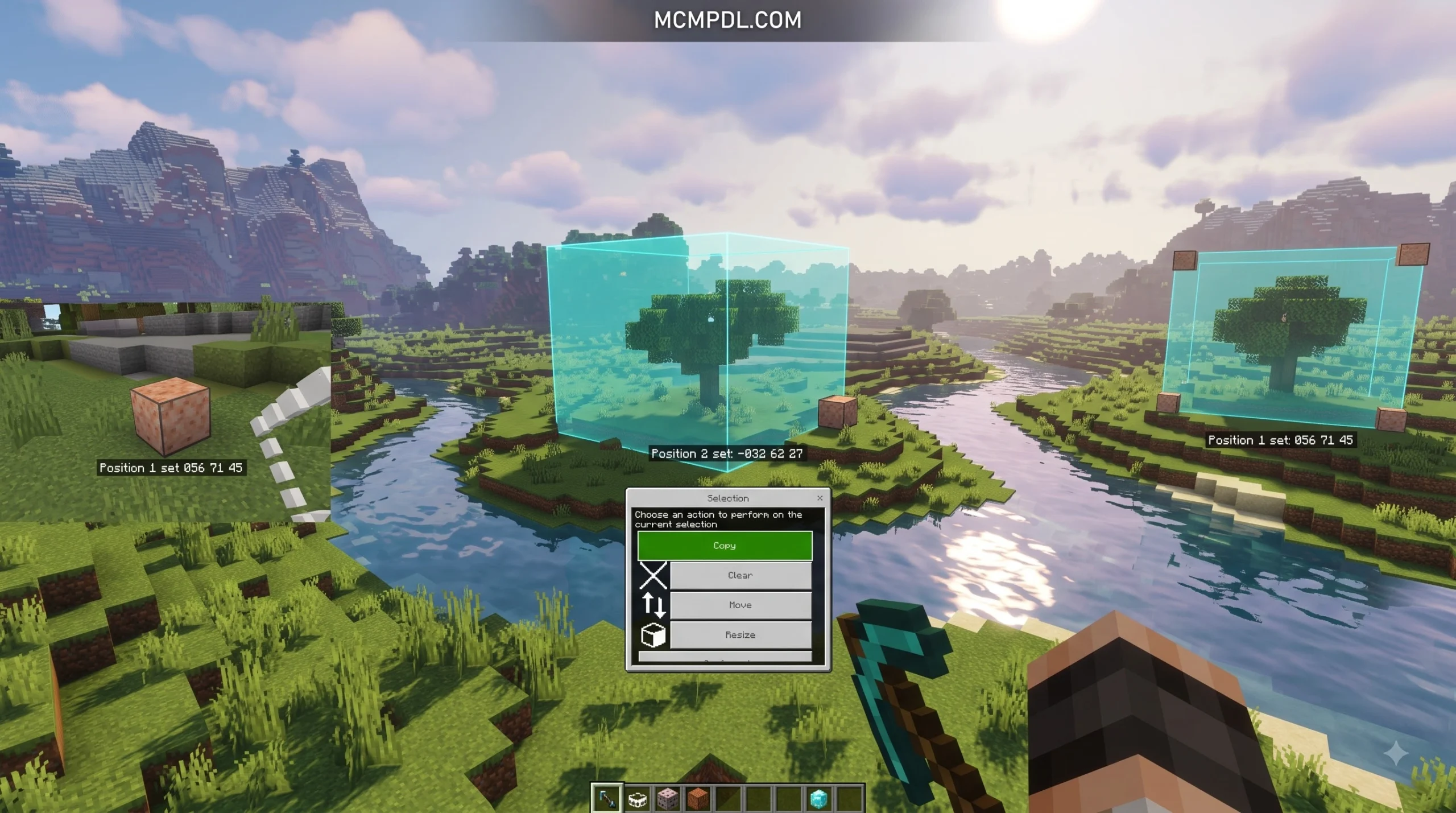
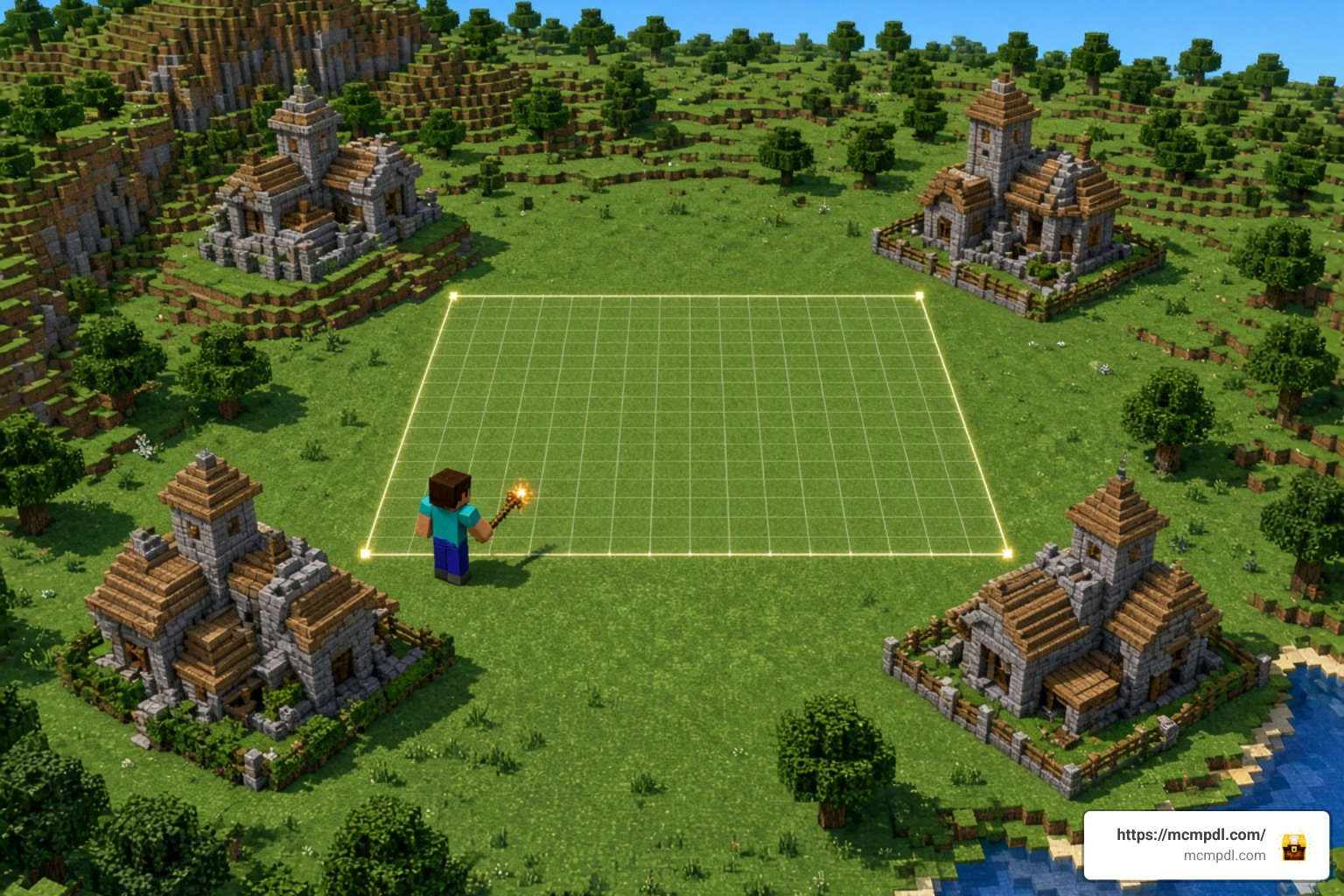
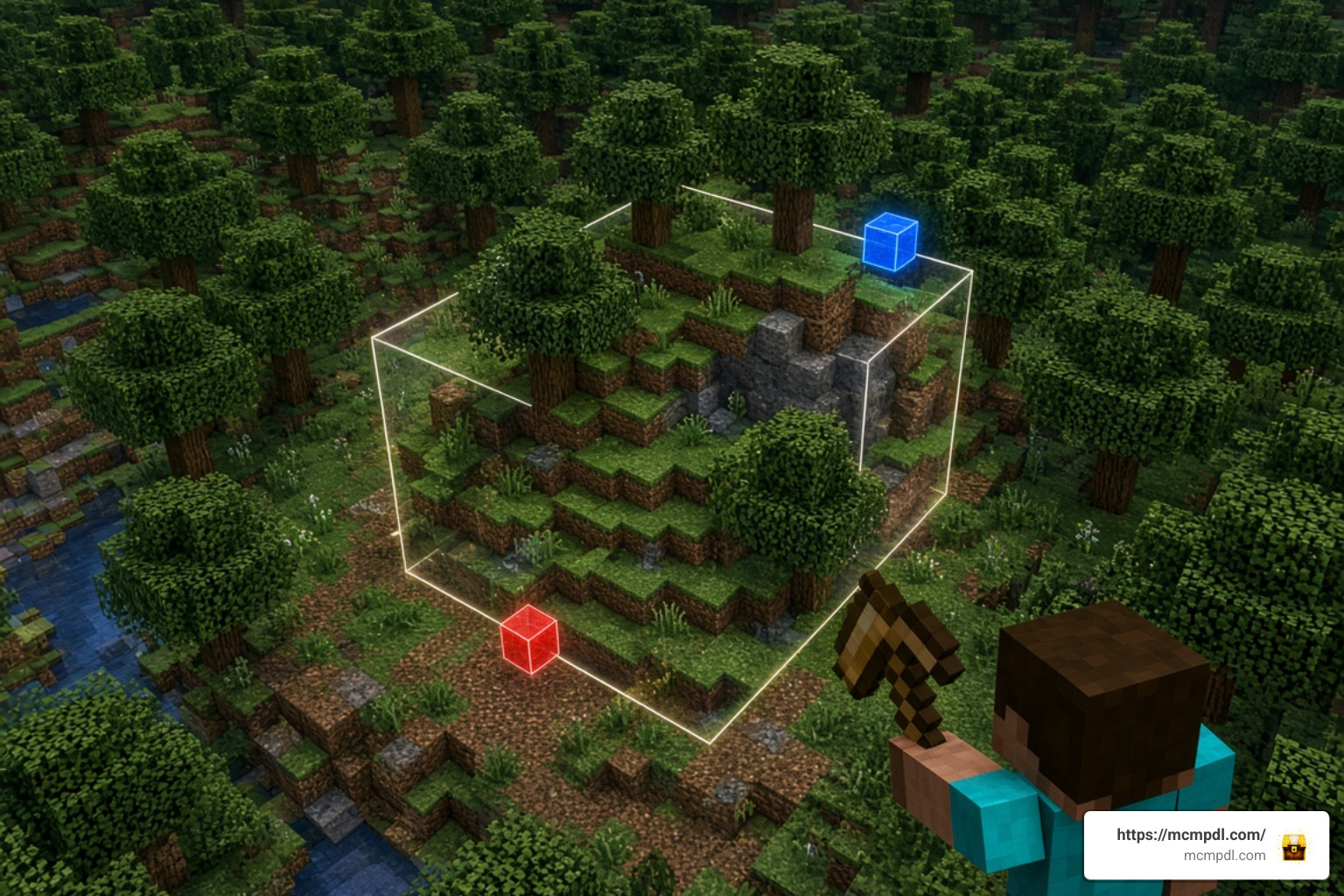
The cornerstone of any editing session is the selection wand. In chat-and-item setups, you obtain this tool via commands like /give @s bn:selection_wand or the classic wooden axe interface. Once equipped, interacting with blocks defines the 3D bounding box for your intended edits:
- Position 1 (Start Point): Left-click or tap a block to mark the first corner of your cuboid.
- Position 2 (End Point): Right-click, sneak-tap, or break a block at the opposite diagonal corner to complete the volume.
- Particle Outlines: Visual markers render around the perimeter, displaying the exact boundary box so you never accidentally overwrite an adjacent build.
- Coordinate Adjustments: You can expand or contract your selection along any axis through dedicated menu options without re-selecting blocks manually.
Clipboard, Region Manipulation, and History Operations
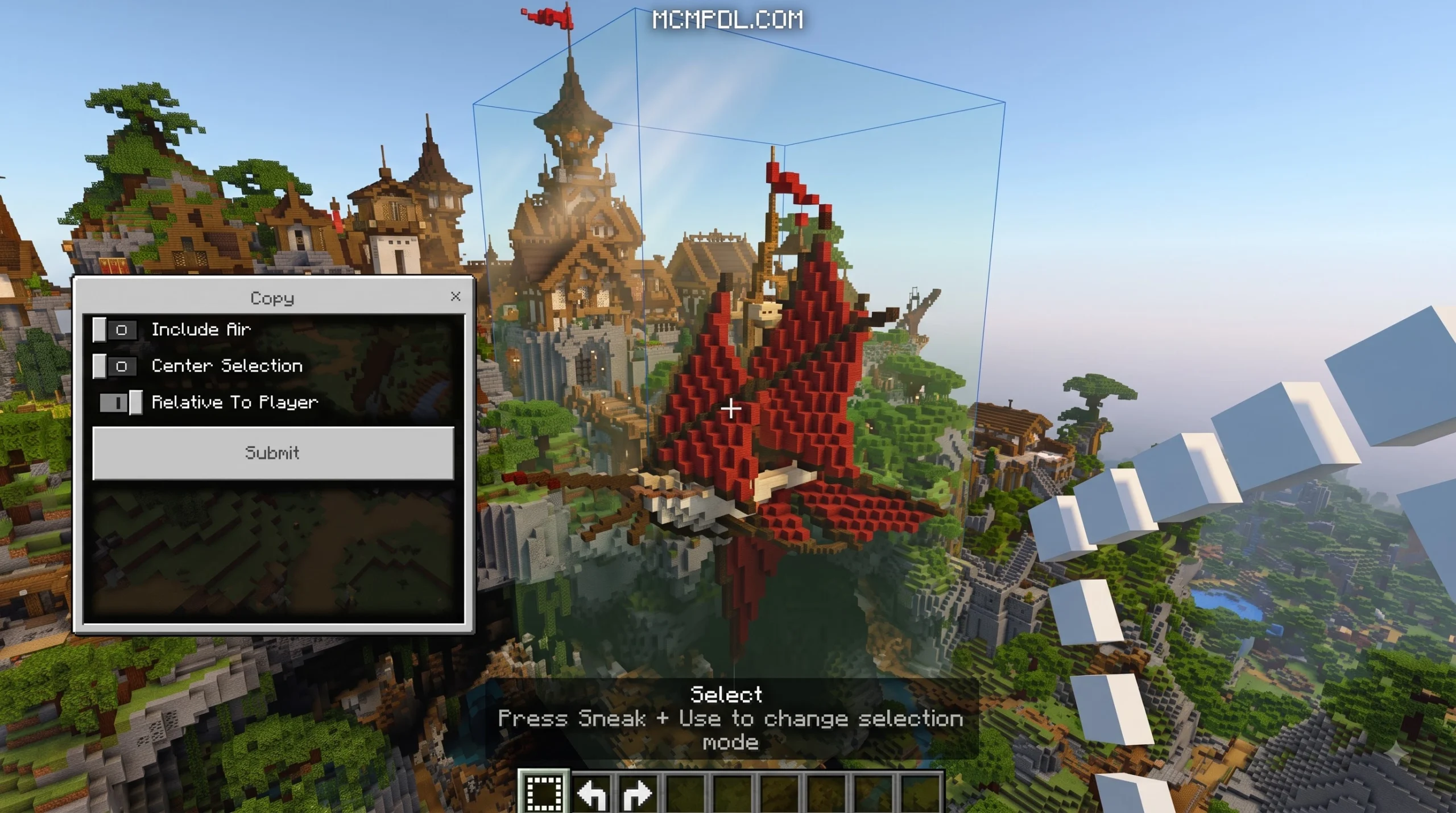
Once you define a bounding box, the clipboard system provides rapid construction tools. Instead of rebuilding the same structure multiple times across a custom map, you can clone, flip, and orient structures seamlessly.
- Copy & Cut: Capture your selection relative to your player position or remove it entirely from the world while saving it to temporary memory.
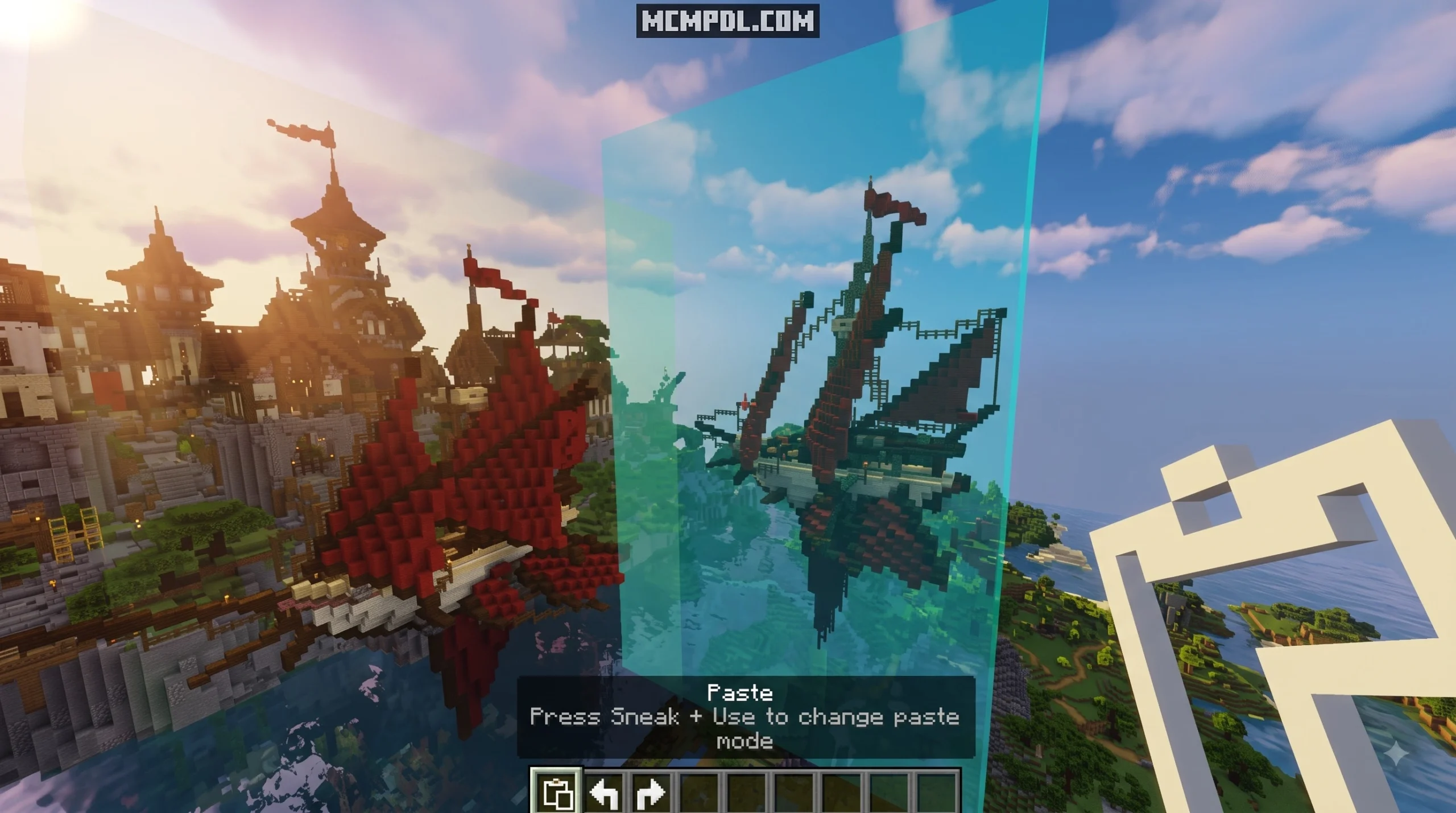
- Paste & Transform: Place your copied structure with precise offset control. You can rotate builds along 90-degree increments or flip them horizontally to construct symmetrical wings on castles and bases.
- Block Stacking: Repeat an entire selected slice or structure in any cardinal direction, making tall towers, bridges, and city walls effortless.
- Safety Limits: Leading addons incorporate an operational safety cap, frequently set around 200,000 blocks per execution, preventing instant out-of-memory crashes on mobile devices.
- History Management: Made a miscalculation? The undo and redo stacks let you step backward and forward through your editing history, reversing catastrophic accidental fills in seconds.
Advanced Brushes and Procedural Terrain Generation
Landscaping by hand across wide mountain ranges or custom biomes consumes massive amounts of time. World editing brushes turn this process into an intuitive painting experience:
- Regular & Paint Brushes: Paint custom block types across existing surfaces using custom spherical or cylindrical shapes.
- Height Brush: Raise or lower terrain contours smoothly, building organic hills, rolling plains, and natural valleys without sharp block staircases.
- Foliage Brush: Scatter custom plant life, flowers, saplings, and decorative rocks naturally across large fields with a single click.
- Masking Tools: Restrict your brush actions to affect only specific target blocks (such as replacing only stone with mossy cobblestone while leaving dirt and grass untouched).
- Procedural Noise Generation: Advanced edit suites include procedural algorithms—such as Simplex noise, Fractal Brownian Motion (FBM), and Worley noise—allowing you to generate rugged mountain ranges and organic caverns with adjustable octaves, scale, and height values.
Palette System and Auto Spectator Mode
To achieve build realism, experienced builders combine multiple block variants to simulate texture and weathering. World editing tools include custom palette systems alongside custom utility tools to automate these blends.
Using weighted palettes, you can define specific ratios, such as 60% Stone, 25% Andesite, and 15% Cobblestone. When applying fill or brush commands, the engine distributes the blocks randomly according to those exact percentages.
Another quality-of-life feature is Auto Spectator Mode. When flying through massive structures or dense mountain interiors during creative work, players often clip into blocks and lose visibility. Auto Spectator dynamically phases your player into spectator mode whenever you collide with solid geometry, returning you to standard flying creative mode once you clear the obstruction.
Step-by-Step Installation and Platform Setup
Installing a world editing addon on Minecraft Bedrock requires pairing the correct behavior and resource packs while ensuring your world settings support modern scripting.
- Back Up Your World: Always duplicate your world file before applying any pack that executes bulk block updates.
- Download the Packs: Obtain the
.mcaddonor separate.mcpackfiles matching your specific game version. - Import to Minecraft: Open the downloaded files directly with Minecraft to trigger automatic importation into your storage.
- Activate Behavior and Resource Packs: In your world settings, navigate to Behavior Packs and Resource Packs to activate both components.
- Enable Experimental Settings: Toggle the required experimental features in world settings, particularly Beta APIs and Holiday Creator Features depending on the specific engine requirements of your chosen pack.
Installing the World Editing Addon for Minecraft PE/Bedrock Across Platforms
Because Bedrock runs on mobile phones, desktop computers, and dedicated servers, file handling varies slightly across devices:
- Android: Download the file and use a dedicated file manager to tap the
.mcaddonfile, choosing “Open with Minecraft.” - iOS: Download the pack via Safari or third-party file tools, tap “Share,” and export it into the Minecraft app directory.
- Windows (PC): Double-click the
.mcaddonfile to launch Minecraft and auto-import. PC users can also utilize custom hotkeys and in-game JSON UI windows for faster command execution. - Dedicated Servers: Server setups require extracting behavior and resource packs directly into the server’s root folders. On third-party hosts, ensure you use the standard package without conflicting JSON modules, and upload a fresh world template before toggling scripts.
Choosing the Best World Editing Addon for Minecraft PE/Bedrock
Different community developers provide distinct world editing implementations. Reviewing their technical differences helps you pick the right tool for your setup.
| Feature / Aspect | SIsilicon WorldEdit: BE | bony162 WorldEdit Addon |
|---|---|---|
| Primary Interface | Chat Commands & Selection Kit Items | Full In-Game UI Forms & Tool Items |
| Experimental Requirements | Requires Beta APIs Enabled | Standard Pack Activation / Version Dependent |
| Terrain Algorithms | Standard Brushes & Shape Commands | Procedural Simplex, FBM & Worley Noise |
| Palette Handling | Pattern-based syntax | Weighted visual palette management system |
| Platform Target | Universal (PC, Mobile, Dedicated Servers) | Optimized for Touch Controls & Fast UI Menus |
| License / Source | Open-source (GPLv3) | Free community distribution |
Practical Building Workflows and Troubleshooting
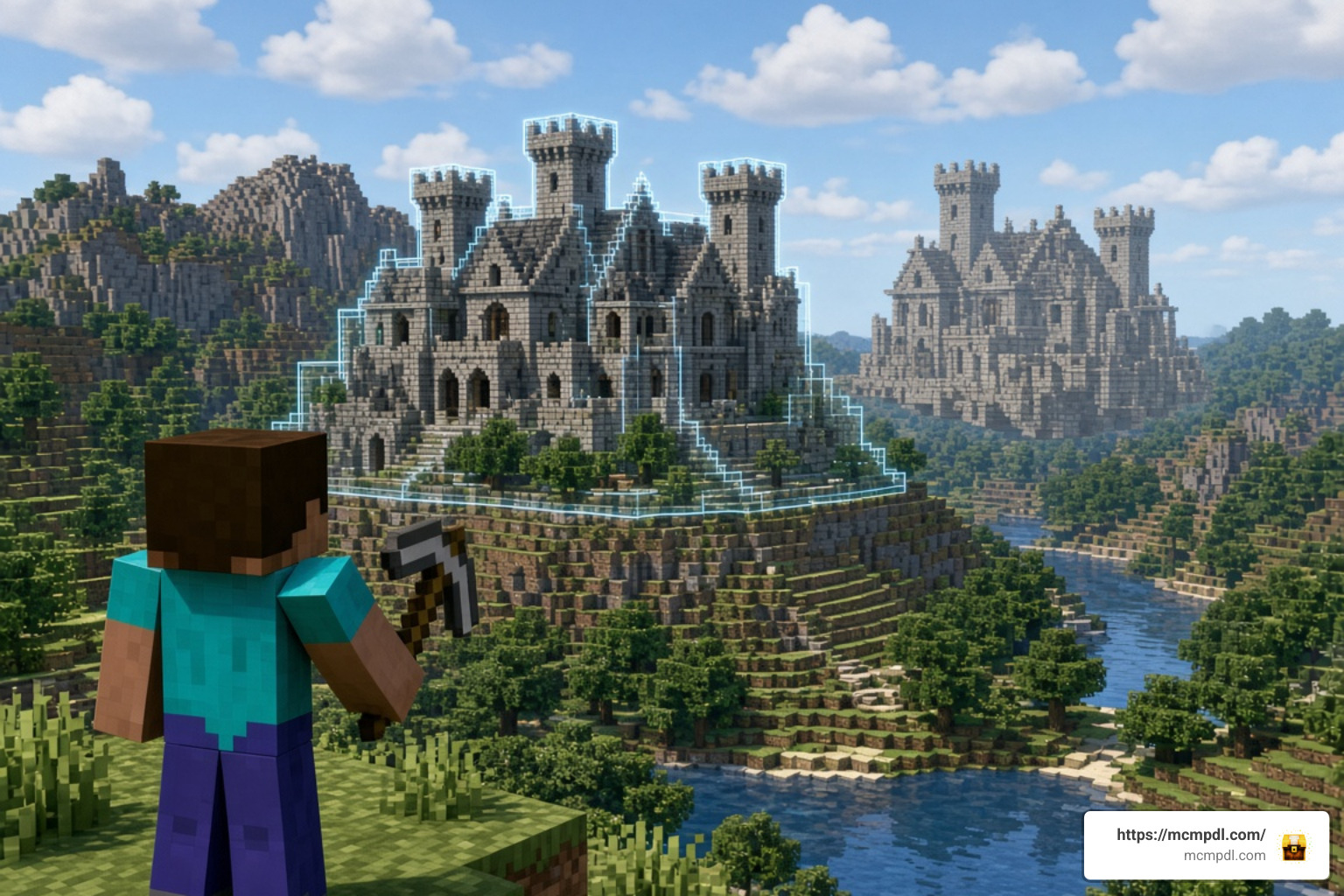
Combining world editing tools with structural generators makes large-scale map creation efficient. When working on sprawling adventures alongside packs that focus on spawning more structures, we recommend following a structured workflow:
- Mass Excavation: Use rectangular or spherical region selections with the hollow or clear tool to carve out construction zones.
- Structural Shelling: Define your structural perimeter using wall generation commands, then apply weighted material palettes to establish varied architectural surfaces.
- Detailing & Landscaping: Switch to foliage and height brushes to integrate the building naturally into surrounding hills and forests.
- Biome Manipulation: Update local biome tags within your selection to adjust grass colors, water shades, and weather patterns.
Troubleshooting Common Errors and Performance Optimization
Because Bedrock scripts run within the game’s client and server tick loops, massive edits can introduce performance bottlenecks if managed incorrectly:
- Block Tick Lag & Freezing: Executing massive operations across hundreds of thousands of blocks all at once can overload your device’s memory. Break massive terrain jobs into smaller sections under 50,000 blocks to maintain a smooth framerate.
- Missing Wand Textures or Item Models: If custom tools appear as missing purple-and-black textures, ensure your Resource Pack is active and placed high in the resource load order.
- Script Engine & API Errors: If commands do not register in chat, double-check that Beta APIs is enabled in your world experiments and verify your addon version matches your Minecraft release.
- Chunk Boundary Artifacts: Always remain within simulation distance of the area you are editing. If a selection spans unloaded chunks, blocks placed beyond the render distance may fail to update until you walk into the area.
Frequently Asked Questions about World Editing in Bedrock
Does the addon require experimental features enabled?
Yes, most feature-rich world editing addons rely on the Bedrock Scripting API and GameTest modules to manipulate blocks. Enabling Beta APIs in your world settings is mandatory for script-driven tools to execute commands. Some releases also recommend toggling Holiday Creator Features depending on the specific engine version.
Can you undo large terraforming operations without limits?
While the addon maintains a dedicated undo and redo stack, history is constrained by your device’s available memory. Storing excessive snapshots of massive multi-chunk terraforming operations can cause memory bloat. For maximum stability, perform large landscape transformations in incremental passes rather than a single massive operation.
Is the world editing addon free to use on multiplayer servers?
Yes, leading community world editing addons are free to download and distributed under open licenses like GPLv3. You can install them on private worlds, LAN games, and dedicated servers (including custom third-party hosting platforms) to collaborate on builds with friends.
Conclusion
World editing addons completely modernize the creative experience in Minecraft Bedrock. By mastering selection wands, clipboard rotations, procedural noise brushes, and weighted palette systems, you can bring massive architectural projects and custom terrain landscapes to life in minutes rather than weeks.
To discover more addons, building tools, and community resources, explore the latest creations on MCMPDL and elevate your Minecraft world-building today!

7 thoughts on “World Editing Addon for Minecraft PE/Bedrock”