Scroll down to D0vvnl0ad
How to Choose an Emojis Addon for Minecraft PE/Bedrock
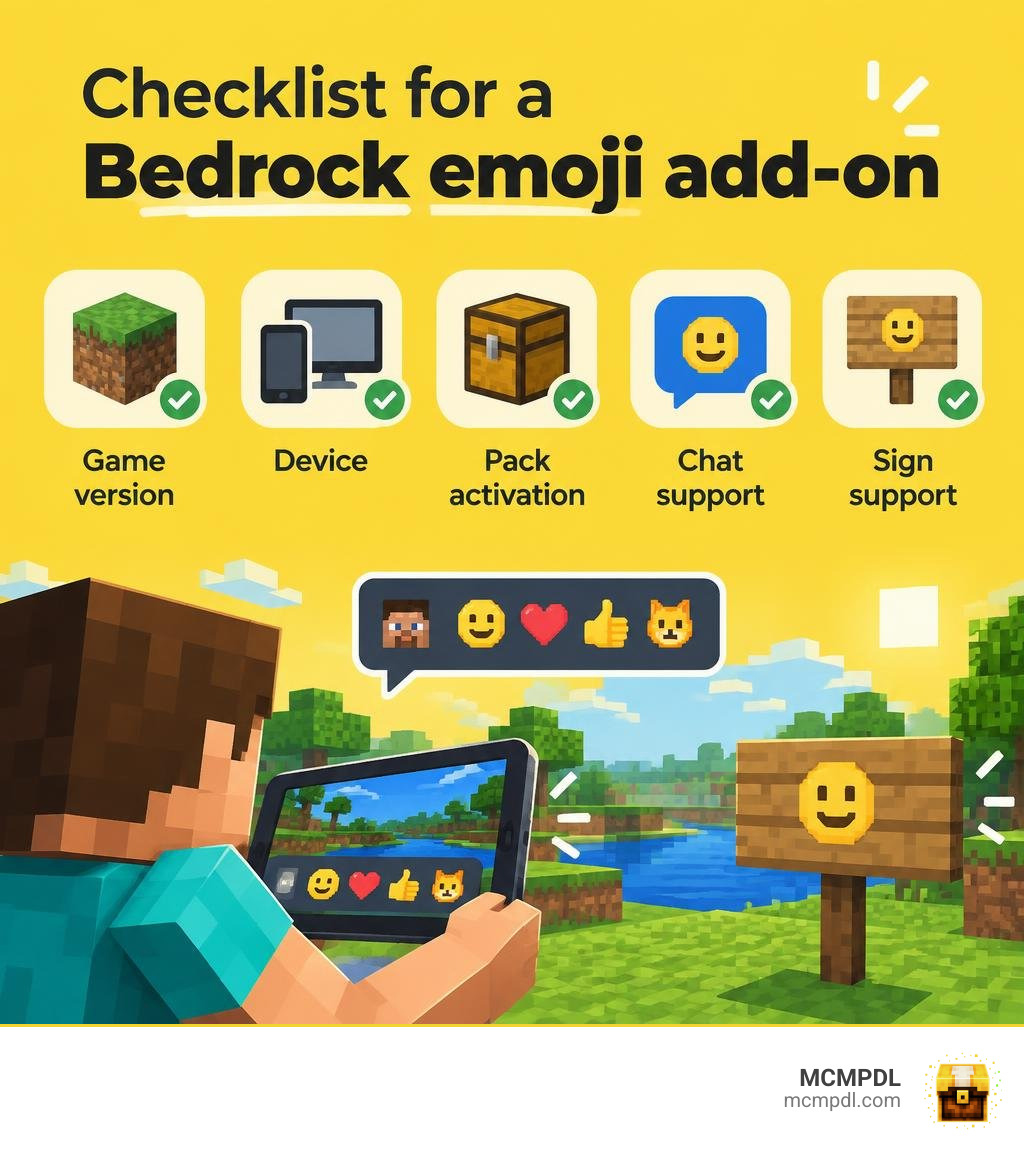
To find an Emojis Addon for Minecraft PE/Bedrock, check that it supports your game version and device before you download it. Look for a Bedrock-compatible pack, import its .mcpack file, and activate the resource pack in your world. Then test an emoji in chat and on a sign. If it shows as a blank box, the pack may not be active or that text screen may not support the icon.
Bedrock already has some built-in icons, but it does not display every emoji from your phone. Add-ons can expand your choices by giving special text characters custom images. The rest of this guide will help you pick a compatible pack and understand where its emojis will work.
Understanding Vanilla Emojis and Bedrock Font Mechanics
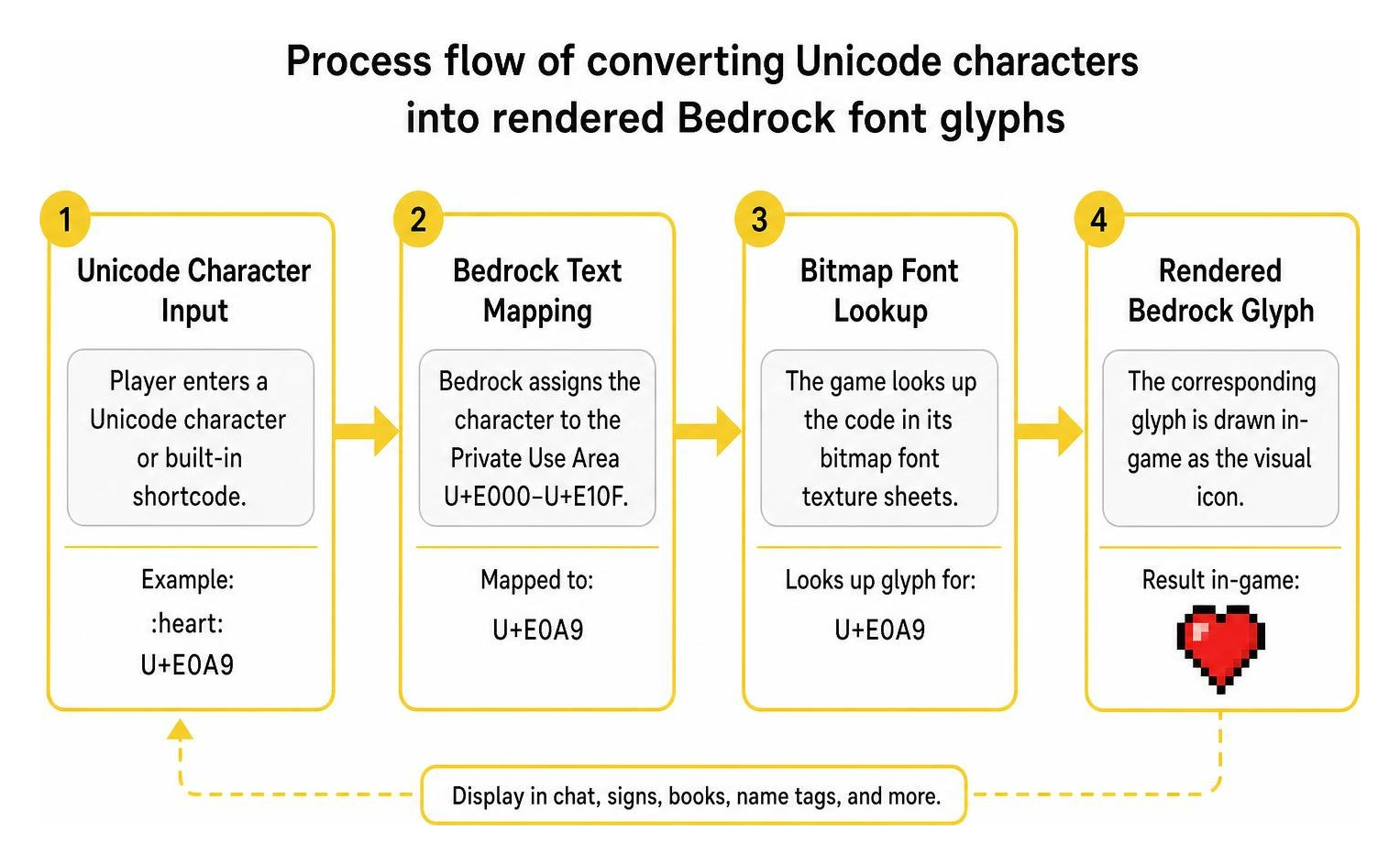
Minecraft Bedrock Edition handles in-game text differently from standard operating systems. While your phone or computer uses modern system fonts packed with thousands of emojis, Bedrock relies on a dedicated bitmap font pipeline. Behind the scenes, the game assigns custom graphical symbols to the Unicode Private Use Area spanning code points U+E000 through U+E10F. Because these characters are rendered directly from game textures rather than your device’s native font library, you cannot simply copy and paste standard phone emojis into the chat and expect them to display.
Instead, Bedrock translates specific Unicode values and built-in shortcodes into visual icons. If you want to explore the complete catalog of these symbols, you can reference this comprehensive reference of Bedrock Unicode characters to see how each private-use character maps to an in-game icon.
There are distinct platform limitations you need to know about when working with vanilla emojis:
- Nintendo Switch Texture Restrictions: While players on Nintendo Switch can view vanilla emojis sent by others in multiplayer, the platform’s closed filesystem prevents direct modification of the base vanilla emoji textures.
- Ore UI Screen Incompatibility: Newer menus built on Mojang’s modern Ore UI framework do not parse font glyph emojis properly. Standard JSON UI elements handle them seamlessly, but newer screens often display placeholder boxes or drop the characters entirely.
- Legacy Font Limitations: Bedrock only supports a legacy subset of symbols natively. Modern emojis added to standard Unicode sets over recent years will appear as missing character boxes unless mapped through an add-on.
Built-in Shortcodes and Controller Icons
Bedrock comes preloaded with dozens of built-in icons that work across signs, books, chat, and name tags. These range from platform button prompts (such as Xbox, PlayStation, and Switch controls) to interface graphics like the hunger bar, armor points, and the classic red heart icon.
Community members frequently use the curated Bedrock edition symbols repository to copy specific button prompts and HUD indicators directly into their text fields.
Here are a few common vanilla shortcodes and their in-game uses:
:heart:renders the classic red health point symbol, perfect for labeling survival bases or healing stations.:minecoin:displays the official currency icon for server shops and marketplace-themed minigames.:crafting_table:and tool shortcodes allow creators to build intuitive visual directories on signs or storage chests.- Platform-specific button codes like
:button_a:or:ps4_face_button_down:let adventure map makers build clean, universal tutorial prompts.
You can paste these raw Unicode symbols or type shortcodes directly onto hanging signs, name tags in an anvil, and inside writable books to make your world feel polished.
Selecting and Installing an Emojis Addon for Minecraft PE/Bedrock
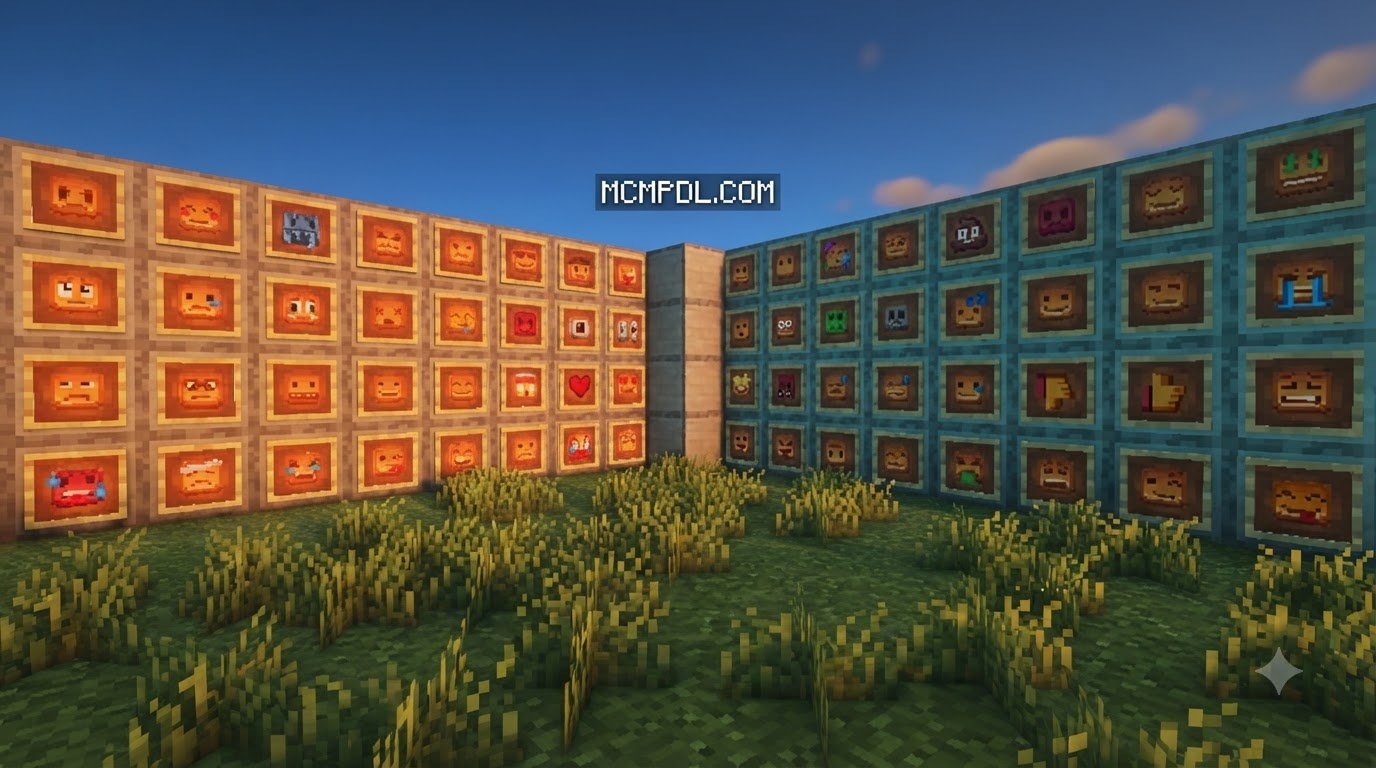
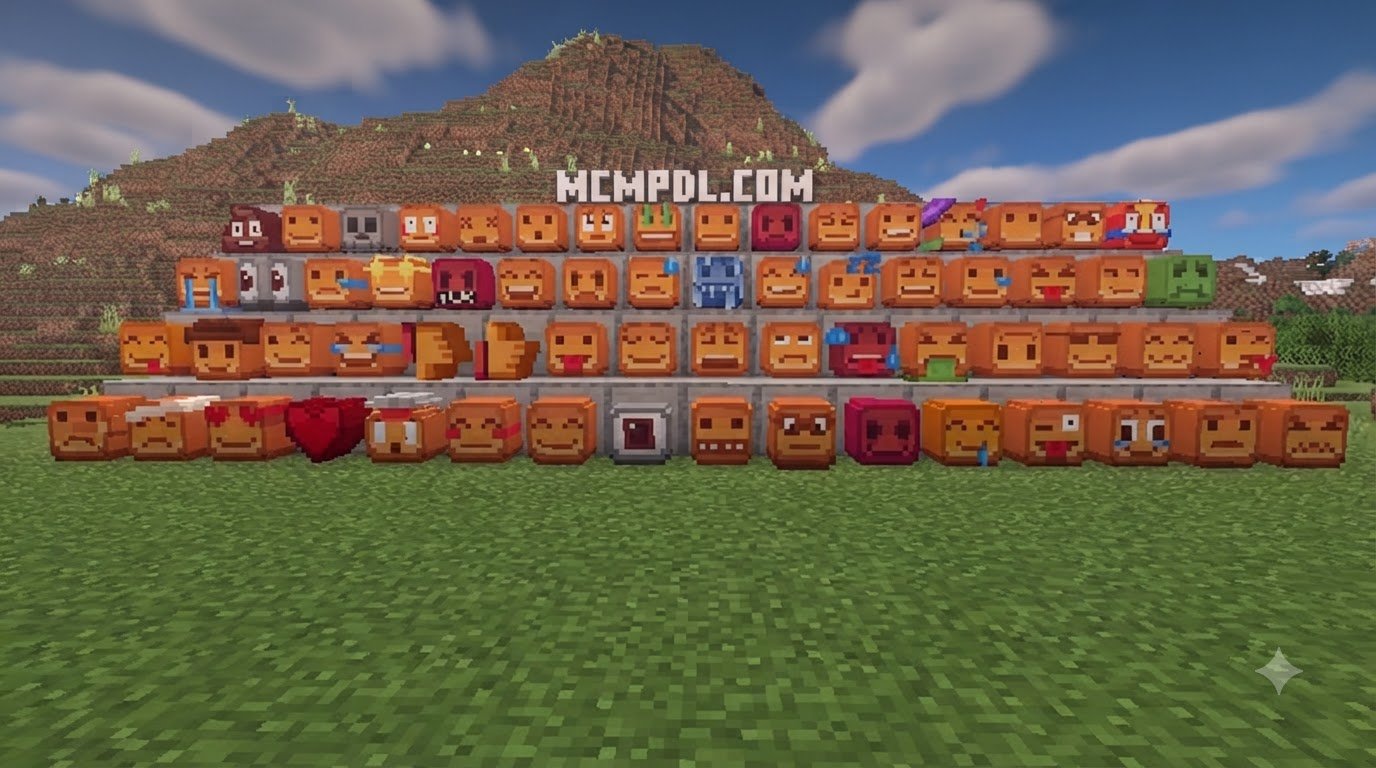
When you want more expressive flair than the default symbols provide, installing a dedicated add-on is the way to go. A well-designed emoji pack replaces or expands the font glyph sheets, letting you insert expressive smileys, custom memes, and reaction icons straight into chat.
One popular example is the community add-on Emojis-In-Chat. With over 12,500 downloads, it brings an intuitive chat experience to Bedrock worlds running modern updates such as version 1.21. It provides server-friendly multiplayer support and includes quick commands like -emoji list so players can easily preview all available symbols without memorizing raw codes.
Before picking an add-on, always verify:
- Version Compatibility: Confirm that the add-on supports your current game release (such as Bedrock 1.21 builds) so your UI elements do not break.
- Multiplayer Support: Ensure the pack works client-side or can be applied globally to a dedicated server or Realm so everyone sees the same icons.
- Command and Input Syntax: Check whether the pack uses simple text shortcodes (like
:smile:), in-game chat commands, or direct character pasting.
Installing a Custom Emojis Addon for Minecraft PE/Bedrock
Getting an emoji add-on running on mobile, PC, or consoles is straightforward:
- Download the
.mcpackfile for your chosen emoji add-on. - Open the file on your device. Minecraft will automatically launch and import the package into your resource pack directory.
- Open your world settings, navigate to Resource Packs, locate the imported pack under My Packs, and click Activate.
- If you want emojis to appear across all worlds and servers, activate the pack under Global Resources in the main game settings menu.
Pairing visual enhancements transforms your world into a richer roleplay environment. For instance, pairing chat emojis with an immersive magic addon for Minecraft PE/Bedrock or an extensive RPG classes addon for Minecraft PE/Bedrock lets players express spell cooldowns, mana levels, and class roles with clear visual flair right above their heads or in chat channels.
Technical Differences in an Emojis Addon for Minecraft PE/Bedrock vs Java Mods
Emoji systems function differently between Minecraft editions:
- Font Engine Mechanics: Java Edition mods use dynamic TrueType or bitmap font renderers, often pulling external image files or web sources directly into chat. Bedrock Edition relies strictly on static glyph texture sheets (
.pngfiles) mapped via font metadata files. - Server-Side Integration: Java mods like Emojiful or Emogg utilize server-side datapacks and packet handlers to transmit custom emote data. Bedrock add-ons use client-side or world-level resource packs that swap font textures without altering server binaries.
- Animated Emotes: While Java mods can handle animated
.gifemotes natively in chat windows, Bedrock requires clever sprite-sheet mapping and frame sequencing, making static emojis far more stable on mobile and console hardware.
These lightweight Bedrock texture sheets ensure you can combine fun chat icons with complex creature transformations like a morph addon for Minecraft PE/Bedrock without experiencing frame drops on low-end mobile devices.
Creating Custom Emoji Packs Using Glyph Texture Sheets
If you want to design your own custom icons, you can build a personal resource pack using Bedrock’s glyph system. Bedrock maps fonts using a grid of 16-by-16 character slots per sheet.
The core files you will work with include:
glyph_E0.pngandglyph_E1.png: These contain vanilla symbols and button prompts. Overwriting these lets you replace default icons.glyph_E2.pngthroughglyph_F8.png: These higher ranges are completely untouched by vanilla Minecraft. Using these empty slots prevents your custom emojis from breaking standard button prompts or HUD elements.
To create your pack:
- Create a standard Bedrock resource pack structure with a
manifest.jsonand afontsubfolder insidetextures. - Place your custom
glyph_E2.pngfile insidetextures/font/. - Standard glyph sheets use a 256-by-256 pixel resolution (where each character slot is 16-by-16 pixels). You can upscale your file to 512-by-512 pixels to give each emoji a 32-by-32 pixel canvas for sharper detail.
- Draw or paste your custom artwork into the corresponding grid squares.
- To simplify the mapping process, tools like the community-built Textures to Glyph Web Tool let you drop individual PNG files into a visual canvas and generate the finished sprite sheet alongside the exact character codes automatically.
Positioning, Resizing, and Spacing Custom Glyphs
Bedrock’s font renderer determines character width by scanning non-transparent pixels from left to right within each slot. This can occasionally cause spacing or alignment quirks:
- Vertical Alignment: Emojis placed too high in their grid box will float awkwardly above standard chat text. Center your graphic vertically within the slot to match the baseline of standard letters.
- Horizontal Spacing and Kerning: If an emoji appears too close to adjacent letters, add a single pixel with 5% opacity on the outer boundary of the slot. Because the game engine detects any pixel above zero opacity, it will treat that boundary as the character edge, adding clean padding without creating visible visual artifacts.
- Resolution Scaling: Always scale the entire sheet uniformly (for example, multiplying both width and height by 2). This keeps your custom high-resolution icons crisp without distorting text sizing on signs or books.
Frequently Asked Questions About Minecraft Bedrock Emojis
Why do custom emojis fail to display on Ore UI screens?
Ore UI is Mojang’s modern interface engine, designed to replace legacy JSON UI screens across Bedrock platforms. Because Ore UI utilizes an updated rendering pipeline, it does not currently parse Private Use Area font glyph sheets the same way older screens do. As a result, custom emojis may appear as blank squares or be omitted entirely on newer menus while continuing to work perfectly in standard chat, on wooden signs, and inside books.
Can you modify vanilla emoji textures on Nintendo Switch?
No. Nintendo Switch utilizes a closed filesystem environment that restricts players from altering core vanilla game assets. While Switch players can install custom resource packs that introduce new emojis in unused code ranges (like E2 through F8), they cannot directly overwrite the default vanilla glyph_E0.png sheet.
Which Unicode ranges are safest for custom Bedrock emojis?
The safest range for creating custom emojis is U+E200 through U+F8FF. Minecraft uses U+E000 through U+E10F for essential HUD elements, controller prompts, and built-in icons. By sticking to the E2 through F8 glyph sheets, you avoid overwriting vital interface symbols or causing cross-pack compatibility conflicts on multiplayer servers.
Conclusion
Expressing yourself in Minecraft Bedrock goes far beyond plain text. Whether you are using built-in private-use icons to design interactive signage, installing community chat packs for multiplayer servers, or drafting your own custom glyph sheets, emoji integration brings personality and clarity to your gameplay.
Ready to enhance your Bedrock experience with new items, interfaces, and mechanics? You can explore curated add-ons and resources on MCMPDL to discover community-tested packs designed for your favorite platform.