Scroll down to D0vvnl0ad
Add Tool Trims to Minecraft PE and Bedrock
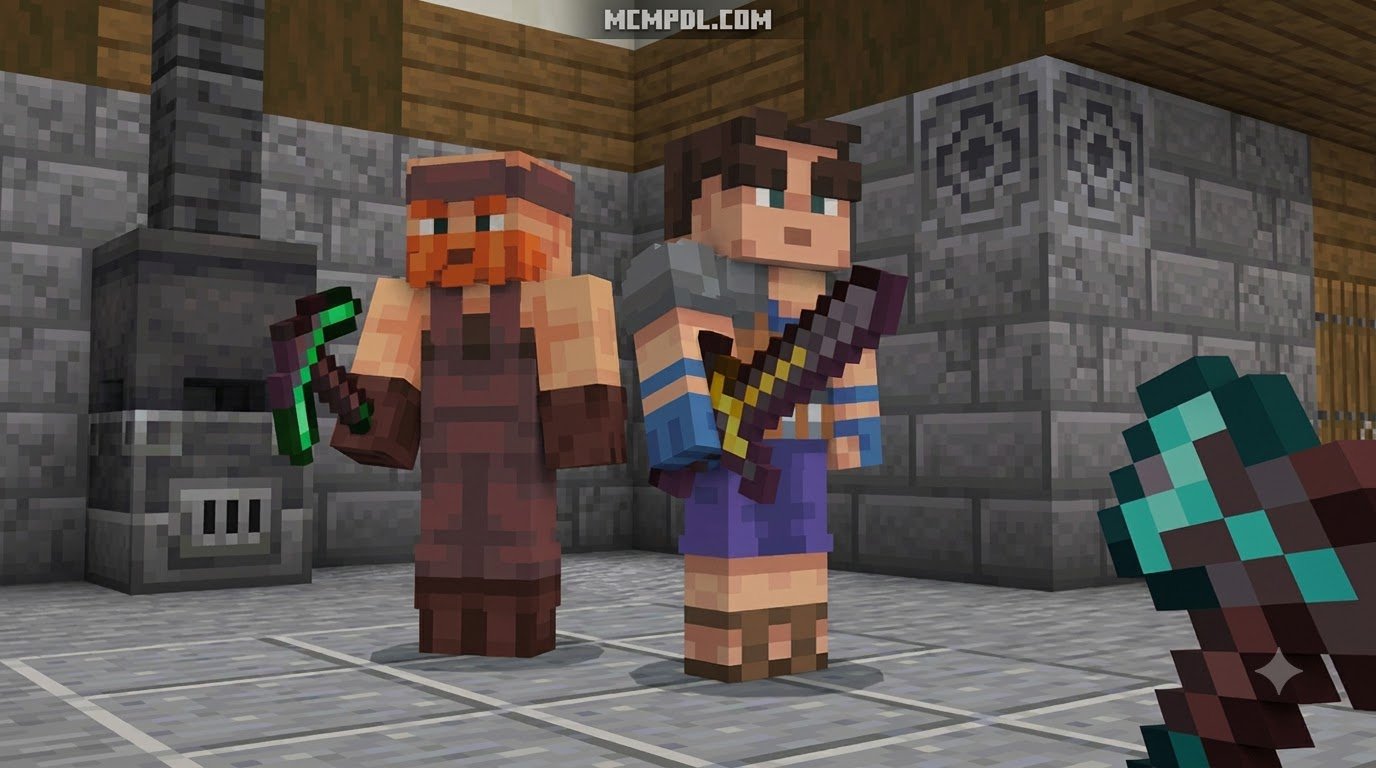
The TRIMS add-on lets you give Bedrock tools distinct looks, so you can spot the right pickaxe or sword at a glance. To install it, download the .mcaddon file, open it with Minecraft, then activate its Resource Pack and Behavior Pack in your world settings. If the add-on requires experimental features, turn those on before loading the world.
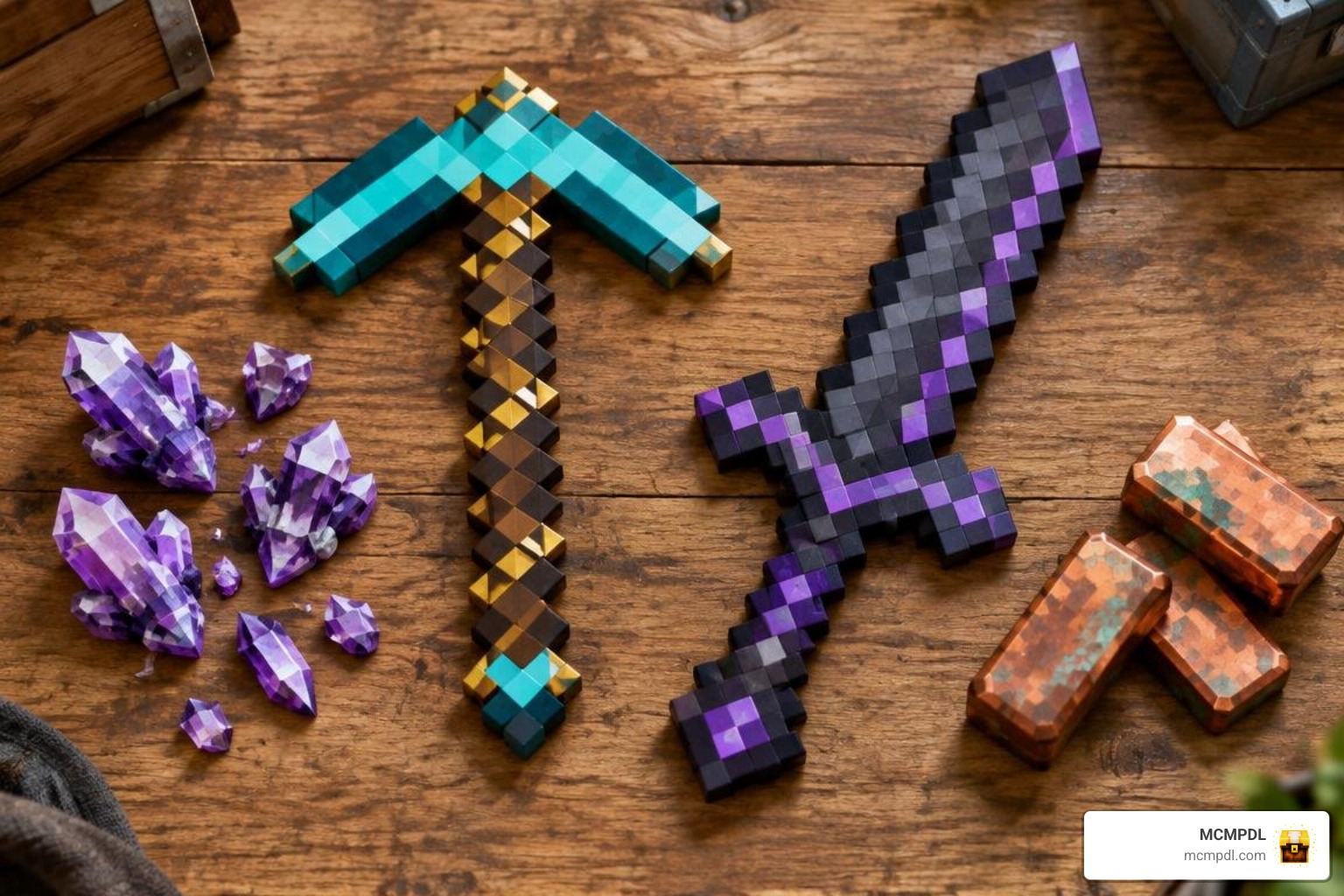
Once installed, use a Toolsmithing Table, a trim template, and a trimming material to customize a tool. Back up your world first, and test the add-on with an unenchanted tool: trimming an enchanted tool may remove its enchantments.
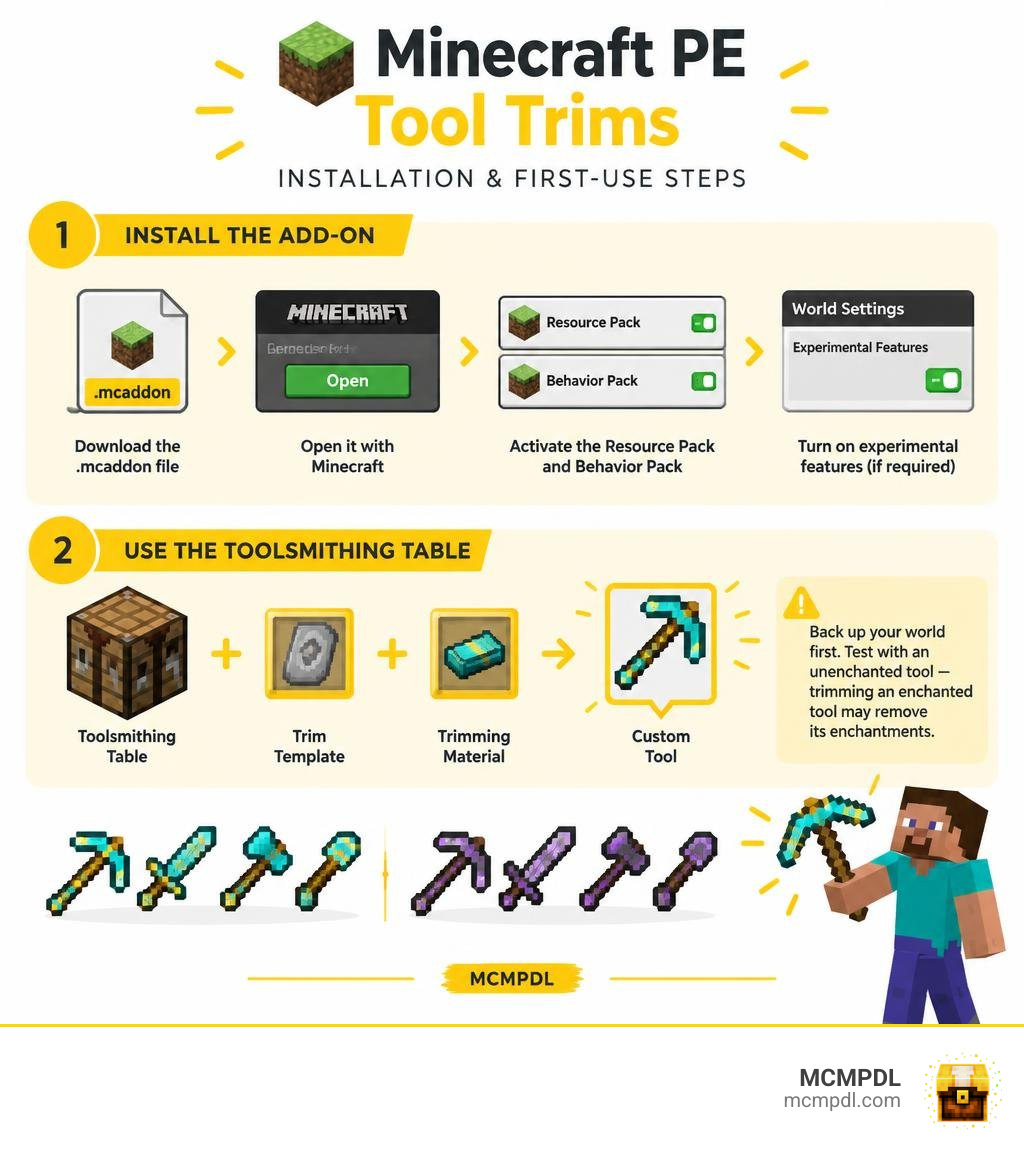
What Is the TRIMS Addon for Minecraft PE/Bedrock and How Does It Work?
Ever opened your ender chest during an intense mining run or a boss fight, only to stare at four identical Netherite pickaxes wondering which one holds Silk Touch and which one has Fortune III? Vanilla Minecraft introduced armor trims in update 1.20, transforming armor sets into personalized works of art. However, our everyday tools were left completely plain.
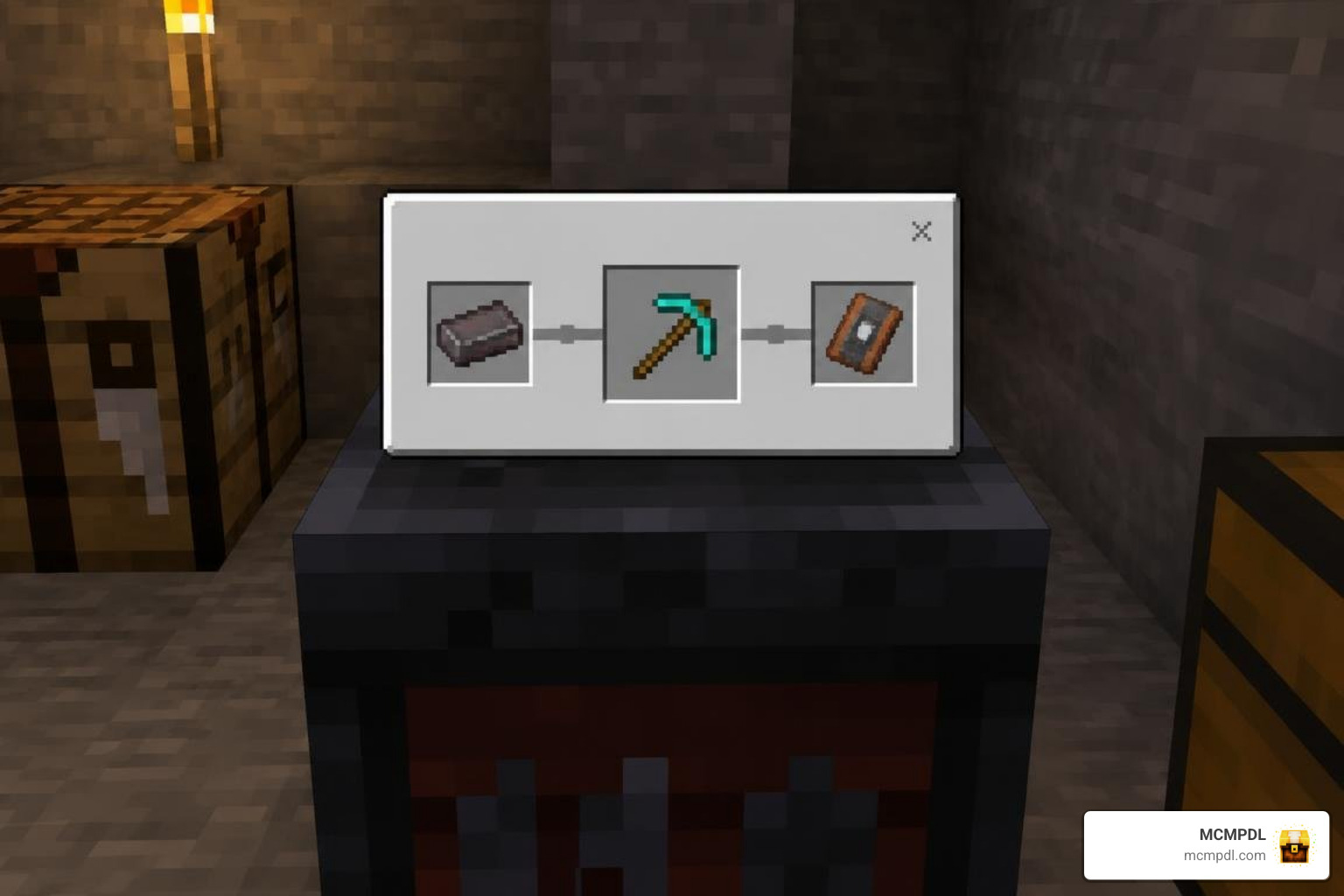
The TRIMS Addon for Minecraft PE/Bedrock solves this cosmetic gap by bringing the complete smithing template experience to handheld gear. Whether you are swinging swords, clearing caverns with pickaxes, or wielding maces, this add-on applies distinct decorative motifs across your entire hotbar. Just like you can pair other utility packs such as the Bedrock Tools Add-on to expand gameplay depth, tool trimming brings visual clarity so you can identify specific gear setups at a glance without reading through lengthy tooltips.
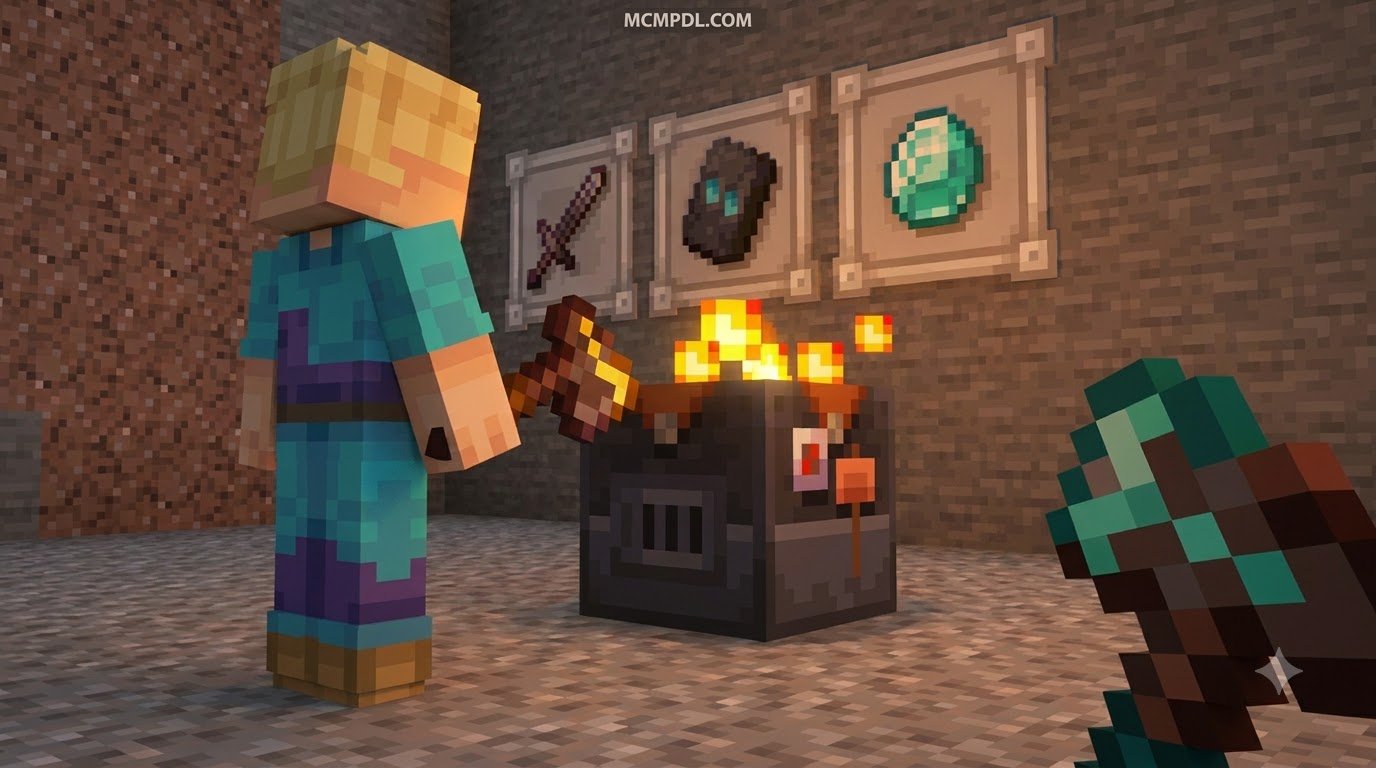
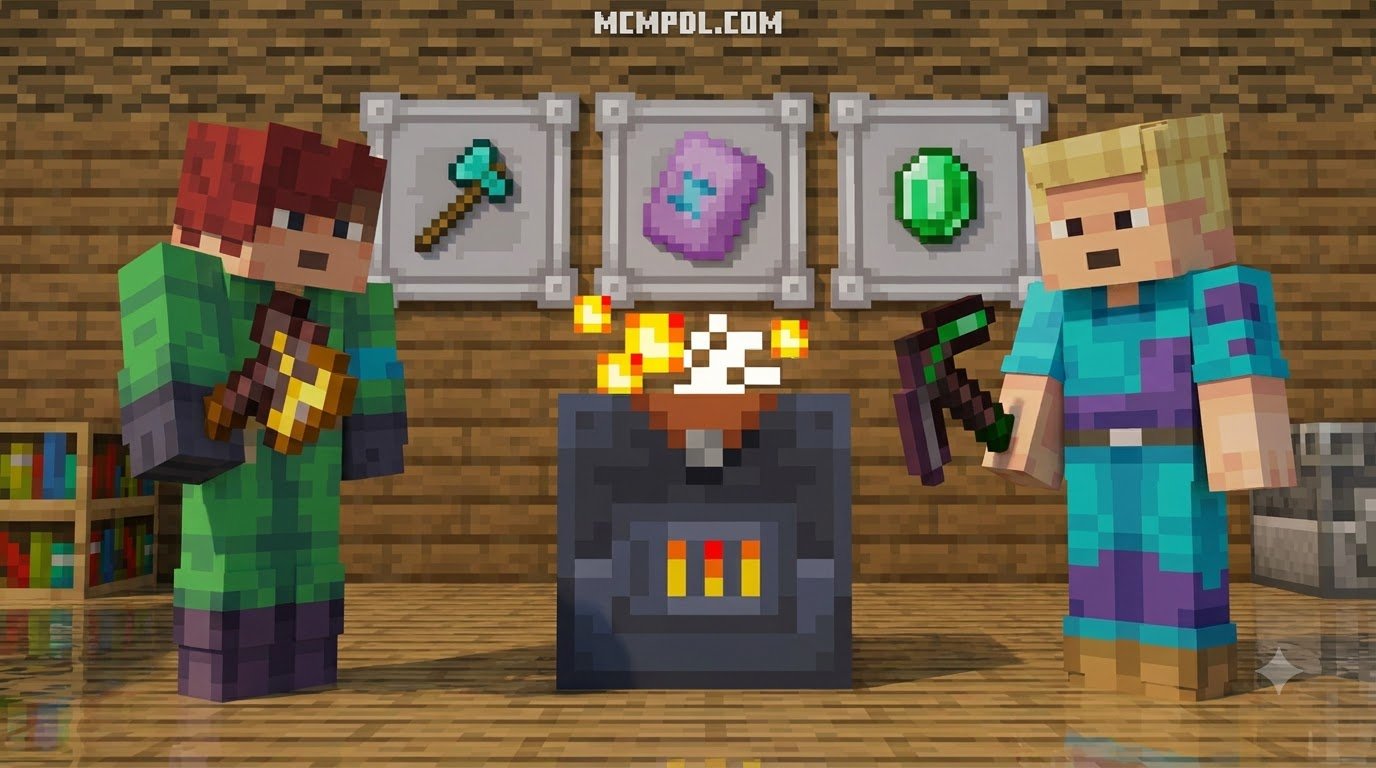
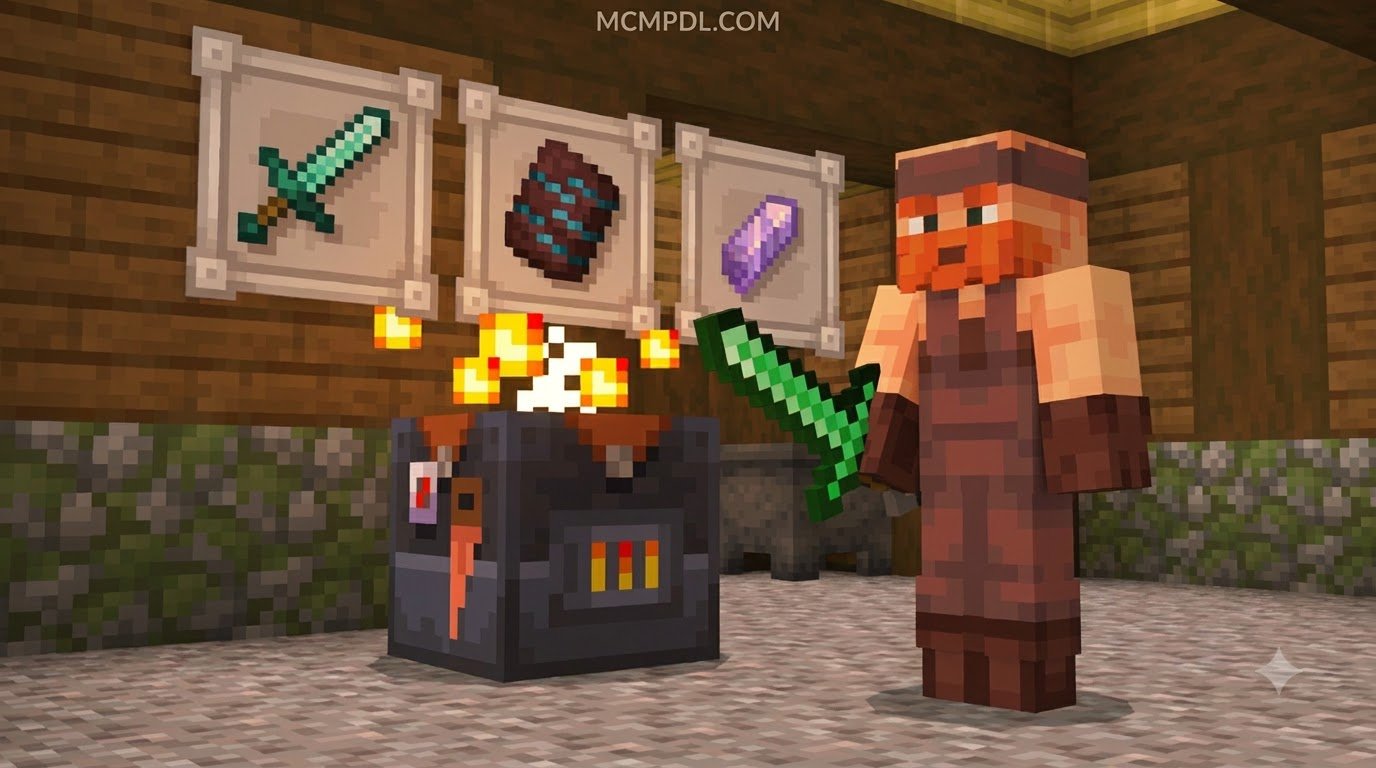
The mechanics function similarly to the base game’s smithing system. By placing a base tool, a trimming material (such as gold, diamond, amethyst, or netherite), and a specialized smithing template into a custom station, the tool receives an overlay pattern that reflects your chosen style.
Core Features of the TRIMS Addon for Minecraft PE/Bedrock
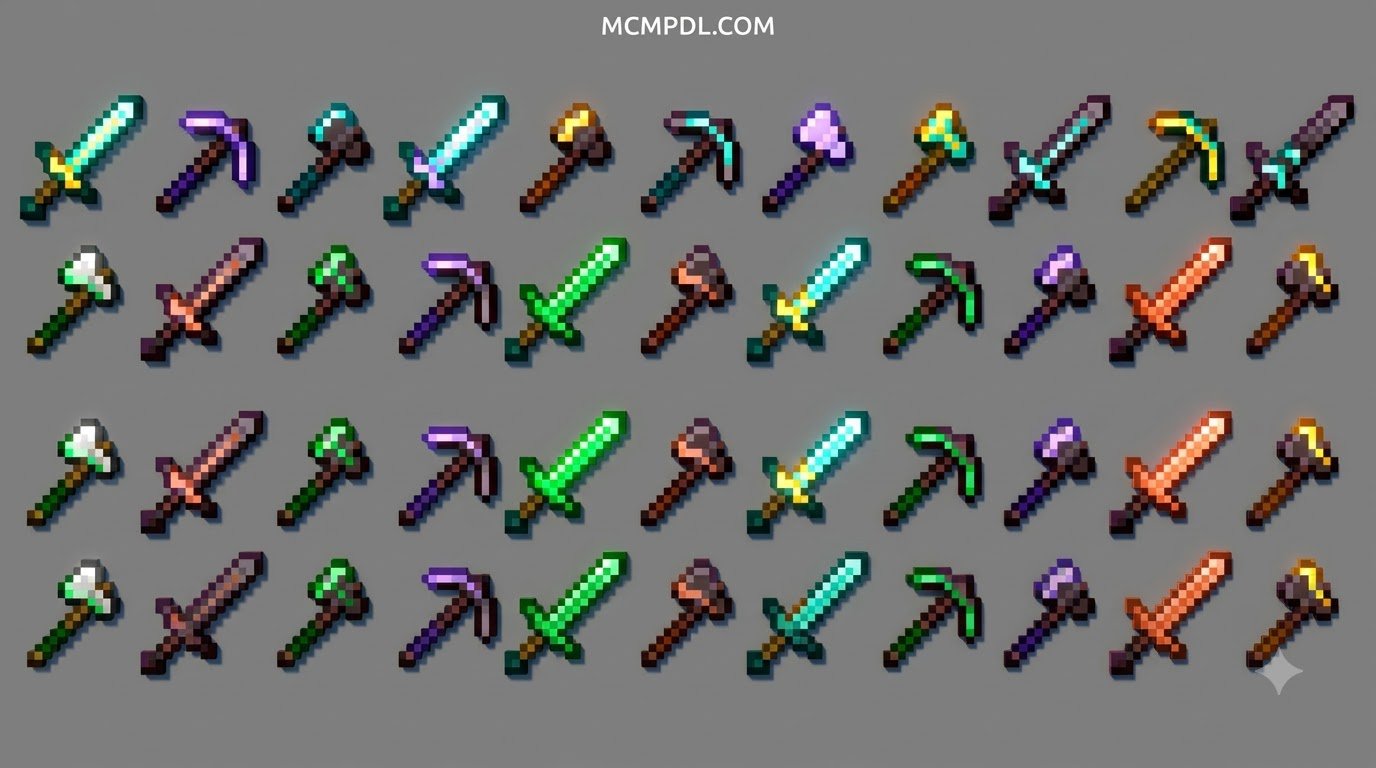
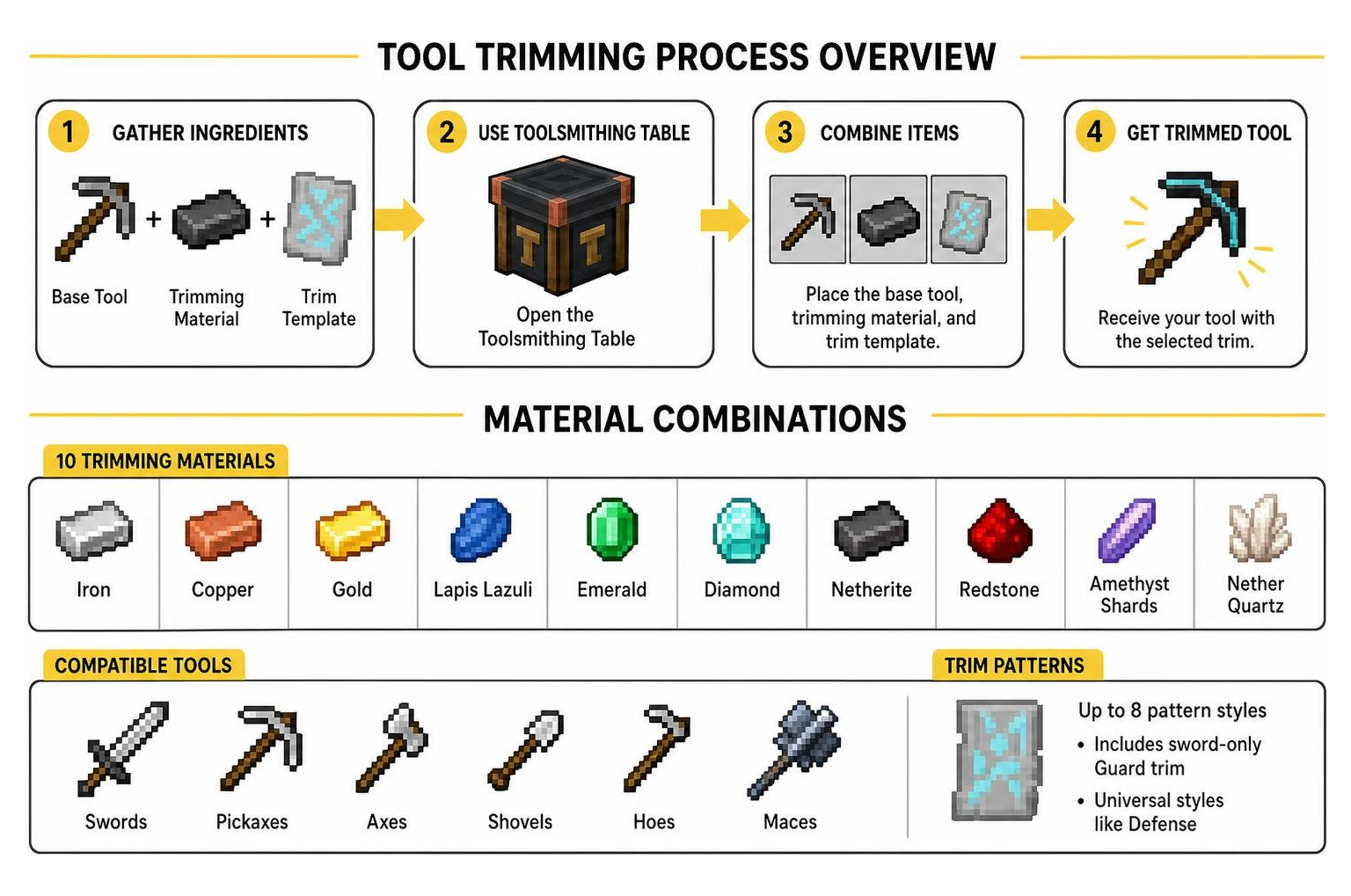
The sheer variety of combinations is where this add-on shines. It offers over 1,200 unique visual combinations across multiple tool tiers:
- Supported Equipment: Swords, pickaxes, axes, shovels, hoes, and maces across standard survival tiers (Iron, Diamond, Netherite, Golden, and Stone).
- 10 Trimming Materials: Iron, Copper, Gold, Lapis Lazuli, Emerald, Diamond, Netherite, Redstone, Amethyst Shards, and Nether Quartz.
- 11 Vanilla Trim Colors: Choose from palettes ranging from deep lapis blues and fiery redstone hues to sleek netherite finishes and vibrant emerald greens.
- Distinct Pattern Styles: Access up to 8 new trim patterns, including specialized designs like the sword-only Guard trim and universal styles like Defense.
- High Visual Fidelity: Designed to blend seamlessly with standard vanilla textures, as well as enhanced looks like a Vanilla HD Texture Pack.
Crafting the Toolsmithing Table and Finding Smithing Templates
To avoid conflicts with default recipes, the add-on introduces a dedicated workstation called the Toolsmithing Table. Crafting this station requires common early-game items:
- 2 Copper Ingots placed along the top row.
- 4 Wood Planks (any wood species) filling the two rows beneath.
Once your table is set up, you need to explore your world to locate the four primary smithing templates. Each template spawns inside specific generated structure chests:
- Frost Template: Found hidden inside snowy Igloo basement chests (around a 40% chest spawn chance), featuring crisp, glacial line patterns.
- Charge Template: Located within dangerous Ancient Cities in the Deep Dark, providing an electric, dynamic pattern across the blade or tool head.
- Tracks Template: Discovered in Pillager Outposts (around a 37.5% chest spawn rate), displaying rugged, industrial notches along the handle and edges.
- Linear Template: Unearthed from suspicious gravel and chest caches in Trail Ruins, giving tools sleek, minimalist banding.
Just like vanilla armor templates, you can duplicate your discovered tool templates inside the crafting grid by combining 1 template with 7 diamonds and a matching base block (such as terracotta or cobblestone, depending on the template), ensuring you never lose your rare finds.
Step-by-Step Installation Guide for Minecraft Bedrock
Installing add-ons on Minecraft Bedrock (Pocket Edition on Android, iOS, iPadOS, and Windows 10/11) is straightforward thanks to the unified .mcaddon format. If you frequently enhance your worlds with quality-of-life creations like a Utility Tools Add-on for Minecraft Bedrock, the installation workflow will feel familiar.
Enabling Experimental Features and Pack Activation
- Download the Pack: Grab the latest
.mcaddonfile from a verified source. - Import to Minecraft: Tap or double-click the downloaded file. Minecraft will launch automatically and display “Import Started” followed by “Successfully Imported” messages for both the Resource and Behavior packs.
- Create or Edit a World: Navigate to your world settings screen. Always create a backup of your existing world before testing new behavior packs.
- Activate Resource & Behavior Packs:
- Click on Resource Packs > Available > Owned, select the TRIMS pack, and tap Activate.
- Click on Behavior Packs > Available, locate the pack, and tap Activate (confirm the prompt warning about achievements being disabled).
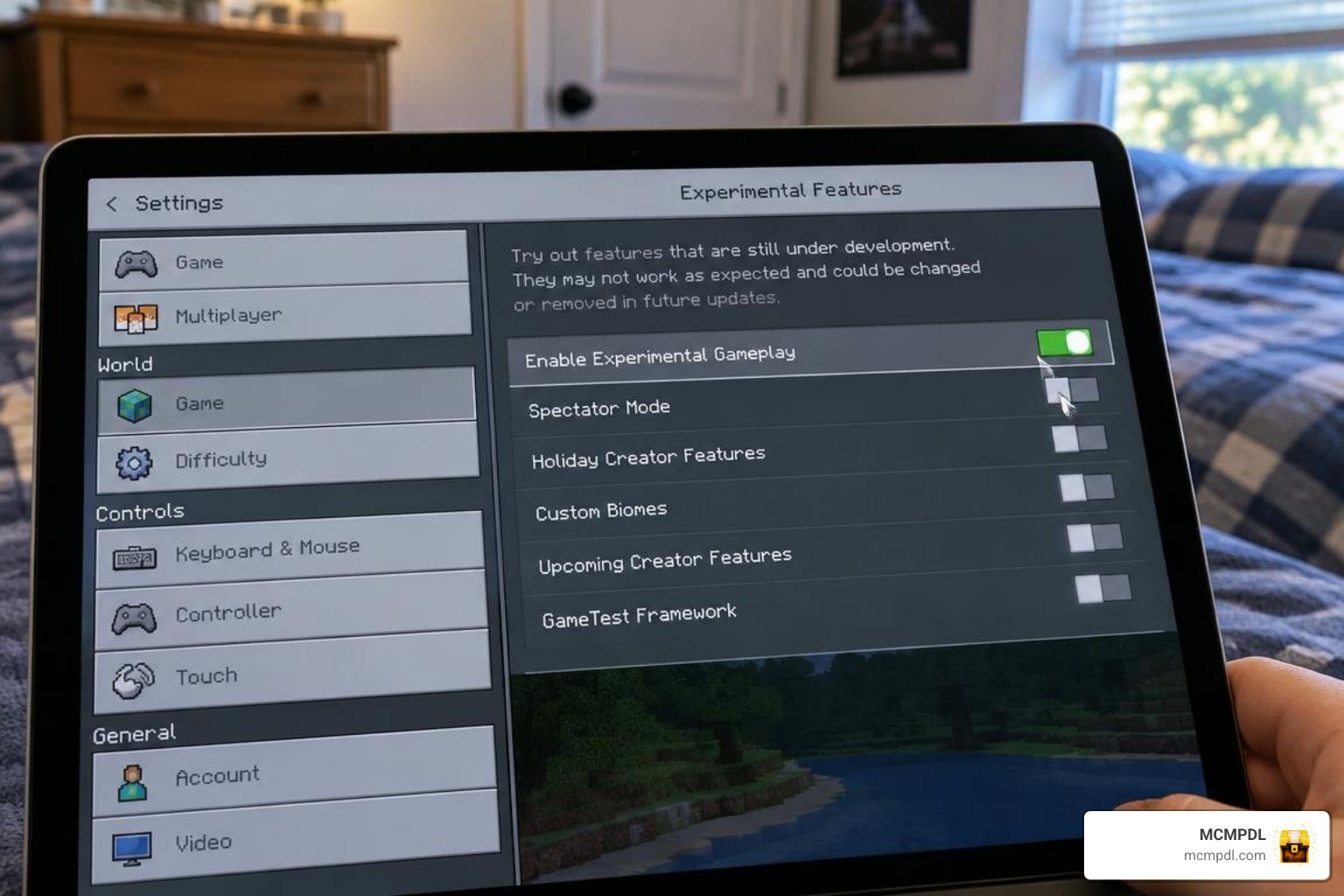
- Enable Experimental Toggles: Scroll down to the Experiments tab in your world settings. Toggle on Holiday Creator Features and any associated custom item capabilities.
- Adjust Pack Priority: Ensure the resource pack sits above conflicting UI packs in your active list, then load into your world.
Preserving Enchantments and Troubleshooting Known Issues
Because Bedrock custom item data handles dynamic NBT tags differently than Java mods, applying a trim directly to an enchanted tool can overwrite existing enchantments. Fortunately, there is an easy workaround to retain your high-tier enchants:
- Craft a clean, unenchanted duplicate of the tool you want to trim (e.g., a fresh Netherite Pickaxe).
- Apply your desired template and material to the unenchanted tool inside the Toolsmithing Table.
- Place your fully enchanted tool in the left slot of an Anvil and your freshly trimmed unenchanted tool in the right slot.
- Combine them using a few levels of experience. The anvil preserves all your enchantments, custom names, and durability while adopting the newly applied visual trim.
If you encounter an issue where the standard vanilla smithing table interface stops responding, check your active behavior pack order. Disabling overlapping gear mods or updating to the latest pack revision resolves common UI hook collisions.
TRIMS Addon vs Vanilla Minecraft Trims: A Detailed Comparison
While vanilla Minecraft offers rich customization for armor, players looking for tool aesthetics often turn to community-created solutions. Here is how the TRIMS tool add-on compares with base vanilla features and alternative mod concepts:
| Feature / Aspect | Vanilla Minecraft (1.20+) | TRIMS Addon (PE / Bedrock) |
|---|---|---|
| Primary Gear Target | Helmets, Chestplates, Leggings, Boots | Swords, Pickaxes, Axes, Shovels, Hoes, Maces |
| Custom Station | Vanilla Smithing Table | Dedicated Toolsmithing Table |
| Purpose | 100% Cosmetic Visuals | Cosmetic Gear Differentiation |
| Combinations | Hundreds across armor | Over 1,200 unique tool variations |
| Platform Compatibility | All Platforms (Native) | Minecraft PE / Bedrock Edition |
| Survival Integration | Found in standard structure chests | Custom loot integration in structure chests |
How TRIMS Addon for Minecraft PE/Bedrock Compares to Vanilla Minecraft Customization
Vanilla Minecraft focuses strictly on armor customization. While this allows players to show off their achievements through rare patterns like the Silence or Spire trims, it leaves your hotbar looking uniform. The TRIMS Addon keeps survival gameplay balanced by avoiding overpowered stat buffs, focusing purely on aesthetic identity.
In multiplayer realms, this aesthetic freedom lets teams color-code their equipment roles—such as assigning Redstone-trimmed pickaxes to branch miners, Amethyst-trimmed weapons to guards, and Emerald-trimmed tools to base builders.
Frequently Asked Questions About Minecraft Bedrock Trims
Where can I find the four new tool trim templates?
You can find them in structure loot chests across the Overworld and Deep Dark:
- Frost: Igloo basement chests (~40% chance).
- Tracks: Pillager Outpost chests (~37.5% chance).
- Charge: Ancient City chests in the Deep Dark.
- Linear: Trail Ruins excavation sites.
Can I apply trims to enchanted tools without losing enchants?
Applying a trim directly can strip existing enchantments. To keep your enchants intact, trim a clean, unenchanted version of the same tool in the Toolsmithing Table first, then merge your enchanted tool with the trimmed tool on an anvil.
Does the addon work with the latest Minecraft 1.21 updates in 2026?
Yes, the add-on supports modern Bedrock builds. Ensure you keep the pack updated to the latest revision and verify that your world has the necessary experimental toggles enabled.
Conclusion
Personalizing your gear brings a whole new level of satisfaction to your survival adventures. With over 1,200 potential combinations, the TRIMS Addon bridges the gap between armor styling and hotbar utility, letting your tools reflect your personal journey.
Ready to upgrade your survival world with unique gear, custom blocks, and exciting mechanics? Feel free to explore more mods in our curated add-ons category to discover the latest community creations for Minecraft Bedrock!