Scroll down to D0vvnl0ad
Download and Use Frameworks Texture Pack for Minecraft PE/Bedrock
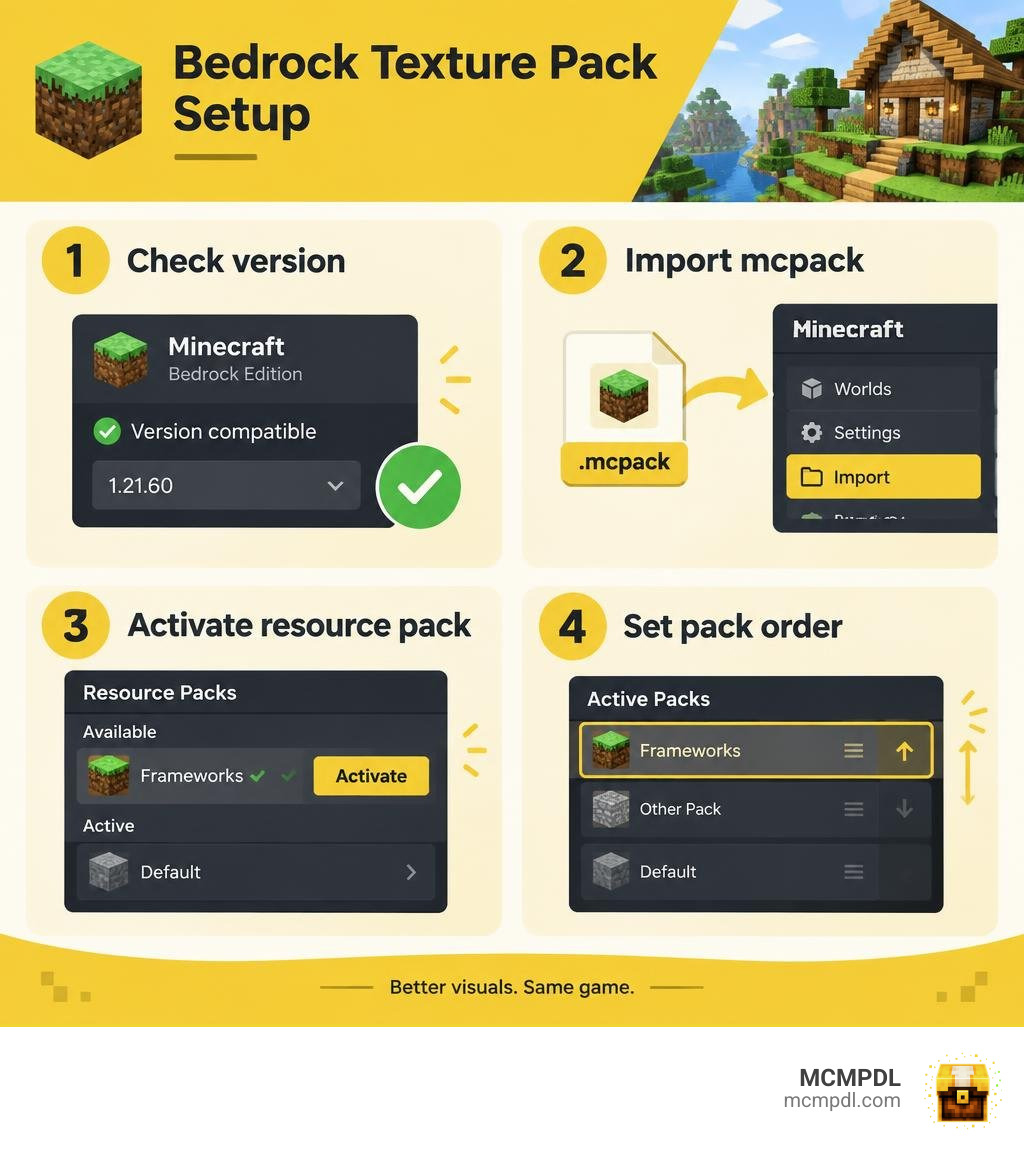
To use Frameworks Texture Pack for Minecraft PE/Bedrock, check that the download supports your game version. Open its .mcpack file with Minecraft, then activate the pack in your world’s Resource Packs settings. Back up the world first. If another pack changes the same textures, move Frameworks higher in the active pack list so its files take priority.
A texture pack changes how the game looks; it does not change gameplay rules. The guide below covers installation, pack order, and what to check if the pack does not load.
Overview of Frameworks Texture Pack for Minecraft PE/Bedrock
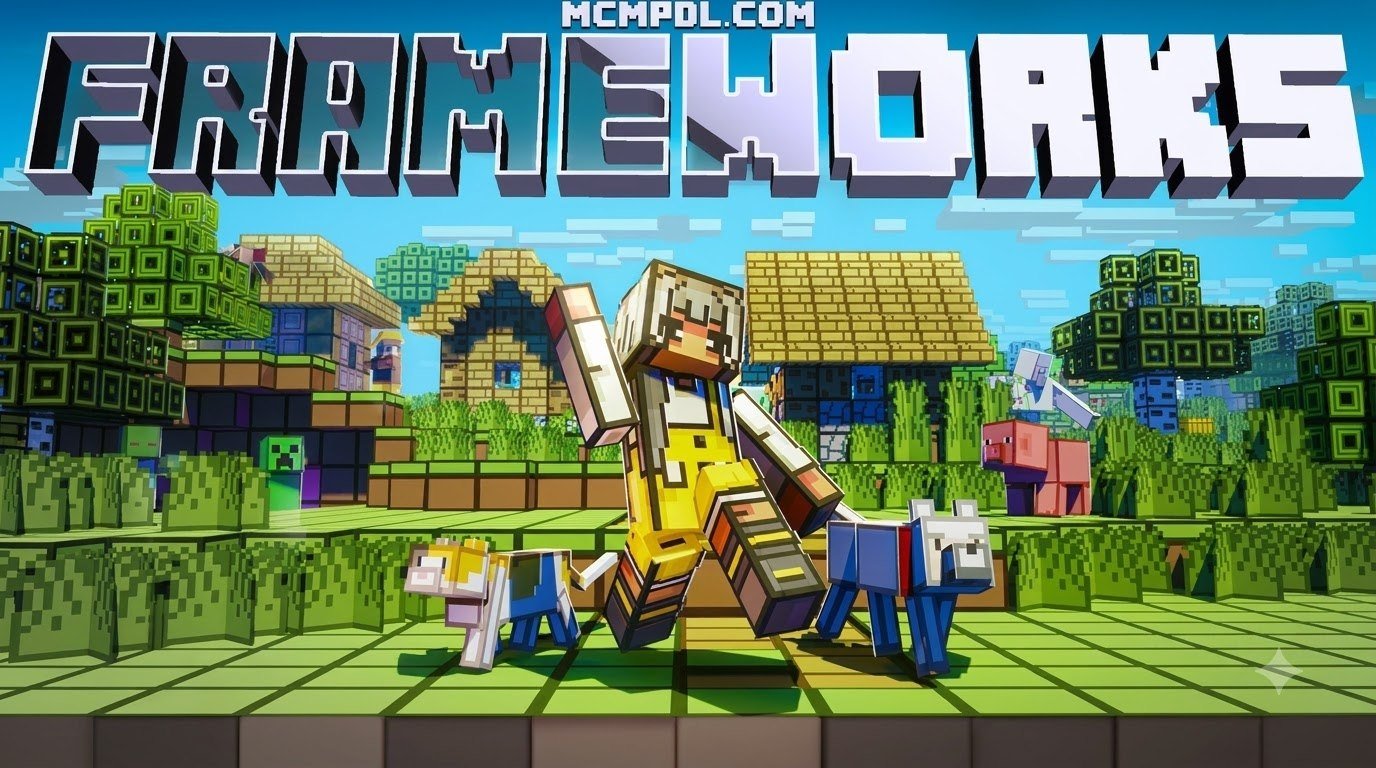
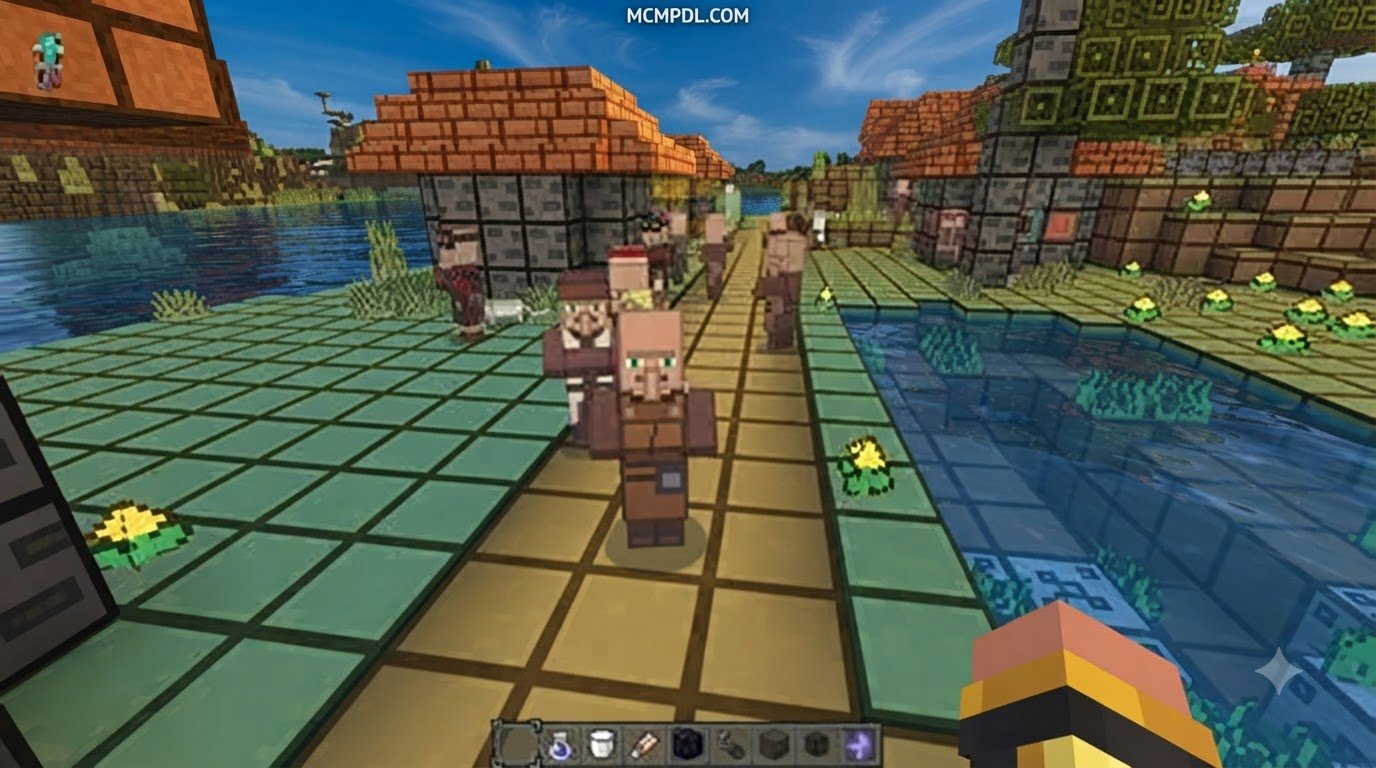
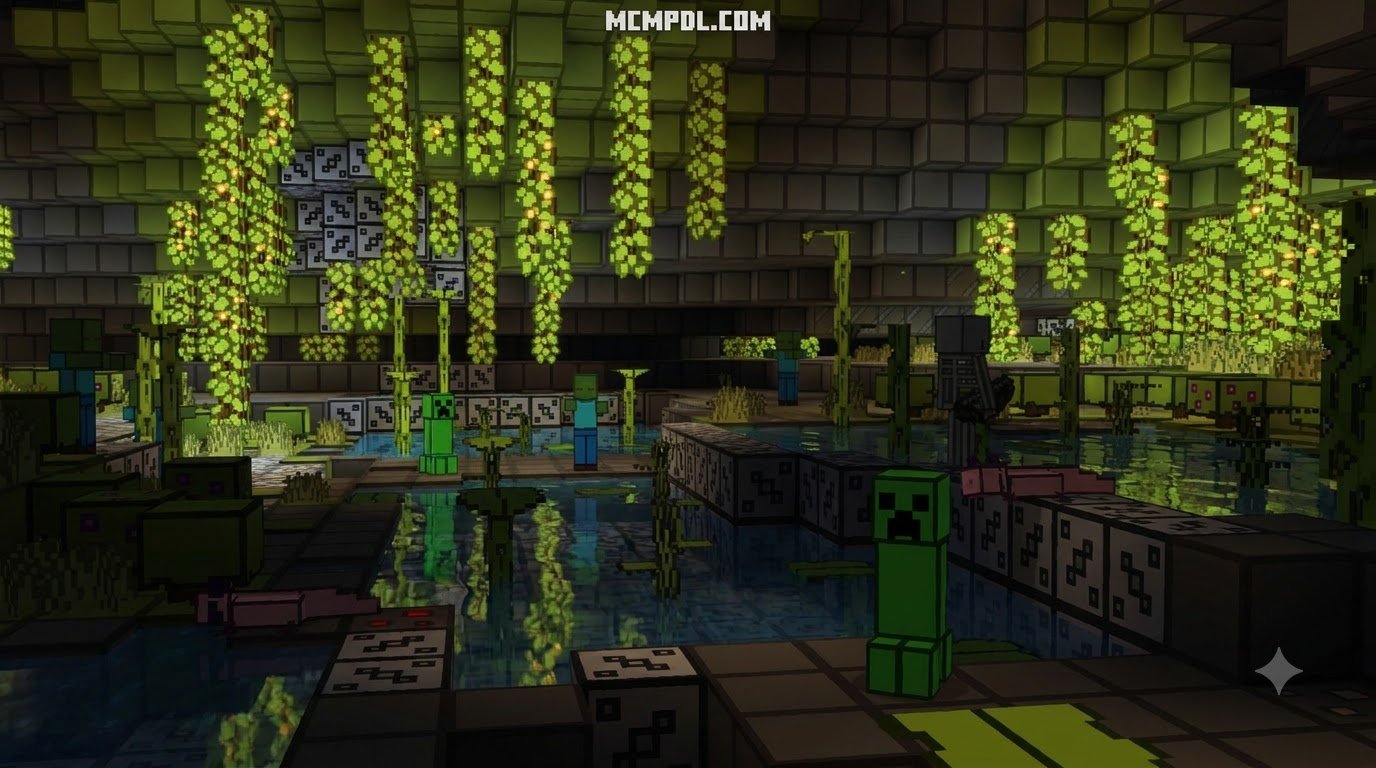
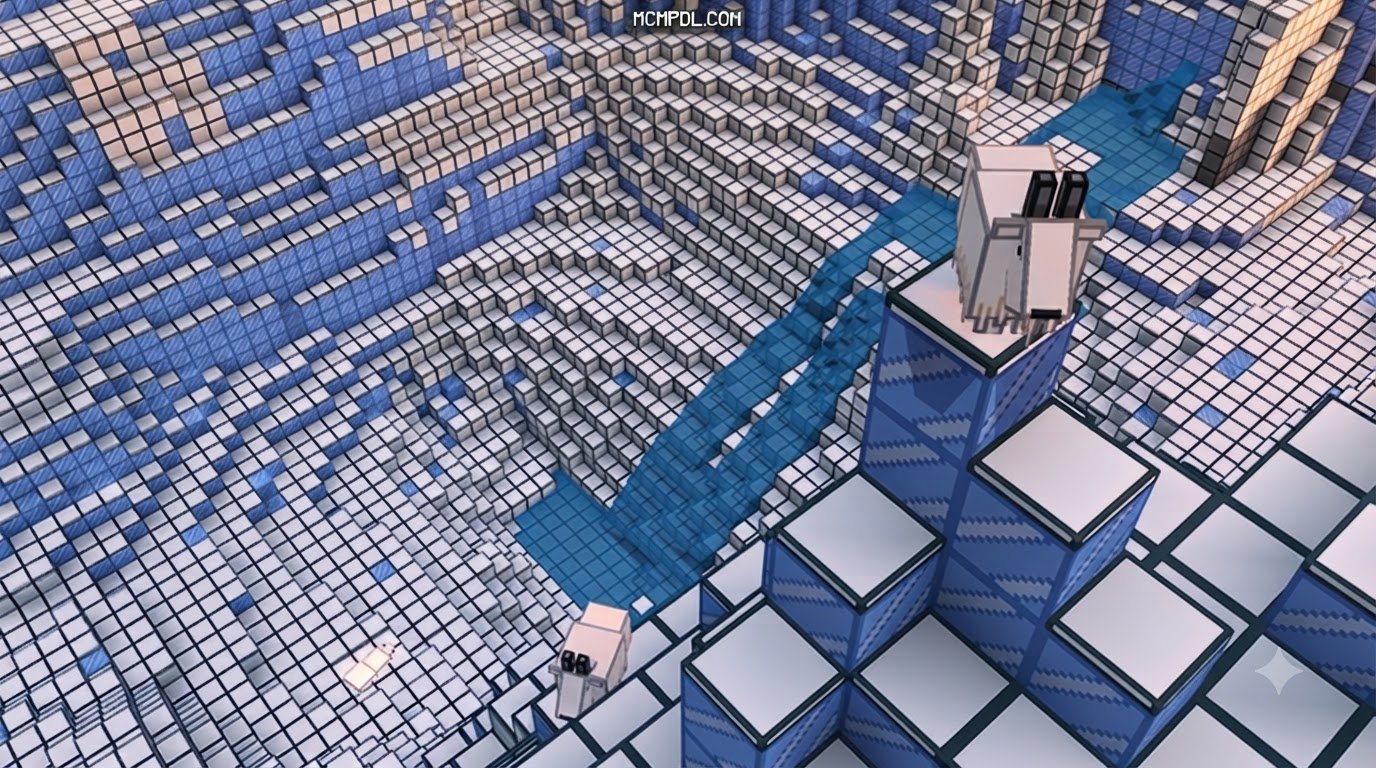
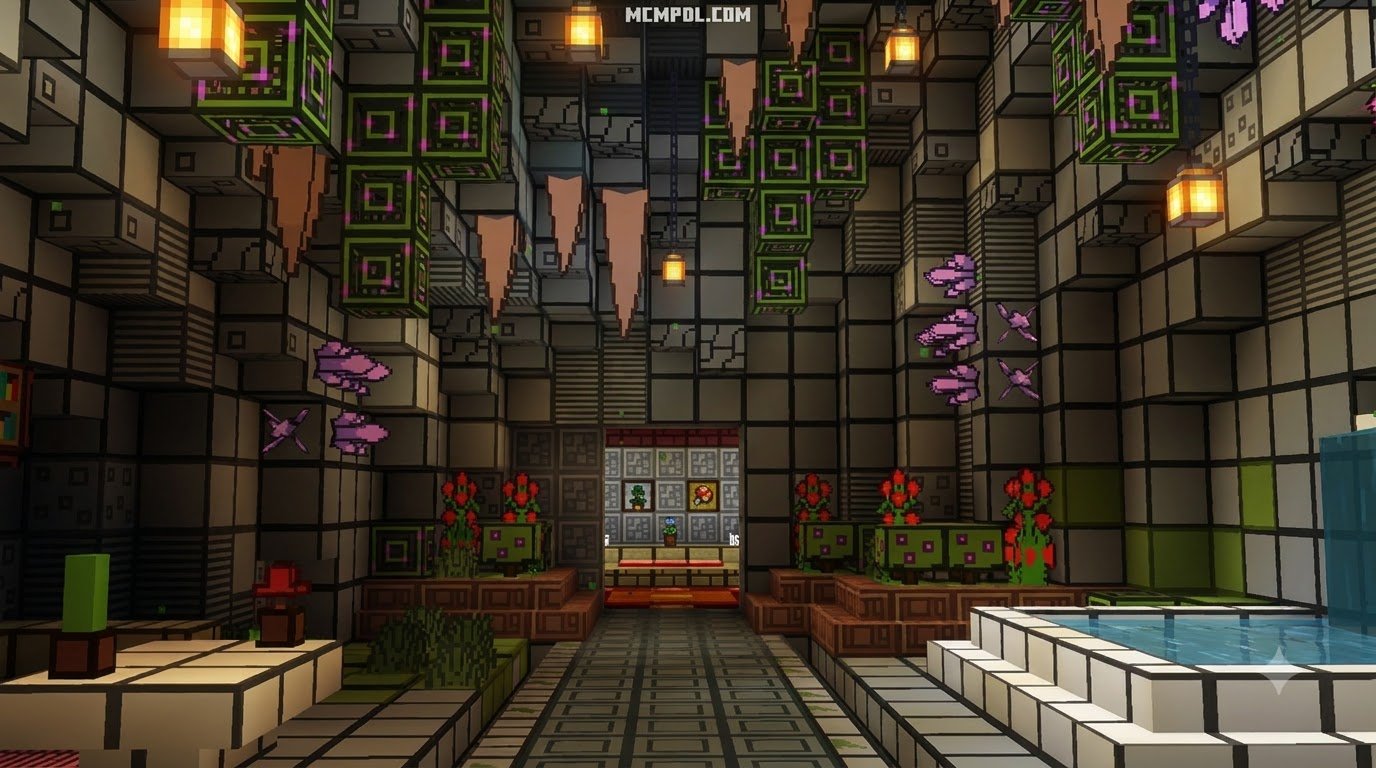
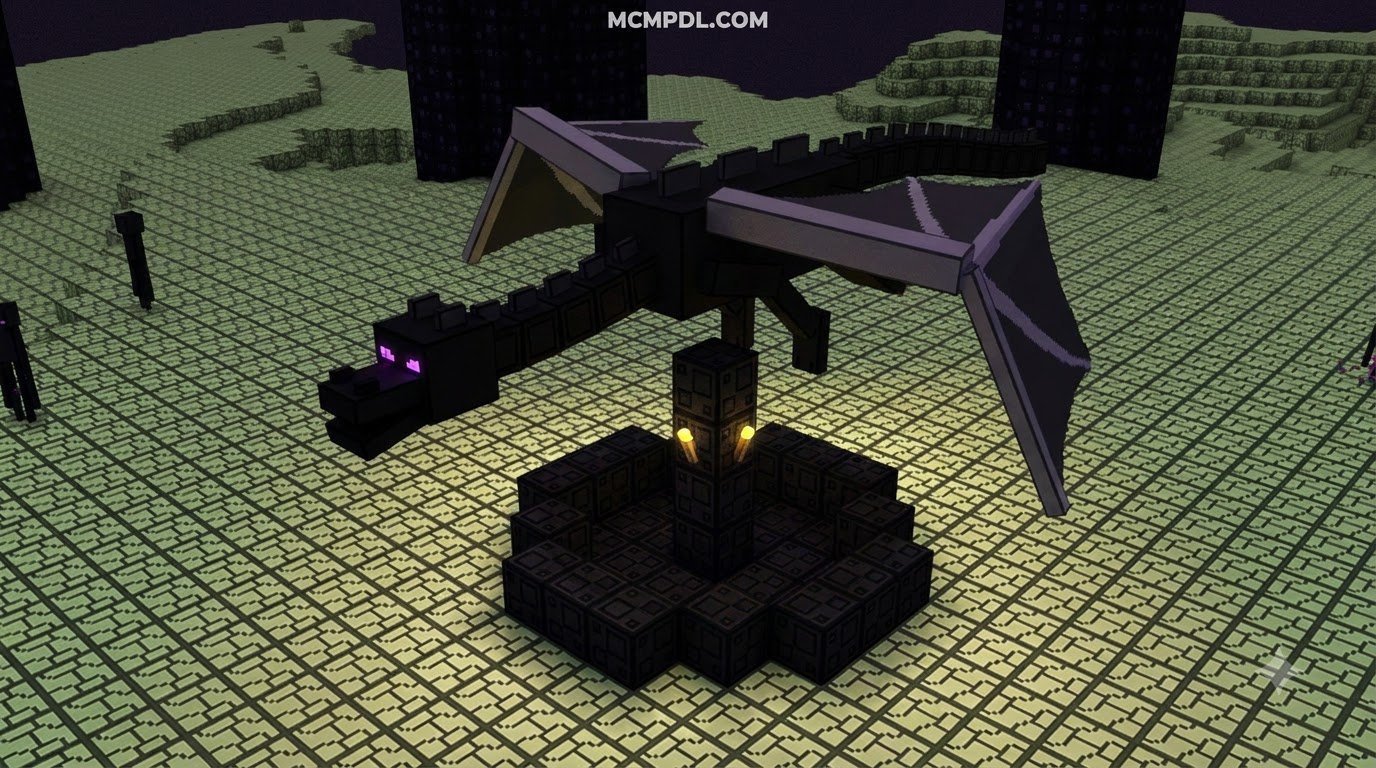
The Frameworks Texture Pack for Minecraft PE/Bedrock provides a modern, modular visual foundation that balances crisp graphical clarity with high performance. Built specifically for Minecraft Pocket Edition and Bedrock platforms across mobile devices, consoles, and Windows, this pack acts as an architectural visual baseline. Instead of cluttering your screen with overbearing details that tank your framerate, it provides clean, consistent block definitions and balanced UI overlays.
Many mobile and console players run into visual inconsistencies when mixing different resource packs. Installing the Frameworks pack solves this by standardizing textures, ensuring smooth visual transitions across diverse biomes and lighting conditions. For players looking to compare different visual fidelity options, exploring visual suites such as the Realism Visuals Texture Pack for Minecraft PE/Bedrock reveals how modern rendering frameworks elevate block surfaces, reflections, and environmental depth while preserving native performance.

Key Visual Improvements in Frameworks Texture Pack for Minecraft PE/Bedrock
When you activate the pack in your global or world settings, you will immediately notice significant enhancements across several visual layers:
- Block Definition and Edge Clarity: Common building materials like stone bricks, deepslate, cobblestone, and wood planks receive clean, defined outlines that prevent blurring at long render distances.
- Refined Item Sprites: Tools, weapons, and utility items feature high-contrast, clean icons that stand out clearly in inventory slots and hotbars.
- Streamlined User Interface: Menus, container screens, and status gauges receive subtle visual polish with reduced visual noise, helping you manage inventories without clutter.
- Environment Consistency: Foliage, water surfaces, and ore veins blend naturally with surrounding terrain, creating immersive landscape transitions similar to the aesthetic found in the Vanilla HD Texture Pack.
Integrating Dynamic Player Movement with Motion+ and EAF
Visual enhancements are only half the experience. To complement the Frameworks texture design, many Bedrock players pair visual packs with advanced animation systems. The most popular animation pairing is Motion+, an advanced third-person movement overhaul.
Motion+ is powered by the Entity Animation Framework (EAF). EAF operates as an underlying animation driver that overrides default Bedrock skeletal definitions, allowing custom player rigs to express fluid movements without breaking online synchronization.

When paired with Motion+, your character transitions through a full spectrum of fluid third-person animations:
- Movement and Player States: Custom walking, sprinting, sneaking, swimming, crawling, falling, climbing, and creative flying animations give avatars realistic weight and momentum.
- Combat Sequences: Fluid sword strikes, weapon charging, and dynamic hurt reactions replace default stiff limb snaps.
- Item Actions: Detailed visual sequences for eating food, drinking potions, drawing bows, utilizing spyglasses, and holding shields.
- Vehicle Interactions: Natural seated postures and steering motions while riding boats and minecarts.
If you enjoy expressive character animations, combining these systems with packs like the Smooth Moves Texture Pack for Minecraft PE/Bedrock delivers a cohesive visual and kinematic overhaul across all gameplay sessions.
Resource Packs vs. Behavior Packs in Bedrock Edition
Understanding the architectural separation between resource packs and behavior packs is essential when customizing Minecraft Bedrock Edition. While both share similar file distribution mechanisms, they target completely different game engines within the Bedrock client.
| Feature | Resource Packs (RP) | Behavior Packs (BP) |
|---|---|---|
| Primary Purpose | Modifies visual and auditory client assets | Modifies game mechanics, entity logic, and loot tables |
| Engine Target | Client-side rendering and audio pipeline | Server/World-side gameplay logic engine |
| File Types | PNG images, TGA textures, JSON model definitions, OGG audio | JSON entity components, scripts, loot tables, spawn rules |
| Achievements | Compatible with Xbox Live achievements | Disables achievements on standard survival worlds |
| Multiplayer Sync | Can be downloaded optionally by connecting clients | Enforced globally on all players joining the world |
| Common Examples | Block textures, custom UI, Dark Mode Texture Pack for Minecraft PE/Bedrock | Custom mob behaviors, anti-cheat scripts, tree capitators |
Resource packs operate entirely on the client side. They alter what you see and hear without tampering with core rules, keeping achievements intact on standard worlds. Behavior packs alter server-side game logic, modifying entity health, spawn rates, or loot drops, which causes the game to disable achievements.
Understanding Pack Stacking and Asset Priority
Minecraft Bedrock processes active resource packs in a top-down hierarchy known as pack stacking. When you apply multiple texture packs simultaneously, the engine evaluates individual assets starting from the top of your list down to the default vanilla textures.
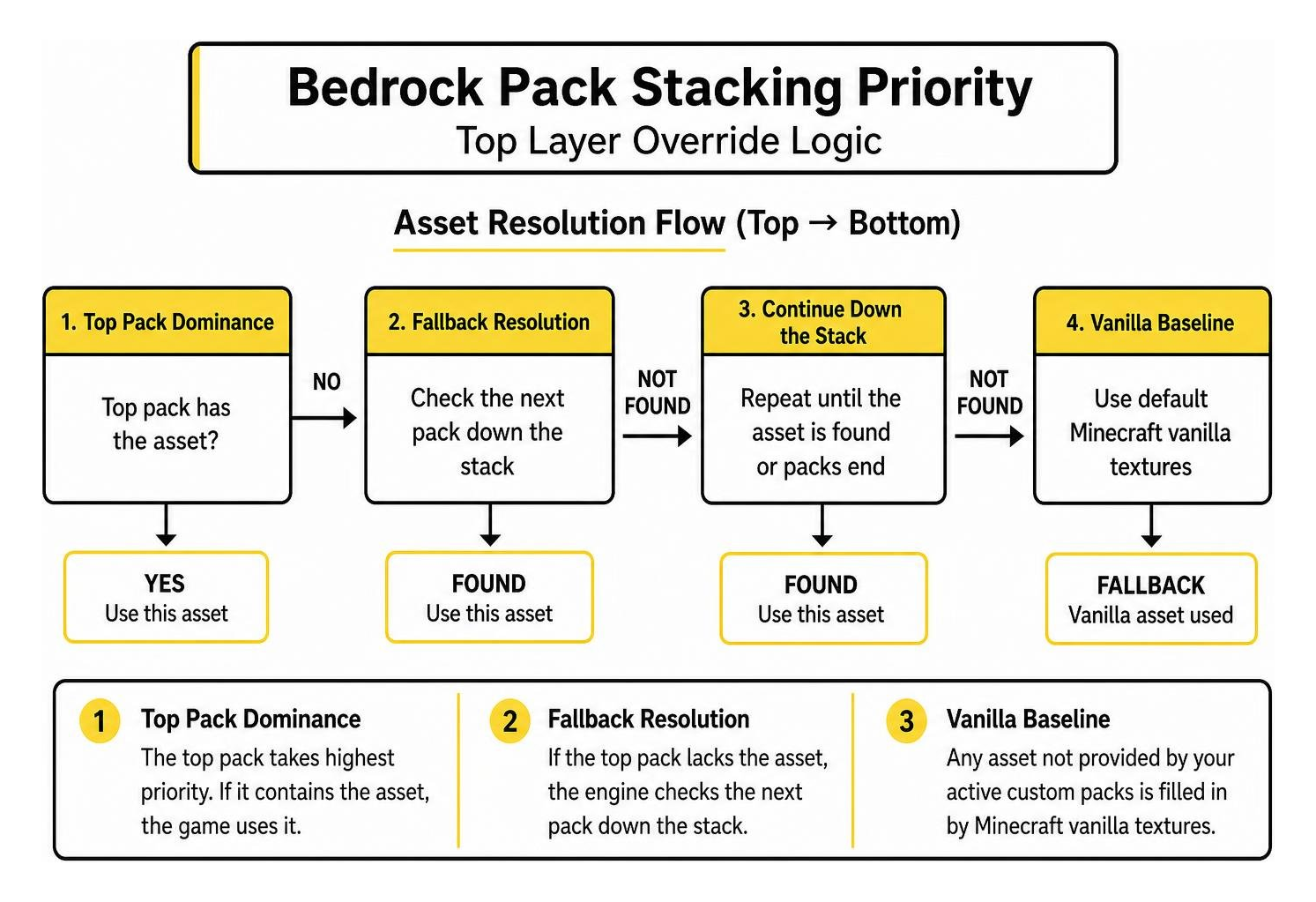
Here is how pack stacking governs your in-game assets:
- Top Pack Dominance: The resource pack placed at the very top of your active list takes highest priority. If it contains a
dirt.pngtexture, the game renders that specific file. - Fallback Resolution: If the top pack lacks a specific texture (for example, a newly added block like copper grates), the engine checks the next pack down the stack.
- Vanilla Baseline: Any asset not provided by your active custom packs is automatically filled in by the default Minecraft vanilla textures.
- Global vs. World Packs: Resource packs activated in your global settings menu apply to all worlds, menus, and servers you join. However, resource packs activated directly within an individual world’s settings override your global stack for that specific save file.
Creating and Configuring Custom Bedrock Texture Packs
Creating your own resource pack to complement the Frameworks texture baseline allows you to customize individual block surfaces, UI elements, and custom items. Every Bedrock resource pack requires a strict directory layout and a valid configuration file.
Setting Up the manifest.json File
The manifest.json file is the heart of any Bedrock pack. It tells Minecraft the pack name, description, unique identification codes, and minimum engine version requirements.
A standard resource pack directory structure follows this format:
My_Custom_Pack/manifest.json(Pack configuration file)pack_icon.png(256×256 square preview image)textures/blocks/(PNG texture files for block surfaces)items/(PNG texture files for handheld items)ui/(Interface textures and menu assets)
When assembling your manifest.json, you must generate two distinct UUIDs (Universally Unique Identifiers) using a standard online UUID generator. One UUID belongs in the header section, and the second belongs in the modules section. Duplicating UUIDs across different packs causes the Bedrock engine to reject the import or fail to display the pack in your settings.
Ensure that the min_engine_version array matches or sits slightly below your installed game version (such as [1, 21, 0]) to maintain backward compatibility.
Mapping Default Block and Entity Textures
To replace an existing Minecraft texture, your custom image must match the exact filename and folder path used by the vanilla game engine. If a filename contains a single typo or uses an uppercase letter where the game expects lowercase, the engine ignores the custom asset and falls back to default vanilla visuals.
- For complete official lists of block textures, asset naming conventions, and texture variations across updates, refer to the List of block textures – Minecraft Wiki.
- To look up exact Bedrock file paths and convert legacy texture packs across game updates, consult the Minecraft Resource Locations – Itsme64’s texture pack version converter.
All block textures are placed directly inside the textures/blocks/ folder using 16×16, 32×32, or 64×64 PNG images. Ensure that you do not add unnecessary suffixes (such as _be or _je) to filenames unless explicitly required by specific vanilla entity models.
Popular Complementary Texture Packs for Bedrock
Combining distinct texture styles allows you to tailor Minecraft’s visual atmosphere to your exact preferences. Whether you prefer clean vanilla enhancements, geometric styling, or high-definition realism, several established community projects pair well with custom Bedrock setups:
- Faithful 32x: The classic high-definition vanilla upgrade. Maintained continuously for Bedrock, the open-source ClassicFaithful/Classic-32x-Bedrock repository provides doubled resolution while preserving original pixel-art charm.
- Faithful 64x: For players with high-resolution displays on Windows or high-end mobile devices, the official Faithful-Resource-Pack/Faithful-64x-Bedrock builds deliver quadruple vanilla clarity for sharp, realistic building environments.
- Quadral: If you enjoy stylized, vibrant aesthetics, the Quadral Texture Pack for Minecraft PE/Bedrock introduces bright geometric patterns and simplified, charming environmental details.
- Vibrant Modern: Ideal for contemporary city builders and modern architecture enthusiasts, the Vibrant Modern Textures Pack for Minecraft PE/Bedrock features sleek stone, glass, and interior building materials.
Troubleshooting and Installation Best Practices
Installing custom texture packs on Bedrock Edition is generally straightforward, but missing files or permissions errors can prevent content from appearing properly. Following a disciplined installation routine ensures your packs load seamlessly every time.
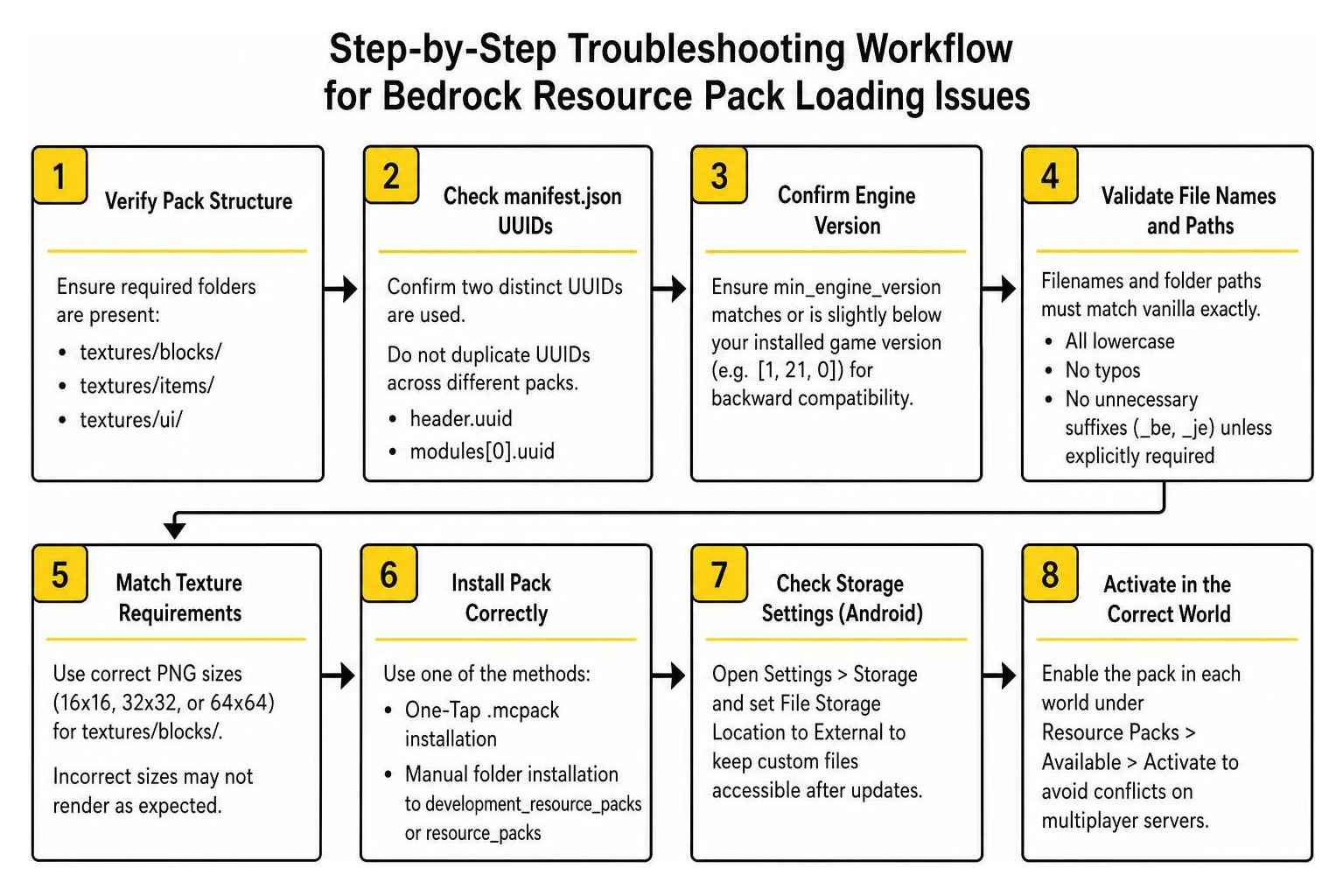
- One-Tap
.mcpackInstallation: On Windows, Android, and iOS, downloading a packaged.mcpackfile allows you to simply open or tap the file. Minecraft launches automatically and imports the resource pack into your local storage. - Manual Folder Installation: If you download a
.ziparchive, extract the folder contents and move the root pack directory into your device’sdevelopment_resource_packsorresource_packsfolder located inside thecom.mojanggame data directory. - Storage Location Settings: Open Minecraft settings, navigate to Storage, and verify that your File Storage Location is set to External if you are on Android to ensure custom files remain accessible across app updates.
- World-Specific Activation: To prevent visual conflicts across multiplayer servers, activate experimental or heavy texture packs directly inside individual world edit menus under Resource Packs > Available > Activate.
How to Fix the Frameworks Texture Pack for Minecraft PE/Bedrock When Not Loading
If your pack fails to show up in the settings list or does not apply textures in-game, run through this troubleshooting checklist:
- Validate JSON Syntax: Open your
manifest.jsonfile in a text editor or JSON validator. Missing commas, unclosed brackets, or invalid quotation marks cause the Bedrock engine to skip the entire folder silently. - Check for Nested Directories: When extracting zip files, ensure the extracted folder does not contain a duplicate wrapper folder (e.g.,
PackName/PackName/manifest.json). Themanifest.jsonfile must reside directly in the root folder of the pack. - Regenerate Conflicting UUIDs: If you copied a manifest template from another pack, generate brand-new UUID strings. If Minecraft detects two installed packs sharing an identical UUID, it disables the duplicate pack.
- Clear Texture Cache: If textures appear corrupted or display purple-and-black checkerboards, clear the cached data in Settings > Storage > Cached Data, restart the game, and reactivate the pack.
Frequently Asked Questions about Bedrock Texture Packs
Does Motion+ affect first-person animations in Minecraft Bedrock?
No. Motion+ is built exclusively for third-person player animations. It redesigns third-person movement, sprinting, swimming, combat swings, and vehicle riding without altering your first-person camera or handheld item models. Because of this architectural separation, you can pair Motion+ with dedicated first-person animation packs or visual texture overhauls without causing rendering glitches.
How does pack stacking determine texture priority in Bedrock?
Pack stacking evaluates active resource packs from top to bottom. The pack at the top of your active list has ultimate priority over any matching asset filenames located in packs underneath it. To ensure a specific pack’s custom block or item textures appear in-game, select the pack in your Active list and use the arrow button to move it above other texture packs.
Where can I find standard block texture names for Minecraft PE?
Standard vanilla texture names and directory paths can be referenced directly through community documentation such as the official Minecraft Wiki block texture databases or by extracting Mojang’s official Bedrock sample repositories. Maintaining identical file names and relative directory paths (such as textures/blocks/stone.png) is required for custom assets to replace default in-game textures.
Conclusion
The Frameworks Texture Pack for Minecraft PE/Bedrock provides a versatile, performance-friendly foundation for players looking to enhance their visual experience across mobile, console, and desktop platforms. By understanding pack stacking hierarchies, verifying your manifest.json configurations, and pairing visual overhauls with dynamic animation frameworks like Motion+ and EAF, you can build a customized Bedrock environment tailored to your playstyle.
At MCMPDL, our mission is to simplify how players discover, download, and manage Minecraft Bedrock content. We curate the latest add-ons, texture packs, custom maps, skins, and shaders into an organized, up-to-date marketplace. To explore more community texture overhauls, high-definition resource packs, and aesthetic upgrades, browse our comprehensive Texture Packs Category to transform your Minecraft worlds today.