Scroll down to D0vvnl0ad
Download and Use Furniture+ on Minecraft PE/Bedrock
To install the Furniture+ Texture Pack for Minecraft PE/Bedrock, check that the download supports your game version, open its .mcpack file to import it into Minecraft, then enable it in your world’s Resource Packs settings.
First, check what the download contains. A texture pack changes the look of existing blocks and items. It will not add new, usable chairs or tables on its own; those need an add-on. This guide will help you tell the difference and get the right pack working on your device.
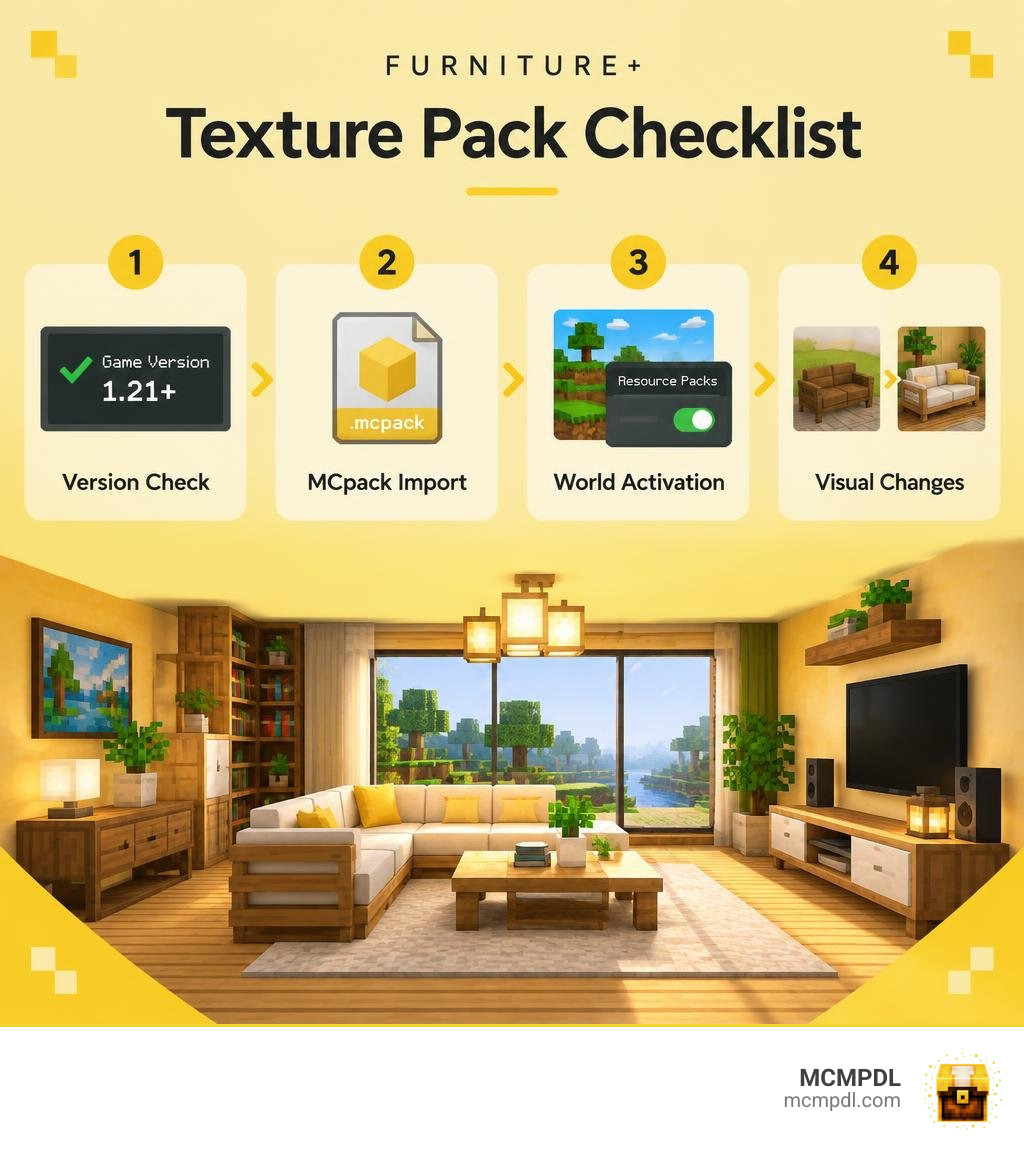
Features of the Furniture+ Texture Pack for Minecraft PE/Bedrock
Decorating in vanilla Minecraft Bedrock Edition often feels like a test of abstract art. For years, we have placed upside-down oak stairs next to signs and pretended they were armchairs. While that trick has its classic charm, modern survival bases deserve actual sofas, functional-looking countertops, and sleek electronics.
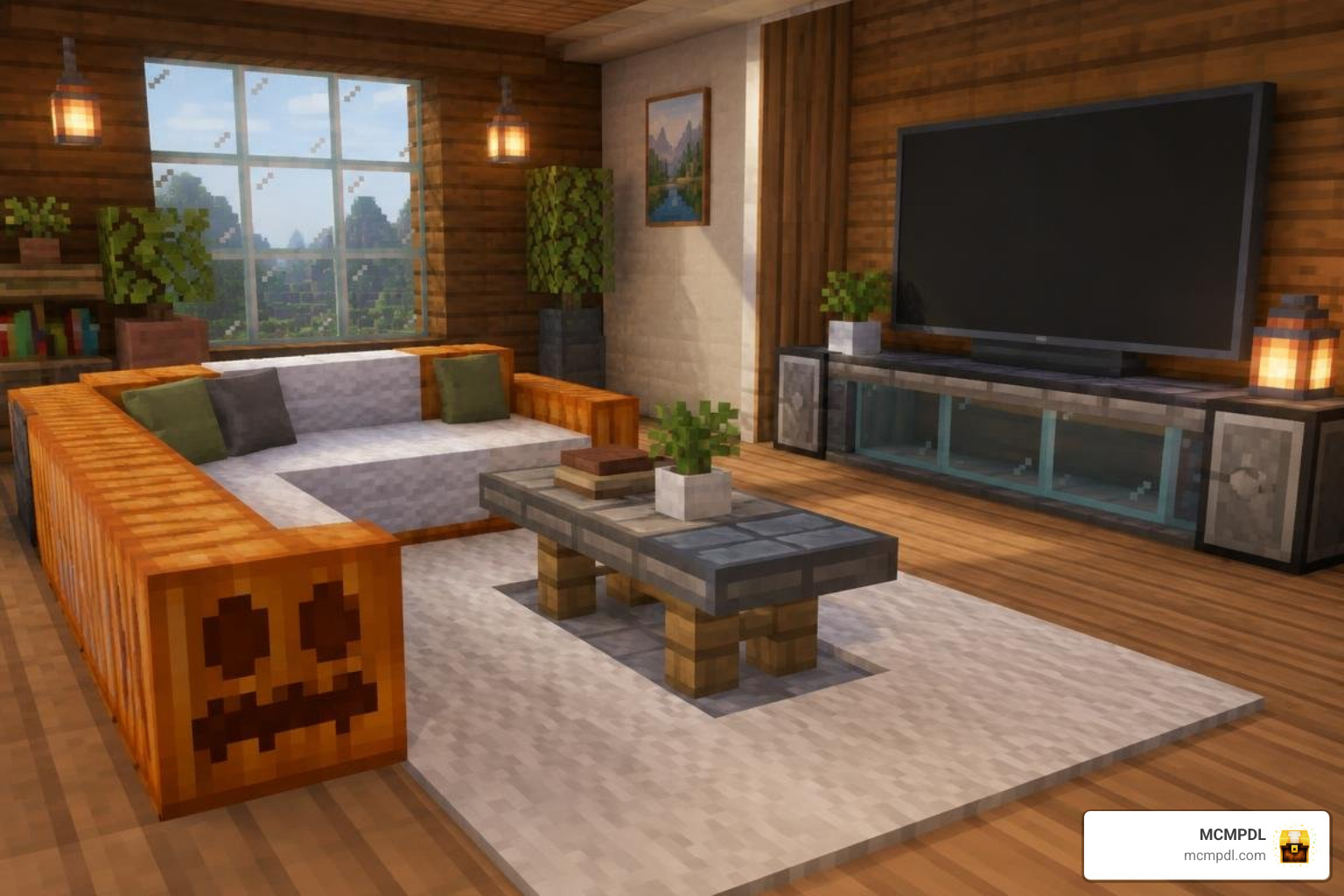
The Furniture+ Texture Pack for Minecraft PE/Bedrock updates your interiors without modifying core game logic or breaking vanilla survival rules. Pure texture packs alter block models and surface textures without behavior scripts or experimental game toggles. You can transform your base while keeping achievements enabled, maintaining crossplay compatibility, and avoiding entity lag.
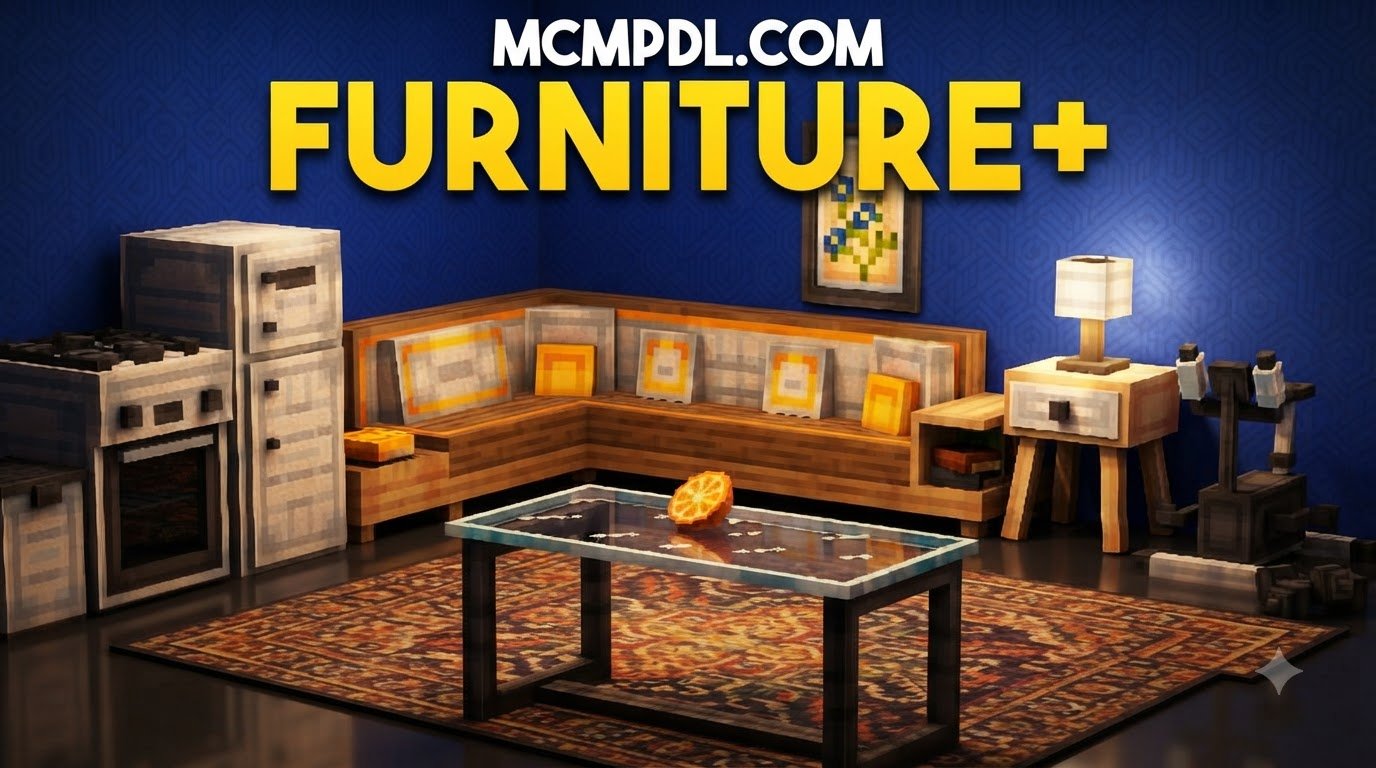
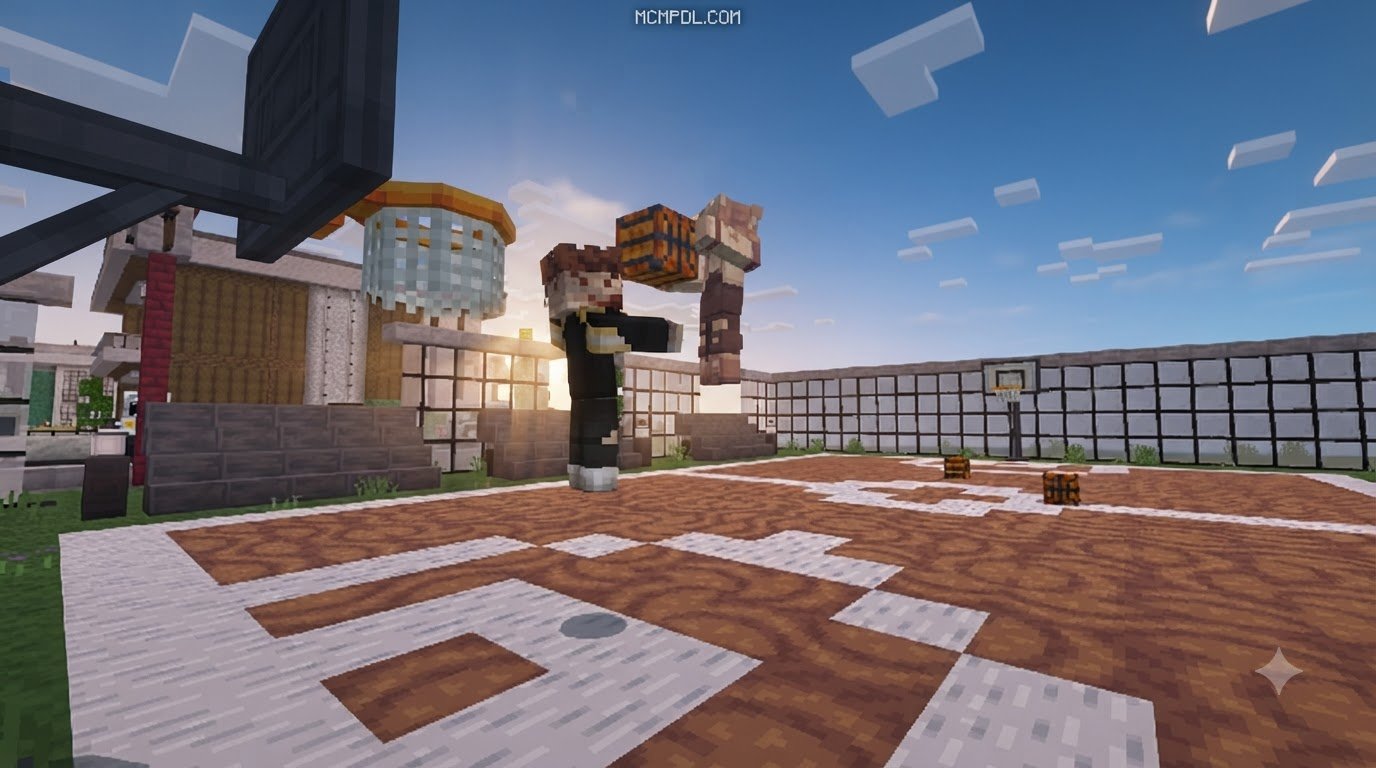
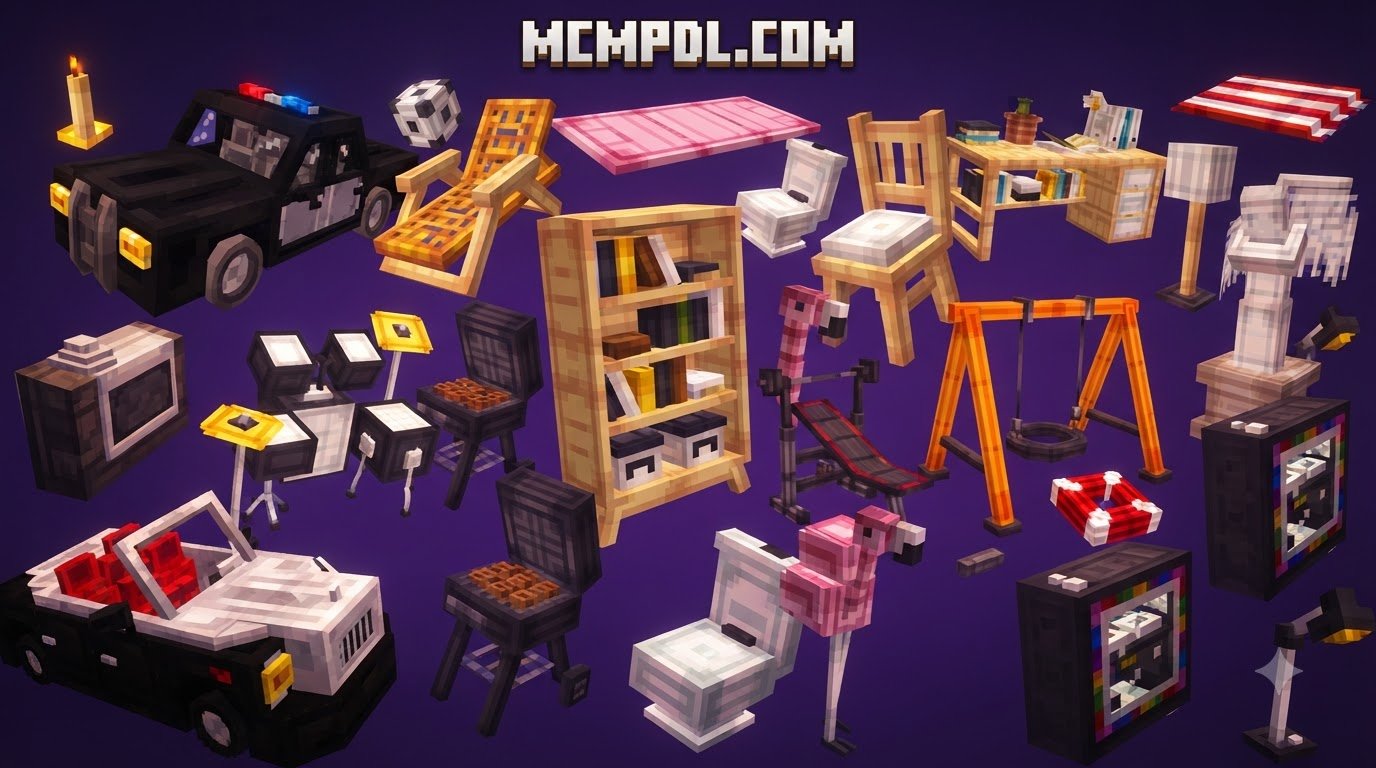
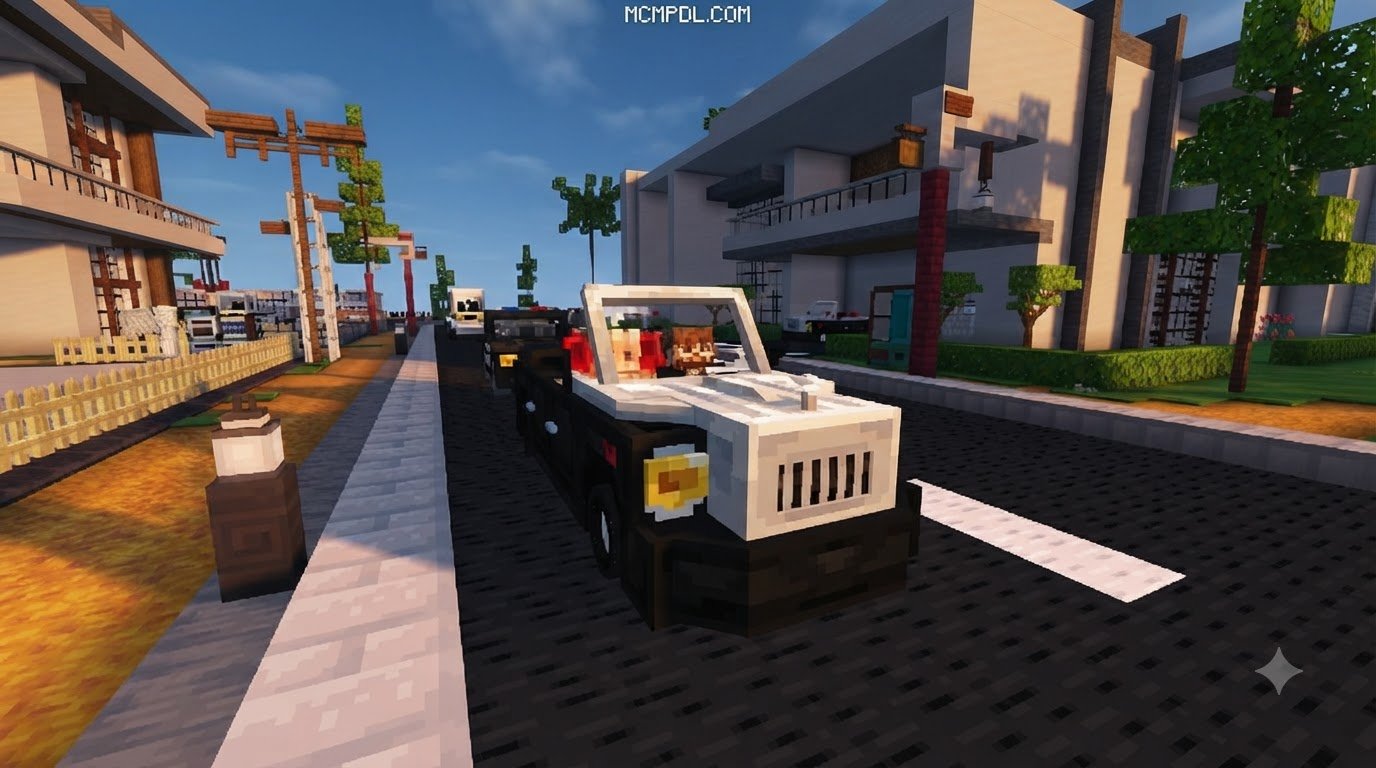
Using clever custom block models (CBM) and subtle item retextures, the pack turns standard decorative blocks—such as carved pumpkins, dragon heads, stonecutter variants, stained glass panes, or armor stands—into clean, stylized home furniture. Because it stays strictly within the resource pack system, everything remains completely vanilla-friendly and safe for survival worlds.
Custom Furniture Models and Decor Types
The pack covers every part of a modern home build, including:
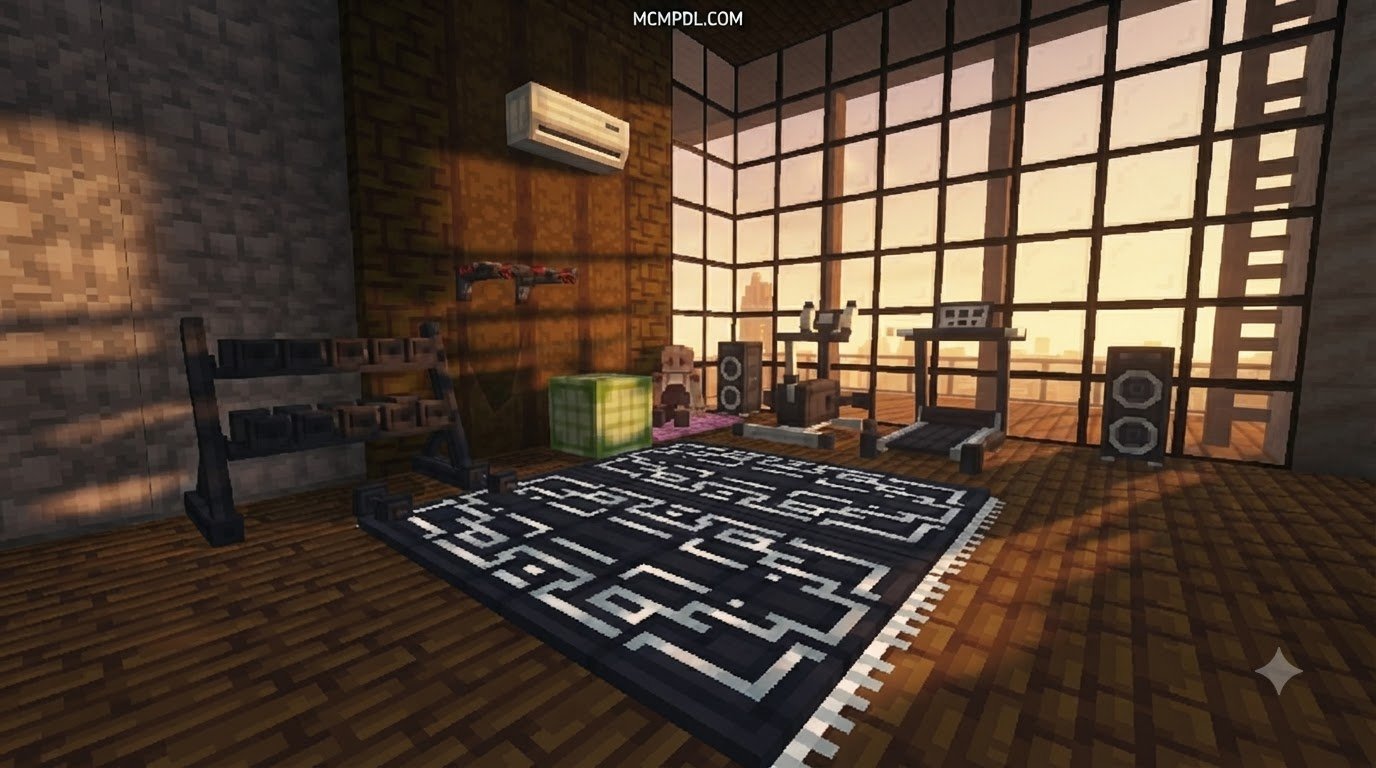
- Living Room Suites: Replaces select glazed terracottas and trapdoors with cushioned modern couches, modular sectionals, stylish coffee tables, and working lamp models.
- Contemporary Kitchen Sets: Polished and detailed retextures for smokers, cauldrons, and iron trapdoors create sinks with faucets, granite-look marble countertops, overhead cabinets, and compact toasters.
- Entertainment and Workstations: High-resolution screens and clean oak shelving convert standard bookshelves and paintings into wide-screen TVs, wall-mounted monitors, and desktop computer setups.
- Retro Gaming & Media: Incorporates novelty console models like retro tabletop units and sleek media hubs reminiscent of home consoles without requiring scripting.
- Bathroom Fixtures: Quartz blocks, tripwire hooks, and flower pots gain customized models representing modern sinks, porcelain bathtubs, and mirrored wall cabinets.
If you enjoy keeping survival mode clean while adding decorative flair, pairing this aesthetic with an achievement-friendly furniture pack offers a great way to furnish spaces without altering vanilla gameplay.
Performance Optimization and Mobile System Requirements
High-polygon entities and complex scripts can quickly slow down mobile devices. Standard entity-heavy mods spawn invisible armor stands or custom mobs for every chair, which can lower frame rates around large builds.
In contrast, pure resource packs rely on Minecraft’s native block-rendering pipeline. This design keeps memory and GPU use minimal across all mobile platforms:
- RAM Footprint: Most furniture texture packs take up less than 15 MB of storage and run smoothly with just 2 GB of system RAM.
- Mobile FPS Stability: Because blocks remain stationary terrain rather than animated entities, rendering large decorated rooms will not cause sudden frame rate drops.
- Broad Device Support: Whether you play on a mid-range Android phone, an iPad, or a Windows PC, performance stays smooth and consistent.
How to Download and Install Furniture Texture Packs on Bedrock
Installing custom content on Bedrock Edition is straightforward thanks to the unified .mcpack system. Unlike older manual folder transfers, .mcpack files automatically register your resource files into the game directory.

How to Install Furniture+ Texture Pack for Minecraft PE/Bedrock on Mobile and PC
Follow these platform-specific steps to install your pack quickly:
Android Installation
- Download the
.mcpackfile through your mobile browser. - Open your device’s Files or File Manager app and head to the
Downloadfolder. - Tap the
.mcpackfile. If prompted, select Minecraft as the application to open it with. - Minecraft Bedrock will launch and display an “Import Started” banner, followed by “Successfully Imported”.
iOS (iPhone / iPad) Installation
- Download the pack using Safari.
- Open the Files app and locate the downloaded file under
Downloads. - Long-press or tap the
.mcpackfile, tap Share, and choose Minecraft. - The game will automatically launch and import the resource files into your system cache.
Windows 10/11 Installation
- Download the pack to your desktop or storage drive.
- Double-click the
.mcpackfile. - Windows will open Bedrock Edition and import the pack into your global resource folder immediately.
Activating in Your World
Once imported, choose where you want the textures applied:
- Global Application: Open Settings > Global Resources > My Packs, locate the furniture pack, and click Activate. This makes the new models visible across every world you join locally.
- World-Specific Application: Click the pencil icon next to your target world, scroll down to Resource Packs, find the pack under My Packs, and activate it for that specific save file.
Multiplayer, Realms, and Dedicated Server Compatibility
Texture packs work smoothly in multiplayer settings. When hosting a standard peer-to-peer multiplayer world or managing a dedicated Minecraft Realm, you can enforce the pack across all players.
In your Realm or World settings under Resource Packs, check the box labeled “Require players to accept resource packs to join”. When friends join your world across Android, iOS, consoles, or PC, the server automatically downloads and applies the textures for their session.
Comparing Furniture Texture Packs and Block Addons
Before building your dream home, it helps to understand the difference between pure texture packs and custom block add-ons.
Texture packs re-skin and reshape existing vanilla blocks. In comparison, add-ons introduce brand-new standalone blocks, custom crafting recipes, and interactable behaviors (like sit-down chair scripts and functioning storage drawers).
| Feature / Aspect | Furniture+ Texture Pack | Custom Block Add-on |
|---|---|---|
| Survival Achievements | Remains fully enabled | Disabled (Treats world as modded) |
| Experimental Toggles | Never required | Usually required (Holiday Creator, etc.) |
| Interactivity | Purely visual / retextured blocks | Fully interactive (Sit, open, switch on) |
| Performance Impact | Minimal (Uses static block engine) | Moderate to high (Spawns entities/scripts) |
| Installation Complexity | Single .mcpack resource file | Requires both Resource & Behavior packs |
| Multiplayer Setup | Universal plug-and-play | Requires matching server behavior sync |
If you want real interactive blocks—like functional appliances and custom seating—exploring dedicated tools like the Block Furniture Addon can expand your interior design possibilities.
Furniture+ Texture Pack for Minecraft PE/Bedrock vs. Popular Furniture Addons
Every builder has different priorities for their world:
- When to pick a Texture Pack: If you are working on a long-term survival world where you want to earn Xbox live achievements, or if you are hosting a server with low-end mobile devices, a lightweight texture pack is the best choice.
- When to pick an Addon: If you want sit-down dining sets, functional kitchen sinks, working lights, and dedicated crafting tables, behavioral add-ons provide that deeper utility.
For players who prefer interactive features over vanilla achievement tracking, mods like the Furniture Life Addon offer fully functional home fixtures. You can also explore options like the Furniture Addon for detailed decor, or incorporate traditional oriental architecture using the AsianCraft Building Addon to complement your interior styling.
Troubleshooting Common Installation and Texture Errors
Even seamless installs can occasionally run into quirks on Bedrock Edition. Here is how to fix the most common errors quickly:
- Duplicate Pack UUID Error: This happens when you try to import a pack you already have installed. To resolve it, go to Settings > Storage > Resource Packs, delete the older version of the pack, and import the updated
.mcpackfile again. - Missing Textures (Black and Purple Checkerboard): A missing texture grid usually means the resource pack was built for an older version of Minecraft’s rendering engine or the files imported incompletely. Clear your local cache in Settings > Storage and re-import the pack.
- The .mcpack File Won’t Open on Mobile: Some third-party Android file managers handle custom extensions incorrectly. If your phone tries to open the file as a generic text document, rename the file ending from
.mcpackto.zip, extract the internal folder, and move it directly into yourgames/com.mojang/resource_packsdirectory. - UI Conflicts on New Bedrock Updates: If menu text overlaps after a game update, move the furniture pack lower in your active pack load order so the default UI takes priority.
If you want to double check official guidance on how resource packs are meant to behave, Mojang’s own Minecraft Help Center offers up-to-date support articles covering resource pack imports and troubleshooting across platforms.
Frequently Asked Questions About Minecraft Furniture Packs
Does the Furniture+ Texture Pack disable achievements in survival?
No. Because it only contains resource files and no behavior pack scripts, it does not alter vanilla gameplay mechanics. You can freely unlock survival achievements and earn trophies while using it.
What should I do if the .mcpack file fails to import?
If your mobile operating system does not recognize the .mcpack file extension automatically, download a dedicated file manager such as ZArchiver (on Android) or use the stock Files app (on iOS). Tap and hold the file, select Open with, and choose Minecraft Bedrock.
Which Bedrock versions support Furniture+ texture packs?
Most modern packs are designed for Bedrock Edition 1.20, 1.21, and newer updates. They remain compatible across standard updates because Minecraft’s basic resource-rendering format rarely changes for static models.
Conclusion
Upgrading your interiors makes your survival base feel like home. With custom furniture textures, you can design modern kitchens, cozy living spaces, and sleek gaming rooms without sacrificing achievements or lowering your mobile frame rates.
We are dedicated to making Bedrock modding easy, safe, and accessible for everyone. If you are ready to expand your world’s visual style, explore our curated Bedrock texture packs to find the perfect look for your next build.