
Scroll down to D0vvnl0ad
Choosing an Ultra-Realistic Texture Pack for Minecraft PE/Bedrock
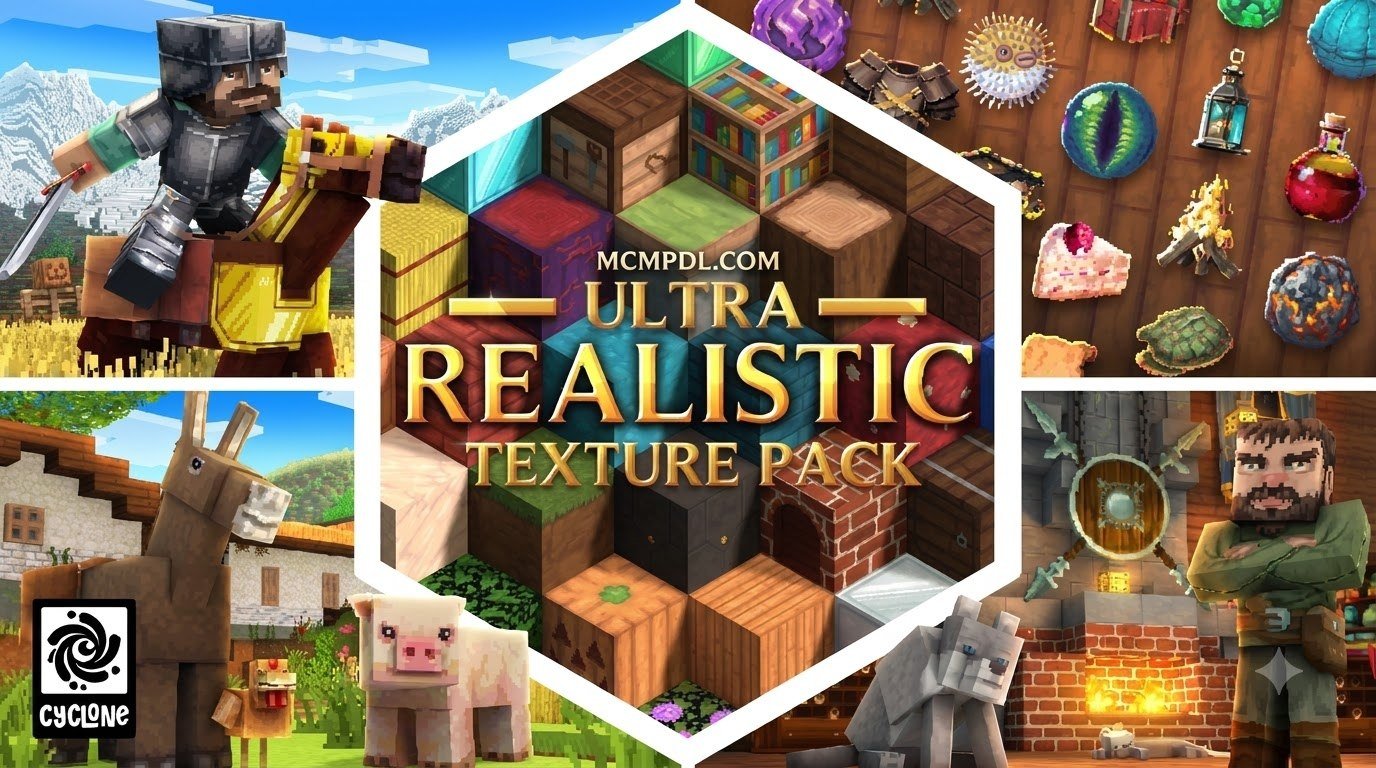
Optimum Realism is an ultra-realistic texture pack for Minecraft PE/Bedrock that gives familiar blocks more lifelike surfaces. Its complete 64x version is free. To try it, download the Bedrock .mcpack file, import it into Minecraft, and activate it in your world’s Resource Packs settings.
The lighting you see depends on your device. RTX ray tracing requires compatible Windows hardware; don’t expect it to work on Android or iOS. Start with 64x to check how the pack looks and runs, then consider a higher resolution if your device can handle it.
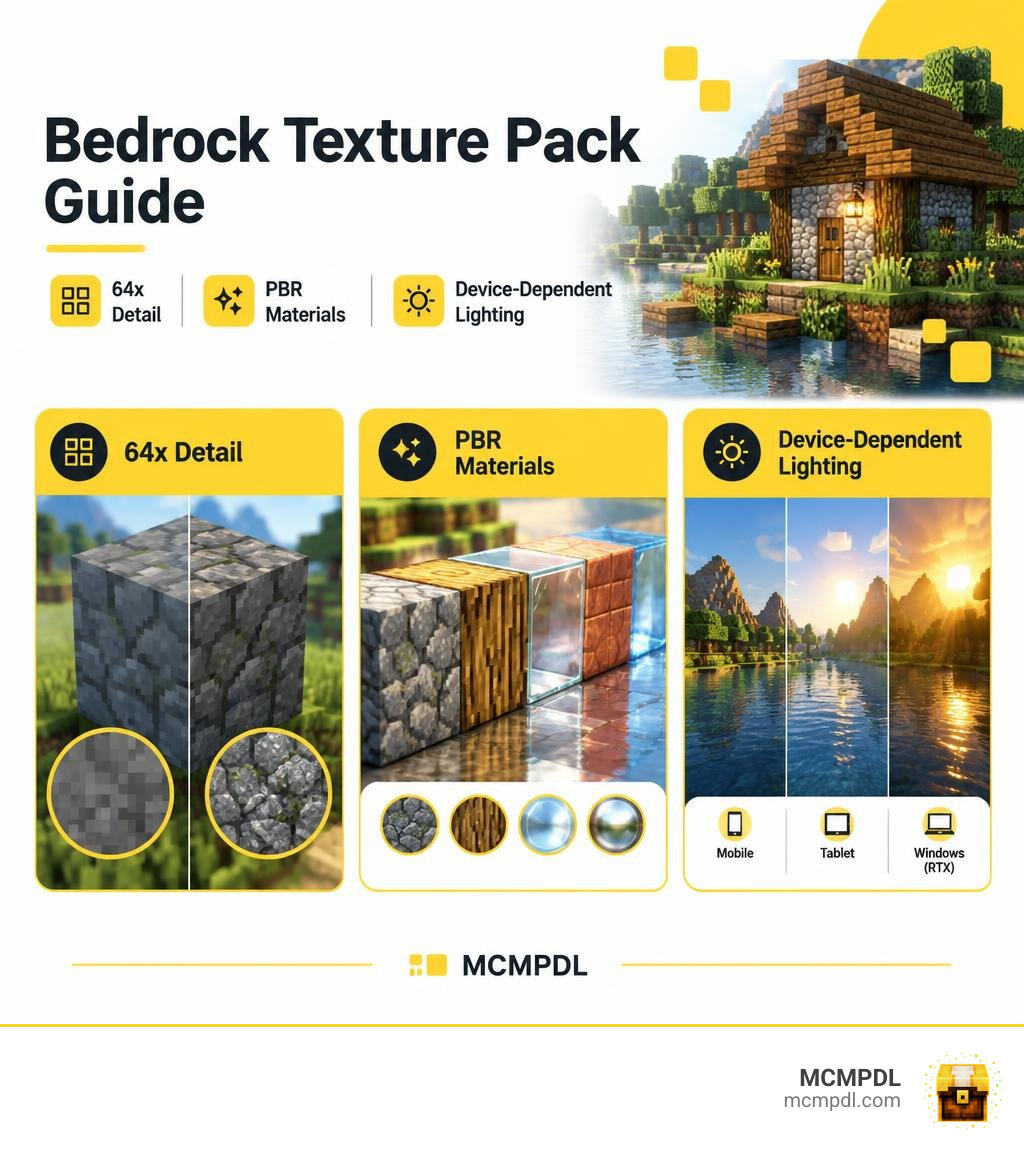
Ultra Realistic Texture Pack for Minecraft PE/Bedrock: Is Optimum Realism Worth It?
Optimum Realism aims to make Minecraft’s familiar blocks look more tactile without replacing the game’s blocks, biomes, or basic building style. Whether it is worth using depends on your device and what you want from the visuals. The free 64x edition is a low-commitment way to see how it looks in your own world.
Why Optimum Realism Stands Out as an Ultra Realistic Texture Pack for Minecraft PE/Bedrock
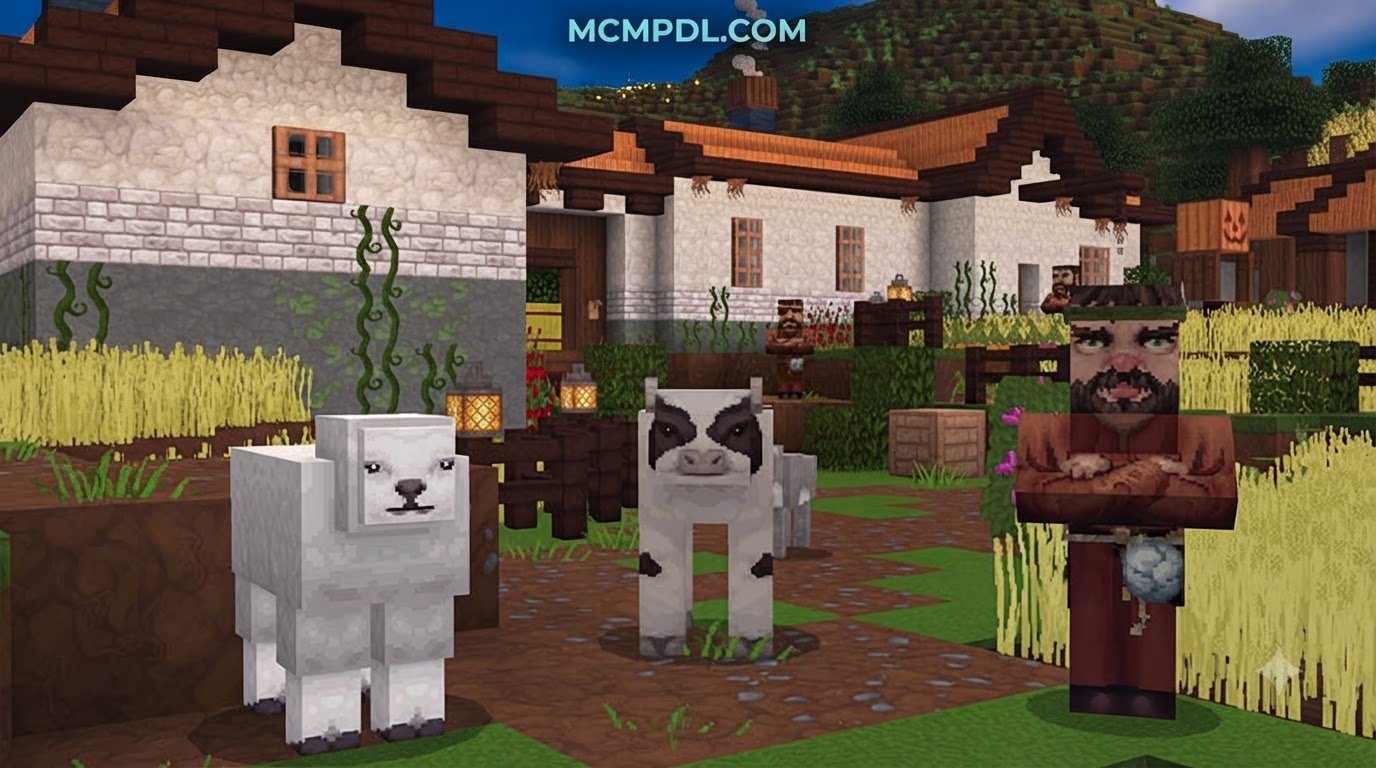
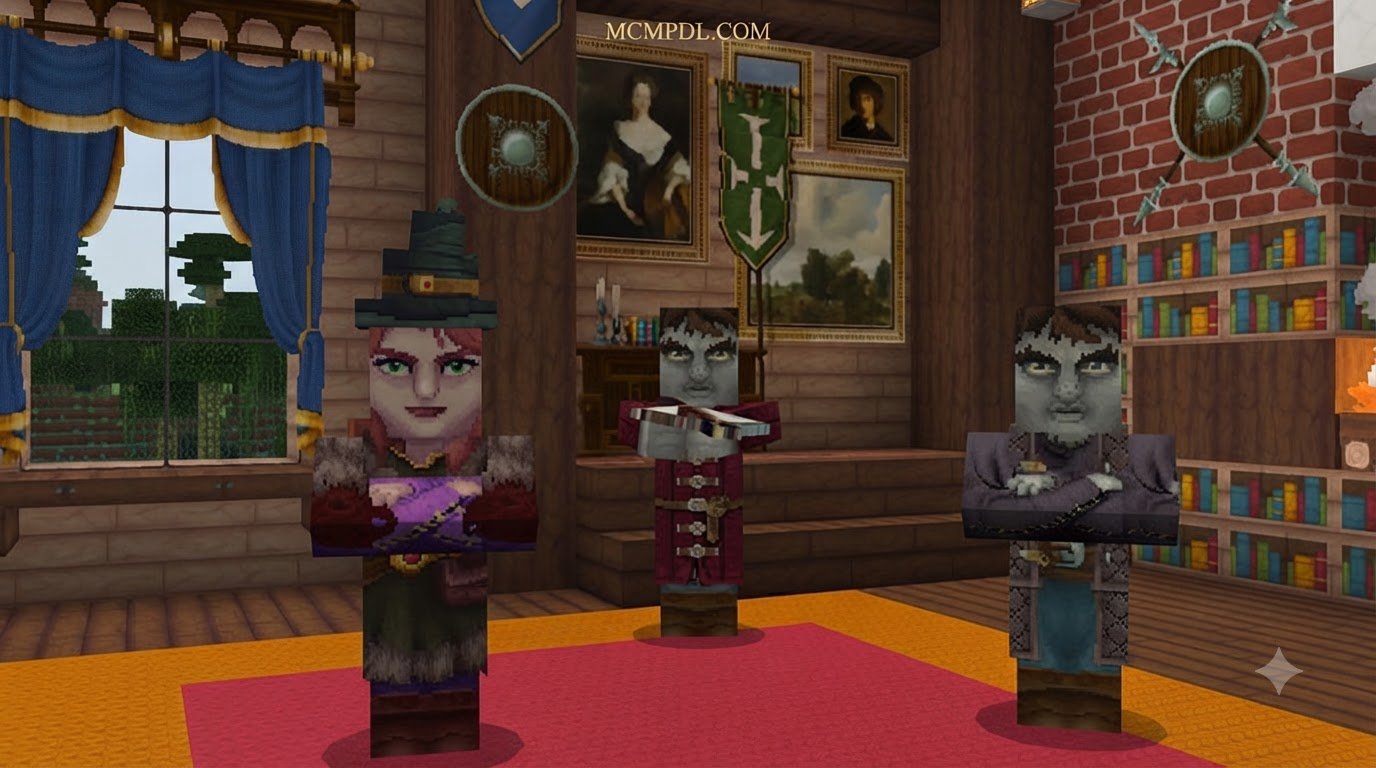
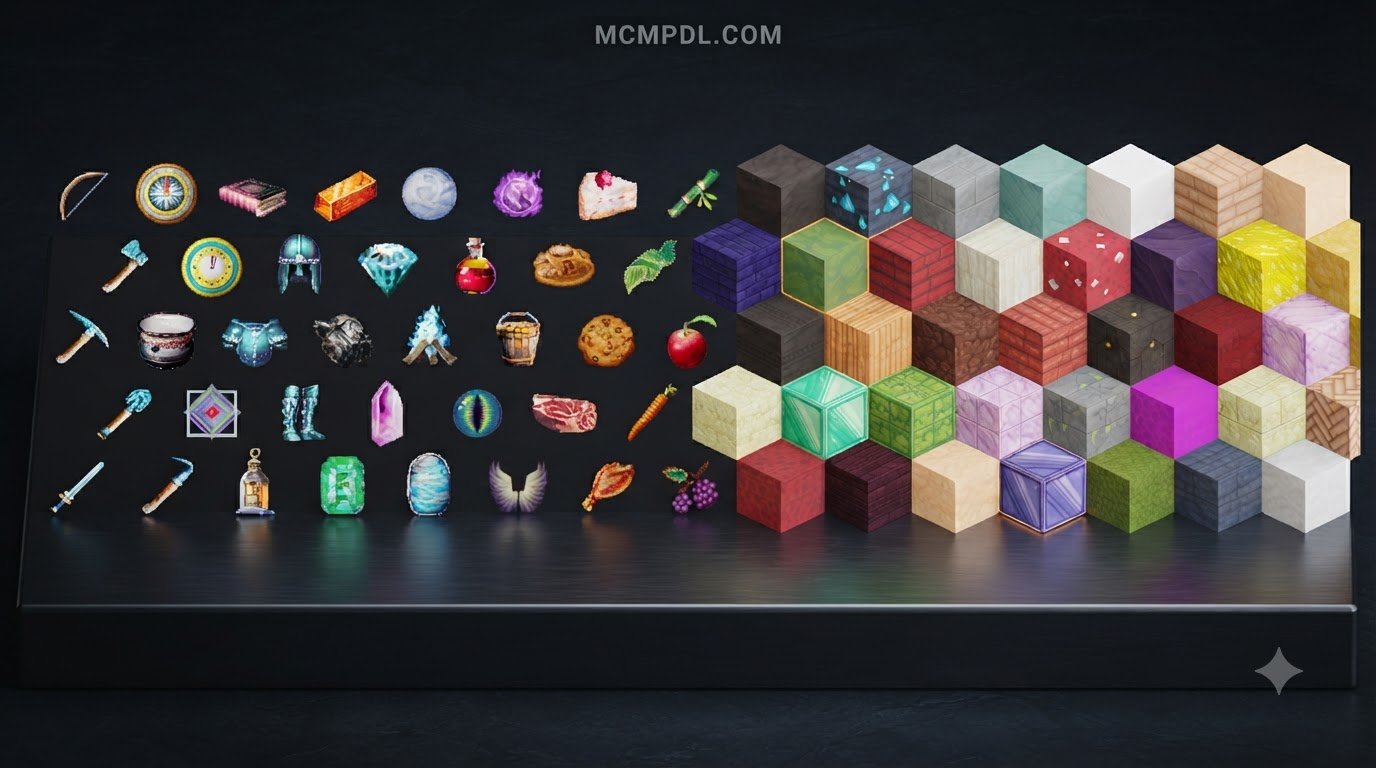
Optimum Realism is designed as a material rebuild, rather than a simple recolor of the default textures. It includes more than 690 PBR materials, which provide supported rendering features with information about how surfaces should respond to light. Stone, wood, metal, and other blocks can therefore have more distinctive texture and light response.
The pack’s published figures report more than 3 million players and describe it as the leading HD pack by total downloads among realistic 64x Bedrock packs. These figures offer a sense of its reach, but the best test is still to load the free version and see how it performs on your device.
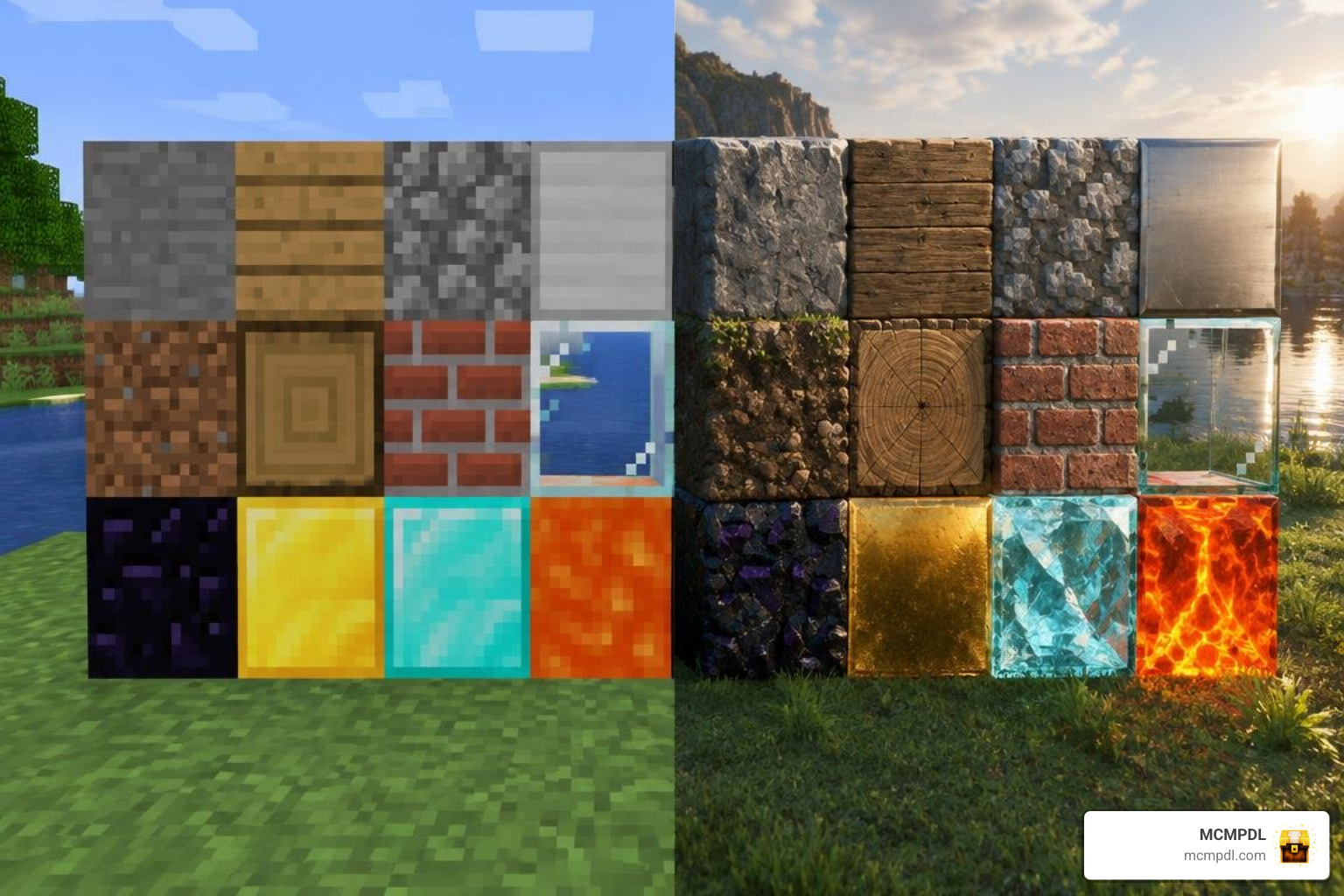
A useful detail for choosing a tier is that higher resolutions do not add new blocks or materials. The paid versions use the same material content as the free version; they increase the sharpness of the textures.
What Changes Compared with Vanilla Textures?
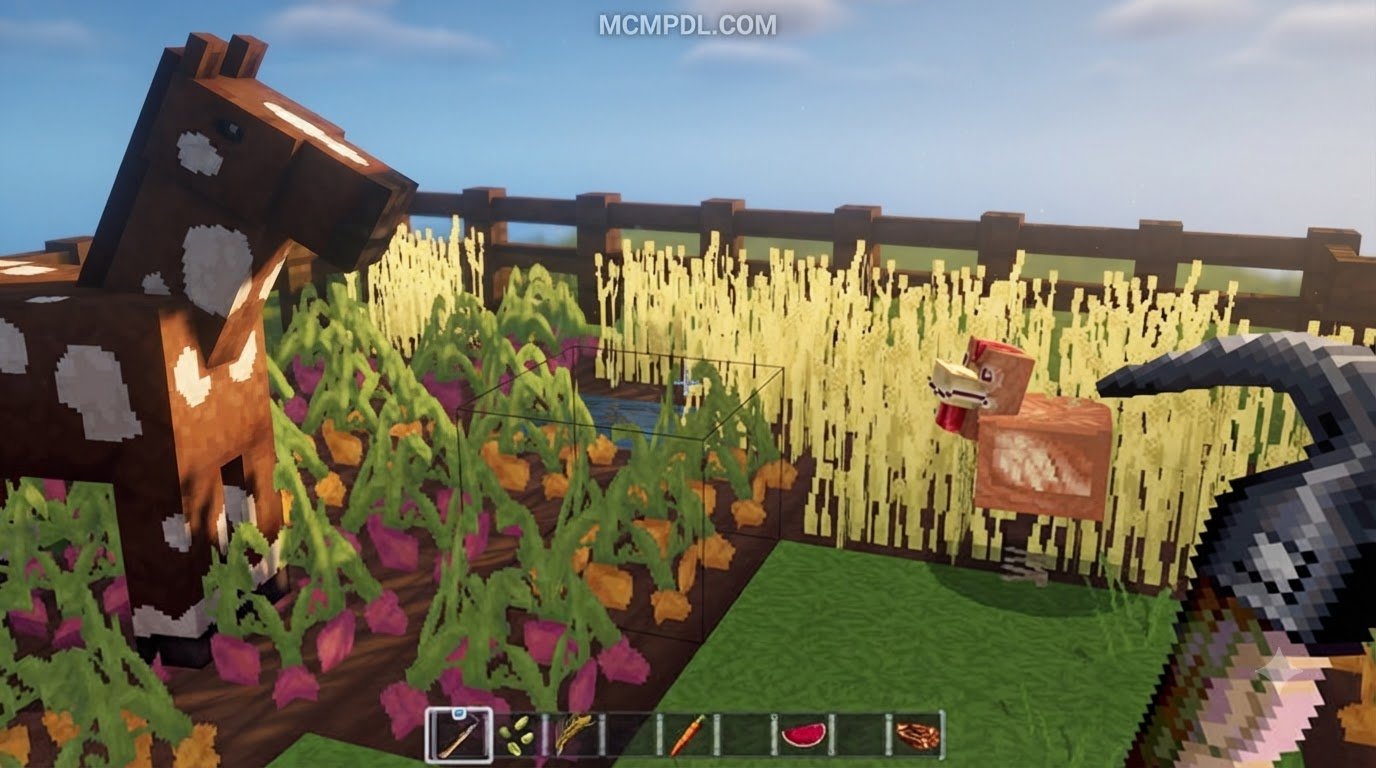
The biggest difference is how block surfaces look up close and how they behave under compatible lighting. Vanilla textures tend to have a simpler, flatter appearance. Optimum Realism adds finer surface detail and PBR data that can make supported lighting effects, such as reflections and shadows, more noticeable.
| Feature | Vanilla textures | Optimum Realism |
|---|---|---|
| Surface detail | Familiar, simpler block textures | More detailed textures, with sharpness depending on resolution |
| Material response | Standard appearance | PBR data for supported lighting features |
| Lighting support | Depends on the game’s rendering features | Designed to work with supported Bedrock RTX and Vibrant Visuals features |
| Blocks and biomes | Default game content | Same blocks and biomes, with changed textures |
A texture pack changes the appearance of the game; it does not automatically enable every lighting feature. The final look depends on the edition, device, and rendering options you can use.
How Optimum Realism Creates Photorealistic Materials and Lighting
PBR stands for physically based rendering. In simple terms, PBR materials provide the renderer with extra information about how a surface reacts to light. Rather than making every block look equally matte, PBR data can help distinguish shiny metal from rough stone or smooth surfaces from textured ones.
Optimum Realism uses depth-write parallax occlusion mapping (POM) to create a stronger impression of depth on some surfaces. POM adjusts how surface details appear from different viewing angles, making a flat texture look more layered. The result depends on whether the edition and rendering setup support the relevant effect.
The pack also uses material features such as emissive data and metalness. Emissive details can make light sources such as lanterns and lava appear to glow in supported rendering setups. Metalness helps metallic blocks respond more like metal; copper, for example, can show differences in appearance as its oxidation state changes.
Bedrock RTX uses compatible PBR materials with ray tracing to calculate effects such as reflections, shadows, and global illumination, which represents light bouncing around a scene. For a plain-language overview of how these materials work, see Microsoft’s explanation of physically based rendering.
Optimum Realism also lists Vibrant Visuals as a supported lighting option. Available features vary by device and game version, so the same pack may not look identical across platforms. A high-resolution texture can improve surface definition, but it cannot provide ray tracing on hardware that does not support it.
Resolutions, Device Requirements, and Installation
Which Resolution Should You Choose for Bedrock RTX?
The resolution tiers offer different levels of texture sharpness. According to the pack information, all tiers contain the same blocks and PBR materials; the difference is resolution, not extra content.
| Resolution | Listed price | Detail level | Recommended use |
|---|---|---|---|
| 64x | Free | Full block coverage at the base resolution | Everyday play and testing compatibility |
| 128x | $2 per month | Sharper textures than 64x | A modest detail increase |
| 256x | $5 per month | Higher texture sharpness | Recommended balance for Bedrock RTX |
| 512x | $10 per month | Highest listed sharpness | Cinematic screenshots and renders |
The 256x tier is the most popular and is the recommended balance for Bedrock RTX. The pack is tuned for this resolution on the ray-traced renderer; going higher can use more memory without providing a worthwhile improvement during regular gameplay.
The 512x version is intended for close-up views and cinematic work, where extra texture detail can be useful. For everyday play, it may be an unnecessary demand on memory. We recommend starting at 64x, checking performance, and upgrading only if you can see a benefit on your setup. The listed paid tiers are subscription options, and current prices may change.
What Hardware and Lighting Support Do You Need?
The pack’s stated minimum is a GTX 1050 GPU and 8 GB of RAM. Treat that as a baseline for running the pack, not as a guarantee of smooth performance with every resolution or lighting feature. Performance varies with the rest of your system, game settings, world complexity, and selected texture tier.
Bedrock RTX ray tracing requires a compatible ray-tracing GPU and a supported Windows version of Minecraft Bedrock. A GTX 1050 does not, by itself, mean a computer can run RTX ray tracing. Check that your graphics hardware and game version support the feature before choosing a tier for RTX play.
Minecraft PE on Android and iOS has different hardware and rendering capabilities from Windows Bedrock. The pack may be importable on a mobile device, but that does not mean the device can use RTX. Do not assume that RTX ray tracing or every PBR effect will work on mobile. Other supported visual options may depend on the device and the current version of Minecraft.
How to Install an Ultra Realistic Texture Pack for Minecraft PE/Bedrock
Use the Bedrock edition of the pack and download its compatible .mcpack file. Installation can vary slightly between devices, but these steps cover the usual process:
- Download the Bedrock pack file from its official download source.
- Open the
.mcpackfile on your device. Minecraft should launch and import it. If the file arrives in a compressed format, extract it and open the compatible Bedrock pack file. - In Minecraft, open the settings for the world you want to use and find Resource Packs. Activate Optimum Realism under My Packs or the available pack list.
- If you want it in multiple worlds, check Global Resources in the main settings and activate it there, if that option is available on your device.
- Launch the world and check the textures. On supported Windows hardware, enable the relevant RTX or other supported visual settings separately.
If Minecraft does not import the pack, confirm that you downloaded the Bedrock version and that the file extension is correct. If another resource pack changes the same textures, disable it temporarily to check for a conflict. If gameplay becomes slow, try 64x or 128x, turn off optional add-ons, and test the pack in a simpler world.
Frequently Asked Questions
Is Optimum Realism Free, and What Do Higher Resolutions Add?
Yes. The complete 64x version is free, with every block included and no trial period. The paid tiers increase texture resolution and sharpness; they do not unlock a separate set of blocks or PBR materials.
The listed paid options run from 128x to 512x. One Patreon subscription covers both Java and Bedrock editions, according to the pack information. Check the current terms before subscribing, since prices and access details can change.
Does Optimum Realism Support RTX, and Can Minecraft PE Run It?
Optimum Realism has a Bedrock RTX edition designed for compatible Windows hardware. To use ray tracing, you need a ray-tracing-capable GPU and a supported Bedrock setup. The stated GTX 1050 minimum is a general pack requirement, not proof that a device can run RTX.
Minecraft PE can import a resource pack, but mobile compatibility is different from RTX compatibility. Android and iOS devices should not be assumed to support Bedrock RTX. Visual features and performance depend on the phone or tablet, the game version, and the rendering options available.
Are There Addons or Test Maps, and How Do I Troubleshoot Issues?
The pack information lists a Test Map for Java Edition, designed to show materials and lighting interactions. It also lists a Make It Grassy Addon, which changes foliage to complement the pack. These extras may be more demanding, so we suggest testing them separately and avoiding heavier add-ons on lower-end hardware.
If something looks wrong or the pack will not load:
- Check that you have the Bedrock pack for your Minecraft version.
- Make sure the pack is activated for the current world or in Global Resources.
- Temporarily disable other resource packs to check for conflicts.
- Restart Minecraft after changing packs or visual settings.
- Lower the resolution or remove optional add-ons if performance drops.
Conclusion
Optimum Realism is a strong fit if you want detailed block textures and have hardware that can use the lighting features you care about. Start with 64x for free everyday use, choose 256x for a balance of sharpness and Bedrock RTX performance, or consider 512x for cinematic work on capable hardware.
We recommend checking performance in your own world before settling on a resolution. You can also explore MCMPDL’s Minecraft Bedrock content library to find organized downloads for Bedrock and PE.