Scroll down to D0vvnl0ad
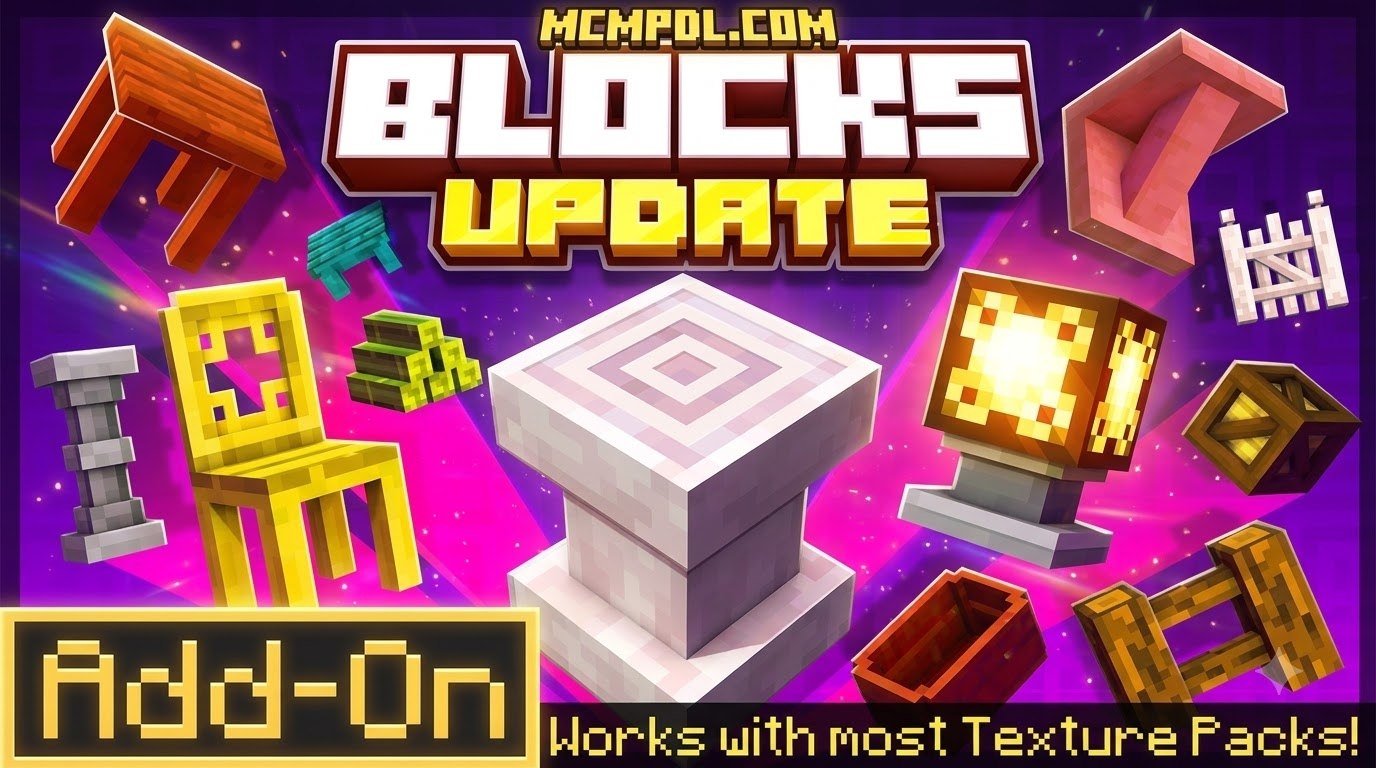
Install the Blocks Update Addon for Minecraft PE/Bedrock
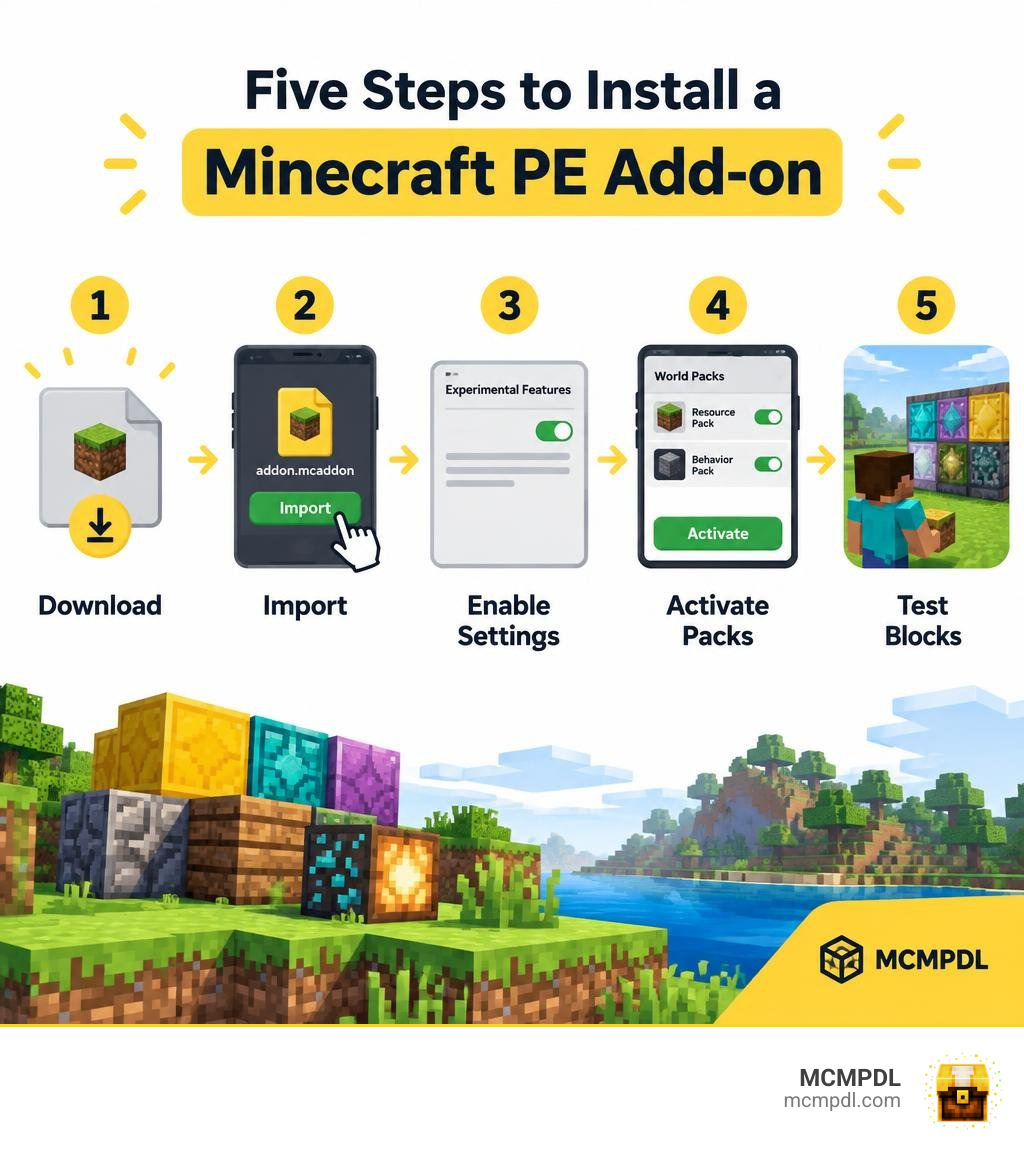
To install a custom block add-on, download a file that matches your Bedrock version, open the .mcaddon or .mcpack file with Minecraft, then activate its packs in your world settings. You can do it in five steps:
- Download the add-on from a source you trust.
- Open the file to import it into Minecraft.
- Turn on any experimental features the add-on requires.
- Activate its resource and behavior packs.
- Start the world and test a block in Creative mode.
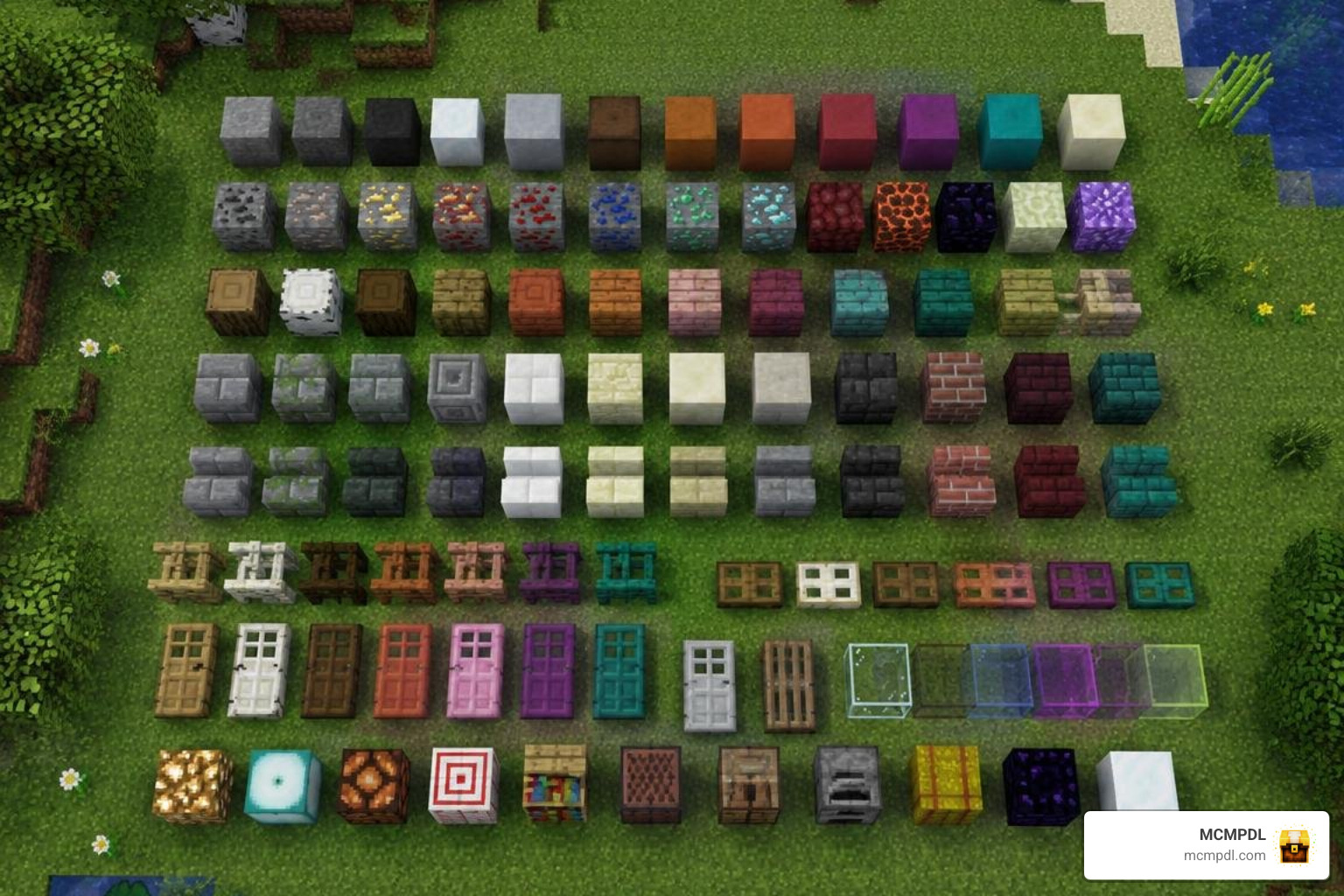
If you see an Update Game Block, that is different: it is Bedrock’s placeholder for an invalid block, not a new building block supplied by the add-on. This guide covers installation first, then shows you how to spot and fix common block problems.
What Is the Blocks Update Addon for Minecraft PE/Bedrock?
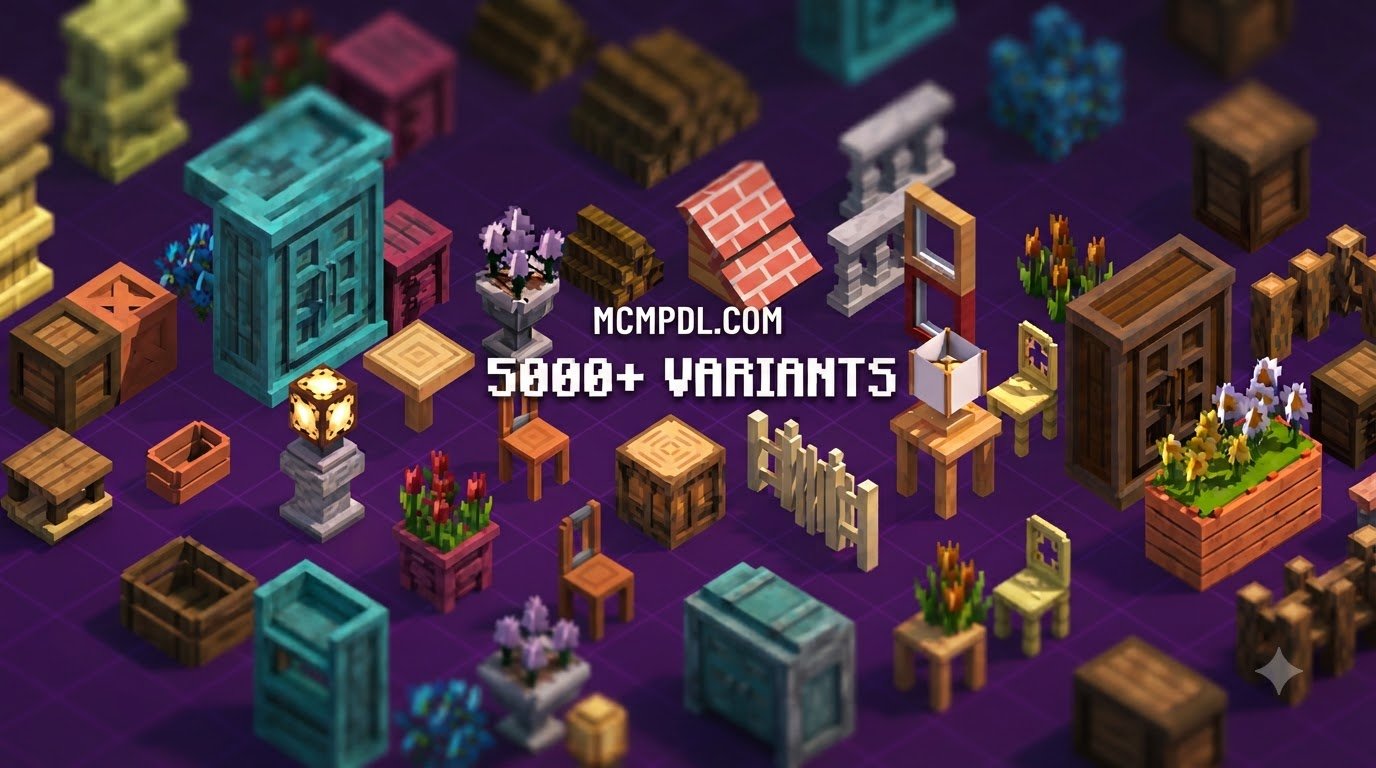
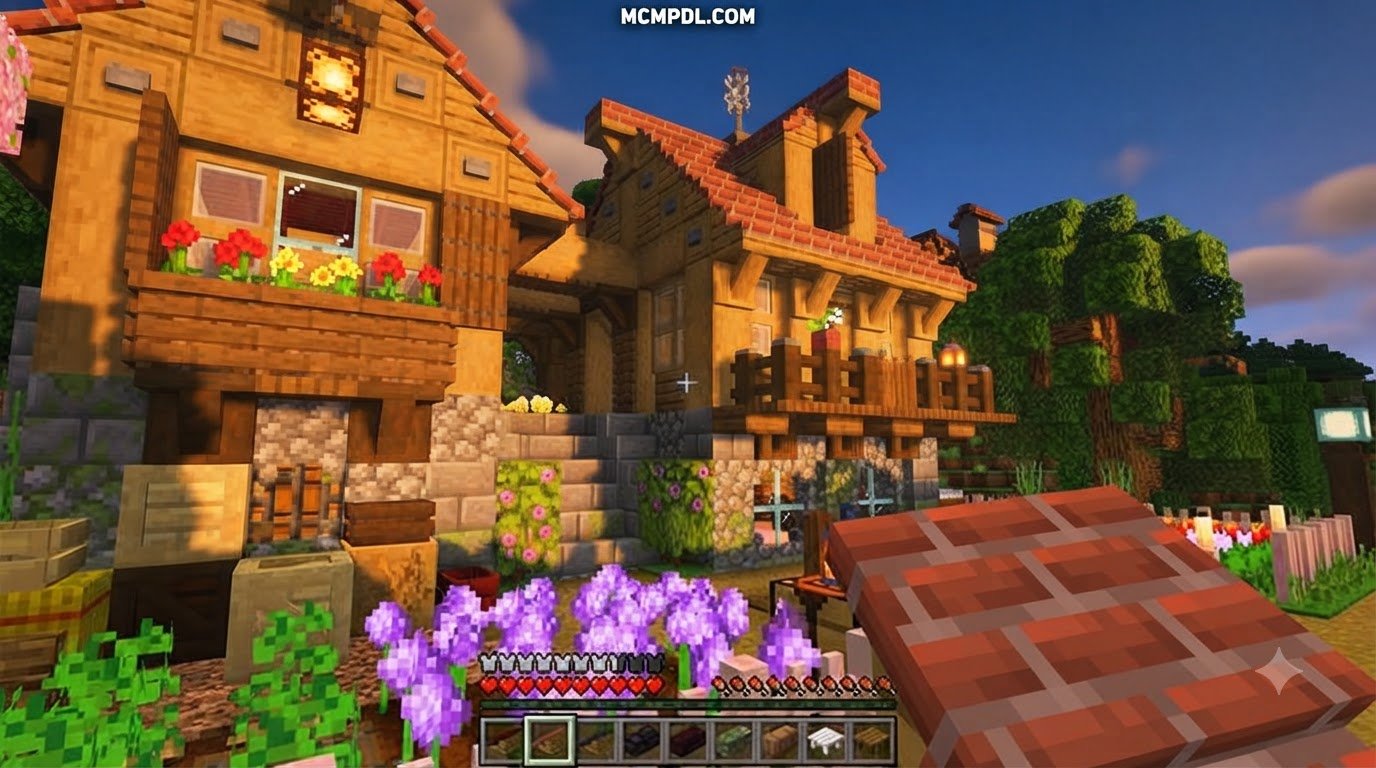
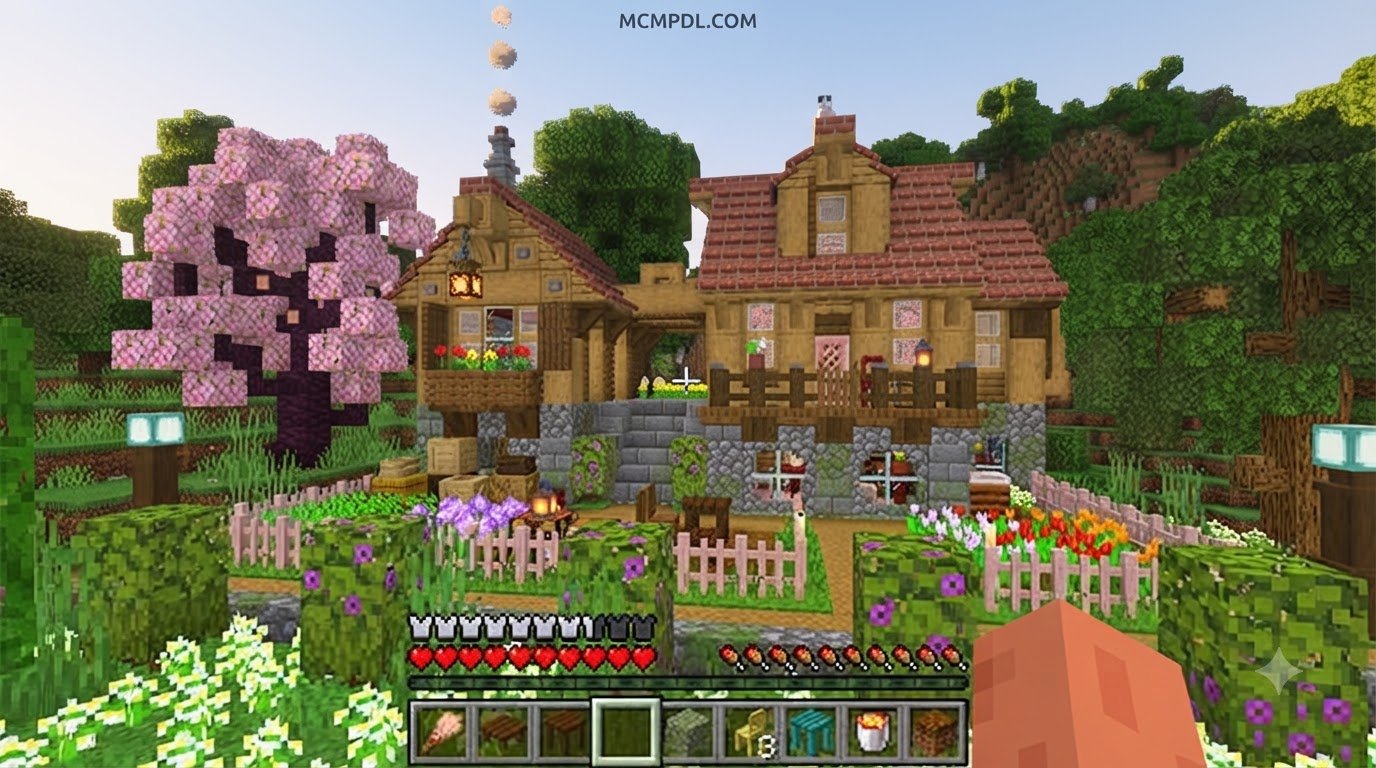
When we talk about upgrading the block palette in Minecraft Pocket Edition (PE) and Bedrock Edition, players generally look for two things: massive creative expansions and clean, error-free game performance. The Blocks Update Addon for Minecraft PE/Bedrock represents a community-driven movement to expand the standard block library, introducing thousands of new textures, architectural shapes, and functional utilities without relying on clunky entity models.
At the same time, understanding block updates in Bedrock requires knowing how the underlying game engine handles custom assets. When an add-on is outdated, corrupted, or missing its definitions, Bedrock triggers internal fallback mechanisms like the famous Update Game Block. By exploring creative building options with the More Custom Blocks Addon for Minecraft PE/Bedrock, builders can transform flat, repetitive walls into intricate architectural showcases with proper custom geometry.
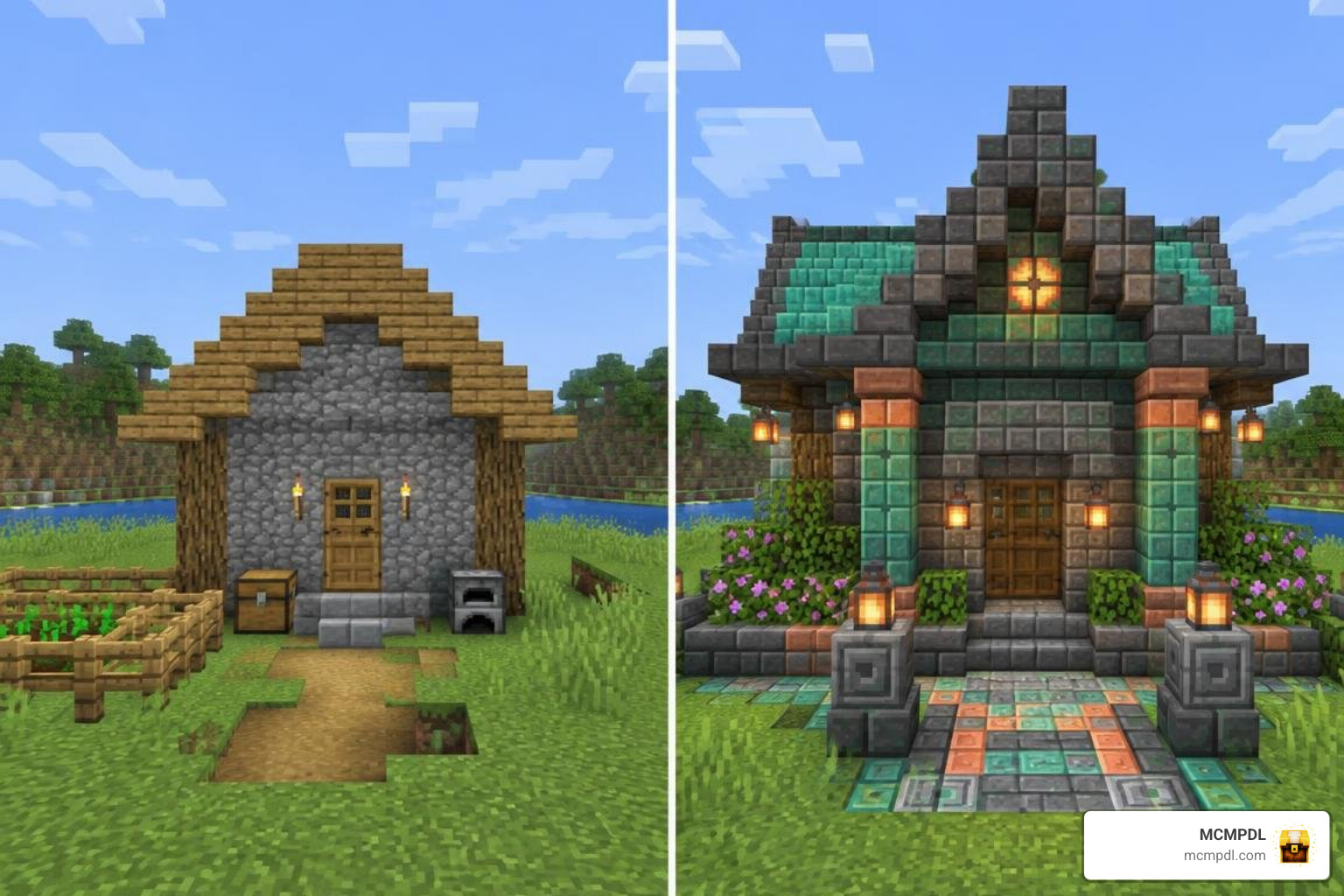
Overview and Mechanics of the Blocks Update Addon for Minecraft PE/Bedrock
Modern block add-ons deliver over 1,000 vanilla-style blocks that feel right at home within Bedrock’s aesthetic. Instead of substituting existing vanilla materials, these additions register brand-new IDs into the game’s registry.
Key mechanics modern block packs introduce include:
- Functional Stairs and Slabs: Full cut-corner collision mechanics and smooth step-up movement for every wood, stone, and decorative variant.
- Vertical Slabs: One of the most sought-after features in Bedrock building, allowing players to create half-depth walls, recessed archways, and detailed column trims.
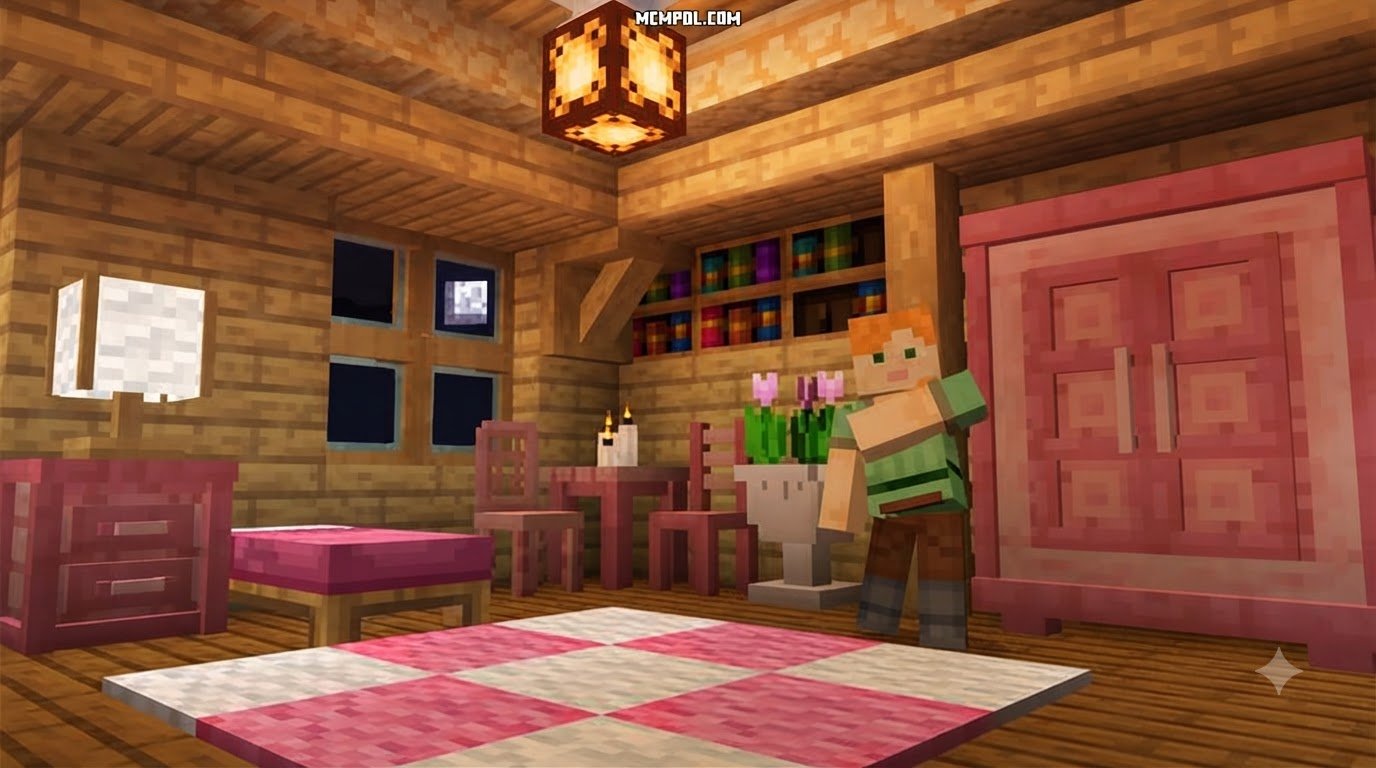
- Architectural Trim and Wallpapers: Patterned interior surfaces that give builders distinct visual styles without requiring heavy resource packs.
- Entity-Free Performance: Premium block updates register true custom blocks via JSON, ensuring zero entity lag during massive multiplayer builds.
If your projects lean toward mystical or high-fantasy builds, you can look into expanding your world palette using the Fantasy Blocks Addon for Minecraft PE/Bedrock to introduce magical runic stones and weathered masonry. Similarly, installing a comprehensive Block Pack Addon for Minecraft PE/Bedrock gives you access to practical building supplies right from your crafting table.
Technical Block Architecture and Update Game Blocks
Under the hood, Minecraft Bedrock handles block data using strict schema tables. In early Bedrock Alpha (Alpha 0.1.3), Mojang implemented the Update Game Block system. These blocks carry numeric IDs 248 (minecraft:info_update) and 249 (minecraft:info_update2).
Whenever the game encounters an unregistered block state, corrupted chunk data, or a removed add-on ID, it substitutes that coordinate with an Update Game Block. These blocks display distinctive dirt-like side textures with green, yellow, or patterned faces reading “update!” as a visual diagnostic alert.
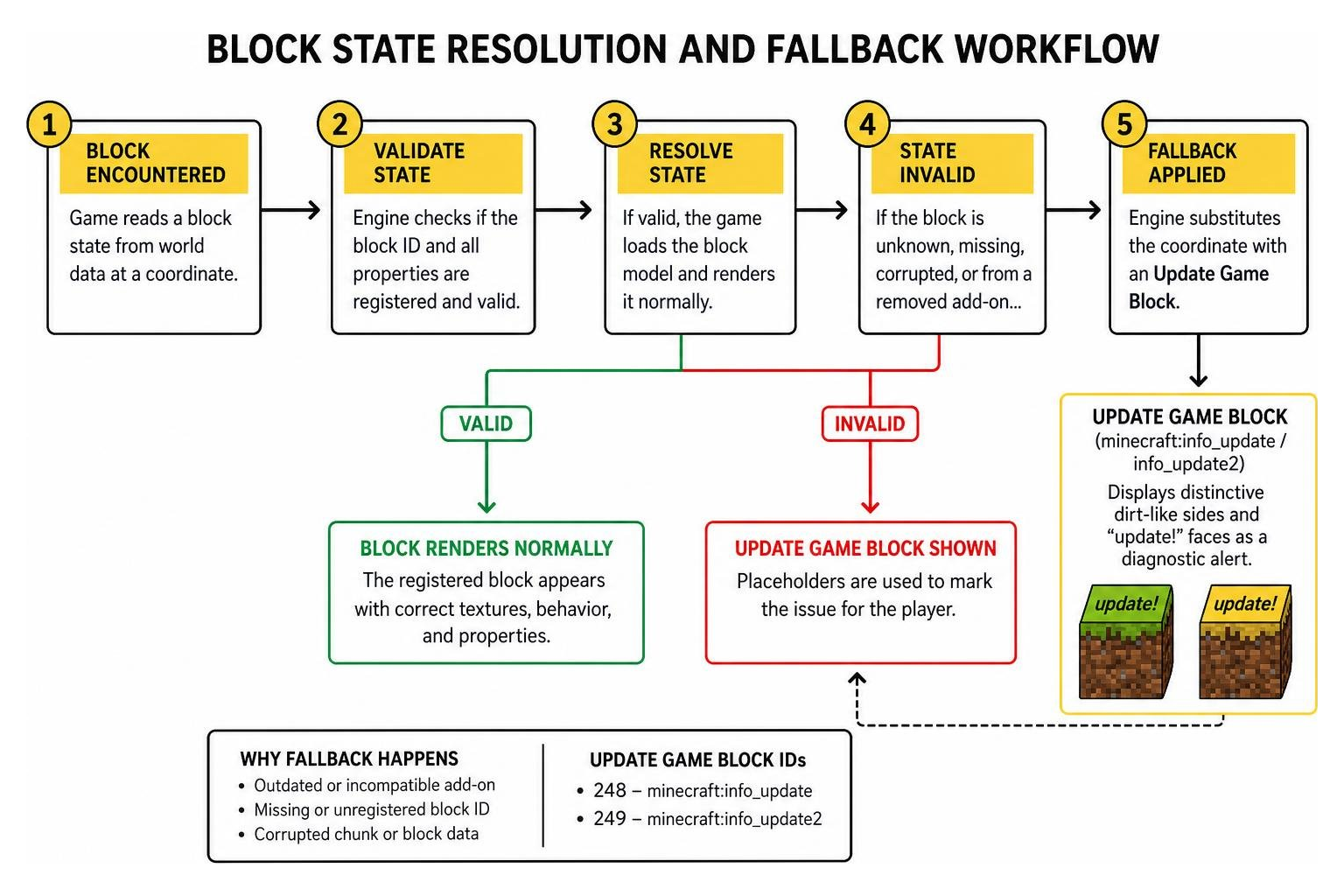
The Bedrock engine manages properties such as the portal_axis state (which accepts string values like “unknown”, “x”, or “z”) to orient blocks correctly in 3D space, as detailed in the official Minecraft Bedrock 1.14.0.6 documentation.
| Feature / Trait | Bedrock Edition Update Game Block | Java Edition Missing Texture Block |
|---|---|---|
| Identifier | minecraft:info_update / info_update2 | minecraft:structure_void or Missing Model |
| Numeric Block ID | 248 / 249 | N/A (String-based registry) |
| Visual Texture | Dirt base with “update!” text overlay | Purple and black checkerboard |
| Top Placement Rule | Blocks cannot rest on top (non-solids vanish) | Standard placement collision |
| Engine Role | Missing ID fallback placeholder | Missing texture/model fallback placeholder |
| Survival Behavior | Indestructible without creative tools | Destructible based on underlying material |
Step-by-Step Guide to Installing Custom Block Add-ons
Adding new building packs to Minecraft PE/Bedrock is straightforward when you follow the proper workflow. Whether you want decorative structural blocks or are decorating interiors with the Block Furniture Addon for Minecraft PE/Bedrock, following these five steps ensures your worlds stay stable and free from missing-texture errors.
Step 1: Download the .McAddon or .McPack File
The first step is grabbing the verified installation archive from our repository at MCMPDL. Most modern add-ons are bundled into two primary distribution formats:
- .mcaddon: An all-in-one archive containing both the Resource Pack (textures, models, sounds) and Behavior Pack (block collision, crafting logic, drops).
- .mcpack: Individual component files that require you to download and import the Resource and Behavior packs separately.
If you are expanding your construction inventory, pick up the More Blocks Addon for Minecraft PE/Bedrock to download a compatible, verified archive.
Step 2: Import Packs into Minecraft Bedrock Edition
Once the file is on your device, you need to import it into the Minecraft engine:
- iOS / iPadOS: Open the Files app, locate the downloaded
.mcaddonfile, tap and hold it, select Share, and choose Minecraft. The game launches automatically and displays an “Import Started” banner at the top of the screen. - Android: Use your preferred file manager, tap the downloaded
.mcaddonor.mcpackfile, and select Minecraft as the default handler. - Windows 10/11: Double-click the
.mcaddonfile directly from your Downloads folder. Windows opens the Bedrock client and completes the import sequence.
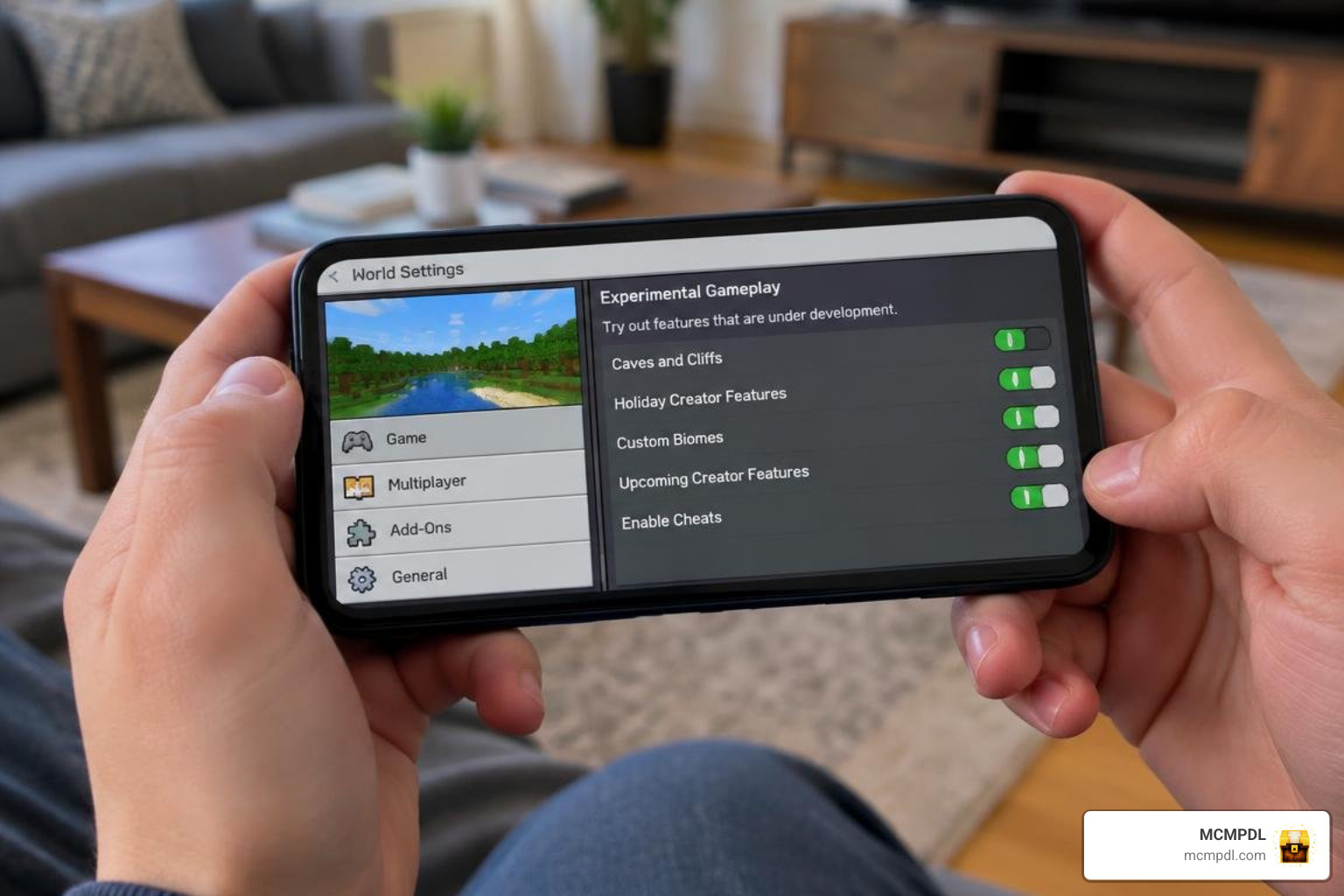
Step 3: Enable Experimental Gameplay Toggles
Custom blocks rely on Minecraft’s experimental APIs to register custom geometry and behavior rules. If you skip this step, custom blocks will not appear in your crafting benches or Creative inventory.
Open your World Settings, scroll down to the Experiments section, and toggle the following switches to On:
- Holiday Creator Features (registers block models and basic properties).
- Custom Biomes (if the block update includes custom terrain generation).
- Upcoming Creator Features (loads new block state parameters).
- Beta APIs (handles custom block events and interaction scripting).
Always create a backup copy of your world before toggling experiments on an existing survival save.
Step 4: Activate Resource and Behavior Packs
For custom blocks to render properly and exhibit physical collision, you must apply both sides of the add-on to your specific world:
- In the World Settings menu, scroll down the left sidebar to Resource Packs.
- Click Available, select your downloaded block pack, and press Activate.
- Move down to Behavior Packs in the left sidebar.
- Click Available, select the corresponding Behavior Pack, and press Activate.
- Check the Active list to verify both packs are present. Keep resource pack dependencies in the correct order if using companion sets like the Mini Blocks 2.0 Add On.
Step 5: Launch World and Test Custom Blocks
Enter your world and confirm that the new blocks are functioning:
- Open your Creative Inventory and browse the Construction tab.
- Type
/give @s custom_namespace:block_namein the chat window to confirm direct item acquisition. - Use the
/setblock ~ ~ ~ custom_namespace:block_namecommand to verify that the block places with proper collision and rotation. - In Survival mode, test the crafting recipe on a standard Crafting Table or Stonecutter.
Technical Manifests and Block State Configurations
Behind every working block add-on is a clean configuration schema. Bedrock add-ons use JSON formatting defined by Mojang’s technical specifications.
Every pack requires a manifest.json file in its root directory with format_version: 1 or 2. This manifest contains two key sections:
- Header: Stores the add-on name, description, pack version (e.g.,
[1, 0, 0]), and a unique Universal Unique Identifier (UUID). - Modules: Declares whether the pack provides client-side resources (textures and geometry) or server-side gameplay behaviors.
Block states let blocks change their appearance or behavior dynamically. For example, developers use the age_bit state (a boolean flag) or the age integer state (ranging from 0 to 15) to track crop growth or structural decay. Complete property breakdowns are documented in the Minecraft Bedrock 1.13.0.34 reference as well as the Minecraft Bedrock 1.15.0.51 schema guide.
When mining and clearing these custom structures in survival, equipping specialized tools like the Block Hammers Addon for Minecraft PE/Bedrock allows you to break multiple custom blocks in a 3×3 radius efficiently.
Troubleshooting the Blocks Update Addon for Minecraft PE/Bedrock
If you run into issues after installing custom blocks, here is how to resolve the most common errors:
- Update Game Block Appears Instead of Custom Block: This indicates the behavior pack is missing, disabled, or contains an unregistered block ID. Double-check that your Behavior Pack is active in World Settings and that all experimental toggles are turned on.
- Invisible Block Geometries: If a block has solid collision but is completely invisible, the Resource Pack is either missing the
.geo.jsonmodel file or has an incorrect geometry identifier in its client block definition. - Disappearing Non-Solid Blocks: Placing torches, redstone dust, or carpets directly on top of legacy
info_updateblocks will cause the placed items to vanish after a split second due to missing top-surface collision flags. - ID Collisions Between Multiple Add-ons: If two separate block packs register the same identifier without unique custom namespaces, the engine will prioritize whichever pack sits higher in the resource load order, rendering the lower pack uncraftable. For specialized building packs such as the God Blocks Addon for Minecraft PE/Bedrock, verify that the creator utilized distinct namespace prefixes.
Frequently Asked Questions
Can Update Game Blocks be obtained and placed in Survival mode?
No, Update Game Blocks cannot be legitimately crafted, mined, or obtained through standard Survival gameplay. They serve exclusively as engine fallback placeholders. In Creative mode or with cheats enabled, operators can spawn them by executing /setblock ~ ~ ~ unknown or by modifying world NBT data using external map editors.
Why do non-solid blocks disappear when placed on top of Update Blocks?
The Bedrock engine runs placement validation checks whenever a block update tick occurs. Because the info_update (ID 248) and info_update2 (ID 249) technical blocks lack top-surface collision definitions, the engine evaluates the space above them as invalid support. Any non-solid block (such as a torch, flower, or lever) placed on their top surface will disappear after a split second.
Are custom block add-ons compatible with Bedrock multiplayer and Realms?
Yes. Custom block add-ons work smoothly on local multiplayer worlds, dedicated Bedrock servers, and Minecraft Realms. When hosting a game with custom blocks, enable the “Require players to accept resource packs to join” option in your World Settings. When friends connect, Bedrock automatically downloads the required resource packs to their devices so everyone sees the custom blocks properly.
Conclusion
Expanding your Minecraft PE and Bedrock worlds with custom block add-ons unlocks incredible creative freedom. From fine-grained vertical slabs and architectural stairs to unique decorative textures, modern add-ons let you build structures that vanilla blocks alone cannot match. By following our 5-step installation guide—downloading verified files, importing them to Bedrock, toggling experimental features, activating both pack types, and testing your items—you can enjoy seamless, lag-free gameplay.
At MCMPDL, our goal is to provide a clean, curated hub for top-tier add-ons, maps, and textures. Explore our catalog, upgrade your block palette, and enhance your survival workflow with the bedrock tools add-on to take your Minecraft building adventures to the next level.