Scroll down to D0vvnl0ad
Make Custom Paintings in Minecraft PE and Bedrock
Want to make your own wall art? Download a DIY painting add-on made for your Bedrock version, open its .mcaddon file in Minecraft, and enable the included packs in your world settings. Then place a canvas and use the add-on’s painting tools to draw in-game.
If you already have artwork saved as an image, a resource pack may be a better fit: it can replace existing painting textures with your PNG files. This guide covers both routes, so you can pick the one that works on your device.
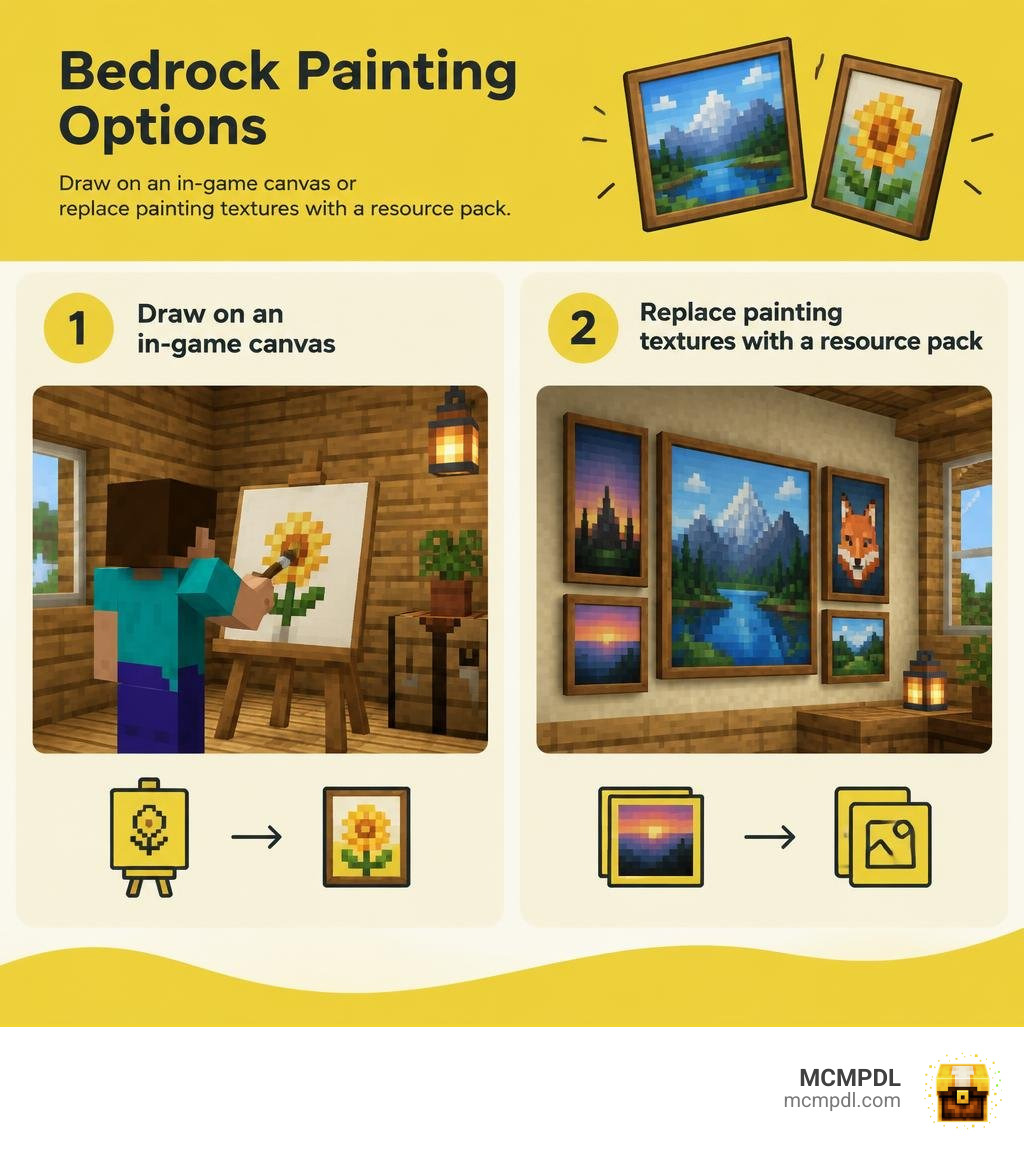
With Minecraft remaining the best-selling video game of all time with over 400 million copies sold across all platforms, millions of builders look for fresh ways to personalize their bases. While vanilla Minecraft features classic paintings created by artist Kristoffer Zetterstrand during the game’s earliest alpha days, placing the same vintage canvases repeatedly can feel limiting. This guide explores everything you need to know about using a DIY Paintings Addon for Minecraft PE/Bedrock to bring original gallery artwork, signs, and personalized decor into your world.
Understanding the DIY Paintings Addon for Minecraft PE/Bedrock
To understand how custom art works in modern Bedrock Edition (which powers mobile devices, Windows 10/11, Xbox, PlayStation, and Nintendo Switch), it helps to look at how Bedrock differs from Java Edition. Java modding often relies on third-party loaders like Forge or Fabric to inject custom code directly into the game engine. In contrast, Bedrock uses an official data-driven pipeline consisting of Resource Packs (which control textures, models, sounds, and UI) and Behavior Packs (which control entity logic, loot tables, and mechanics).
Add-on creators typically bundle both components into a convenient .mcaddon file. When you import this file, Bedrock registers custom entities or blocks natively. While you can also use world-shaping utilities like the Builders Tools Addon for Minecraft PE/Bedrock to shape vast museum halls, art add-ons specifically focus on rendering custom canvases.
A key mechanical difference in modern art add-ons is how paintings exist in the world:
- Entity-Based Paintings: Vanilla paintings are entities. They can sometimes pop off walls when adjacent blocks update, and having dozens of complex entities in a compact room can cause minor performance hitches on lower-end mobile devices.
- Block-Based Paintings: Many modern DIY art add-ons register canvases as custom 3D decorative blocks. This makes them sit flush against surfaces, prevent accidental entity knocking, and integrate smoothly into standard block-grid building.
Core Features of a DIY Paintings Addon for Minecraft PE/Bedrock
Installing a dedicated DIY art add-on transforms your creative workflow by adding functional tools right inside your hotbar:
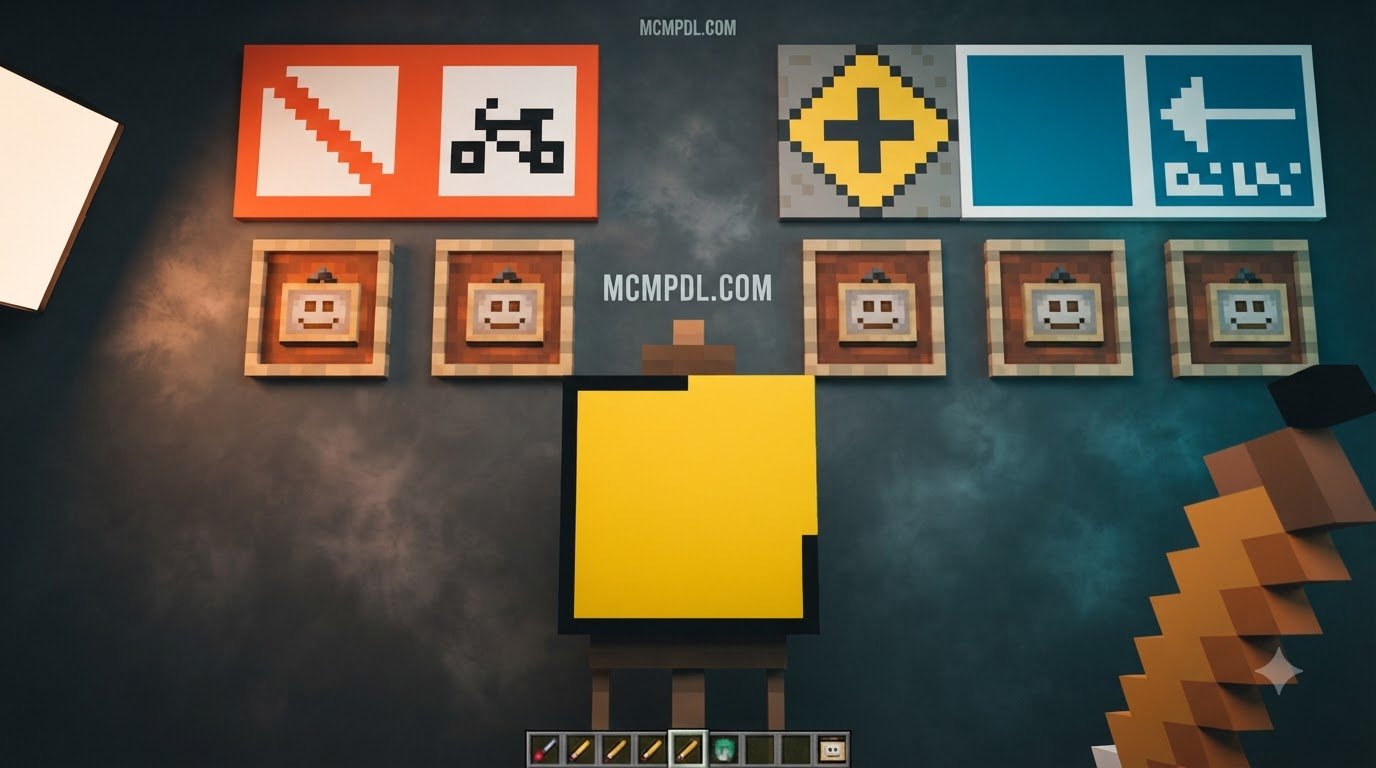
- In-Game Easel and Canvases: Rather than just placing a random picture, you craft blank canvases in several dimensions (such as 1×1, 1×2, 2×1, and 2×2 blocks).
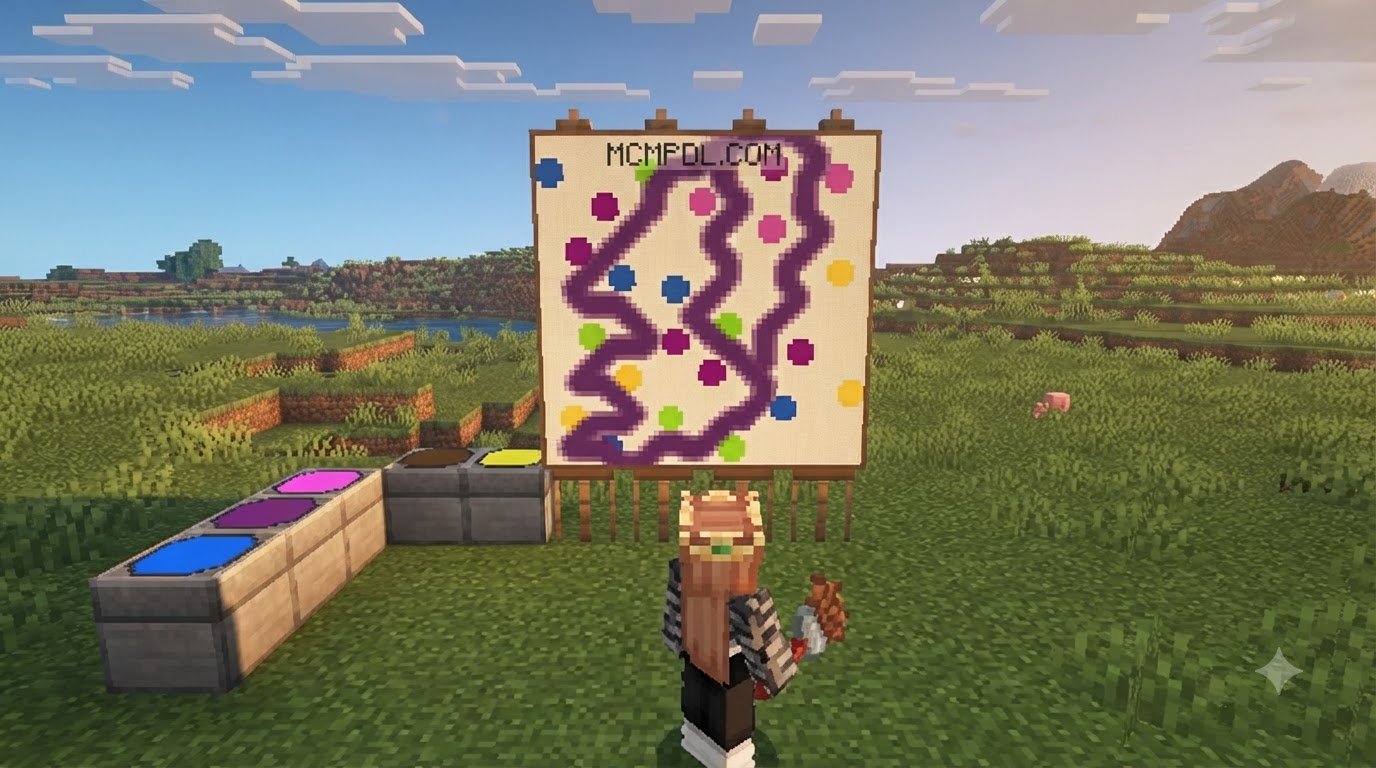
- Hex Color Picker & Palettes: Advanced add-ons allow you to pick from over 16 million colors using intuitive color pickers or specific hex code inputs, giving you far more flexibility than vanilla dye pots.
- Custom Villager Professions: Some add-ons introduce an “Artist” villager profession. Found in local settlements, these villagers trade blank canvases, rare pigment dyes, specialty brushes, and unique decorative frames.
- Shears Tool Mechanics: To keep your pixel art safe, custom add-ons allow you to use shears on a finished canvas to safely lock, name, and collect the painting item without scattering individual pixels everywhere.
In-Game Creation vs Texture Pack Customization
You have two primary routes for bringing custom artwork into your worlds: using an interactive in-game add-on or building a manual replacement resource pack.
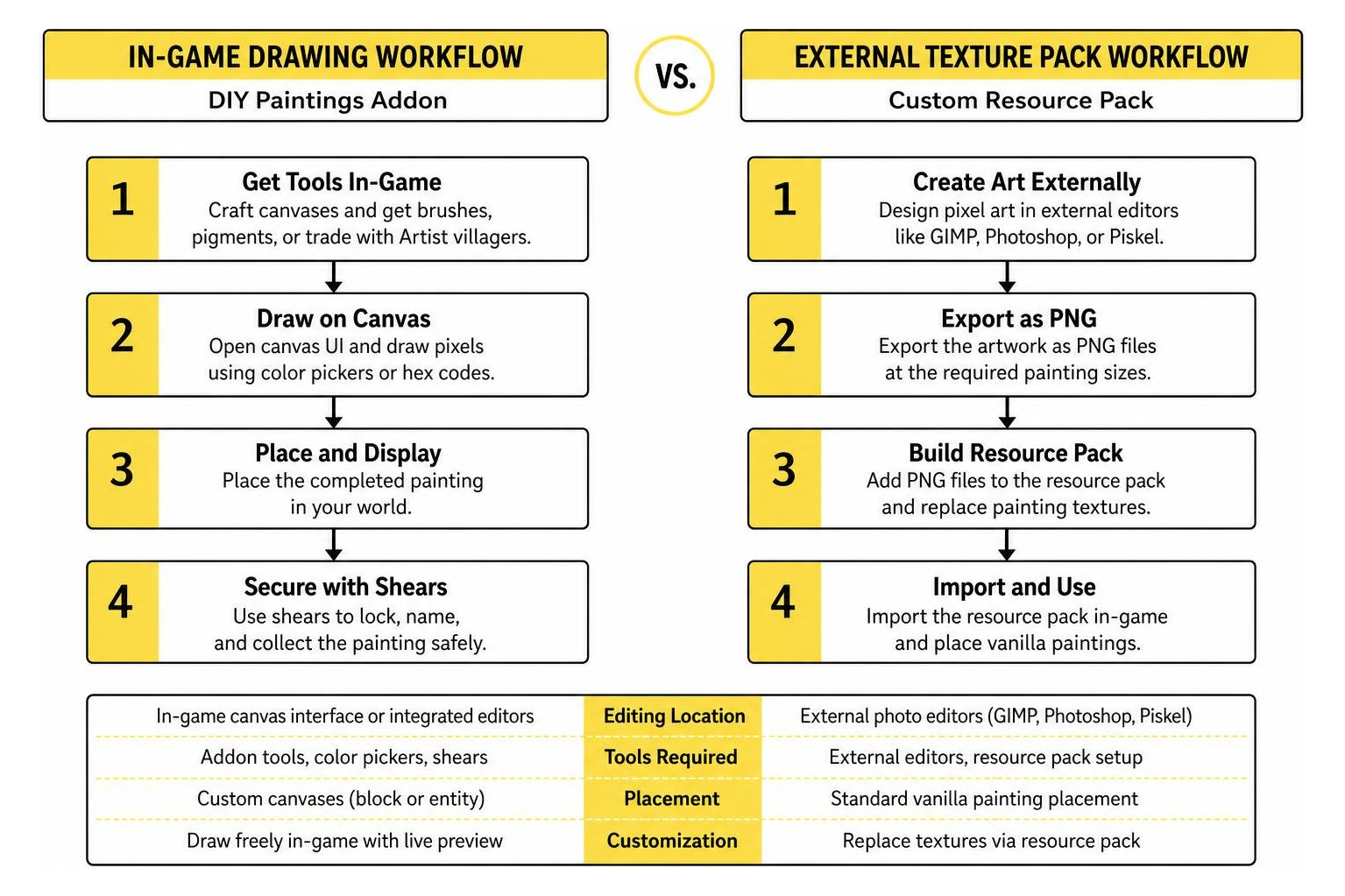
Here is a side-by-side comparison to help you decide which method fits your project:
| Feature | Interactive In-Game Addon (e.g., DIY Paintings) | Manual PNG Resource Pack |
|---|---|---|
| Editing Location | In-game canvas interface or integrated editors | External photo editors (GIMP, Photoshop, Piskel) |
| Vanilla Artwork | Preserves all default paintings while adding new ones | Overwrites existing default paintings |
| Color Support | Real-time palettes and 16M hex color selections | Unlimited photo imports and digital illustrations |
| Multiplayer Sync | Syncs automatically when players join host world | Players must download or share the pack folder |
| Achievements | Disables achievements (requires Behavior Pack) | Keeps Xbox Live achievements enabled |
If you opt for a manual resource pack, keep your source PNG files sized to powers of two (such as 16×16, 32×32, 64×64, 128×128, or 256×256). This ensures the game’s voxel rendering engine scales your art cleanly without blurry stretching.
Step-by-Step Installation and Setup Guide
Setting up your art tools takes only a few minutes. If you want a well-rounded creative or survival world, you can also pair your art packs with utilities like the Essentials Addon for Minecraft PE/Bedrock to manage world convenience features alongside your custom decorations.
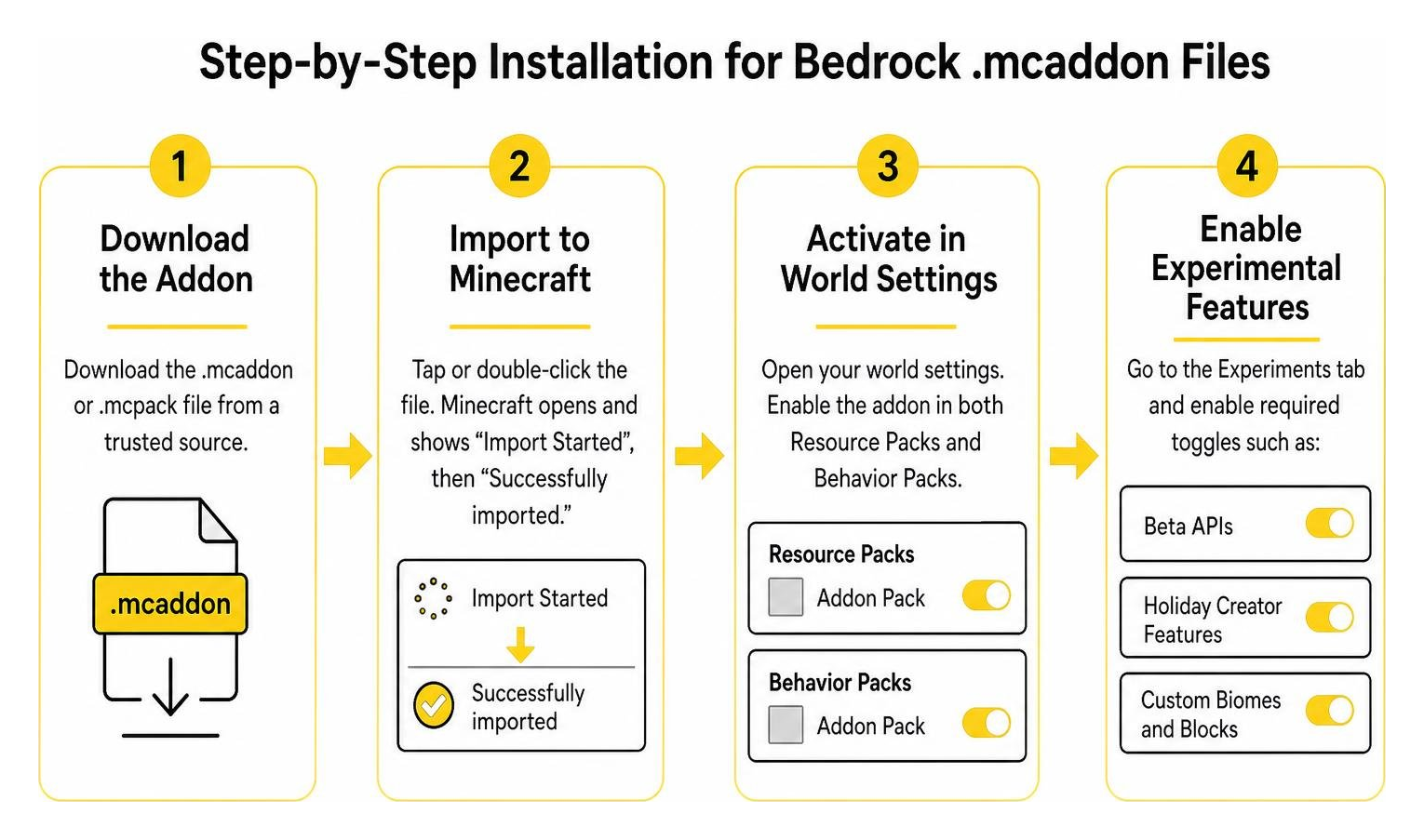
- Download the Addon: Grab your chosen
.mcaddonor.mcpackfile from a trusted repository. Community-driven options like the DIY Paintings Add-On available through MCMPDL provide excellent starting points. - Import to Minecraft: Tap or double-click the downloaded file. Minecraft will launch automatically and display an “Import Started” banner at the top of the screen, followed by “Successfully imported.”
- Activate in World Settings: Navigate to your world settings screen. Open Resource Packs and activate the pack, then open Behavior Packs and ensure the corresponding behavior pack is activated.
- Enable Experimental Features: Scroll down to the Experiments tab in your world settings. Enable toggles such as Beta APIs, Holiday Creator Features, and Custom Biomes/Blocks (depending on your specific Bedrock version requirement).
How to Install on Mobile, Console, and Windows 10/11
Because Bedrock runs across diverse hardware, importing files varies slightly across operating systems:
- Android: Download the file via your browser. Open your device file manager, tap the
.mcaddonfile, and select “Open with Minecraft.” - iOS (iPhone & iPad): Tap the downloaded file in Safari, tap the Share icon, and select Minecraft from your app list.
- Windows 10/11: Simply double-click the file in your Downloads folder; the Bedrock client handles registration directly.
- Consoles (Xbox, PlayStation, Nintendo Switch): Consoles do not offer open file systems for direct
.mcaddonimports. To get custom art onto a console, import the add-on on PC or mobile, apply it to a Minecraft Realm, and join that Realm from your console to download the cached assets seamlessly.
Configuring Multiplayer and Realms Server Permissions
When playing on local multiplayer worlds, dedicated Bedrock servers, or Realms, custom add-ons must be visible to everyone:
- Open your World or Realm settings and go to Resource Packs.
- Select your activated painting pack.
- Check the box labeled “Require players to accept resource packs to join.”
- When your friends connect, their client automatically downloads the cached textures directly from the host.
This ensures your friends see your masterpieces rather than missing pink-and-black checkerboard textures.
Designing Custom Artwork: In-Game Tools and Manual Methods
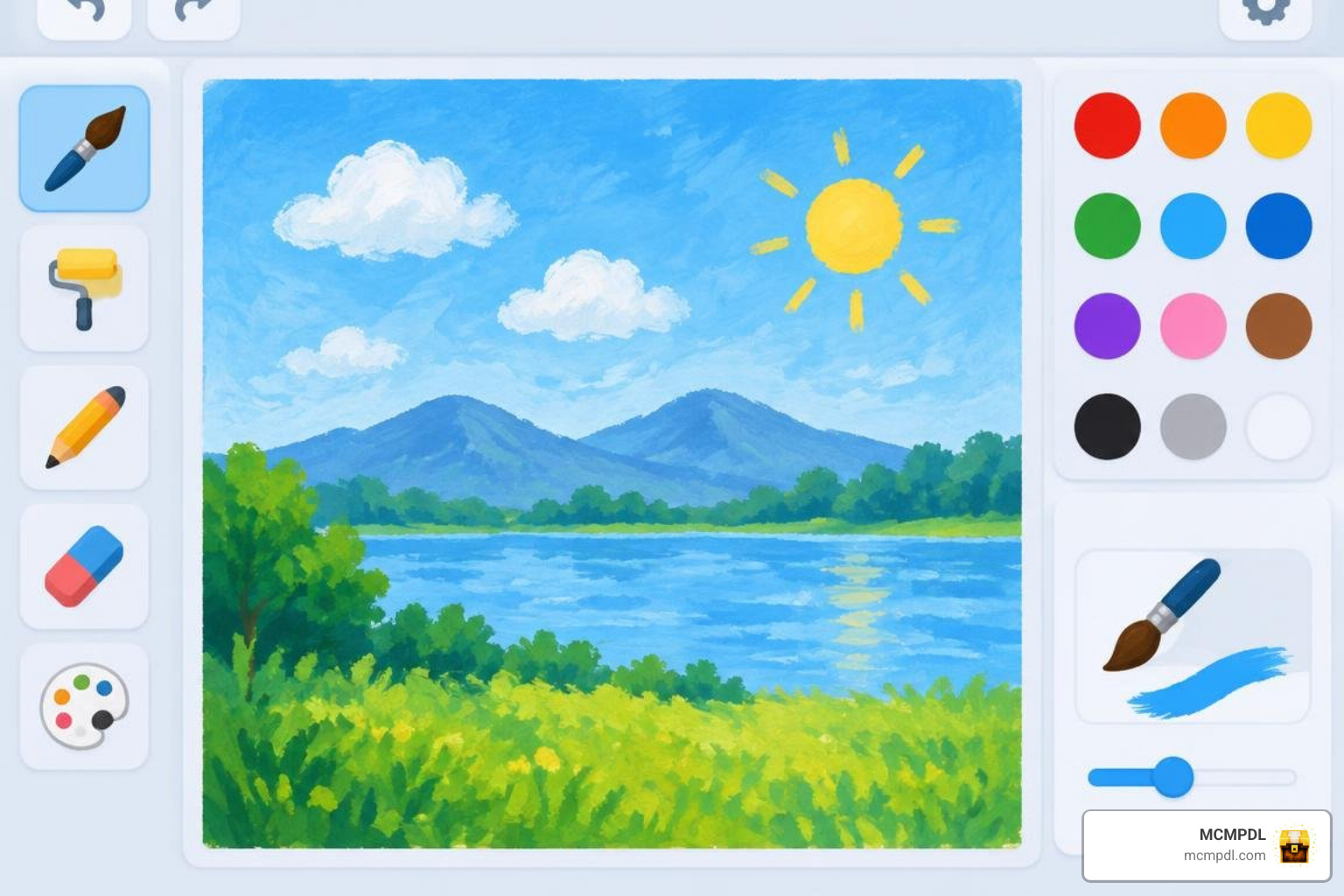
Once your add-on is active, designing artwork is intuitive. Many modern creation packs, such as the Custom Paintings suite available through MCMPDL, incorporate convenient UI overlays or integration with lightweight pixel editors like Piskel.
When painting directly in-game, you generally have two main drawing modes:
- Standard Mode: Allows you to draw and preview your pixel strokes without locking them in. You must click a “Confirm” or “Finish” button on the canvas to save your changes to world memory.
- Free Painting Mode: Automatically writes every pixel stroke straight to the canvas in real time—ideal for fast sketching or collaborating with friends.
If you are playing on mobile, toggle on the Canvas Aim Marker in the add-on settings to give yourself an accurate crosshair for pinpoint touch controls.
Creating Art with the DIY Paintings Addon for Minecraft PE/Bedrock
To create a piece from scratch in survival or creative:
- Craft Your Canvas: Combine wood sticks with paper or wool at a crafting table to produce a blank canvas item (1×1, 1×2, 2×1, or 2×2).
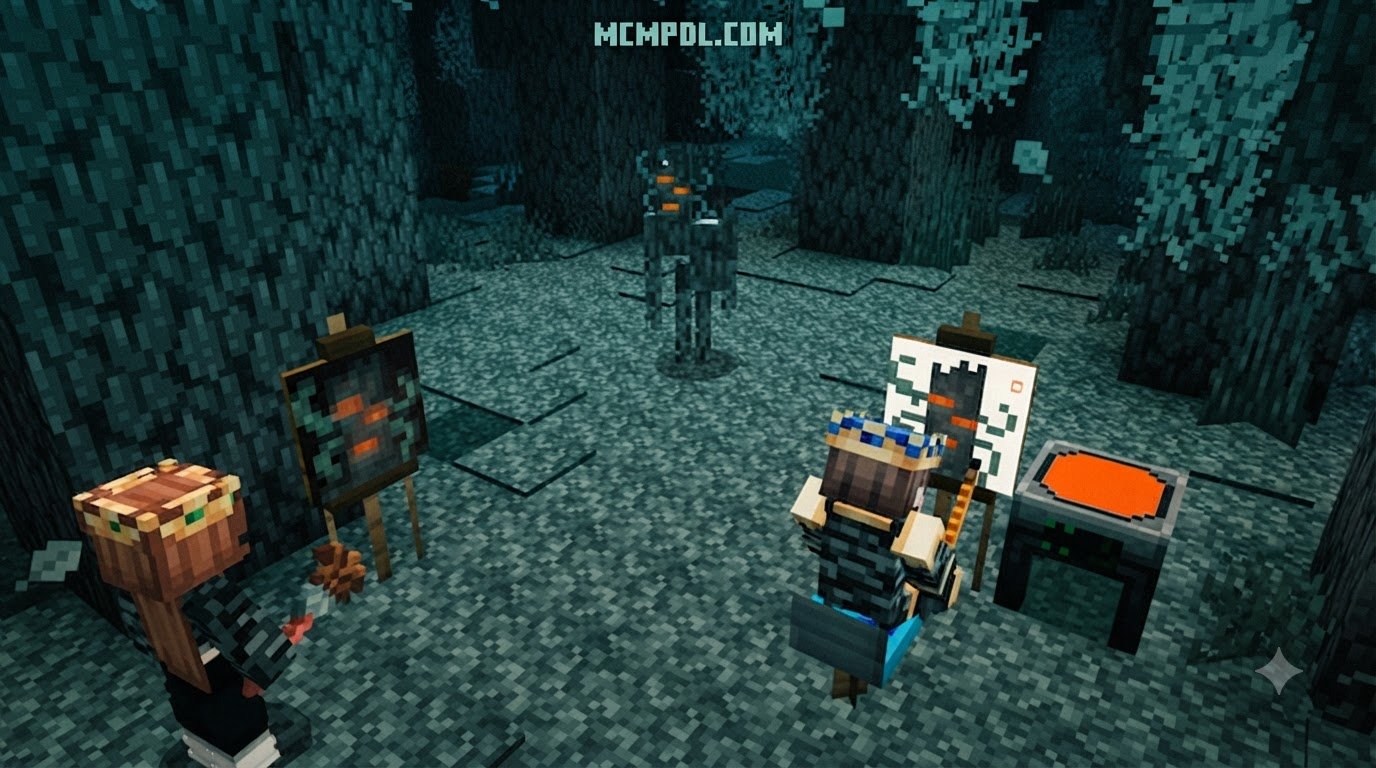
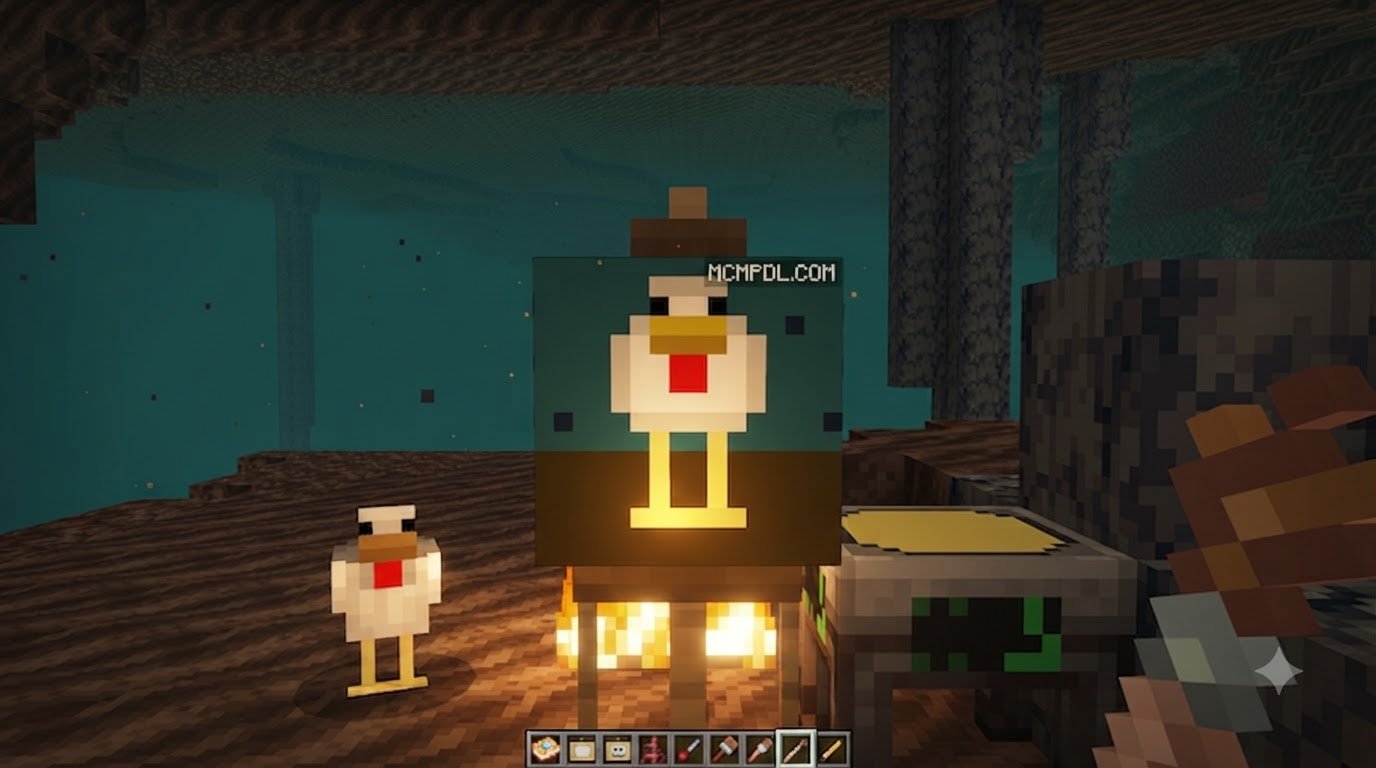
- Place and Interact: Place the canvas on any flat wall surface. Right-click or tap “Interact” to open the easel drawing screen.
- Select Your Palette: Choose colors from your quick palette, or input RGB/Hex values for custom tones. Use the brush tool to place pixels and the eraser tool to clean up edges.
- Preserve Your Work: Use a pair of shears to click the finished painting. This saves your artwork as a named item in your inventory, ready to be moved or framed elsewhere without resetting your progress.
Interior Decorating and Complementary Add-ons
A great painting deserves a well-decorated room. You can build comprehensive home displays by blending your canvases with other decorative packs. Consider pairing custom art with the Furniture Addon for Minecraft PE/Bedrock or the Block Furniture Addon for Minecraft PE/Bedrock to construct display tables, display spotlights, and lounge seating.
If you are constructing large museum wings or grand hallways, incorporating new architectural textures from the More Blocks Addon for Minecraft PE/Bedrock or thematic styles from the Fantasy Blocks Addon for Minecraft PE/Bedrock creates an authentic gallery atmosphere. You can also hide secret doorways behind 2×2 canvases over open doorways—a classic Minecraft trick that works wonderfully with custom wall art.
Troubleshooting and Best Practices for Bedrock Art Addons

If you encounter unexpected visual glitches while working with custom paintings, keep these best practices in mind:
- Mind Aspect Ratios: Bedrock paintings adhere to strict aspect ratios (1:1, 1:2, 2:1, 4:2, 4:3, 4:4). If you import an image that does not match these proportions, the game will crop off the excess edges.
- Memory Management on Mobile: High-resolution texture replacement packs (e.g., 256×256 or 512×512) consume substantial RAM. If you experience stutters or crashes on phones or tablets, stick to 16×16, 32×32, or 64×64 textures.
- Always Create World Backups: Because behavior packs require experimental gameplay features, make a duplicate copy of your survival world before applying any third-party add-on.
- Achievement Notice: Activating behavior packs disables Xbox Live Achievements in that world. If achievements are important to you, use a pure Resource Pack method instead.
Troubleshooting Checklist
- Missing Textures (Pink/Black Squares): Ensure both the Resource Pack and Behavior Pack match identical versions and are placed at the top of your active pack priority list.
- Canvas Not Opening: Check that all required Experimental Gameplay toggles are switched ON in world settings.
- Realms Friends Cannot See Art: Verify that “Require players to accept resource packs to join” is checked in your Realm configuration.
Frequently Asked Questions About Custom Bedrock Paintings
Can you use custom paintings in Minecraft Bedrock survival mode without cheats?
Yes! Most DIY painting add-ons feature balanced crafting recipes using common survival materials like sticks, wool, paper, and dyes. However, because functional add-ons require Behavior Packs, activating them will turn off Xbox Live achievements for that world file.
Why are my custom painting images getting cropped or distorted?
Images get cropped when their pixel dimensions do not match vanilla Minecraft canvas aspect ratios (such as 16×16 for squares or 32×16 for wide rectangles). To avoid distortion, resize and crop your images in an external image editor before importing them into your pack.
Do custom paintings sync automatically with other players on Bedrock Realms?
Yes. As long as the Realm host has activated the packs in Realm Settings and enabled the “Require players to accept resource packs to join” option, connected players will automatically download and render the custom art assets when loading into the server.
Conclusion
Custom paintings bring an unmatched level of creativity, charm, and storytelling to Minecraft PE and Bedrock Edition. Whether you are illustrating fine pixel art straight from your touch screen or importing detailed digital posters using custom resource packs, you no longer have to settle for the standard canvas rotations.
Ready to transform your world into an exhibition hall? Browse our extensive curated library of Minecraft PE/Bedrock add-ons on MCMPDL to discover the latest verified painting tools, furniture packs, and building utilities for your next creative adventure.