Scroll down to D0vvnl0ad
Install Minimap 1.1 in Minecraft PE/Bedrock
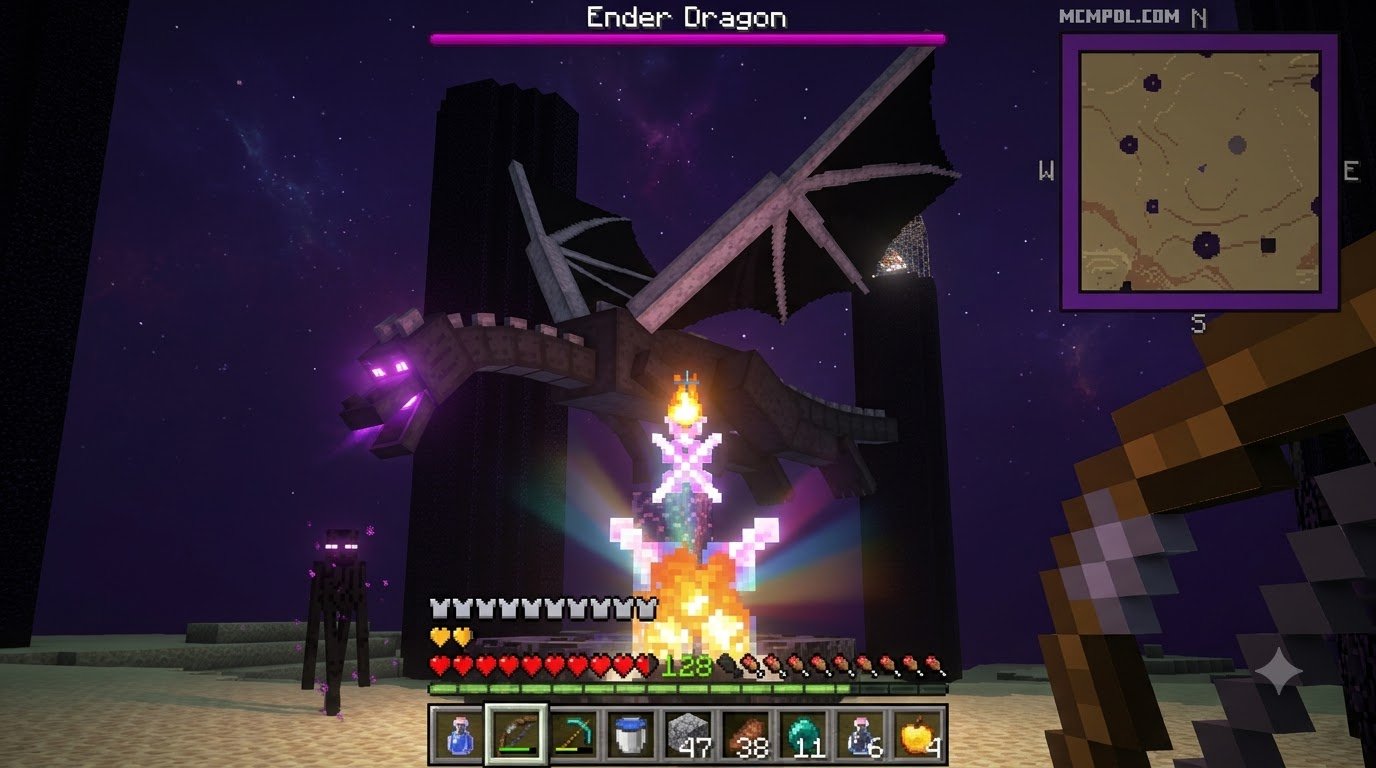
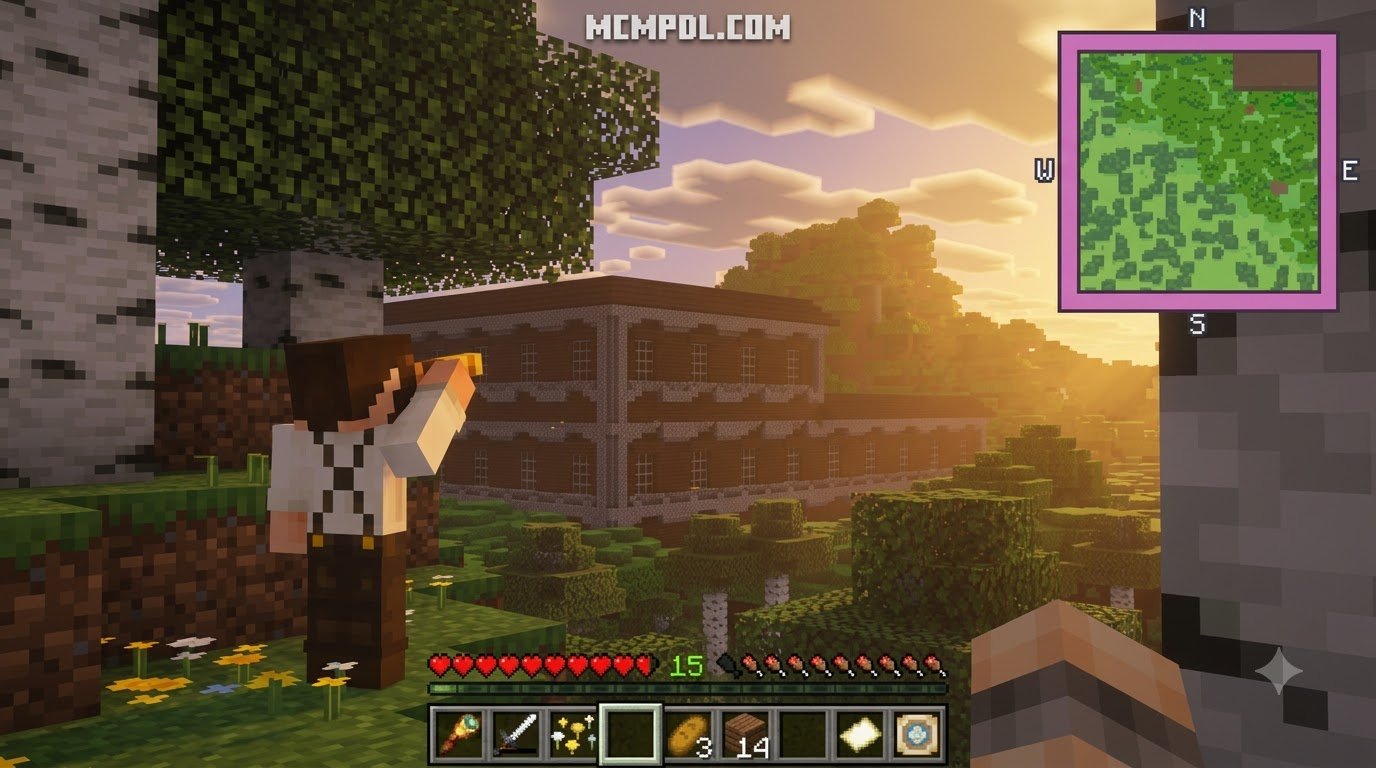
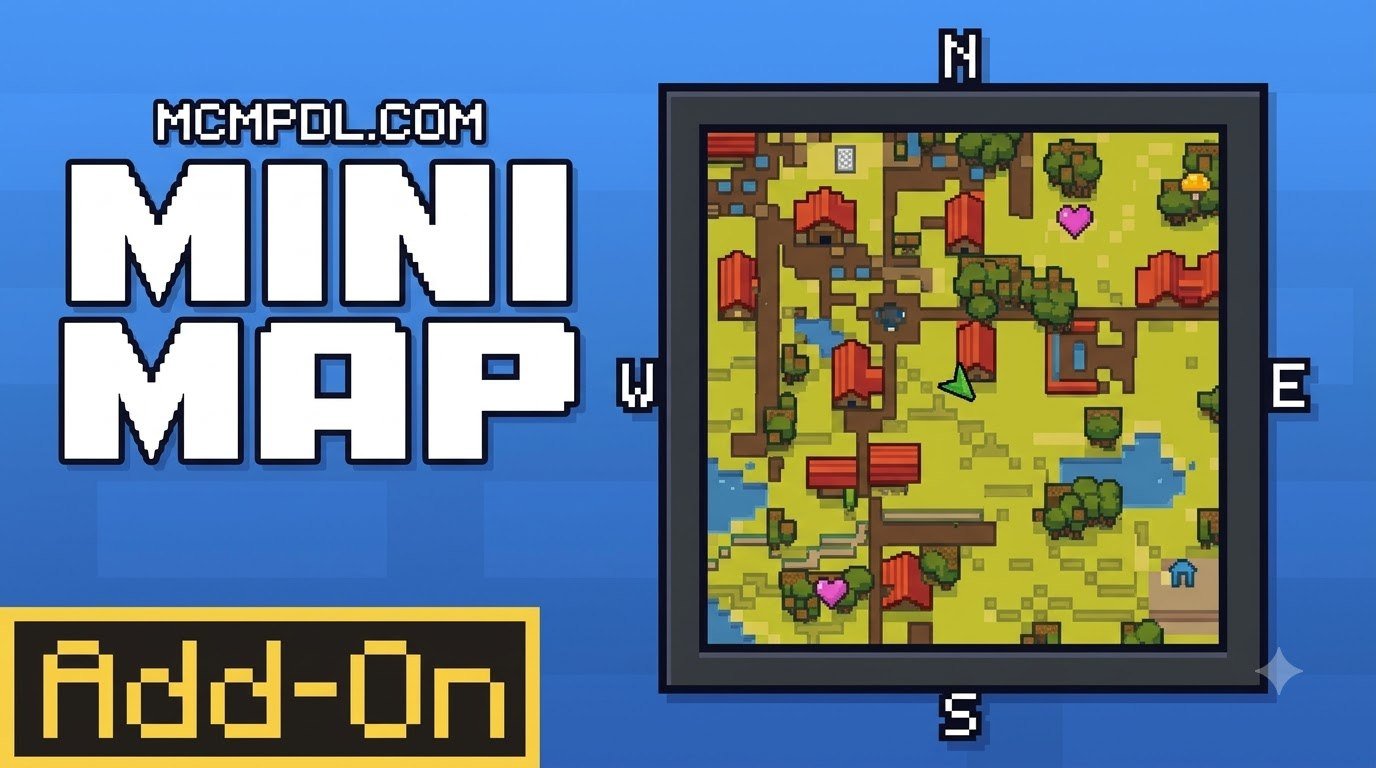
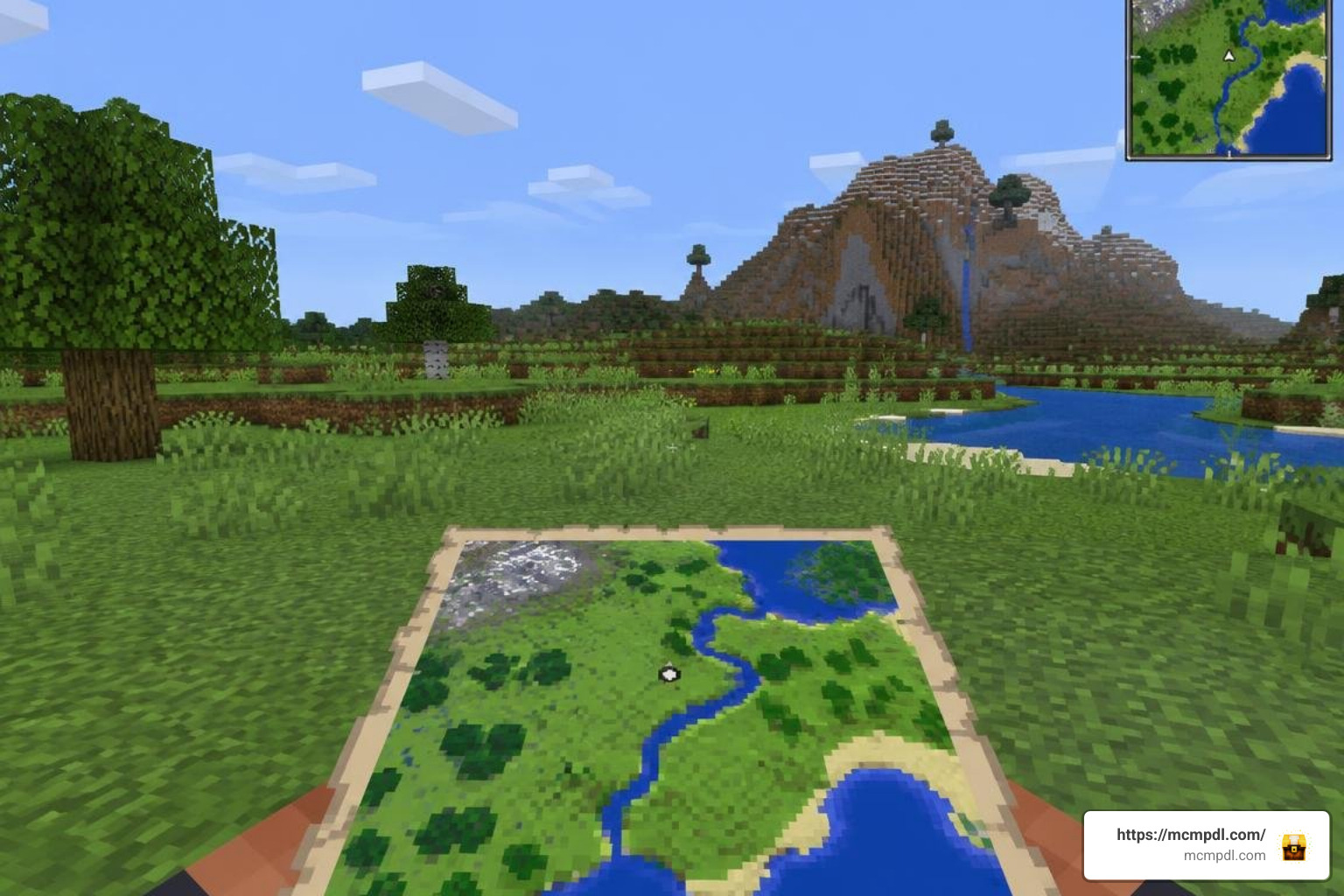
Download the Minimap 1.1 .mcaddon file, open it with Minecraft, then activate the imported pack in your world’s settings. If the addon requires Beta APIs, turn them on under Experiments before opening the world. On Windows, press F8 to show or hide the map.
The minimap puts nearby terrain on your screen as you explore, so you can check your direction without stopping to open a map.
What is the Minimap 1.1 Addon for Minecraft PE/Bedrock ?
The Minimap 1.1 Addon for Minecraft PE/Bedrock provides a live overhead radar right on your heads-up display (HUD). In standard Bedrock Edition, keeping track of your position usually forces you to hold a filled map in your off-hand or memorize sprawling XYZ coordinates. This lightweight mod renders local topography on the fly, showing land boundaries, elevation shifts, and nearby surface hazards without cluttering your inventory.
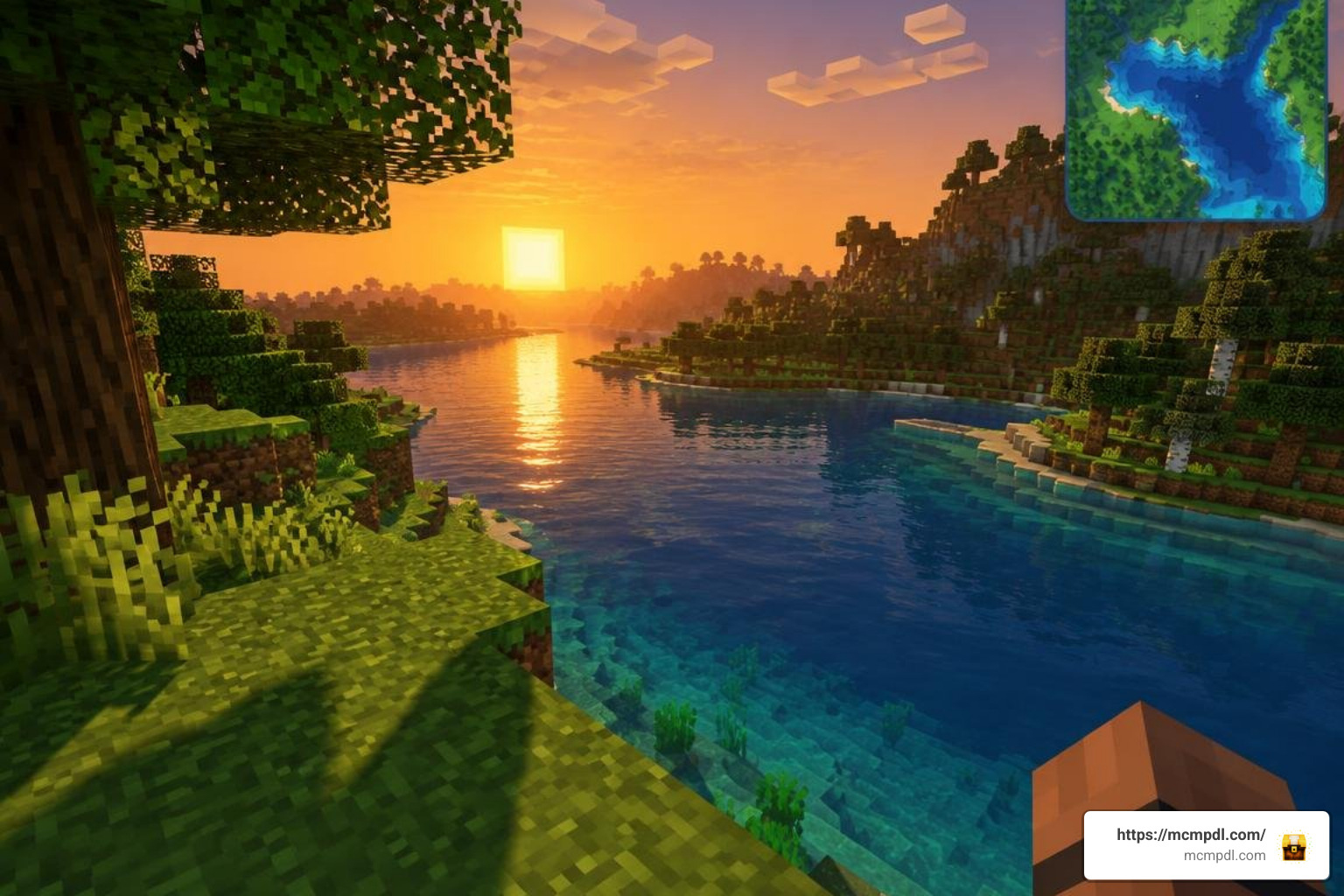
Under the hood, modern Bedrock mapping tools utilize the stable Script API to track chunk data within an active 31×31 block radius around the player. Unlike traditional texture overlays that present static snapshots, version 1.1 processes real-time lighting changes, dynamic shadows, and water depth rendering. Addon distribution formats package behavior and resource data into a compact .mcaddon file (often under 30 KB to 200 KB compressed), making the tool effortless to download and deploy across mobile devices, PCs, and consoles.
Key Features of Minimap 1.1 Addon for Minecraft PE/Bedrock Across Dimensions
Exploring your home base is simple enough, but cross-dimensional expeditions demand greater spatial awareness. Navigating different biomes becomes considerably safer with full dimension support enabled through a dedicated Minimap Addon for Minecraft PE/Bedrock:
- Overworld Navigation: Tracks biomes, caves, oceans, and custom structures with distinct color palettes. Elevation rendering allows you to spot steep ravines, cliff edges, and sudden drops before stepping into danger.
- Nether Verticality: Traditional in-game maps fail in the Nether because the bedrock ceiling blocks overhead cartography. The 1.1 mapping engine handles vertical slicing, helping you spot lava lakes, solid basalt bridges, and hidden fortress corridors without getting lost in the Nether wastes.
- The End Void Mapping: Navigating outer End islands is notoriously risky. The radar cleanly contrasts solid end stone against the bottomless void, preventing accidental falls while searching for Elytra in End Cities.
- Entity & Mob Radar: Dynamic markers identify passive livestock, hostile monsters, and friendly players within your immediate area, giving you an early warning when creepers linger behind walls.
Performance and Optimization in Minimap 1.1 Addon for Minecraft PE/Bedrock
One common concern among Bedrock players on mobile phones or budget consoles is system slowdown. Minimap 1.1 uses an advanced data caching mechanism that reduces saved map chunk files by 30% to 90%. Instead of re-rendering every block on every single game tick, the script caches unchanged terrain and only refreshes pixels when block updates or entity movements occur.
If you are running the game on low-end hardware, choosing a streamlined Real Minimap Addon for Minecraft PE/Bedrock ensures stable 60 FPS gameplay. Memory usage remains modest (typically adding just a few megabytes of active RAM), avoiding the sudden stuttering or overheating issues common with older, unoptimized scripts.
Comparing Minimap Features and Navigation Utilities
To choose the right configuration for your playstyle, it helps to understand what different Bedrock navigation tools offer out of the box:
| Feature / Metric | Minimap 1.1 Addon | Magnificent Minimap Framework | Traditional Bedrock In-Game Map |
|---|---|---|---|
| HUD Position | Corner radar overlay | Corner radar overlay (customizable) | Held item (main hand/off-hand) |
| Active Radius | 31×31 block live area | Configurable scan radius | Static chunk snapshot |
| Nether & End Support | Yes (Vertical slicing) | Yes (Custom dimensions included) | No (Blocked by roof ceiling / blank) |
| Average File Size | ~28 KB – 160 KB | ~100 KB – 700 KB | 0 KB (Native game item) |
| Hotkeys & UI Toggles | F8 (PC) / On-Screen X (Mobile) | Sneak + F8 / /configuration | Inventory hotbar selection |
| Waypoints System | Native coordinate display | Marker integration supported | Banner markers only |
For large survival builds and expansive multiplayer worlds, pairing your visual HUD with a Waypoints Addon for Minecraft PE/Bedrock allows you to drop named beacons across the map and locate home portals instantly.
Pairing with Other Bedrock Utility Addons
Minimap 1.1 operates smoothly alongside broader survival enhancement packs. When building large structures or exploring cooperative realms, you can integrate your radar with a comprehensive Utility Tools Add-on for Minecraft Bedrock to inspect block statistics, view tool durability, and manage player inventories from a single control screen.
Similarly, if you manage extensive farming setups or custom survival challenges, running a World Utilities Addon for Minecraft PE/Bedrock alongside your minimap helps keep track of ambient chunk loading, mob caps, and environmental timers while you travel across biomes.
Step-by-Step Installation Guide for Mobile, Windows, and Consoles
Installing Bedrock addons is straightforward once you know where to place files and which experimental switches to flip.
Installing on Android and iOS (Minecraft PE)
- Download the File: Download the
.mcaddonor.mcpackfile through your mobile browser. - Open with Minecraft:
- On Android, tap the downloaded file using a file manager app and select Minecraft as the default opening app.
- On iOS / iPadOS, tap the downloaded file in the Files app, tap Share, and choose Minecraft.
- Confirm Import: Launch the game and wait for the “Import Started” and “Import Successful” notifications at the top of your screen.
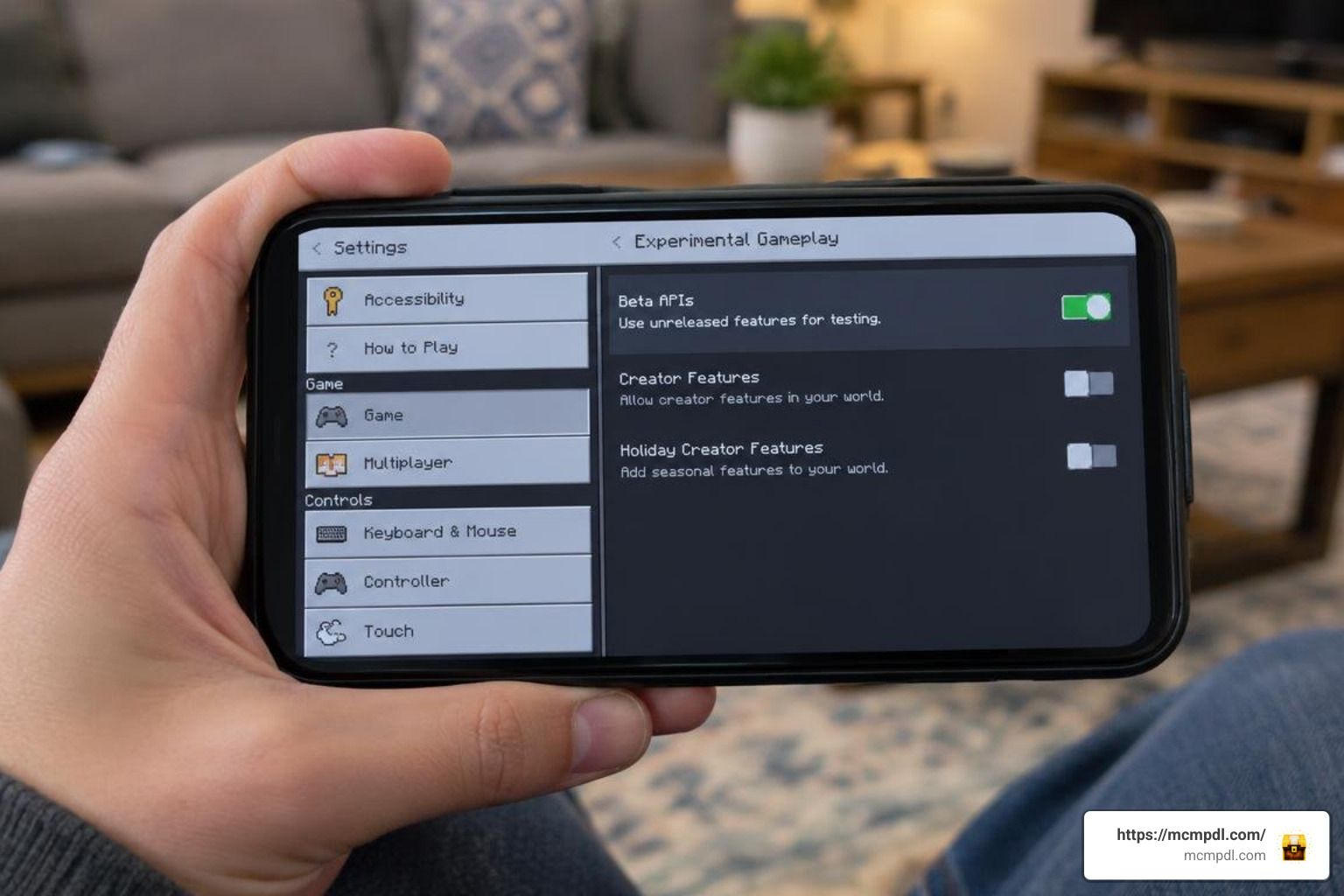
- Enable World Experiments:
- Open your world settings (click the pencil icon next to your world).
- Scroll down to the Experiments tab in the left sidebar.
- Toggle Beta APIs to the ON position (create a backup world if prompted).
- Activate the Packs:
- Under Resource Packs, locate Minimap 1.1 and click Activate.
- Under Behavior Packs, activate the corresponding behavior pack.
- Launch and Test: Enter your world; the minimap will appear in the corner of your HUD.
Installing on Windows 10/11 and Dedicated Servers
For PC players and server administrators, setup involves either direct file execution or folder staging:
- Single-Player (Windows 10/11): Double-click the downloaded
.mcaddonfile. Minecraft Bedrock will launch automatically and import the resource and behavior files. Add them to your world under Resource Packs and Behavior Packs, ensure Beta APIs is turned on, and load in. - Dedicated Bedrock Servers & Realms: Unzip the addon files. Place the behavior files into your server’s
behavior_packsfolder and resource files intoresource_packs. Update yourworld_behavior_packs.jsonandworld_resource_packs.jsonconfiguration files with the correct pack UUIDs and version headers.
If you enjoy managing technical survival worlds on PC, combining your navigation HUD with a modular Cube Utilities Addon Minecraft PE/Bedrock will give you complete control over system metrics and clean block editing tools.
In-Game Controls, Configuration, and Troubleshooting
Once installed, managing your radar view takes only a few keystrokes or screen taps:
- PC Controls: Press F8 to toggle the minimap visibility on or off instantly. If your pack uses advanced scripting menus, hold Sneak + F8 or type
/configurationin chat to modify radar scale, frame shapes, or entity dot displays. - Mobile Controls: Tap the custom X button located near your HUD controls while sneaking to cycle visibility modes.
- Fixing Graphical Line Artifacts: If you notice faint grid lines or misaligned pixel borders on your minimap overlay, open your in-game Settings > Video menu and adjust your GUI Scale slider to
-1(or change your resolution scaling). This recalibrates pixel snapping and creates a clean, seamless radar frame.
Frequently Asked Questions About Minimap Addons
How do I toggle the minimap display on mobile and PC?
On Windows PC, press the F8 key to hide or display the radar. On mobile touchscreens, hold the Sneak button and tap the custom X UI element on your screen to toggle HUD visibility.
Does installing a minimap addon disable achievements in Minecraft Bedrock?
Yes. Because the addon uses custom behavior scripts and requires the Beta APIs experimental toggle, Mojang disables Xbox achievements for that specific world to maintain competitive survival parity. If earning achievements is your top priority, keep a dedicated vanilla world separate from your modded worlds.
How do I fix graphical line artifacts on the minimap screen?
Black borders or pixel grid lines are caused by GUI resolution scaling mismatches. Go to Settings > Video and set the GUI Scale Modifier to -1. This forces the UI renderer to snap textures to native display boundaries, eliminating seams.
Conclusion
Finding your way across expansive biomes, twisting cavern systems, and dangerous Nether fortresses does not have to result in lost gear or wasted hours. The Minimap 1.1 addon combines real-time terrain mapping, dynamic lighting, and lightweight optimization to keep your gameplay smooth across all platforms. Download the pack, activate Beta APIs in your world settings, and explore our full collection of survival tools on the MCMPDL Bedrock Addons Hub to elevate your Minecraft experience today!